
Template Library for Automations
You can quickly set up your automations in Enrollio with the new Template Library for Automations. This feature lets you launch automations using pre-built templates, saving time and ensuring best practices.
What is Template Library?
The Template Library for Automations is a feature that allows you to start building automations using professionally designed templates. Instead of creating automations from scratch, you can select a template that matches your needs, review its structure, and customize it as needed.
This helps you get started faster and ensures your automations are built on proven strategies for success.
Key Benefits of Using Templates
Using the Template Library for Automations provides several advantages:
- Faster Automation Creation: Launch new automations in minutes by leveraging ready-made templates.
- Proven Best Practices: Use templates designed by experts, reducing the risk of errors and inefficiencies.
- Continuous Updates: Access an ever-growing library as new and relevant templates are added regularly.
- Customization Flexibility: Edit and tailor templates to fit your unique childcare center processes.
- Reduced Learning Curve: Ideal for new users or teams looking to standardize automation creation.
- Time Savings: Eliminate repetitive setup tasks and focus on higher-value activities like engaging with families.
How To Set Up the Template Library for Automations
Follow these steps to access and start using the Template Library for Automations.
Step 1: Access the Template Library
Open the Template Library modal, where you'll find a curated collection of ready-to-use automation templates you can preview and customize for your needs.
- In the left sidebar, click Automation.
- Switch to the Automations tab.
- Click Create Automation.
- Choose Select from Template.
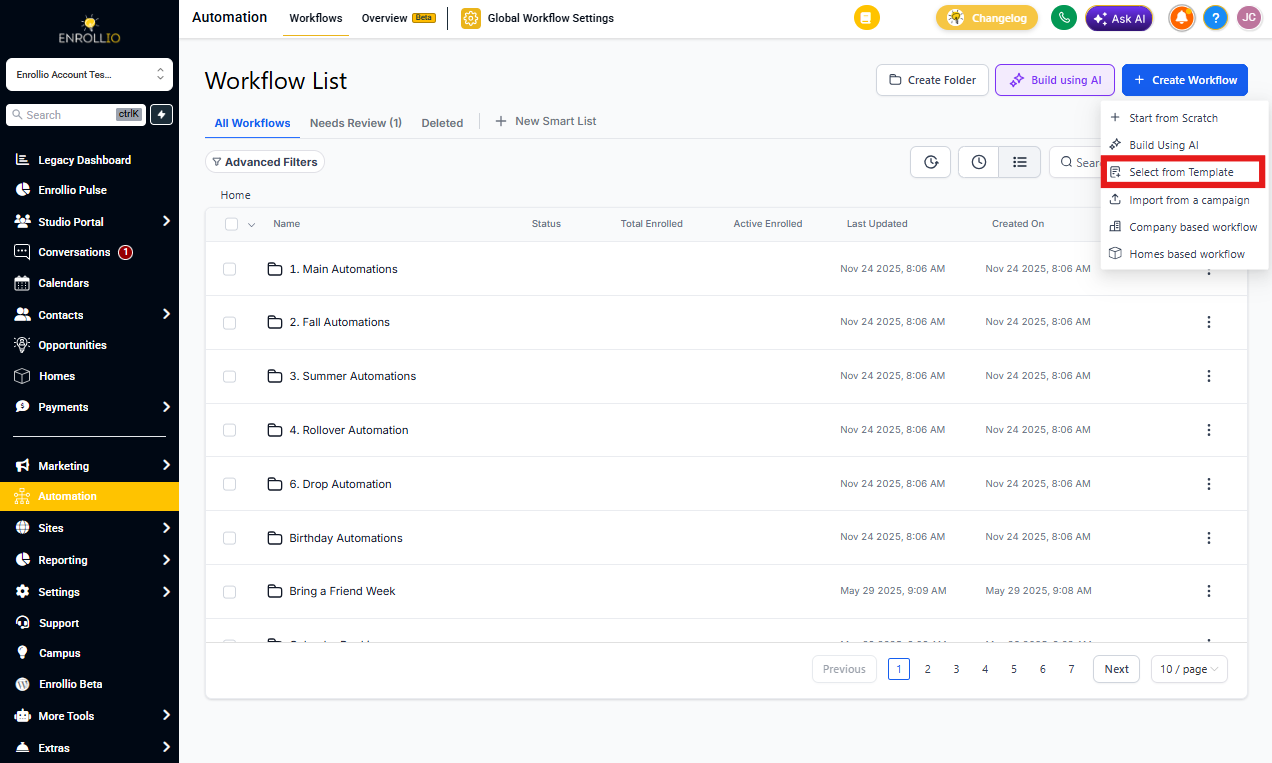
Step 2: Browse & Filter Templates
Quickly locate the right automation by browsing categories, applying filters, or searching keywords.
- Use the Filters panel to narrow by category (e.g., Tour Follow-Up, Parent Onboarding, Waitlist Management).
- Search by keyword or sort by popularity.
- Hover over any template card to see a quick description.
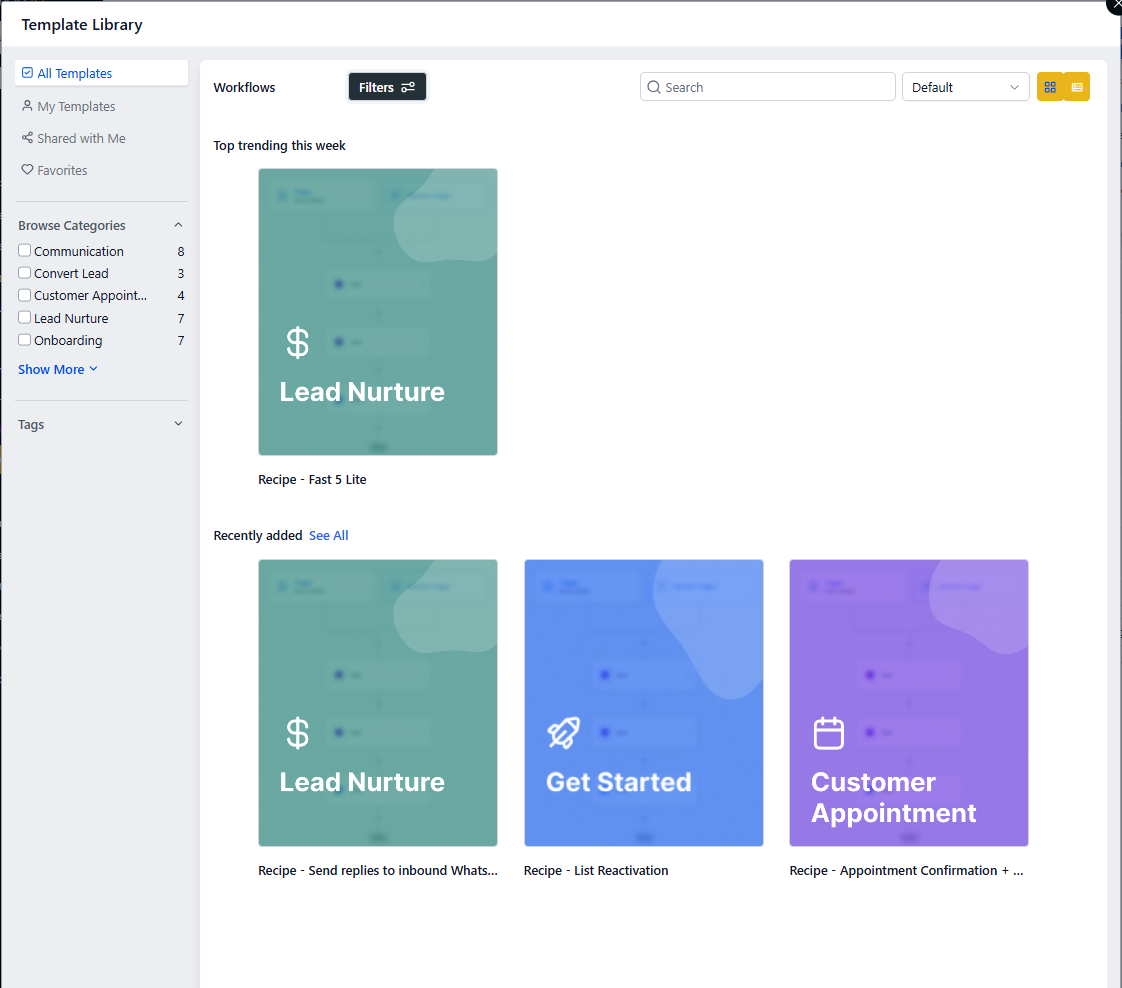
Step 3: Preview & Select a Template
Take a closer look at any automation's details before loading it—review its description, prerequisites, and full canvas to ensure it fits your needs.
- Click the eye icon or the template card to open its preview.
- Read the About this Template section and check any Prerequisites.
- Examine the complete triggers-and-actions canvas to understand the logic flow.
- When ready, click Continue to load it into the automation editor.
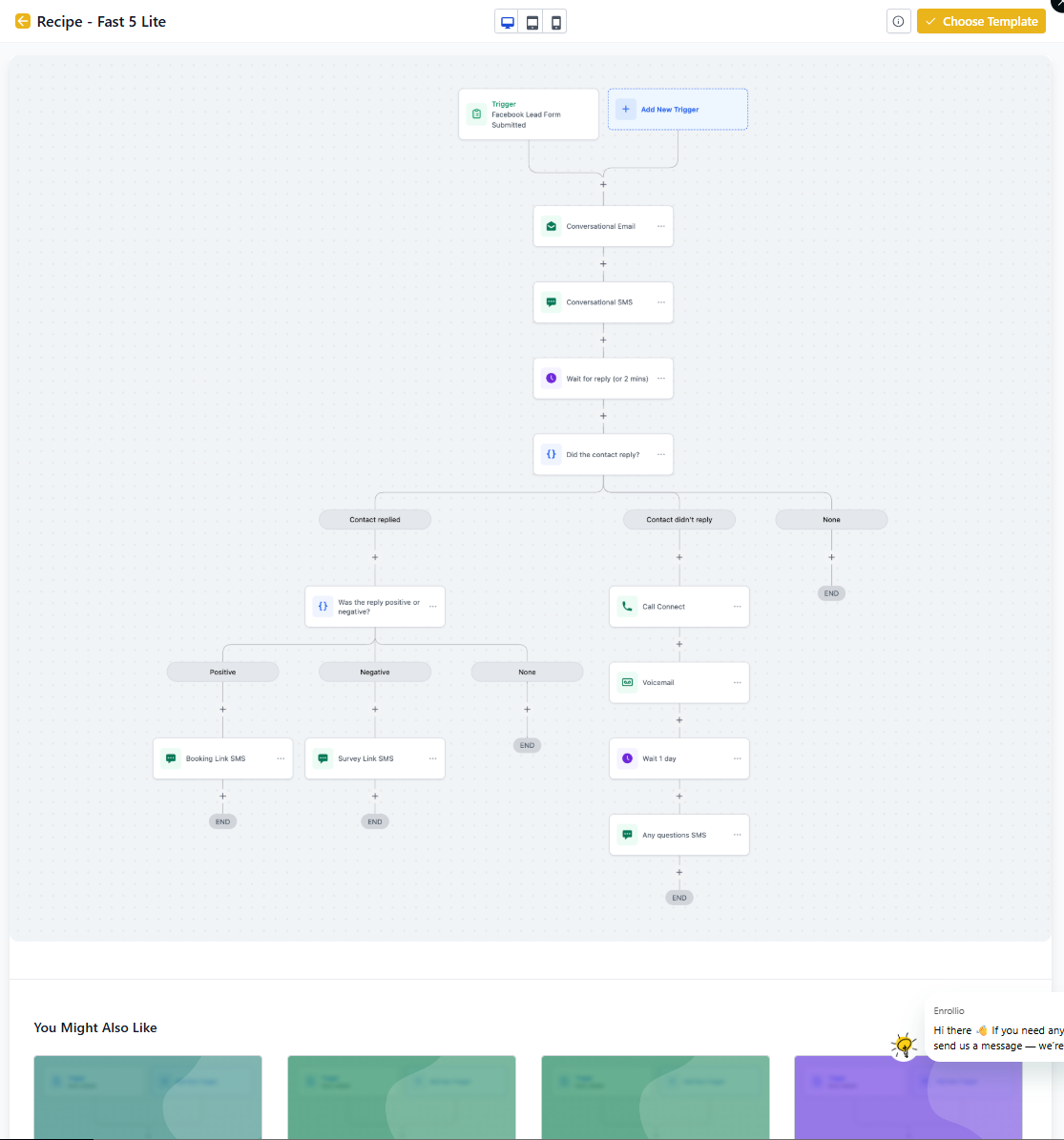
Advanced Tips & Best Practices
1. Managing & Updating Templates
Stay Current: Check the library regularly for new or improved templates.
Feedback Loop: Submit ideas or improvements through our support portal.
2. Customizing for Your Childcare Center
Tailor Logic: Add or remove steps, change messaging, and adjust timing to match your center's communication style and enrollment process.
Test Thoroughly: Run in "Draft" mode with a small subset of families before full activation.
3. Collaborating with Your Team
Share Templates: Bookmark favorites or share links so teammates can reuse standardized automations.
Training Tool: Use templates to onboard new staff on automation best practices.
Frequently Asked Questions
Q: Can I create my own templates?
As of now this feature is not available.
Q: Are the templates customizable after selection?
Yes, everything is editable once loaded into the automation editor. You can adjust messaging, timing, and conditions to match your childcare center's needs.
Q: Will new templates be added?
Absolutely. We continually expand the library based on user feedback and childcare industry best practices.
Q: Does enabling affect existing automations?
No, your current automations remain untouched. Templates are only used when creating new automations.
Q: Can I revert changes?
To start fresh, simply re-select the original template from the library.