
How to Add Email Templates to Your Template Library
Uploading your email templates to the Template Library keeps everything organized and ready to use. This guide shows you how to save your templates so you can quickly access them whenever you need to communicate with families.
Why Use the Template Library?
Quick Access: Find and use your templates instantly without digging through files.
Consistency: Maintain a professional, uniform look across all your communications with parents and families.
Efficiency: Update templates easily and save time on repetitive emails.
Team Collaboration: Share templates with your staff so everyone sends consistent messages.
Performance Tracking: Monitor email effectiveness with built-in analytics to see what resonates with families.
How to Add Templates to Your Library
Step 1: Go to Email Marketing in your Enrollio Dashboard.
Step 2: Find the email you want to save in the list view.
Step 3: Click the three dots next to the email and select "Add to Template Library."
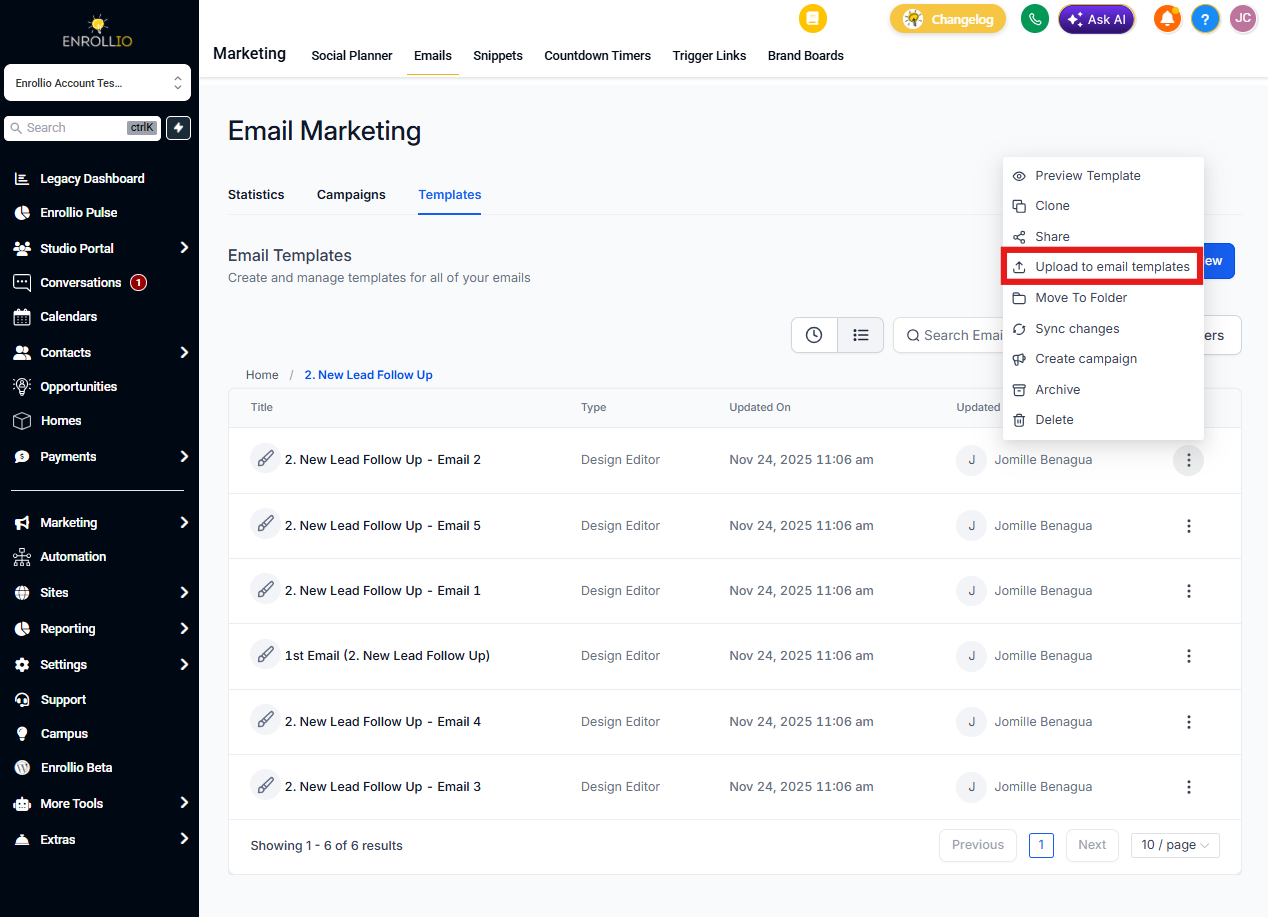
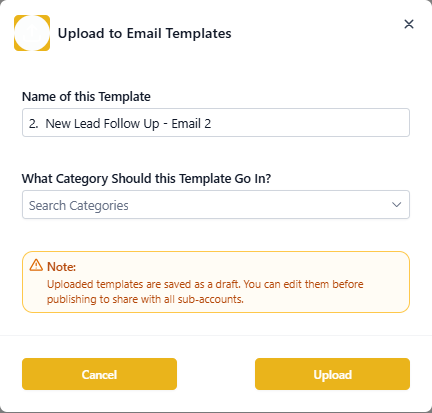
Step 4: Enter a template name and select a category (like "Welcome Emails" or "Tour Follow-ups").
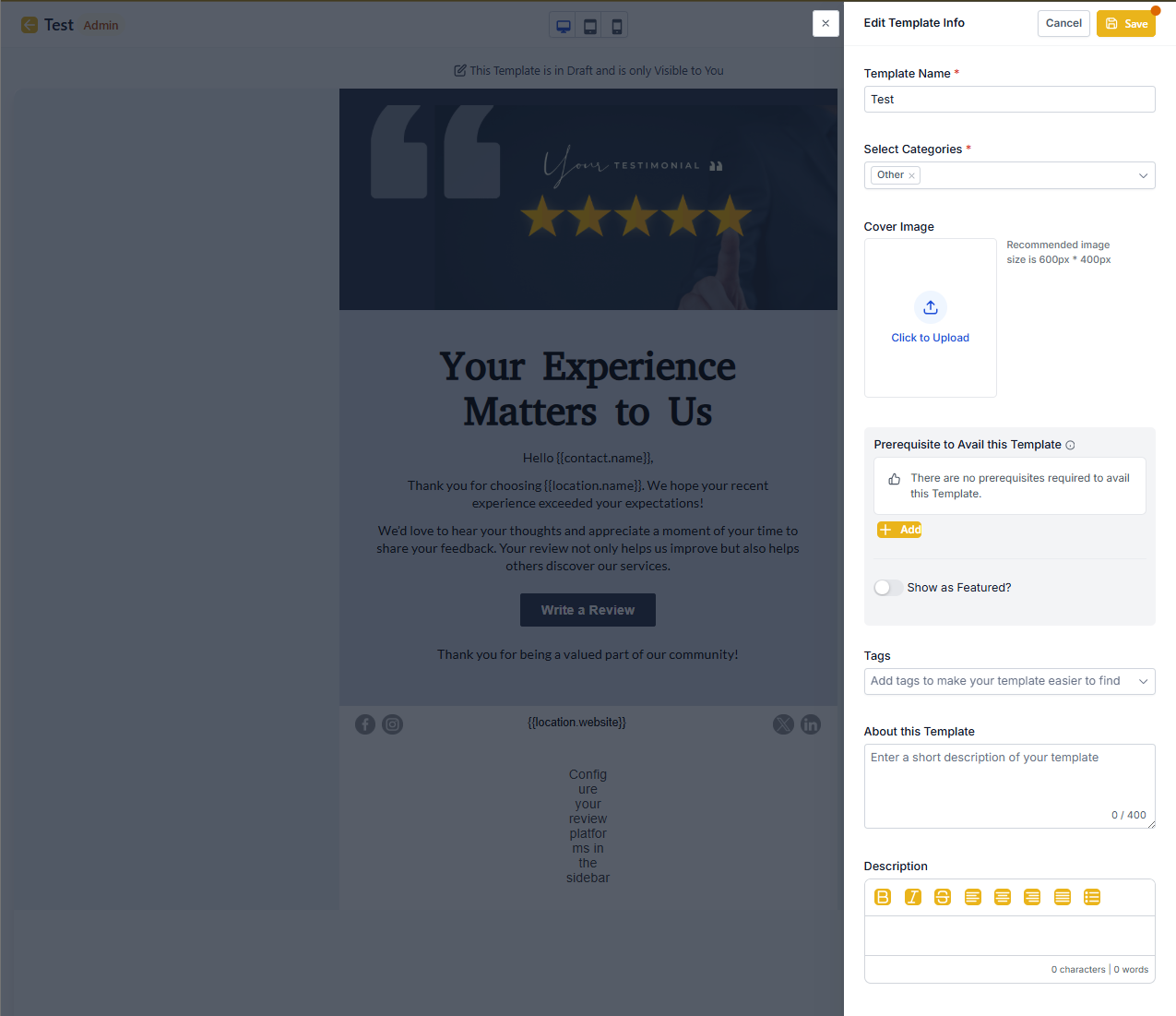
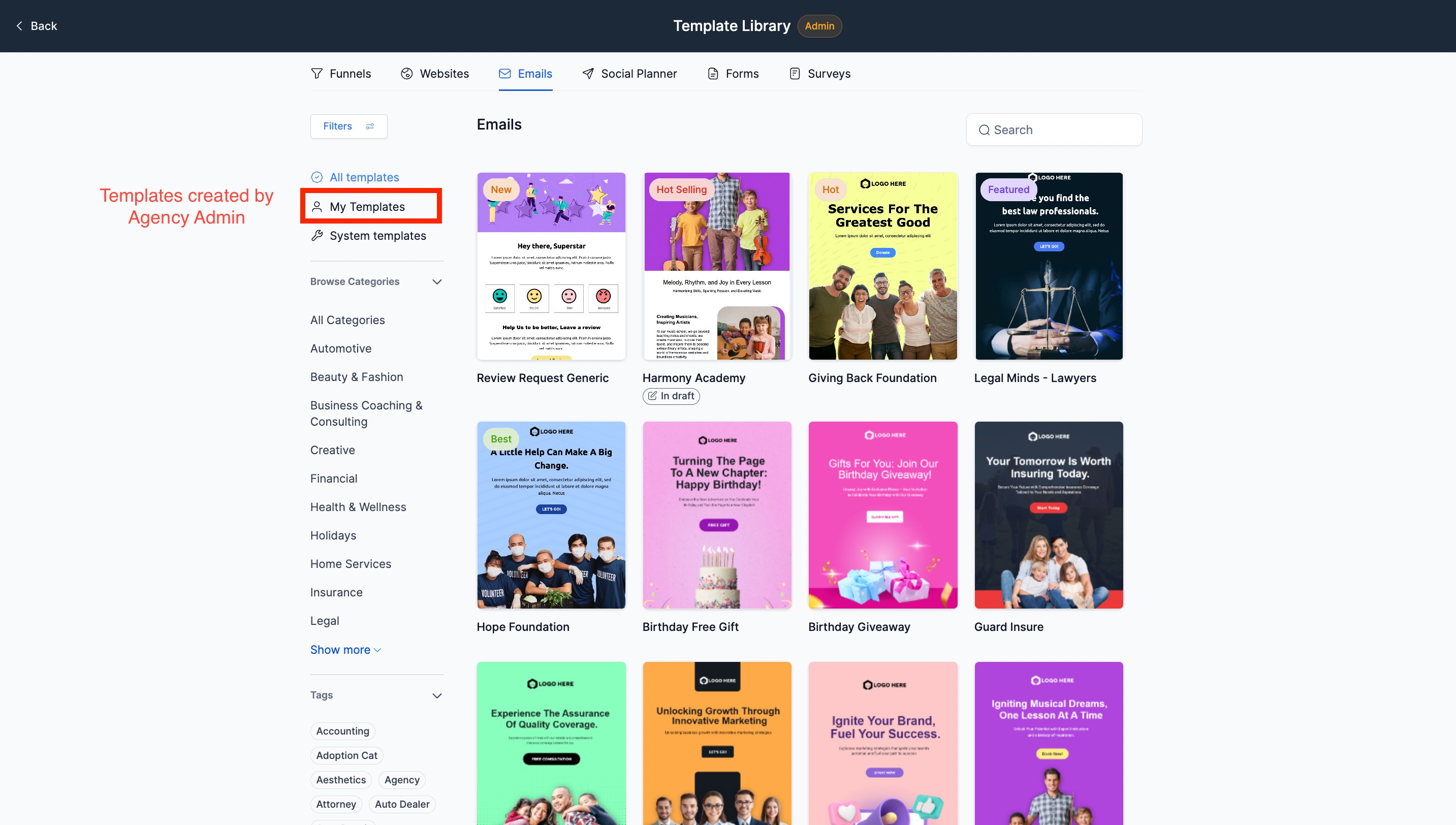
Step 5: You'll be redirected to Template Library Admin mode where you can:
- Add a cover photo to make the template easy to identify
- Add tags and edit the name or category
- Write a brief description about when to use this template
- Add any requirements (like "Use for welcome emails after tour bookings")
- Add featured tags to make your templates easier to find
Step 6: Choose your template status:
- Public: Makes the template visible in Client Accounts so other centers in your organization can use it
- Draft: Keeps the template in your admin panel only for future edits
What Client Accounts See
When you make a template public, Client Accounts can browse and use your approved templates. This ensures brand consistency across multiple locations.
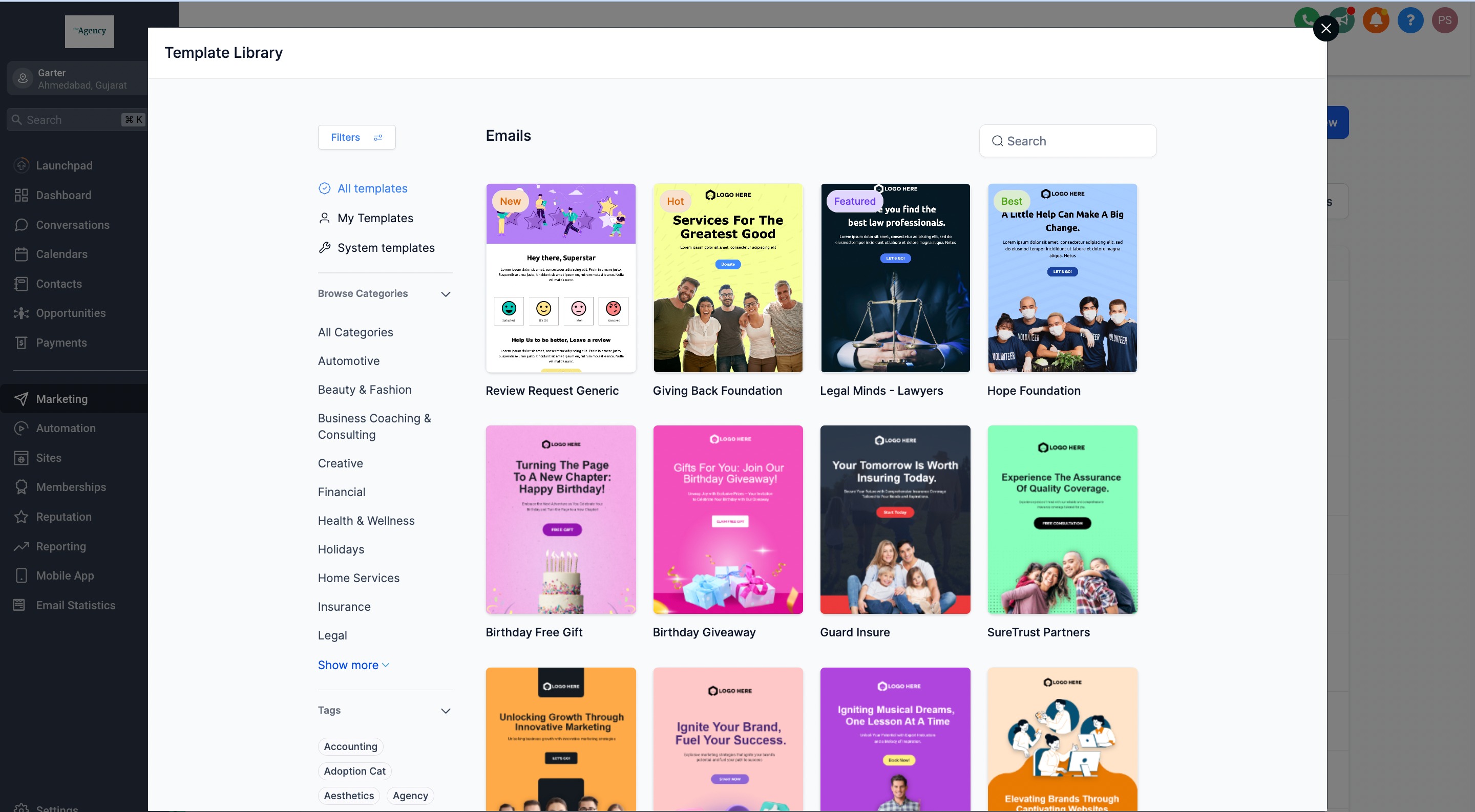
What the Enrollio Dashboard Shows
Your Enrollio Dashboard view includes all templates — both draft and public — so you can manage everything in one place.
Important Details
Who Can Add and Edit Templates?
Enrollio administrators can add templates from any Client Account and manage them centrally. This gives you complete control over your organization's communication standards.
Plan Requirements
Adding custom templates to the Template Library is available on the $497 plan and above.
How Template Updates Work
Draft Templates: Any changes you make are automatically saved and kept up-to-date.
Public Templates: Once published, templates don't auto-update with new changes. This protects templates already in use by your team. Future releases will support updating published templates.
Can You Hide or Edit Existing Templates?
You can't hide or directly edit templates already in the Library. Instead, clone any template and make your changes to the copy. This ensures your team always has access to approved versions.