
What is Click Tracking?
Click tracking shows you exactly how families interact with the links in your emails. When you enable it, you can:
- See which specific links parents are clicking
- Identify which families are engaging with your content
- Track how many times each link gets clicked
How Click Tracking Works
By default, click tracking is turned off in Enrollio. You'll need to enable it manually for each campaign you send.
Why Use Click Tracking?
Understand Family Engagement
Click tracking helps you see how families engage with your emails. When you know which links get the most attention, you can create content that resonates with your audience.
Optimize Your Email Strategy
Discover which links perform best so you can focus on what matters most to your families. Use this data to improve your email layout and content over time.
When Click Tracking Doesn't Work
Click tracking won't function in these situations:
1. Click Tracking Not Enabled
If you don't enable click tracking when sending or scheduling your email, no data will be collected.
2. Test Emails
Click tracking doesn't work for test emails. To test the feature properly, send a real campaign to a small group of contacts.
3. Trigger Links
Trigger links use their own tracking system and aren't currently supported by click tracking.
4. Non-HTTP/HTTPS URLs
Only links starting with http:// or https:// can be tracked. Direct links or those saved in custom fields without these prefixes won't work.
5. Special Link Types
Email addresses (mailto:) and anchor links can't be tracked. Make sure all your campaign links use complete URLs.
6. System-Generated Links
Preview links, unsubscribe links, and affiliate links created by Enrollio aren't tracked.
7. Broken Links
Links with typos or syntax errors may break and prevent accurate tracking. Always double-check your URLs before sending.
8. Dynamic Links
Links that include custom values or fields may not work consistently. Test these by sending a test campaign to verify they track correctly.
How to Enable Click Tracking
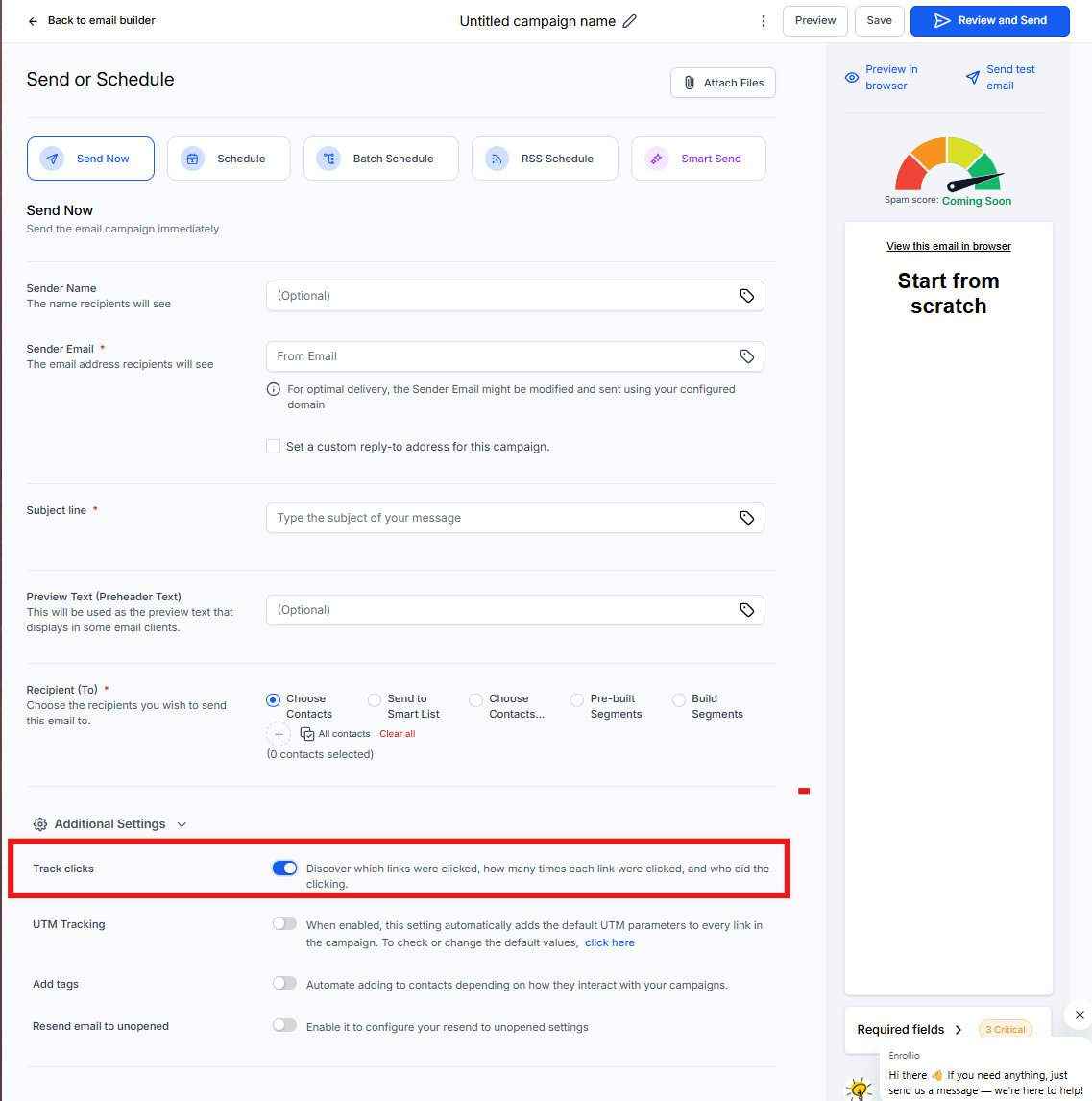
- Navigate to Email Marketing in your Enrollio dashboard
- Create a new campaign or open an existing draft
- Click Send or Schedule
- Toggle on Click Tracking before sending
- Send your campaign
Viewing Click Performance Data
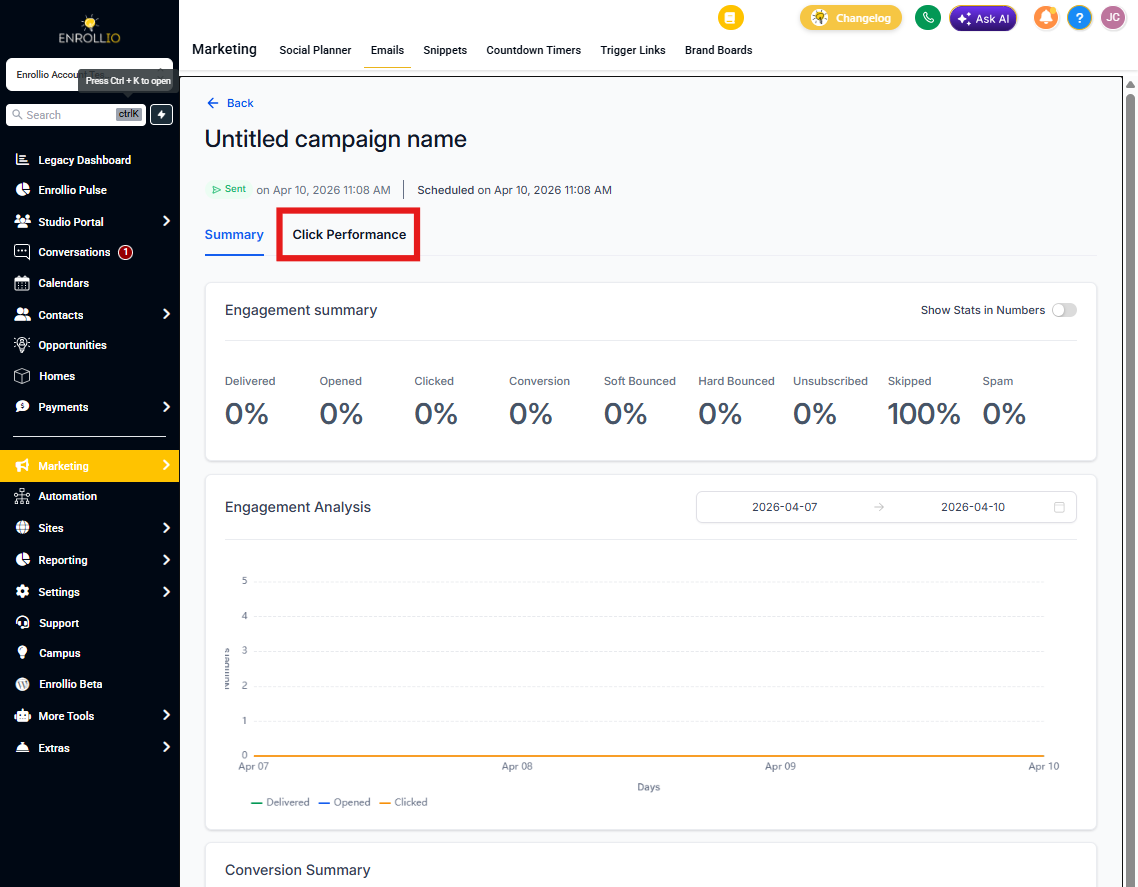
After your campaign sends, here's how to see which links performed best:
- Go to Email Marketing
- Find your sent campaign
- Click the three dots next to the campaign name
- Select Campaign Statistics
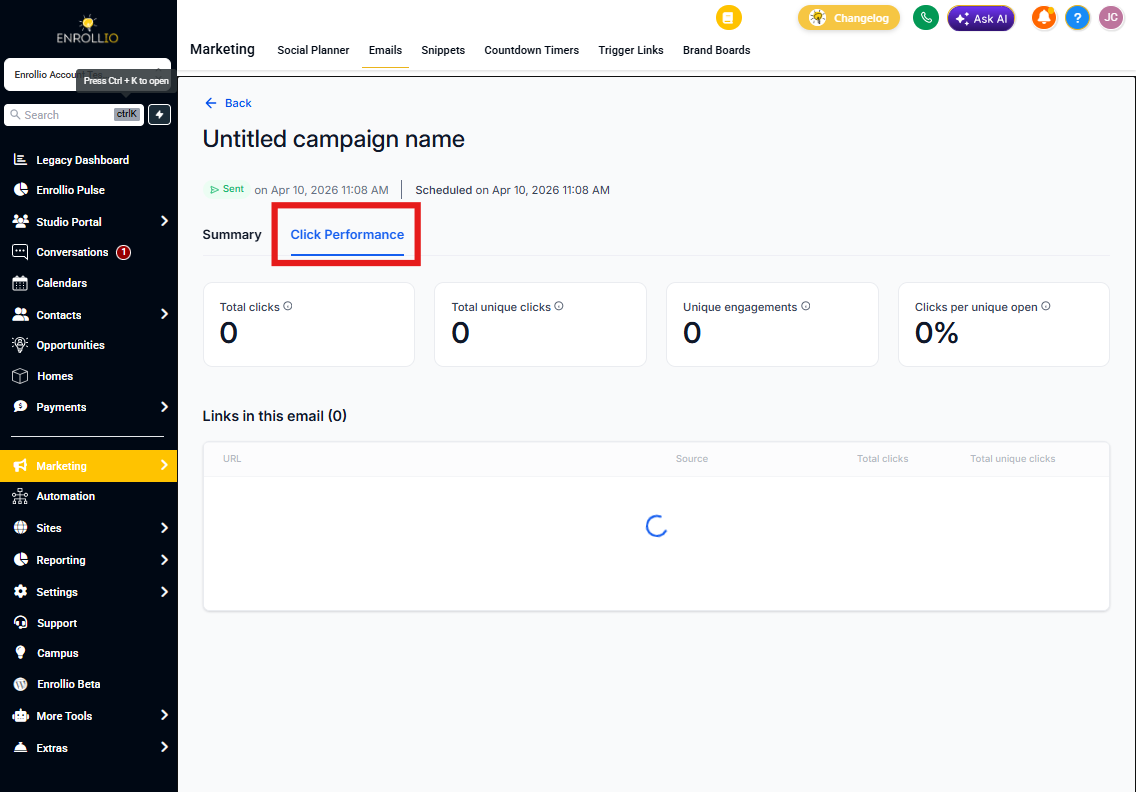
- Click Click Performance
The click performance report shows all your links with detailed metrics. Click on any individual link to see which specific families clicked it.
Frequently Asked Questions
Does click tracking work for all campaigns?
No, click tracking doesn't currently work for RSS or A/B testing campaigns. We're working on adding support for these.
Can I track custom value links?
Yes, custom values are supported. However, trigger links aren't supported yet.
Do automated campaigns show click tracking?
No, click tracking doesn't work for campaigns sent through automations. This feature currently works only for standard email campaigns.
Will I see data for older campaigns?
No, click tracking only works for campaigns sent after June 13, 2024, and only if you enabled the tracking option when sending.