
This article explains how to configure rooms in your studio to manage class locations effectively. You'll learn how to add, name, and select rooms for your classes.
1. Introduce Room Configuration
In this video we're going to walk through how to configure your rooms at your studio.
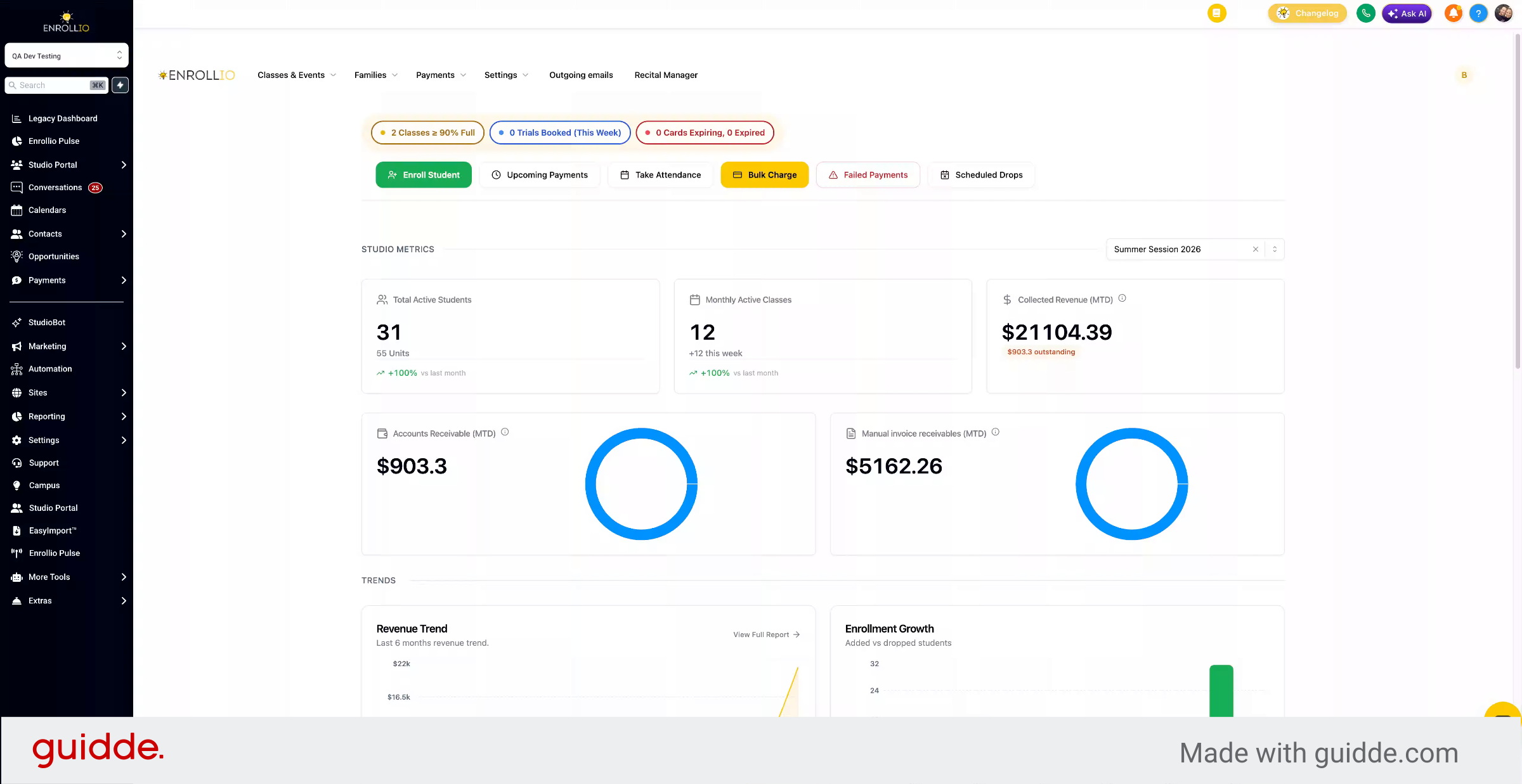
2. Configure Rooms in Settings
If you have multiple rooms or just a single room, you'll want to configure those under settings.
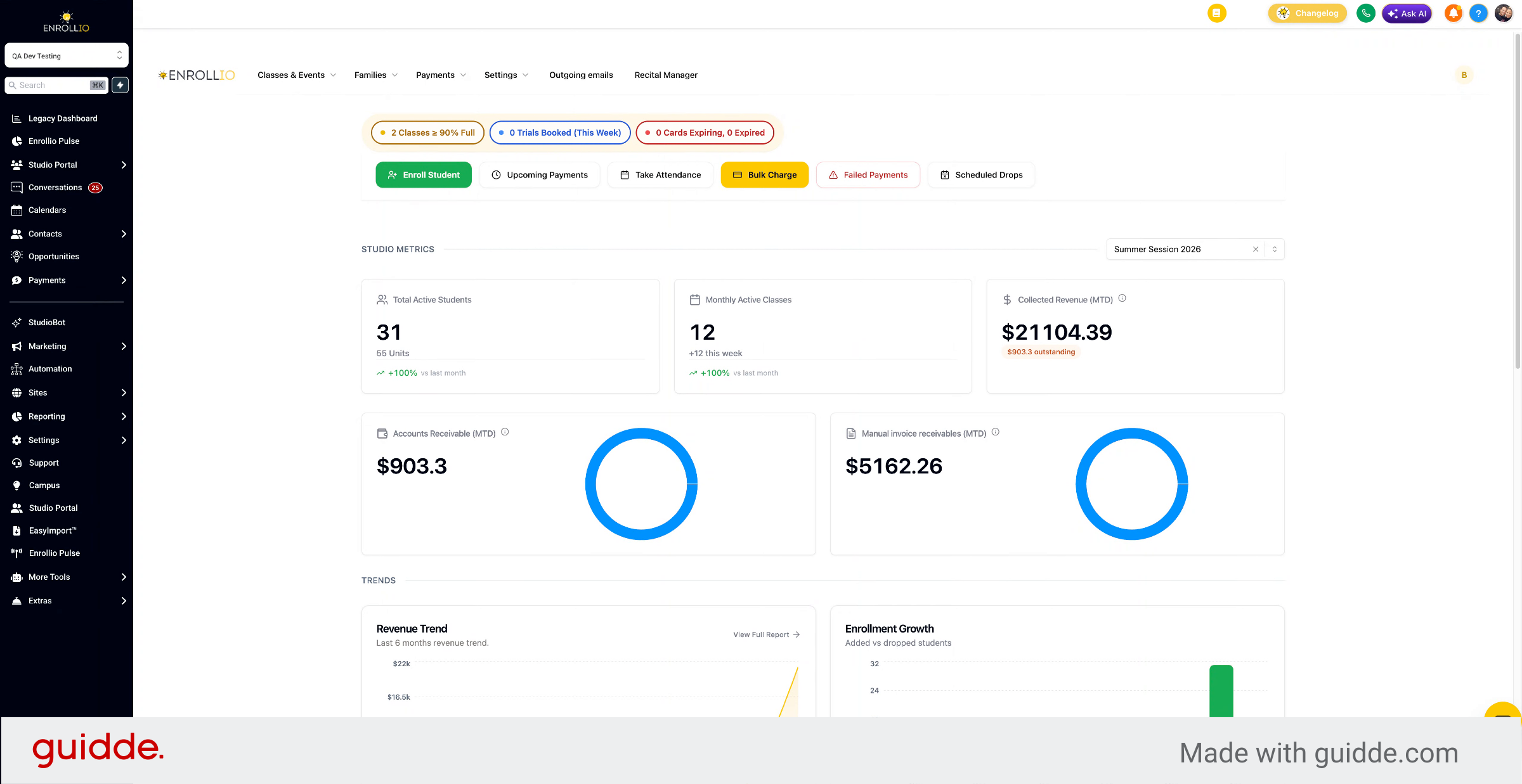
3. Access Rooms Tab
Click class management and then go to the rooms tab.
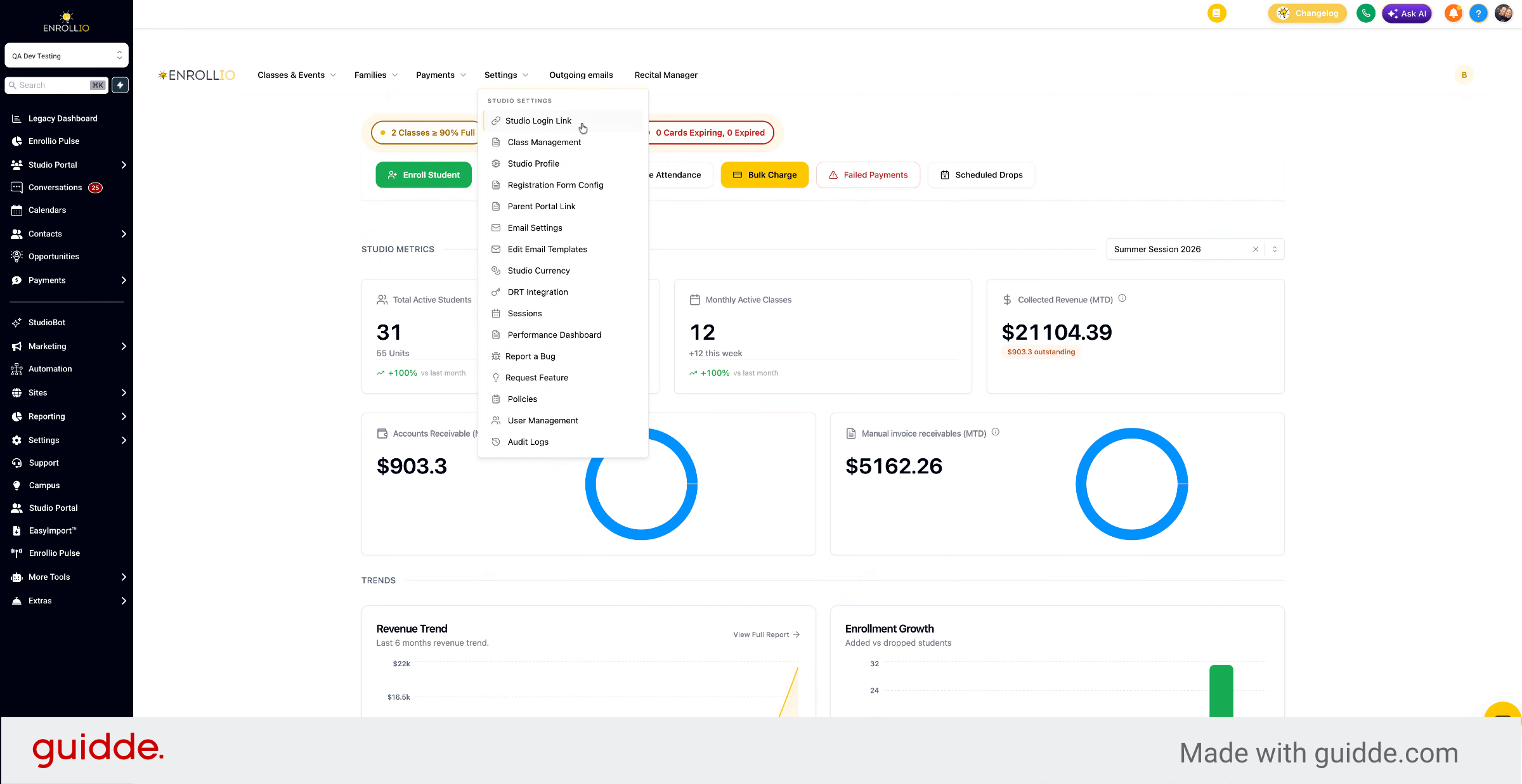
4. Add and Name Rooms
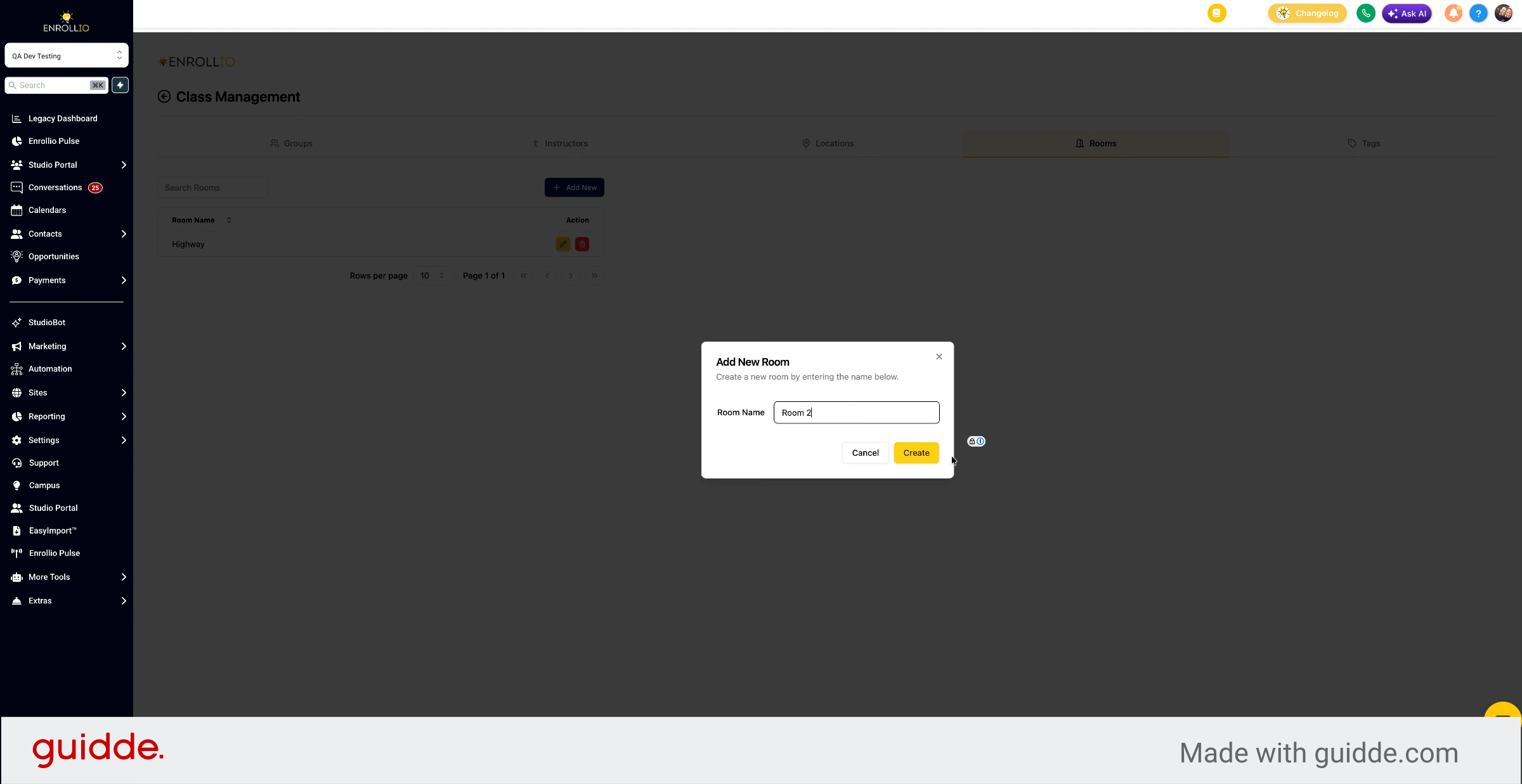
Here is where you can add, modify, or delete rooms. Click add new and name that room.
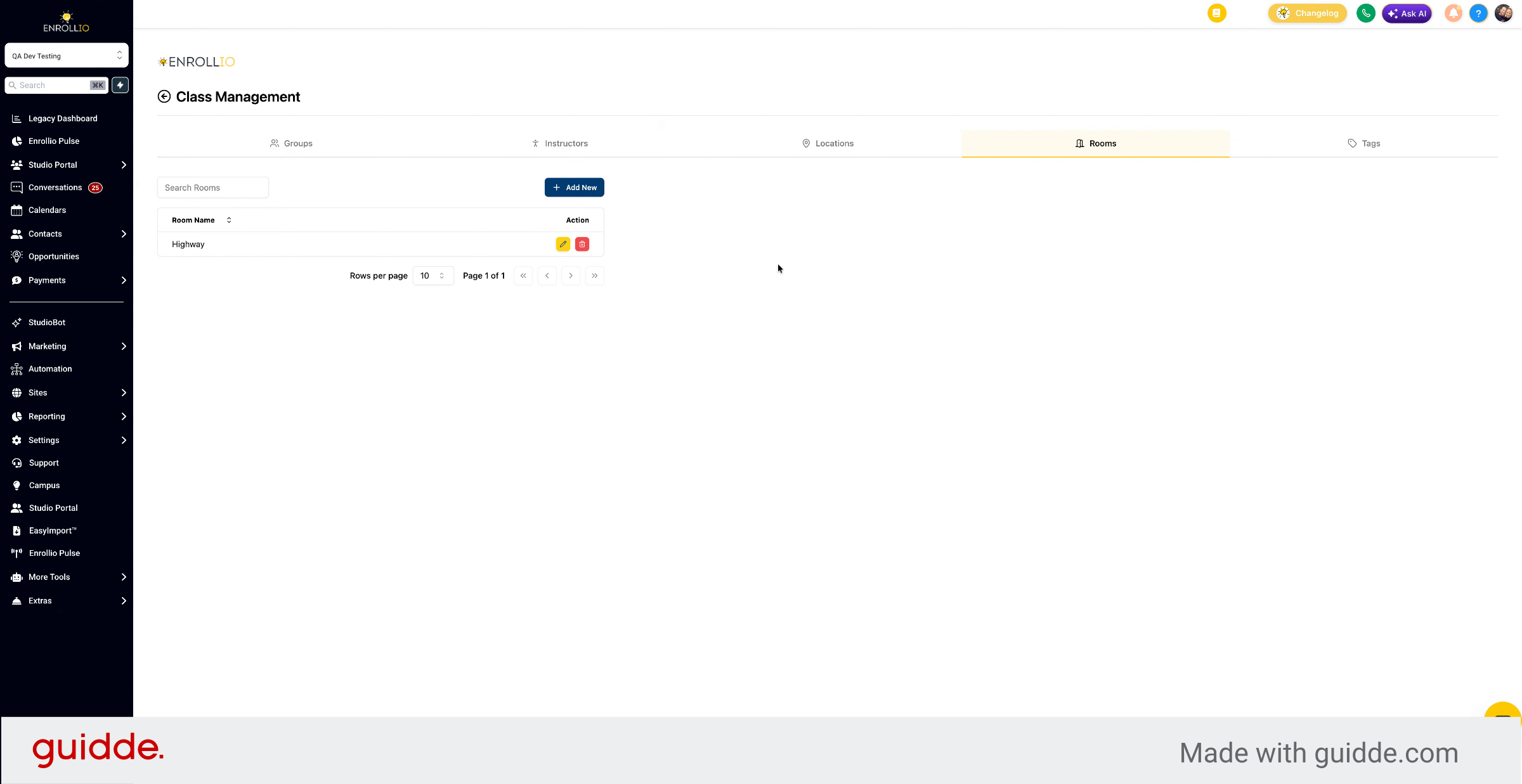
5. Create Room
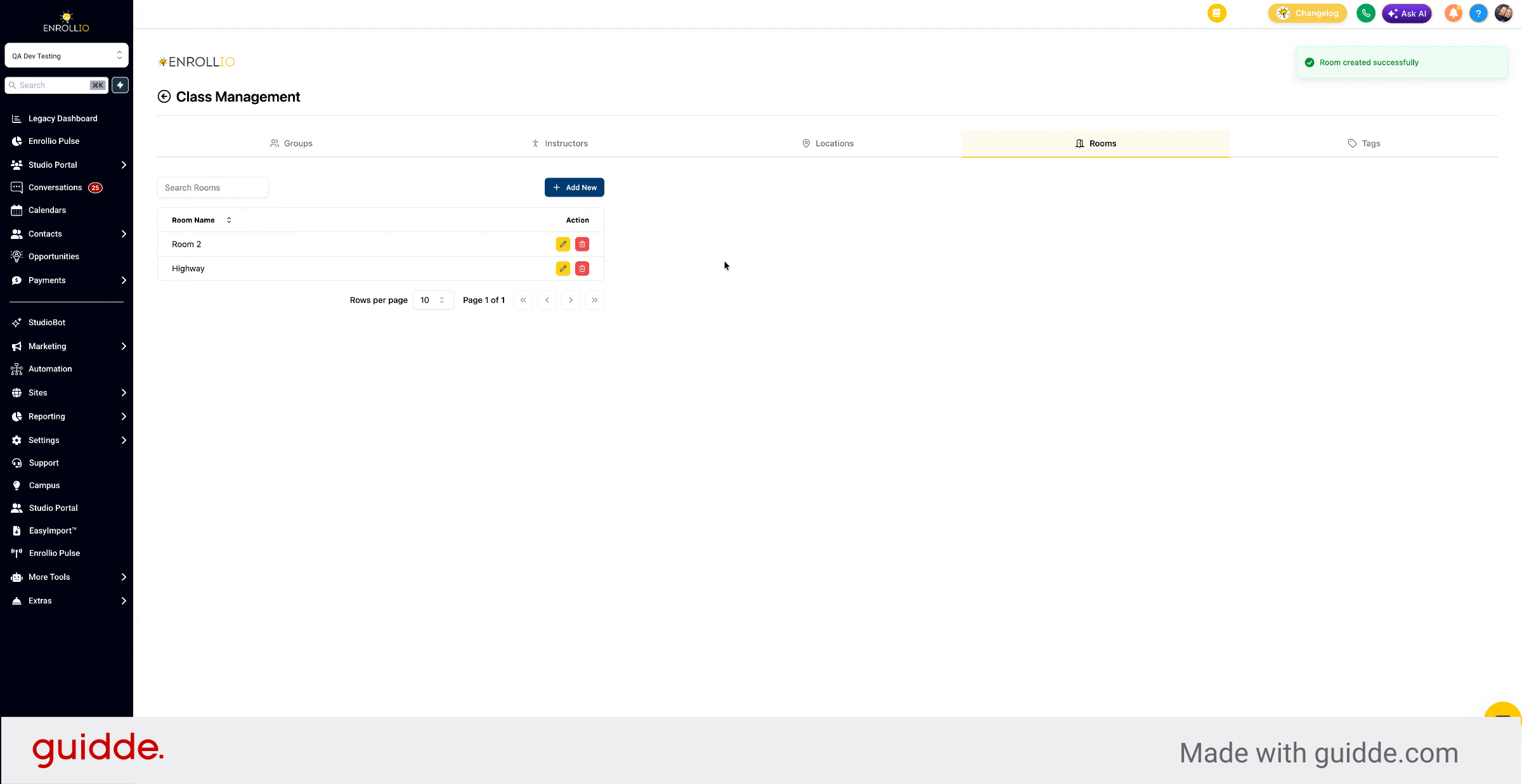
Click create, and the room is now created.
6. Select Room for Class
When you create a class, you'll be able to select what room that class is in.
This article guides you through configuring rooms in your studio, from accessing settings to selecting rooms for classes.