
How to Enable and Use the Billing Address Feature in Checkout
This article shows you how to enable and use the Billing Address feature in your enrollment store checkout. This enhancement lets you collect billing information separately from shipping details, improving order accuracy and making it easier to handle tuition payments, supply orders, and merchandise sales.
What is the Billing Address Feature?
The Billing Address feature allows you to collect a separate billing address from families during checkout. It adds a new section to your checkout page and stores the billing information alongside shipping details. This information appears across multiple areas of Enrollio including family profiles, order confirmations, and packing slips.
Key Benefits of the Billing Address Feature
Here's why you should consider enabling this feature:
- Capture billing information separately from shipping for compliance or invoicing needs
- Improve clarity and accuracy of order data when families ship items to different addresses
- Maintain better family records with dual address support in the Parents/Families section
- Display billing address in order details and packing slips for streamlined post-order processing
- Customize text labels to match your center's communication style
- Enable or disable per location to suit your specific needs
How To Enable the Billing Address Feature
Follow these steps to activate the Billing Address feature and customize your checkout flow:
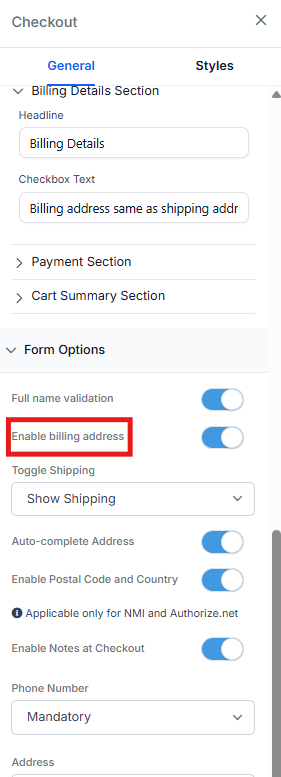
- Open the Store Builder and navigate to your Checkout Page
- Click on the Checkout Element to access its settings
- Scroll to the Advanced section and locate Form Options
- Toggle "Enable Billing Address" ON
- Go to the General section to customize:
- Billing Address Headline Text (e.g., "Billing Information")
- Billing Address Checkbox Text (e.g., "Same as Shipping Address")
- Click Save and Publish your changes
Checkout Page Structure Update
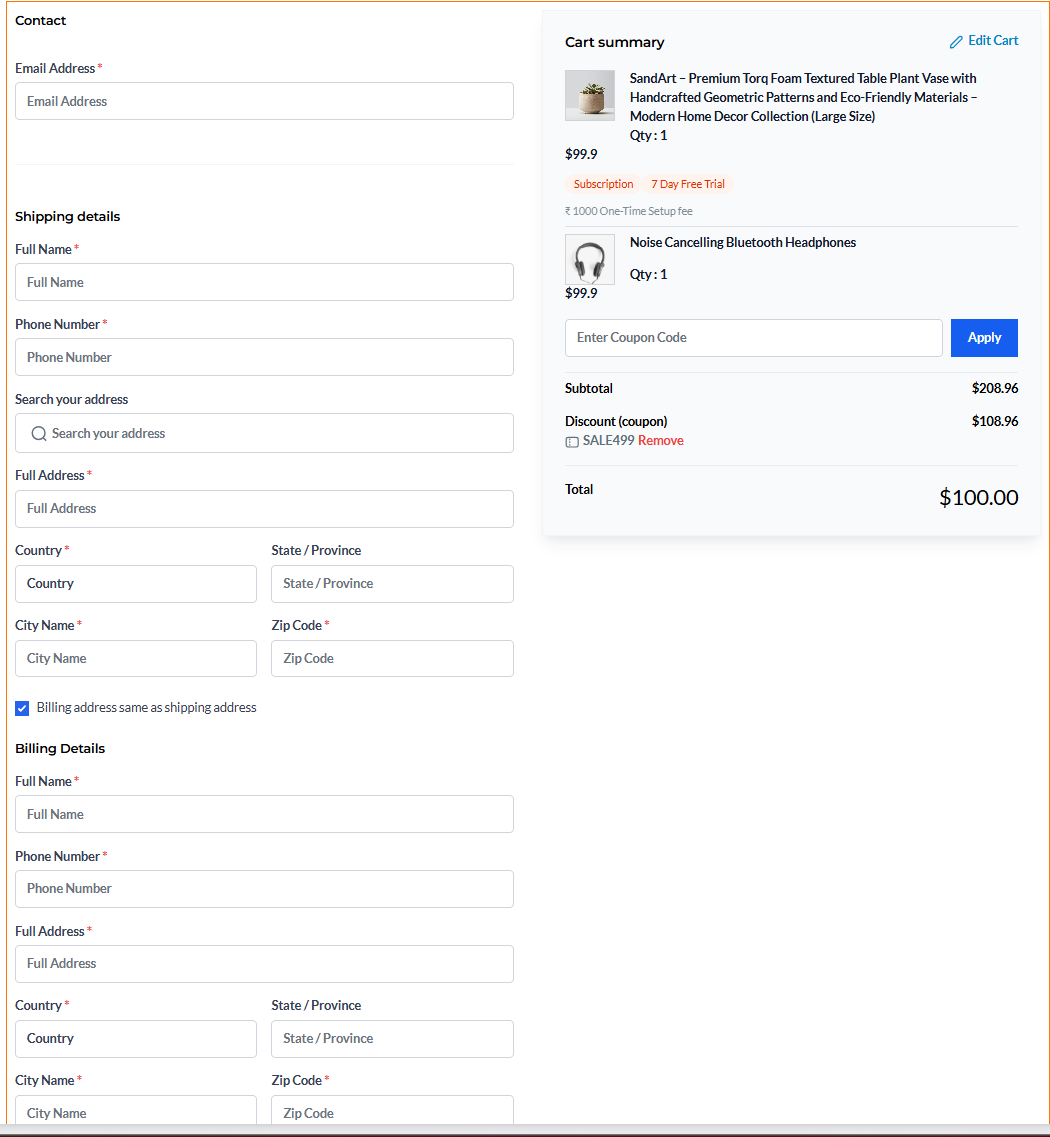
Once enabled, your checkout form will follow this structure:
- Contact Details
- Shipping Details
- Billing Details (New Section)
- Notes
- Shipping Options
- Payment Methods
Families will see a checkbox labeled "Same as Shipping Address", which is checked by default. This minimizes extra input unless a different billing address is needed.
How the Billing Address Appears Across the Platform
After a family completes an order, the billing address data appears in several places:
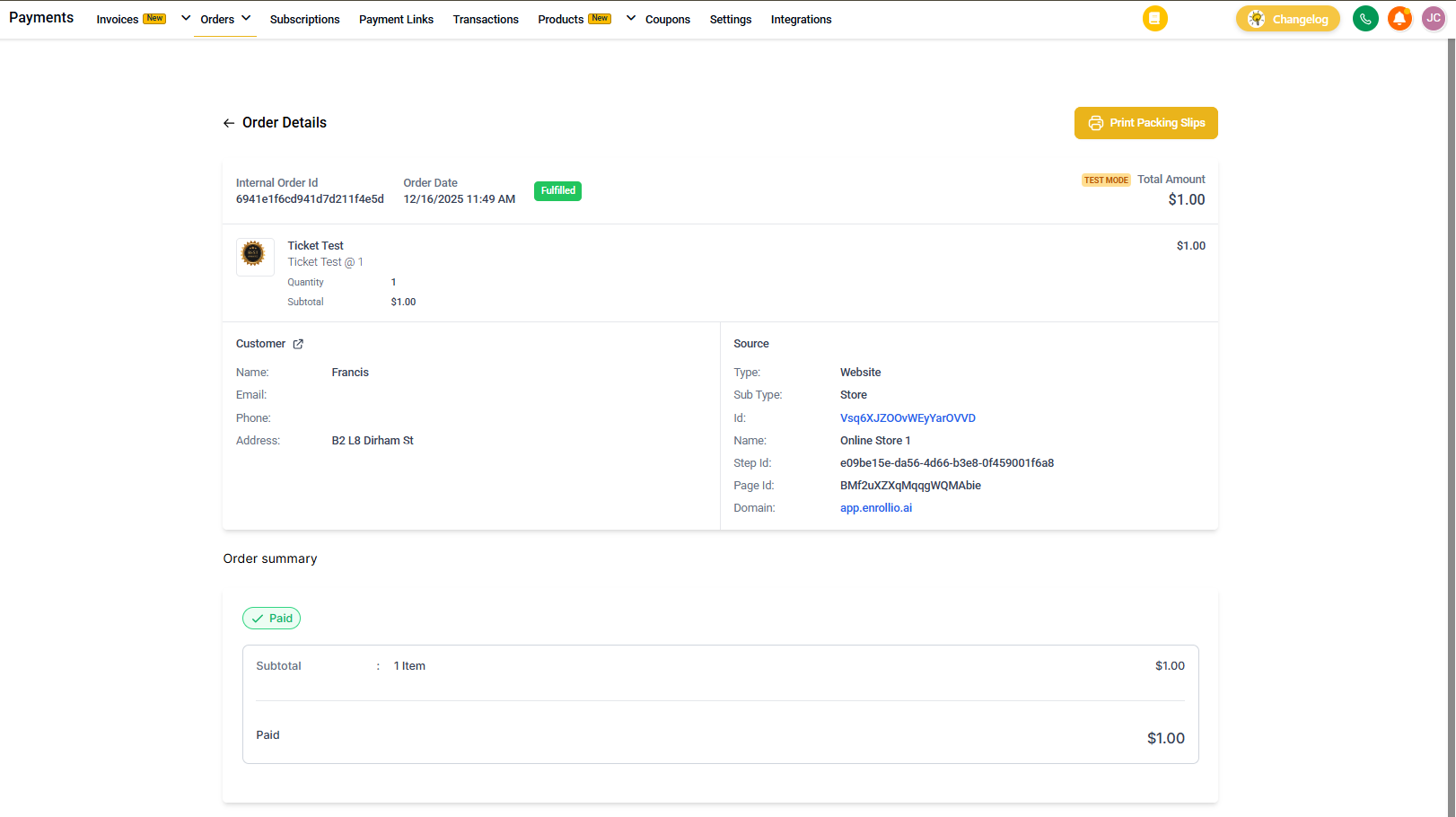
- Order Details Page: Displays billing address under the "Customer Info" section, separate from the shipping address
- Customer Portal: Billing address is included in the family's Order Details view
- Parents/Families: Both shipping and billing addresses are stored under the family's record
- Packing Slips & Thank You Pages: Both addresses appear for improved order processing and transparency
-
Order Confirmation Emails: Automatically include the billing address when filled in
![]() Important Notes
Important Notes
New Stores: Billing address is enabled by default when you create a new store. Related custom fields are automatically created.
Existing Stores: Billing address is disabled by default and must be manually enabled.
When you enable the billing address feature:
- Custom fields are automatically created
- These fields are non-deletable and non-editable
- They're assigned unique keys and reused if matching keys already exist
- Billing address data only appears in the system if the fields are filled in during checkout
Tax Note: Billing addresses are not currently used for tax calculation purposes. Taxes continue to be calculated based on the shipping address.
Frequently Asked Questions
Q: What if I don't want a billing address for my store?
A: You can simply leave the "Enable Billing Address" toggle turned off in the Checkout settings panel.
Q: Can families use the same address for billing and shipping?
A: Yes! A checkbox labeled "Same as Shipping Address" is provided and selected by default.
Q: Will billing address be visible in exported orders or reports?
A: Yes, if the billing address was completed during checkout, it will be reflected in order exports and data views.
Q: Can I delete or change the billing address custom fields?
A: No, the custom fields generated for billing address are system-protected and cannot be edited or deleted.
Q: Does the billing address affect shipping rates or taxes?
A: No. Currently, only the shipping address is used for those calculations.