
Mobile: AutoPayment for Recurring Invoices
Auto-Payment for recurring invoices automates card charging on a set schedule, so you collect tuition and fees on time without manual follow-ups. Turn it on from the mobile send flow, choose a saved card or a parent's card you've captured, and let billing run itself.
This guide explains what it is, how it works, and how to set it up from your phone.
What is Auto-Payment for Recurring Invoices?
Auto-Payment automatically charges a parent's card for each occurrence of a recurring invoice you send from the Enrollio mobile app. You decide the charge source—either a Saved Card already on file or a Parent Card captured during checkout—then the platform processes future payments on the schedule you define.
Perfect for monthly tuition, activity fees, or any regular charge you bill to families.
Prerequisites
- Recurring invoice created via the Invoices or POS module
- Parent payment method on file (Card on File, or online card capture)
- Payments must be via card — Auto-Payment is not available for cash or manual entry
Key Benefits of Auto-Payment
Understanding the benefits helps you decide when to enable Auto-Payment and which payment source to use for the smoothest parent experience and most reliable collections.
- Hands-free collections: Payments run on each billing date automatically
- Multiple payment sources: Choose a Saved Card on file or a Parent Card you captured via checkout
- Frictionless experience: No extra steps for parents after the initial payment
- Predictable cash flow: Scheduled, on-time charges reduce revenue gaps
- Less admin work: Set it once during scheduling; no chasing or manual charges
Payment Method Options
Picking the right payment source ensures successful charges and fewer declines. Here are your options:
Saved Card: Charge any card already stored on the parent profile. Ideal when you've previously added a card on file and want the most reliable, "set-and-forget" billing.
Parent Card: Use the card captured during Tap to Pay, Card on File, or online checkout. Helpful if you just took a payment in person or online and want to continue charging that same card for future cycles.
How To Set Up Auto-Payment for Recurring Invoices
Correct setup ensures charges fire on schedule and use the correct card. Follow these steps each time you create a recurring invoice from mobile.
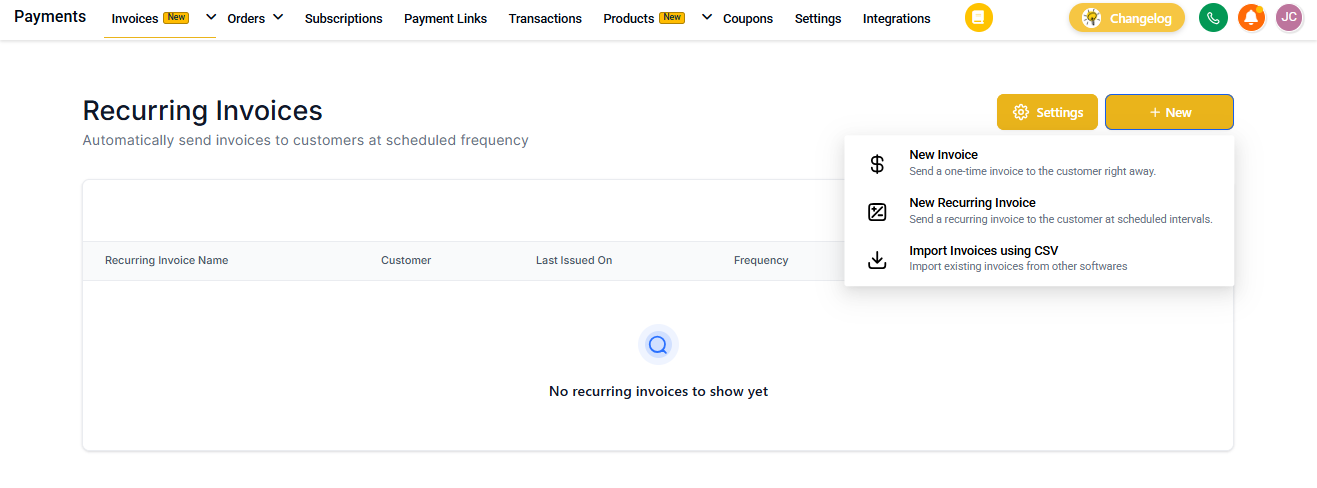
Step 1: Enable Auto-Payment
On the scheduling sheet, toggle Enable Auto-Payment on.
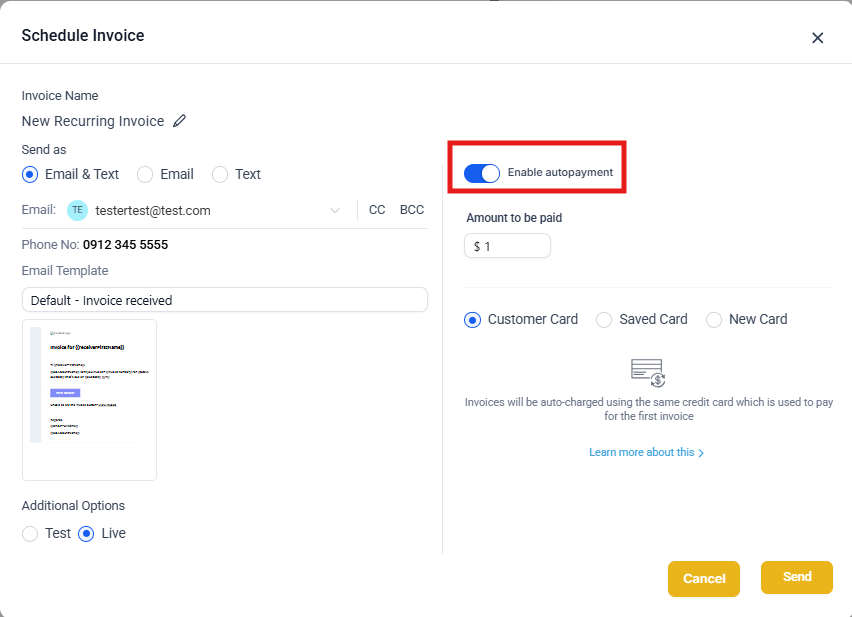
Step 2: Select Payment Method
Choose your payment source:
- Saved Card – Pick from saved payment methods on the parent's profile
- Parent Card – Use the payment card captured via Tap to Pay or online checkout
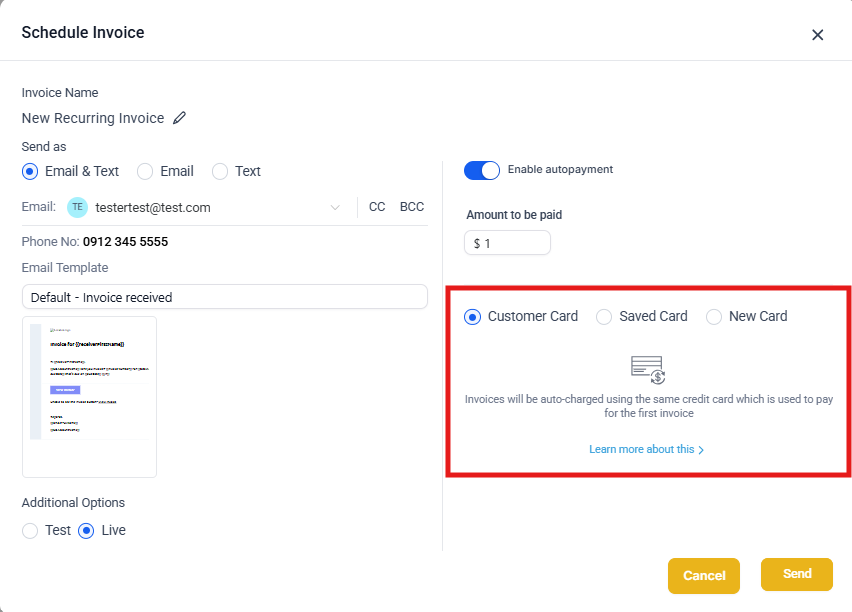
Step 3: Confirm the Selected Card and Send
When a card is selected, you'll see it summarized with the last 4 digits. Use Change Card if you need to select a different one.
Tap Send (or Schedule) to start the recurring invoice with Auto-Payment enabled. The platform will process payments automatically on each billing date you defined.
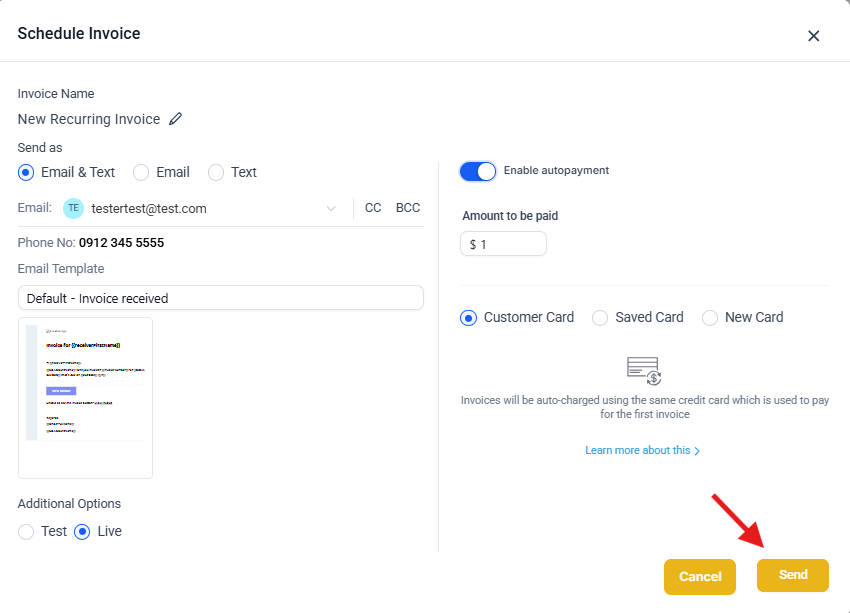
Managing Auto-Payment After Setup
Need to change the card or update Auto-Payment settings on an existing recurring invoice?
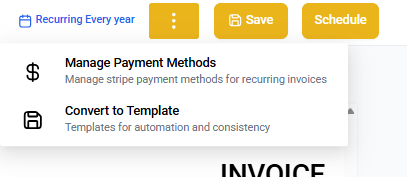
- Open the existing Recurring Invoice in the invoice editor
- Look for the three dots (⋮) menu in the upper right corner
- Tap the three dots and select Manage Auto Payment
- From this screen, choose a different saved card (or add a new one) and enable or disable auto-debit for future charges
Frequently Asked Questions
Does Auto-Payment support cash, manual entry, or bank payments?
No. On mobile, Auto-Payment is for card payments only.
Where do I turn on Auto-Payment in mobile?
In the Send/Schedule sheet for a recurring invoice. Toggle Enable auto-payment ON and choose the card source.
Can I use Auto-Payment with POS?
Yes. When POS carts with recurring products are converted to an invoice, you can enable Auto-Payment during scheduling.
What's the difference between a Saved Card and a Parent Card?
Saved Card is any card already stored on the parent profile. Parent Card is a card captured during Tap to Pay, Card on File, or an online checkout.
How do I change the card used for Auto-Payment?
Before sending, select Change Card and choose a different Saved Card, or select Parent Card (after capturing a new card). For existing invoices, use the three-dot menu and select Manage Auto Payment.
What should I do if a scheduled charge fails?
Update the card on file with the parent, select the new card, and continue the schedule. Keeping cards current reduces future declines.