
What is Scroll to Element?
The scroll-to-element feature lets you link any clickable item—like a button, text link, or menu item—to a specific section on your enrollment page. When parents click, the page smoothly glides to that section instead of jumping abruptly or reloading.
This is especially useful for tour booking pages, program information pages, or any long-format content where you want to guide families smoothly through your offerings.
Why Use Scroll to Element?
- Better Navigation: Send parents directly to pricing, programs, or contact forms without page reloads
- Smoother Experience: Reduce bounce rates by guiding families fluidly through your content
- Works Everywhere: Use it on buttons, text links, and navigation menus
- Perfect for CTAs: Great for "Jump to Pricing" or "See Our Programs" buttons
- Mobile Friendly: Works seamlessly on phones and tablets
Pro Tip: All scroll actions now use smooth scrolling automatically—no extra setup needed. The page transitions naturally instead of jumping, creating a more professional browsing experience.
Setting Up Scroll to Element
You'll need to copy a CSS selector from the section you want to scroll to, then use it with your button, link, or menu item. Here's how:
Step 1: Copy the CSS Selector
Every scroll-to setup starts by getting the identifier of your target section.
- Open your enrollment page in the builder
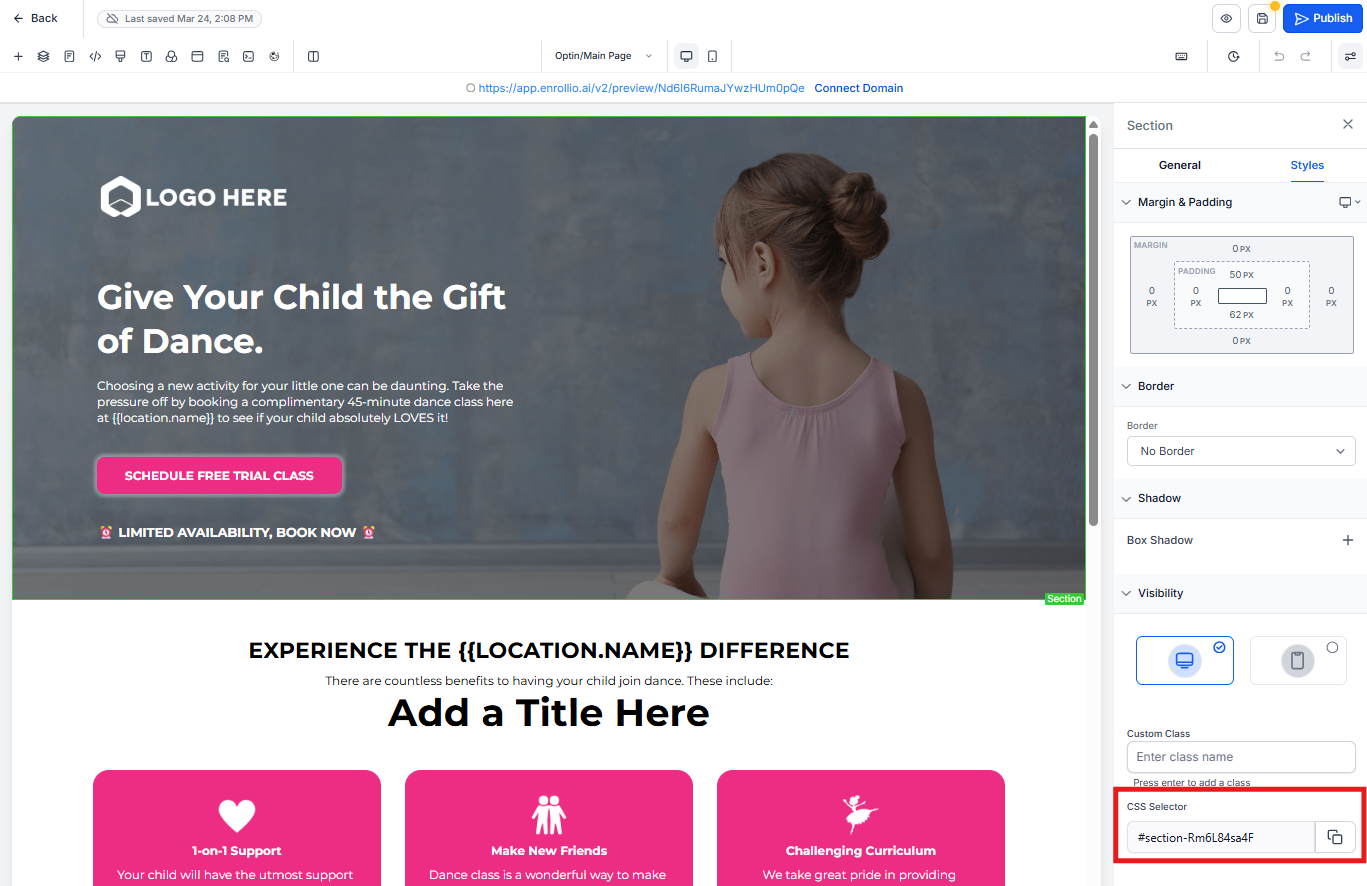
- Click on the section you want to scroll to (like your pricing section or contact form)
- In the right-hand panel, go to the Advanced tab
- Copy the value shown in the CSS Selector field (it will look something like
#section_abc12)
Step 2: Choose How to Activate the Scroll
Now that you have your CSS selector, pick one of these methods based on what element you want to make clickable:
Method 1: Turn Text Into a Scroll Link
Make any text clickable and scroll to your target section.
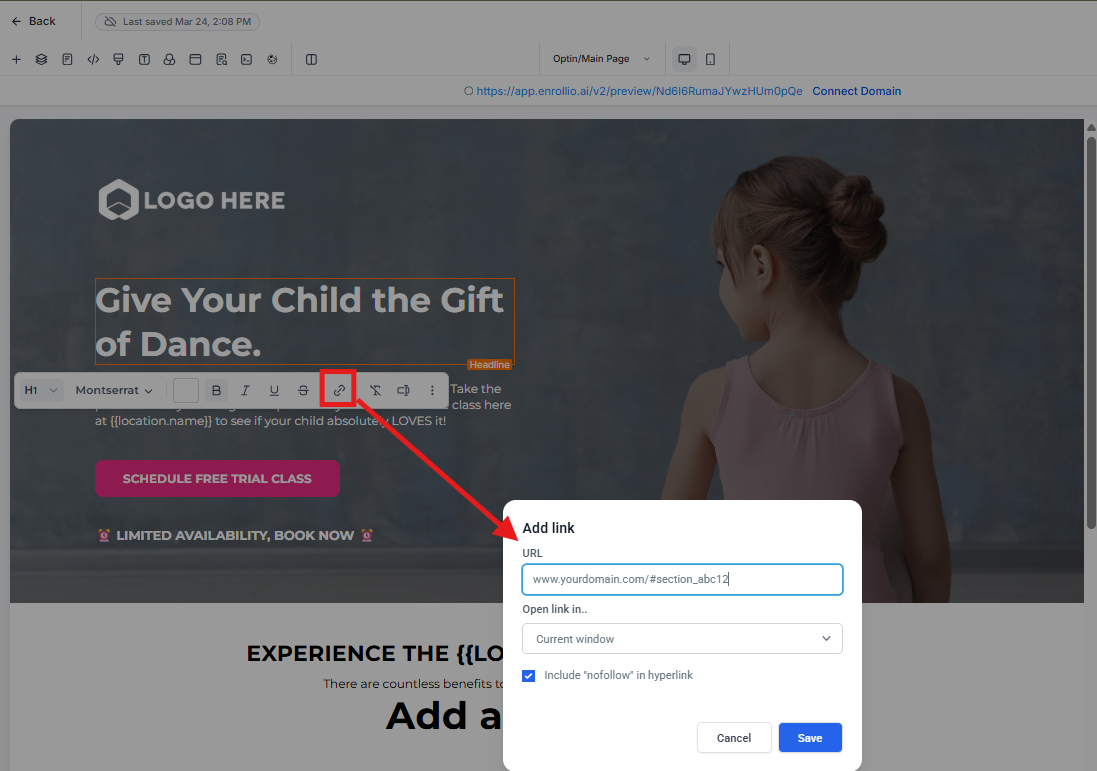
- Highlight the text you want to turn into a link
- Click the Link icon in the formatting toolbar
- Enter your full page URL + the CSS selector you copied
Example:www.yourdomain.com/#section_abc12
Method 2: Use a Button with URL Link
Set up a button to scroll when clicked using a direct URL.
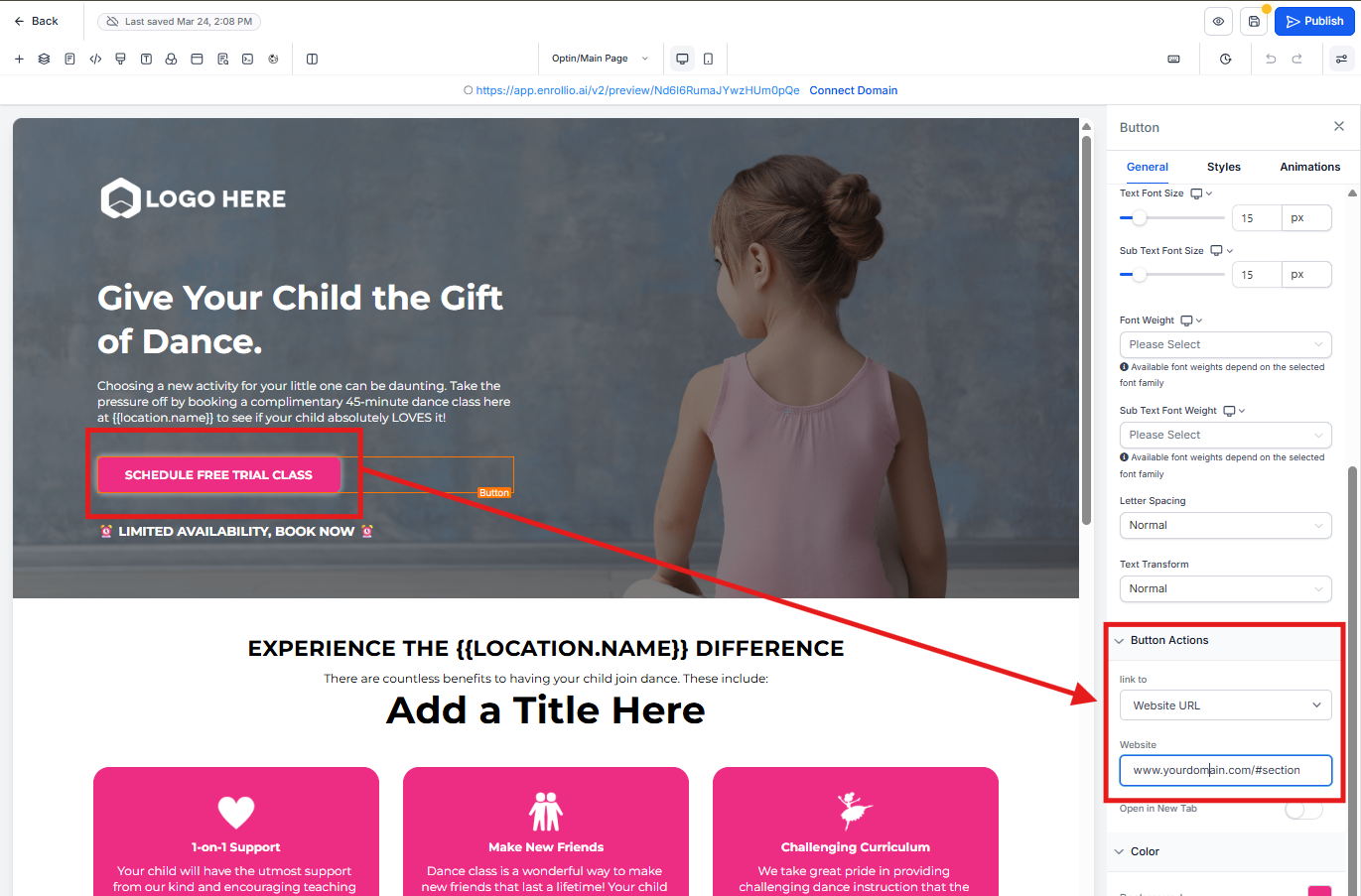
- Select your button in the builder
- Under Button Actions, click the Link To dropdown and choose Website URL
- Enter your full page URL + the CSS selector
Example:www.yourdomain.com/#section_abc12
Method 3: Use a Button with Built-In Scroll Action
The simplest method—use Enrollio's built-in scroll behavior.
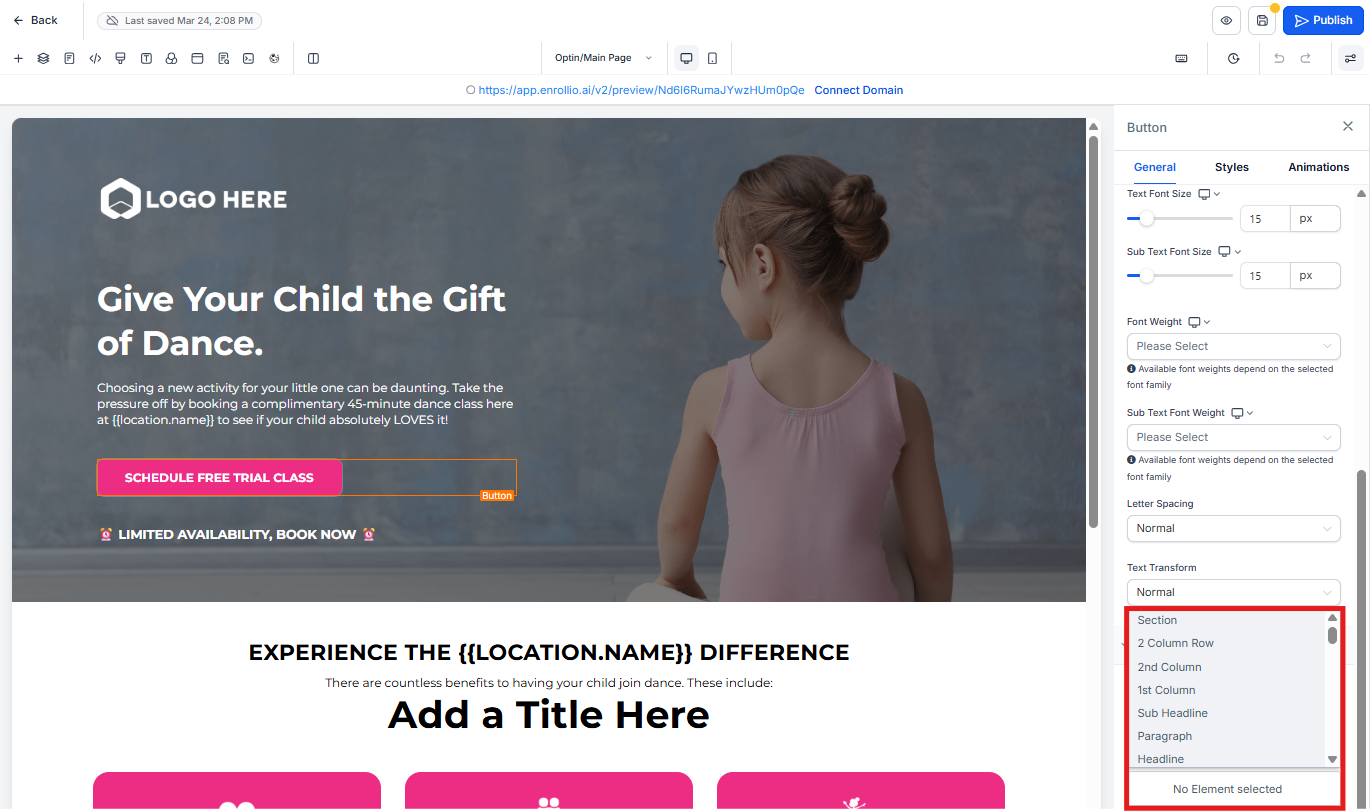
- Select your button in the builder
- Under Button Actions, click the Link To dropdown and choose Scroll to Element
- Use the dropdown to select the section you want the button to scroll to
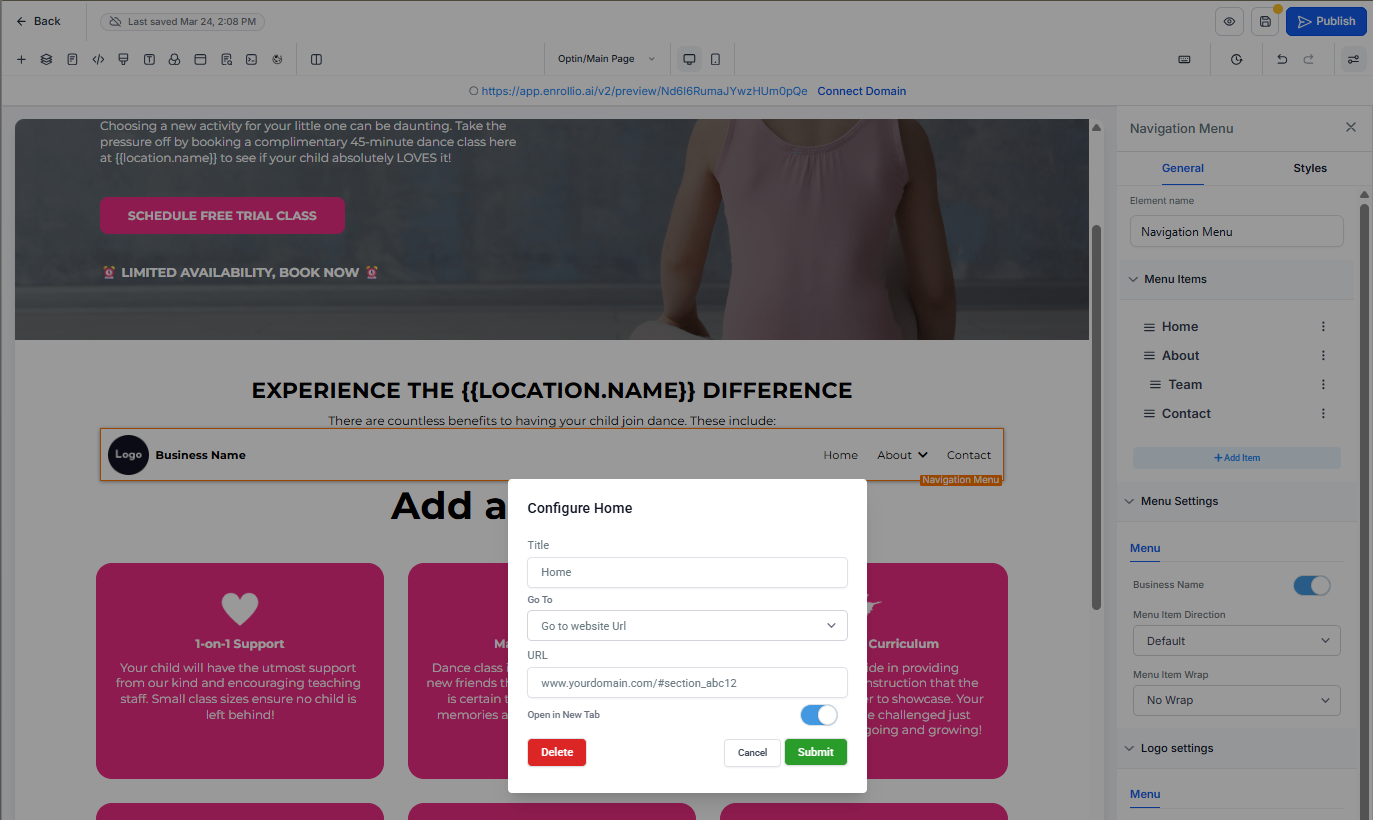
Method 4: Make Menu Items Scroll
Your navigation menu can also scroll to page sections.
- Select your Navigation Menu
- Click the three dots next to the menu item you want to configure
- Change the Go to field to Go to website URL
- Enter your full page URL + the CSS selector
Example:www.yourdomain.com/#section_abc12 - Click Submit
Common Questions
Can I scroll between different pages?
No. Scroll-to only works within the same page. If you need to link to a different page, use a regular link instead.
Does this work on mobile devices?
Yes! The scroll functionality works smoothly across all devices—desktop, tablet, and phone.
My scroll isn't working. What should I check?
Make sure your CSS selector starts with # and matches exactly what you copied from the Advanced tab. Refresh your page and test again. If you're still having trouble, double-check that you're using the full page URL in your link.
What happens if multiple sections have the same CSS selector?
Only the first match will be used. Each section should have a unique CSS selector—Enrollio automatically generates these for you.