
What is the 'Other' Option?
The "Other" option adds a write-in field beneath any radio-button question in your Enrollio forms and surveys. This lets parents and families share custom answers instead of being limited to your predefined choices.
When enabled, their custom text is stored alongside regular responses in your submission dashboard. This feature helps you capture more personalized feedback from families during enrollment, tour requests, or satisfaction surveys.
Why Use the 'Other' Option?
Adding an "Other" choice improves the quality of feedback you collect from families:
- More Flexibility: Collect richer, more individualized responses that go beyond standard choices
- Better Insights: Capture unique perspectives and feedback that predefined options might miss (especially helpful for questions like "How did you hear about us?" or "What programs interest you?")
- Easy Tracking: Custom responses are stored in your submission reports for quick review
- Better Experience: Shows families you value their input, even when it doesn't fit a standard checkbox
Where Custom Responses Are Stored
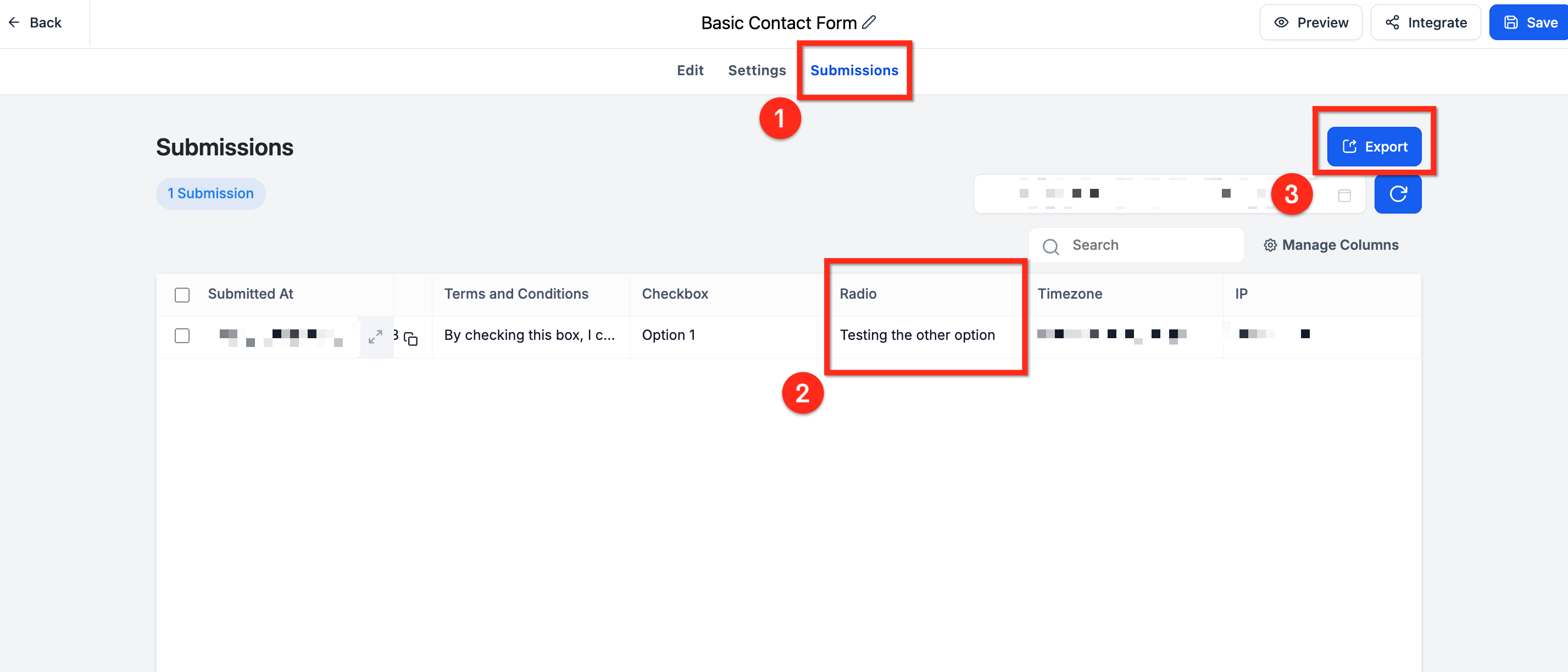
All write-in answers appear in your submission dashboard:
- Navigate to Sites › Forms › Submissions (or Sites › Surveys › Submissions)
- Select the form or survey you want to review
- The write-in answer appears in the same column as your radio button field
- Export submissions to CSV to include all custom text
How to Add the 'Other' Option
Enabling this feature takes just one toggle in the form builder.
Step 1: Open Your Form or Survey
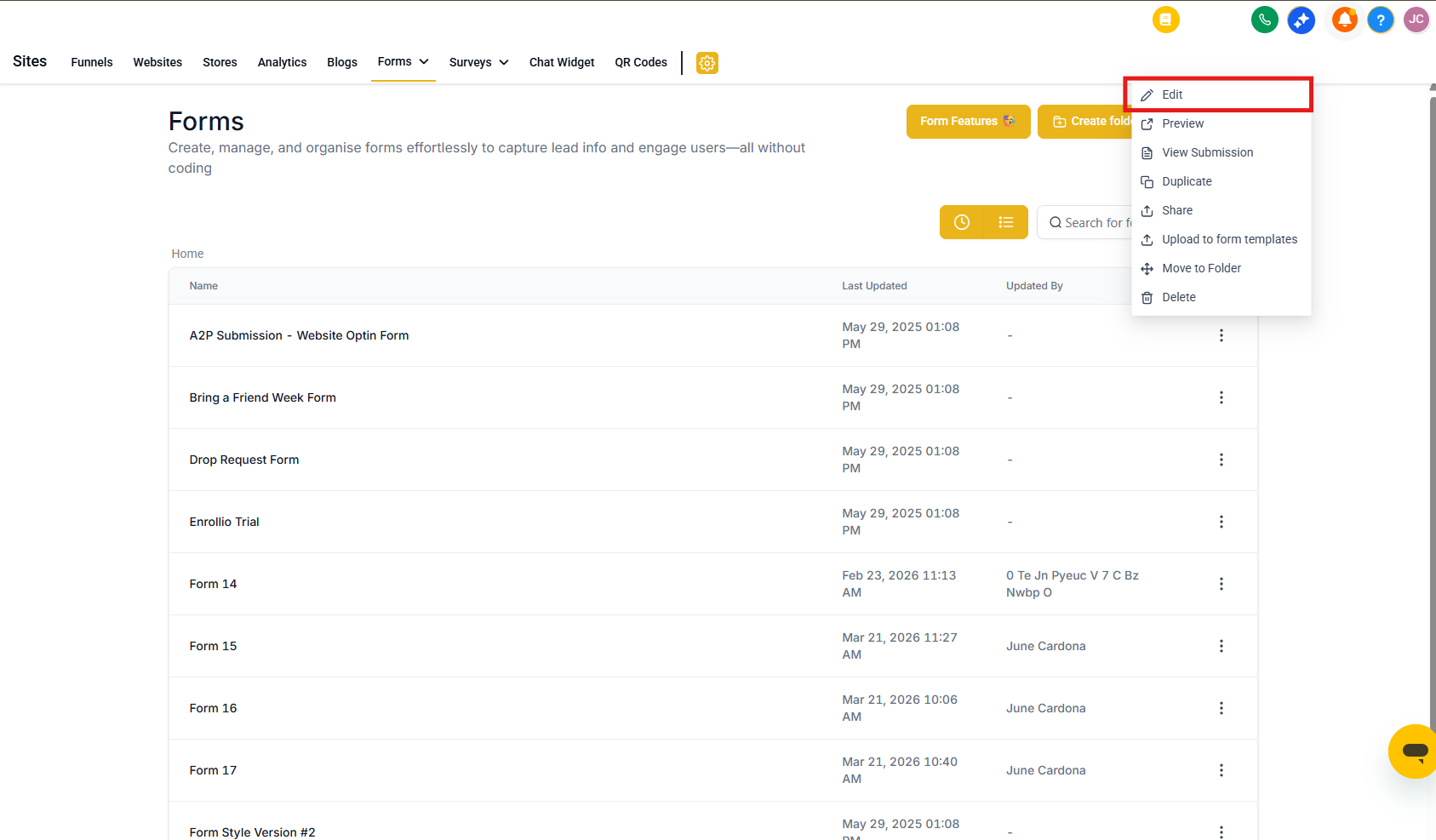
- Click Sites in the left navigation
- Click Forms or Surveys in the top ribbon
- Find your form or survey, click the 3 dots icon, then select Edit
Step 2: Add a Radio Button
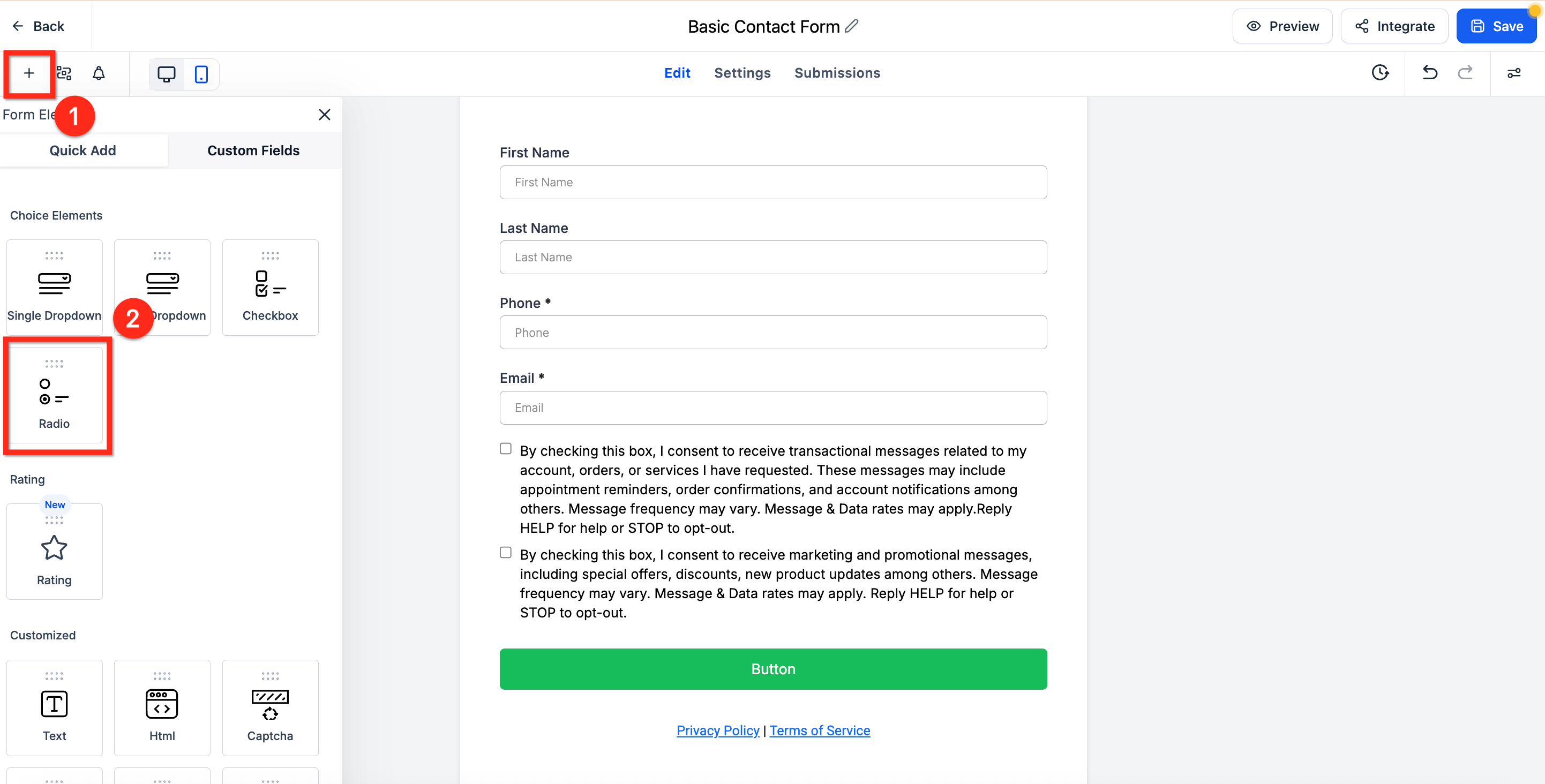
If you don't already have a radio button field:
- Click the plus (+) icon in the upper-right corner to open the Element panel
- Scroll to the Radio element
- Drag the Radio element into your form
Step 3: Enable the 'Other' Option
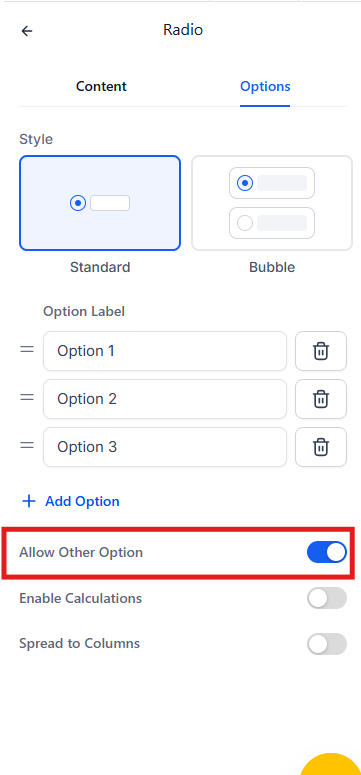
- Click on your Radio element—the settings panel opens on the right
- Select the Options tab at the top of the settings panel
- Turn on the Allow Other Options toggle
Note: The "Other" option won't show in the builder, but you'll see it when you preview or publish your form.
Pro Tips
💡 Best uses for 'Other' in childcare:
- "How did you hear about us?" (capture referral sources you haven't listed)
- "What programs are you interested in?" (discover demand for new age groups or services)
- "Dietary restrictions or allergies" (ensure you don't miss important health info)
- "Preferred tour times" (when your standard slots don't work)
Frequently Asked Questions
Can I add an 'Other' option to dropdown or checkbox fields?
Currently, the "Other" option is only available for radio button elements.
Can I disable the 'Other' option after enabling it?
Yes. Just turn off the Allow Other Options toggle in the form editor.
Is there a character limit for custom responses?
No, there's no set character limit for what families can type.
Does this work on landing pages and enrollment sites?
Yes. Forms embedded in landing pages, enrollment sites, or externally via embed code all support the "Other" option.