
Overview
Track parent behavior and measure your enrollment marketing with tracking scripts and pixel codes. You can add these to all pages or specific enrollment pages to see which ads and campaigns are bringing in the most families.
Common Uses for Tracking Pixels
- Facebook Pixel: Track which parents view your enrollment pages and retarget them with ads
- Google Analytics: See how families navigate through your enrollment process
- TikTok Pixel: Measure the effectiveness of your TikTok ads
- Google Tag Manager: Manage multiple tracking codes in one place
Adding Tracking Scripts to All Pages
Use this method when you want to track all parent activity across your entire enrollment site.
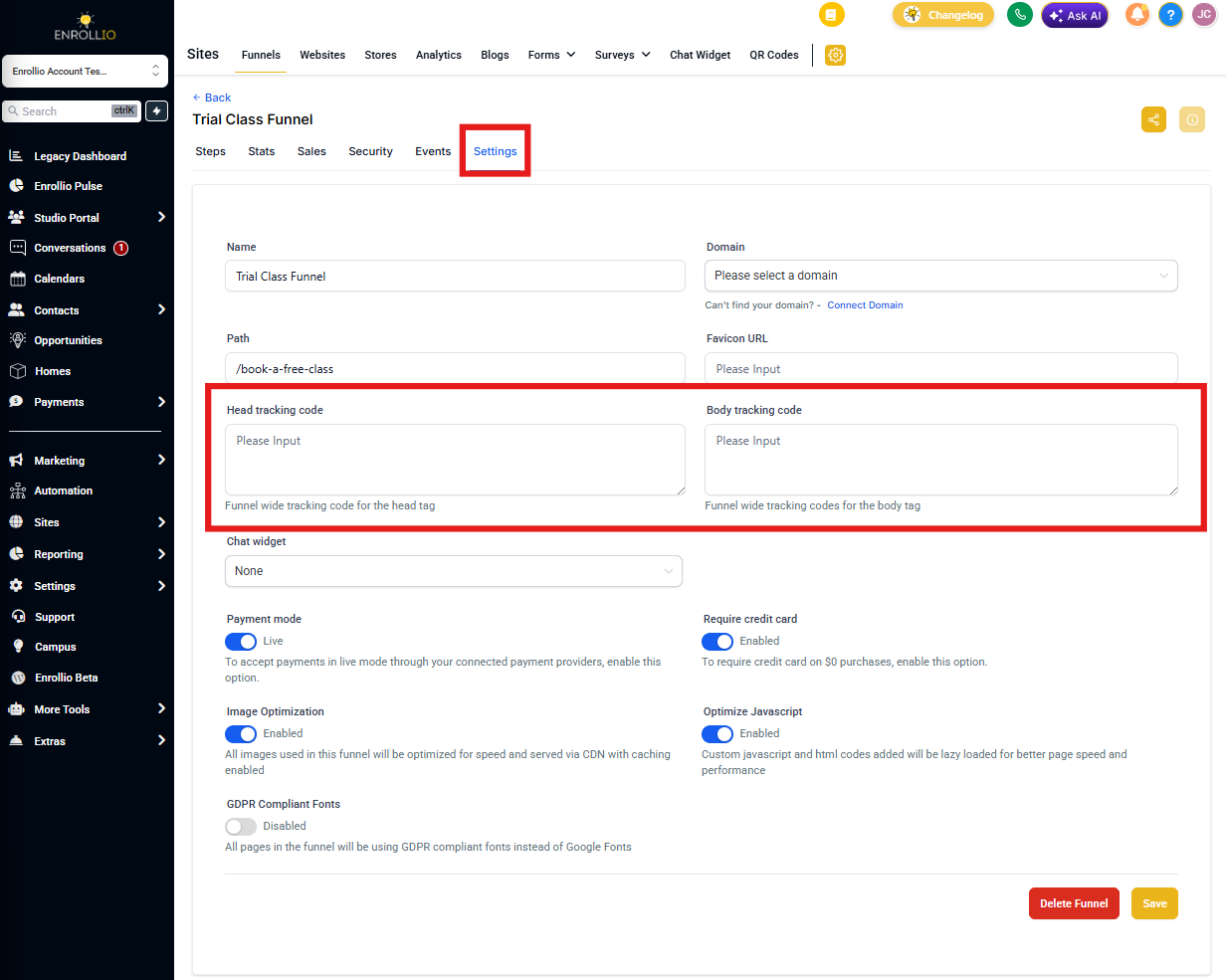
- Navigate to Settings in your Enrollio dashboard
- Click Enrollment Pages
- Select the enrollment page or site you want to track
- Click Settings in the page builder
- Scroll to Tracking Code
- Paste your tracking script in the Head Tracking Code or Body Tracking Code field
- Head Code: Most tracking pixels (Facebook, Google Analytics) go here
- Body Code: Use this for scripts that need to load with page content
- Click Save
Adding Tracking Scripts to Specific Pages
Use this method to track conversions on specific pages, like thank-you pages after a tour booking.
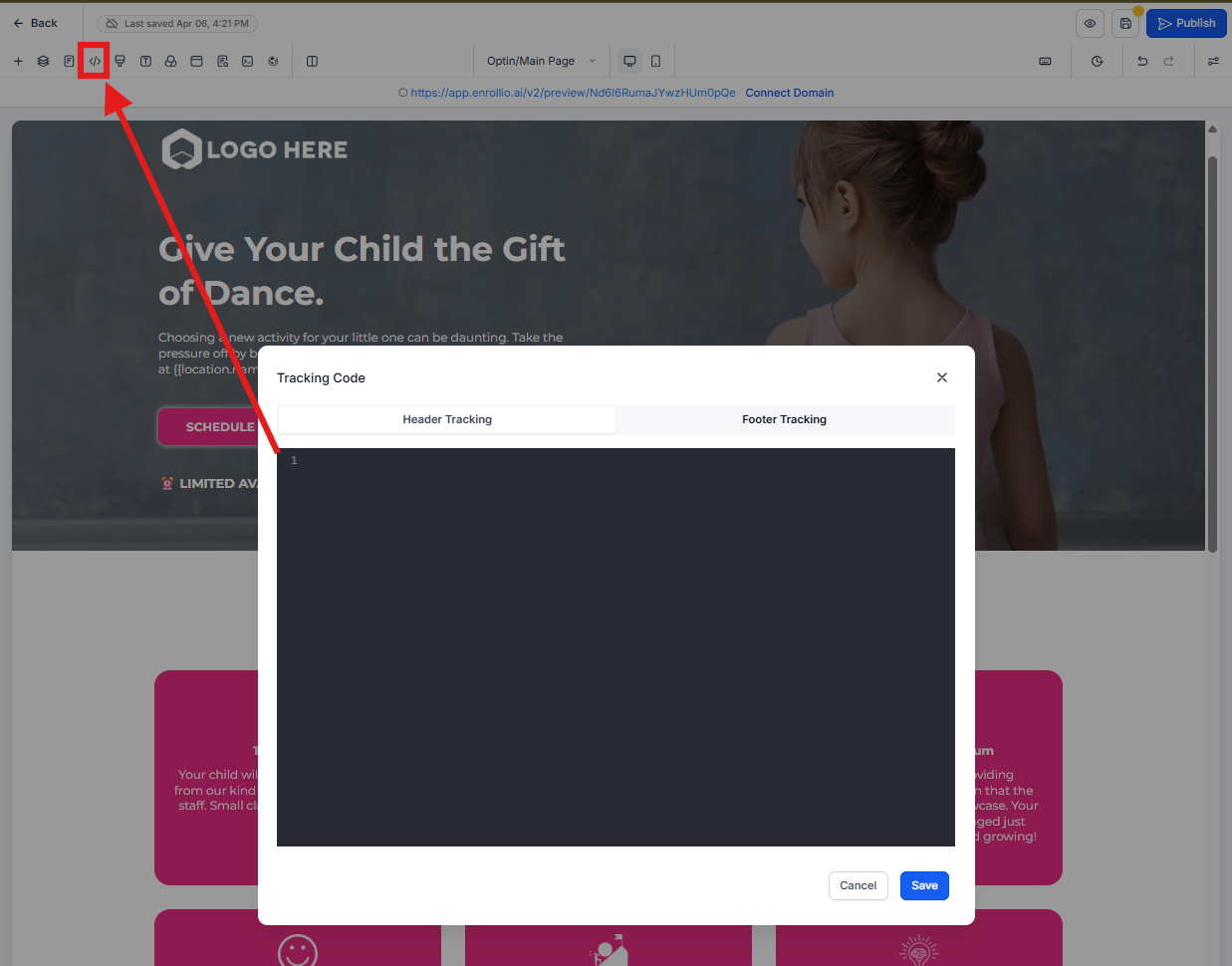
- Open your enrollment page in the page builder
- Click Settings (gear icon in the top menu)
- Select Tracking Code from the left sidebar
- Paste your tracking script in the appropriate field
- Click Save
- Click Publish to make your changes live
Pro Tip: Test Your Pixels
After adding tracking codes, use browser extensions like Facebook Pixel Helper or Google Tag Assistant to confirm they're firing correctly. Visit your enrollment page in an incognito window to test.
Important Note About Facebook Pixels and Privacy
If you're advertising to families in California, you'll need to add special parameters to your Facebook Pixel to comply with the California Consumer Privacy Act (CCPA).
Learn more about CCPA compliance for Facebook Pixels →
Troubleshooting
Pixel not firing? Make sure you've published your changes and cleared your browser cache. Some ad blockers will prevent tracking pixels from loading during testing.
Multiple pixels conflicting? Consider using Google Tag Manager to organize all your tracking codes in one container.
Related Articles
- Setting Up Facebook Conversion Tracking for Tour Bookings
- Google Analytics for Childcare Marketing
- Measuring Your Enrollment Page Performance