
Want to make your enrollment pages more engaging? Add video backgrounds to capture parent attention and showcase your childcare center in action.
Video backgrounds work in any section, row, or column of your enrollment pages and landing pages. They support MP4 and WebM formats, so they'll display beautifully across all devices and browsers.
How to Add a Video Background
- Select the section where you want to add video
- In the settings panel on the right, change BG Media Type to Video
- Select your video from the media library
- Click the Preview icon to see how it looks
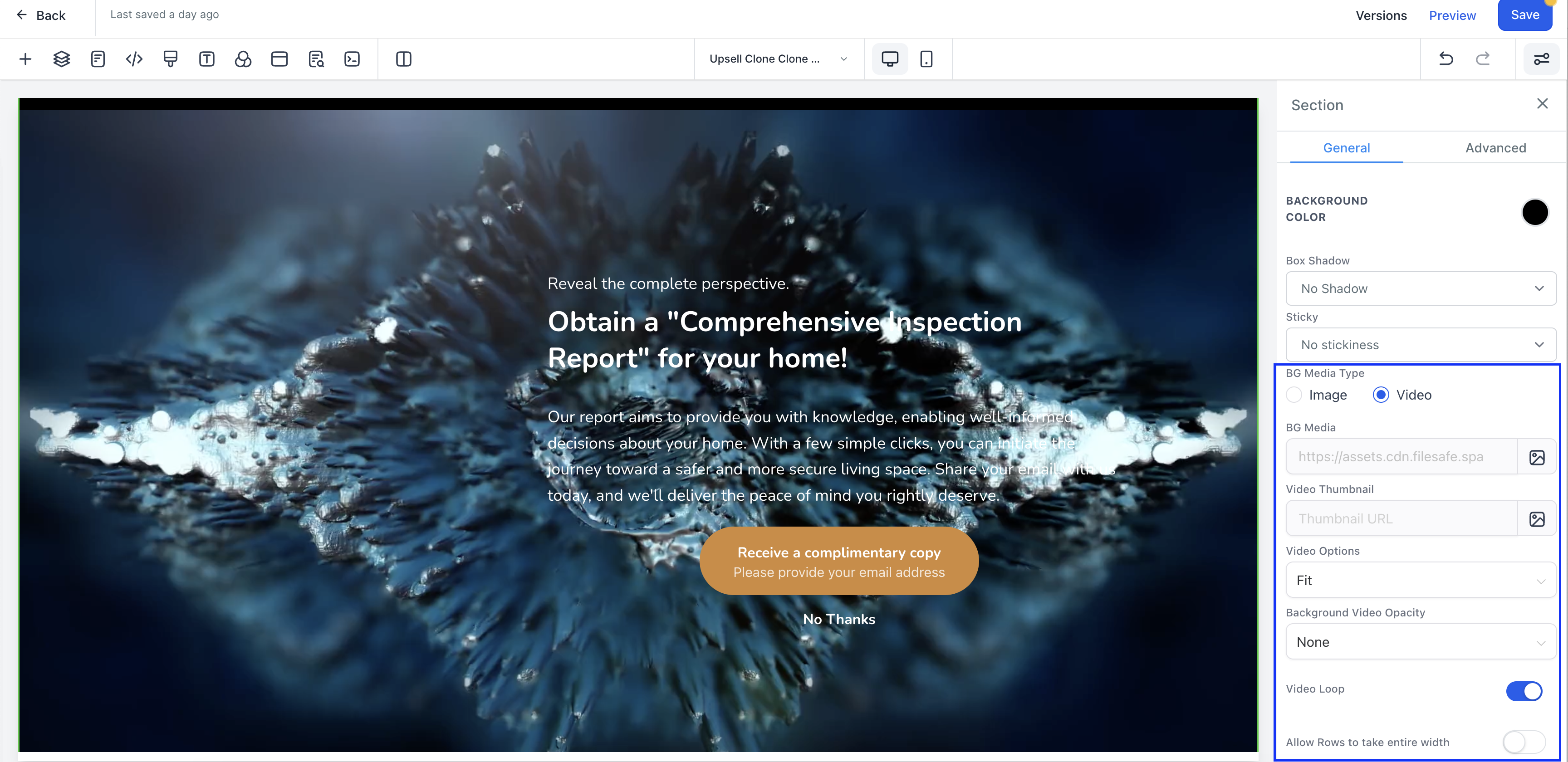
Video Display Options
Choose how your video fits the background space:
Fit
The entire video stays visible while maintaining its original proportions. You may see empty space around the edges if the video dimensions don't match your section size. Best when you want parents to see every part of your video without any cropping.
Fill
The video stretches to cover the entire background area. Some parts may be cropped to ensure complete coverage. Use this when full background coverage matters more than showing the complete video frame.
Cover
The video covers the entire space while keeping its original proportions — no stretching or distortion. This balances full coverage with proper video display. Recommended for most enrollment pages.
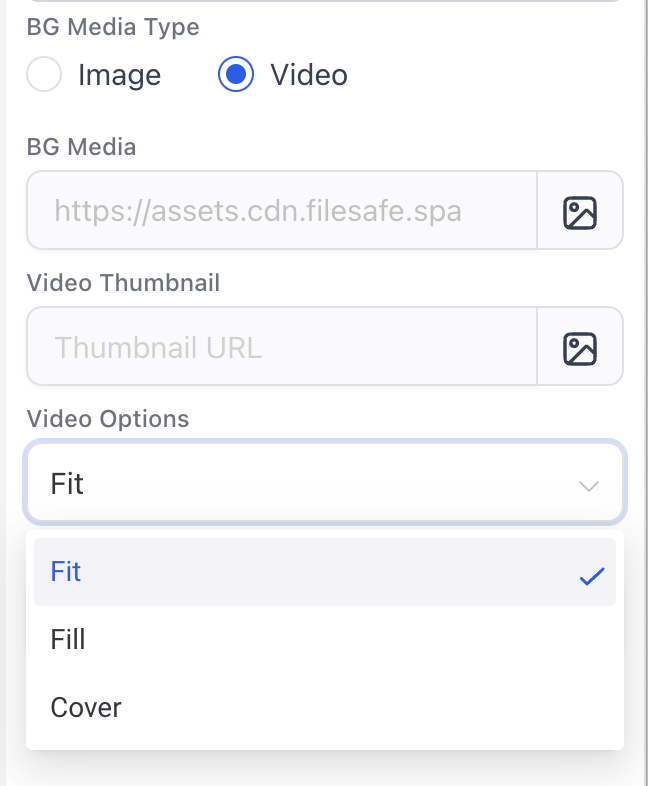
Background Opacity Settings
Control how much your video background shows through behind your text and enrollment forms:
- None: Video is fully visible with no transparency. Content sits directly on top of the video.
- Light Fade: Adds subtle transparency so the video is slightly muted, making text easier to read.
- Half Fade: 50% transparency creates clear separation between video and content while keeping the video visible.
- Heavy Fade: Video becomes a subtle backdrop, keeping focus on your enrollment form and messaging.
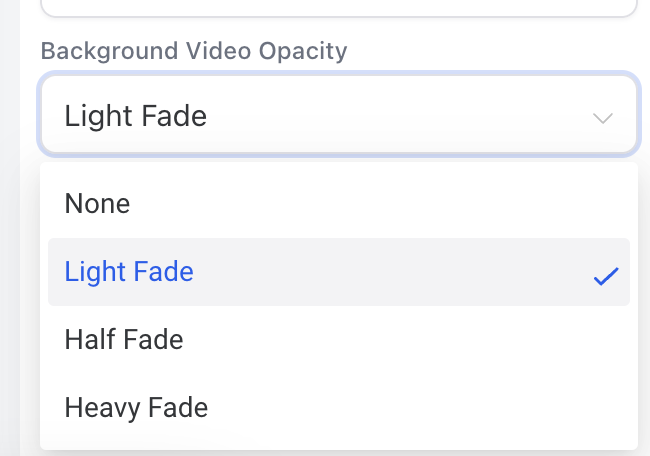
Video Loop
Control whether your video plays once or continuously:
Loop On: Video plays continuously, restarting automatically when it ends. Creates an engaging, seamless experience for parents browsing your enrollment page.
Loop Off: Video plays once and stops. Better for introductory videos or content that shouldn't repeat.
Most enrollment pages work best with looping enabled — it keeps your page dynamic as parents explore their options.

Best Practices for Enrollment Page Videos
- Keep videos short (15-30 seconds) for faster loading
- Show authentic moments from your childcare center
- Avoid videos with important audio — they autoplay muted
- Test on mobile devices to ensure good performance
- Use Cover display mode for the most professional look