
Adding Personalized Text to Your Enrollment Pages
Make your enrollment pages feel more personal by dynamically displaying each family's information — like their first name on a thank you page or confirmation screen.
When to Use Dynamic Text
Dynamic text is perfect for:
- Thank you pages after tour requests
- Enrollment confirmation pages
- Waitlist signup confirmations
- Personalized welcome messages
How to Add Dynamic Text
You can insert personalized information anywhere on your enrollment pages using custom values.
Step 1: Open Your Page Editor
- Go to Sites in your Enrollio dashboard
- Select the enrollment page or landing page you want to edit
- Click into the page builder
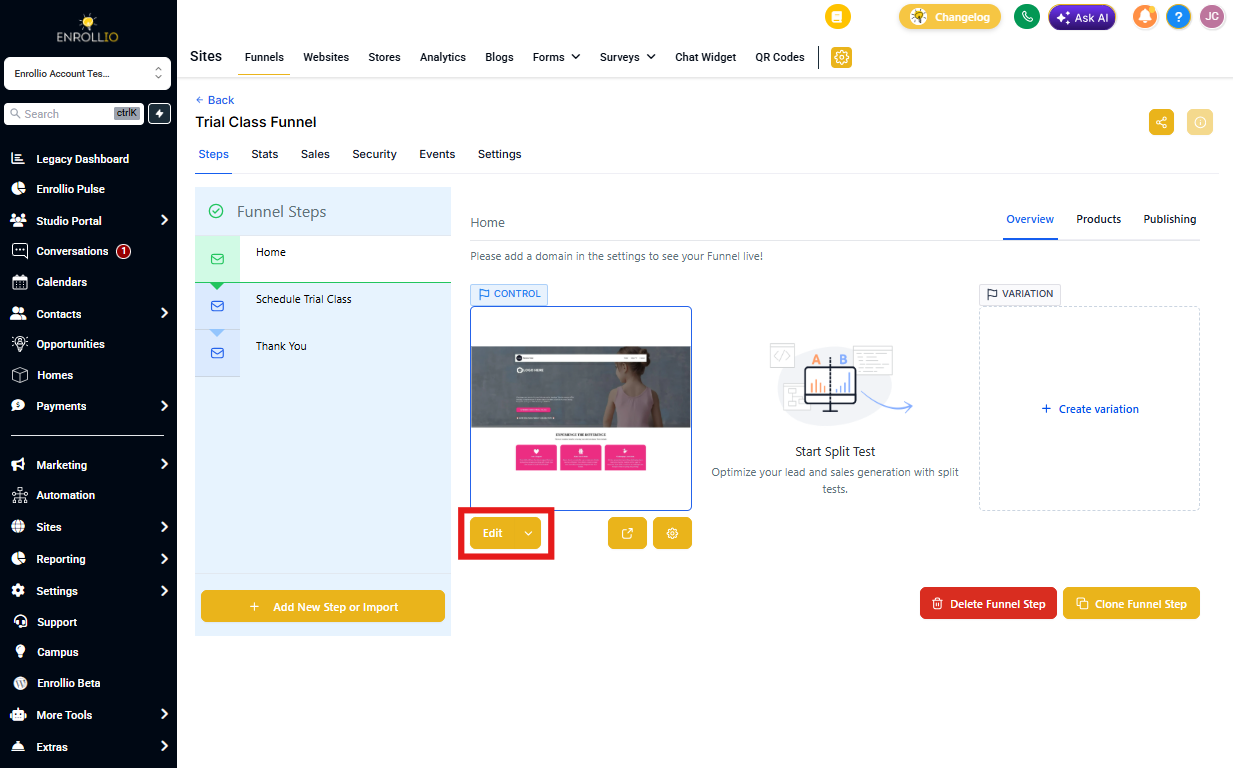
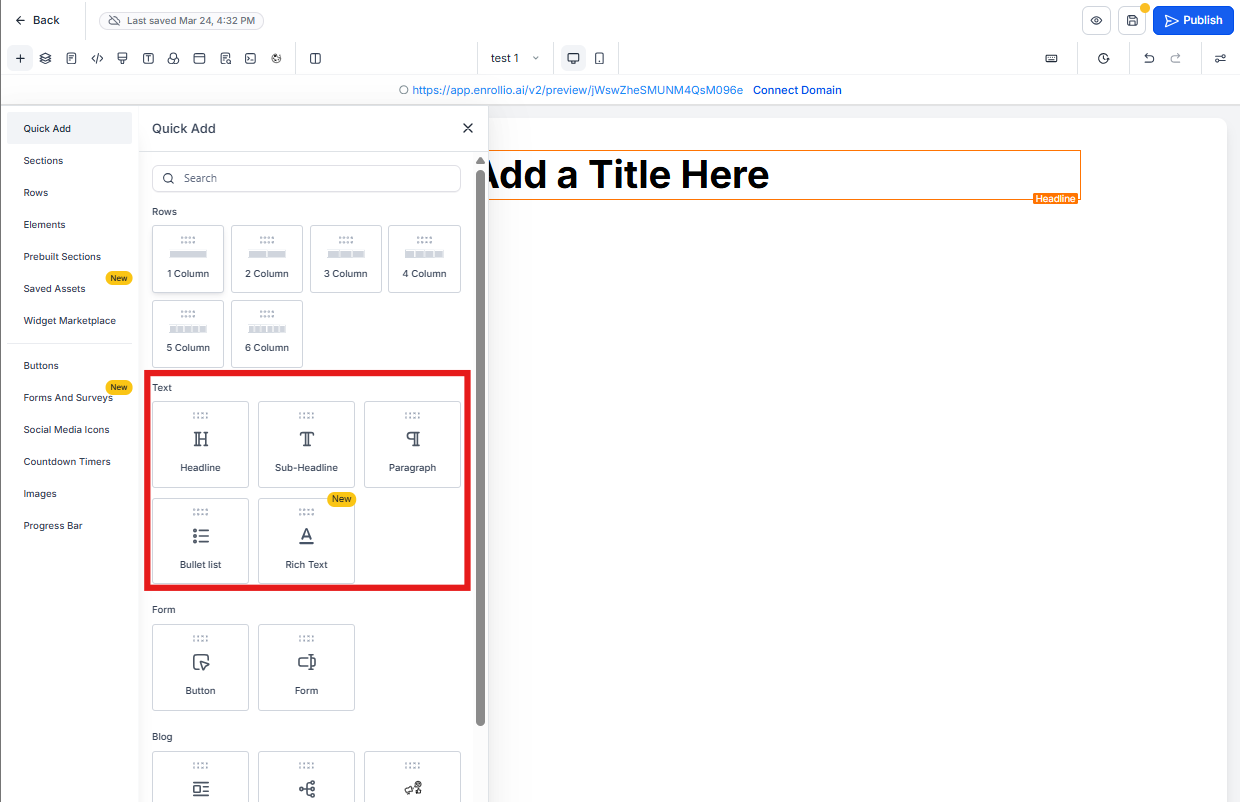
Step 2: Add a Text Element
- Drag a text element onto your page where you want the personalized message
- Click to edit the text
- Type your message, leaving space for the dynamic content
For example: "Thanks for your interest, [FirstName]! We'll be in touch soon."
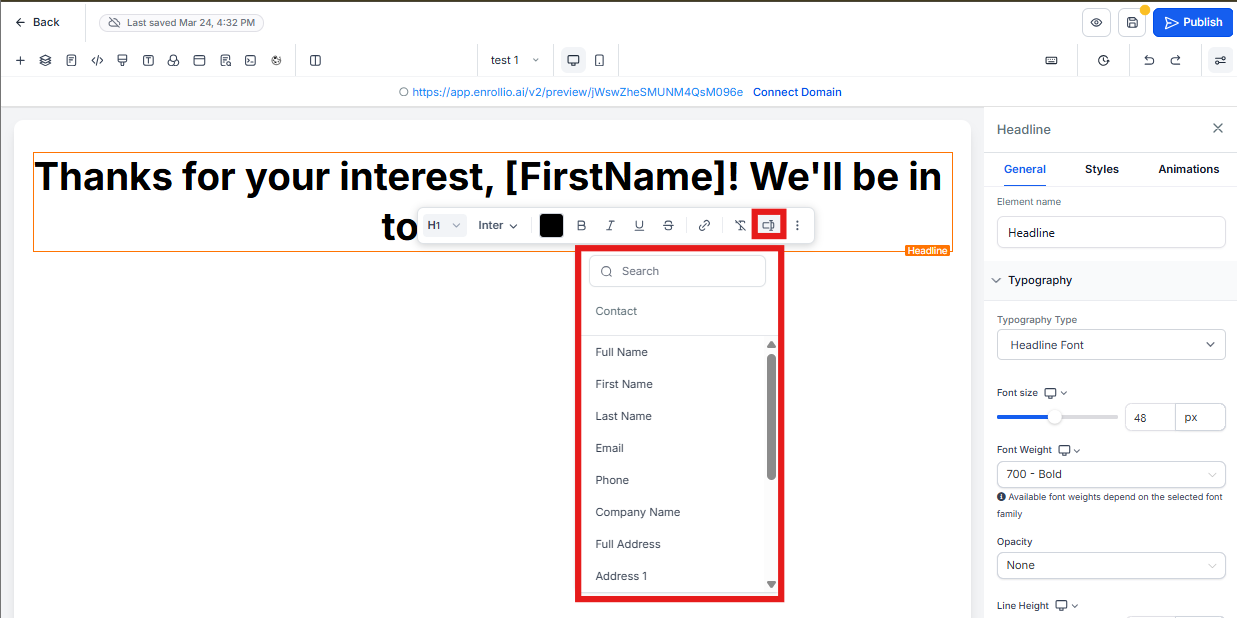
Step 3: Insert the Custom Value
- Place your cursor where you want the dynamic text to appear
- Click the Custom Values button in the text editor toolbar
- Select the field you want to display (like First Name, Child's Name, or Email)
- The custom value code will be inserted automatically
Step 4: Preview and Save
- Preview your page to see how the dynamic text will appear
- When a parent fills out your form, their information will automatically populate
- Click Save to publish your changes
Common Custom Values for Childcare
Here are the most useful dynamic fields for enrollment pages:
- {{contact.first_name}} — Parent's first name
- {{contact.last_name}} — Parent's last name
- {{contact.email}} — Parent's email address
- {{contact.phone}} — Parent's phone number
- Custom fields — Any custom field you've created (like child's name, age, or preferred start date)
Best Practices
Keep it natural. Use personalization where it makes sense — like greetings and confirmations. Don't overuse it or pages feel robotic.
Test before launching. Submit a test form yourself to make sure the dynamic text displays correctly and doesn't break your page layout.
Have a backup plan. If the information isn't available, consider using generic text like "Thanks for your interest!" instead of leaving a blank space.
Need Help?
If your dynamic text isn't displaying correctly, double-check that the field name matches exactly what's in your contact records. Contact support if you're still having trouble.