
The Photo Gallery element lets you showcase your childcare center beautifully—no technical skills required. Display classroom photos, outdoor play areas, or staff images in a professional, engaging format that helps families envision their child at your center.
What You Can Do
Display Options
- Multiple Layouts: Choose grid, vertical masonry, or horizontal masonry to match your site's style
- Column Control: Adjust how many columns display to fit your design
- Custom Spacing: Set the spacing between images for a clean, organized look
- Mobile Optimization: Your gallery automatically adjusts for mobile devices with custom settings
Image Features
- Lightbox View: Parents can click images to view them larger in a lightbox overlay
- Custom Headings: Add a title to each gallery section
- Captions & Descriptions: Describe each photo to give context ("Our outdoor playground" or "Circle time in the 3-year-old classroom")
- Watermark Protection: Add your center's logo or name to protect your images
Interactive Options
- Click Actions: Choose what happens when someone clicks an image—open in lightbox or redirect to another page
- New Tab Links: Have links open in a new browser tab to keep visitors on your enrollment page
How to Add a Photo Gallery
- Open your enrollment page or landing page in the page builder
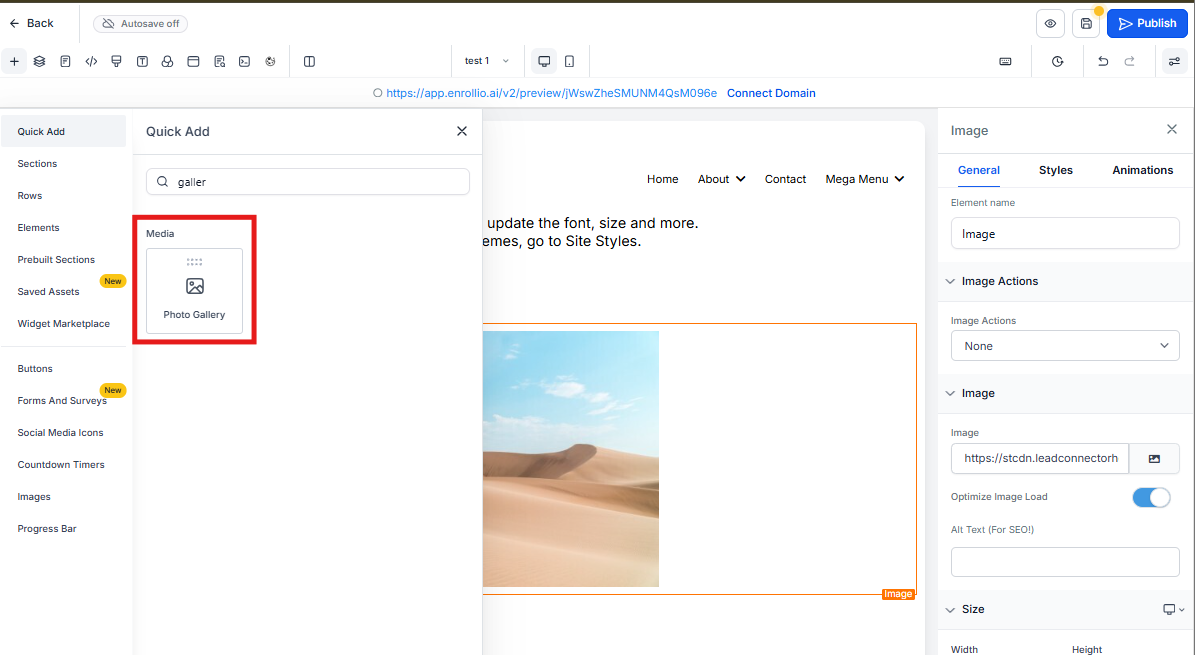
- Find the Photo Gallery element in the left sidebar
- Drag it onto your page where you want the gallery to appear
Configure Your Gallery
- Add Images: Click to select photos from your media library, or drag and drop new files directly into the upload area
- Choose Layout: Select grid or masonry style, then set your column count and spacing
- Set Mobile Behavior: Adjust how the gallery displays on phones and tablets
- Add Descriptions: Write captions for each image to tell your center's story
- Configure Click Action: Decide if images open in lightbox or link to another page
- Apply Watermark (Optional): Protect your photos by adding your center's branding

Pro Tip: Use gallery headings like "Our Classrooms," "Outdoor Play Spaces," or "Meet Our Teachers" to organize different photo sections. This helps families quickly find what they're looking for during virtual tours.
Best Practices for Childcare Galleries
- Show diverse activities—mealtimes, learning centers, outdoor play, circle time
- Include photos of staff interacting with children (with proper permissions)
- Keep captions brief but descriptive: "Our shaded playground features age-appropriate equipment"
- Use consistent image sizes for a polished, professional appearance
- Enable lightbox view so parents can see facility details clearly