
Tap to Pay on Square for In-Person Payments
Accept contactless payments on the spot—during tours, at events, or when families stop by your center. With Tap to Pay on Square, your iPhone becomes a payment terminal. No extra hardware needed.
This article shows you how to set up and use Tap to Pay through the Enrollio mobile app to accept Apple Pay, Google Pay, and contactless cards instantly.
What is Tap to Pay on Square?
Tap to Pay turns your iPhone into a payment terminal. Parents and families simply tap their card or phone against your device to complete a payment—perfect for enrollment fees, registration deposits, or on-the-spot transactions during center tours.
It works alongside your existing payment options like saved cards and manual entry, giving you flexibility when collecting payments in person.
Why Use Tap to Pay?
Tap to Pay makes accepting payments as simple as possible:
- No card reader required — Your iPhone is all you need
- Accept modern payment methods — Apple Pay, Google Pay, and contactless cards
- Perfect for tours and events — Collect registration fees or deposits on the spot
- Fast and secure — Payments process in seconds with built-in security
- Works with your Square account — Same processing you already use
How to Set Up Tap to Pay
Setting up Tap to Pay takes just a few minutes. Here's what you need to do:
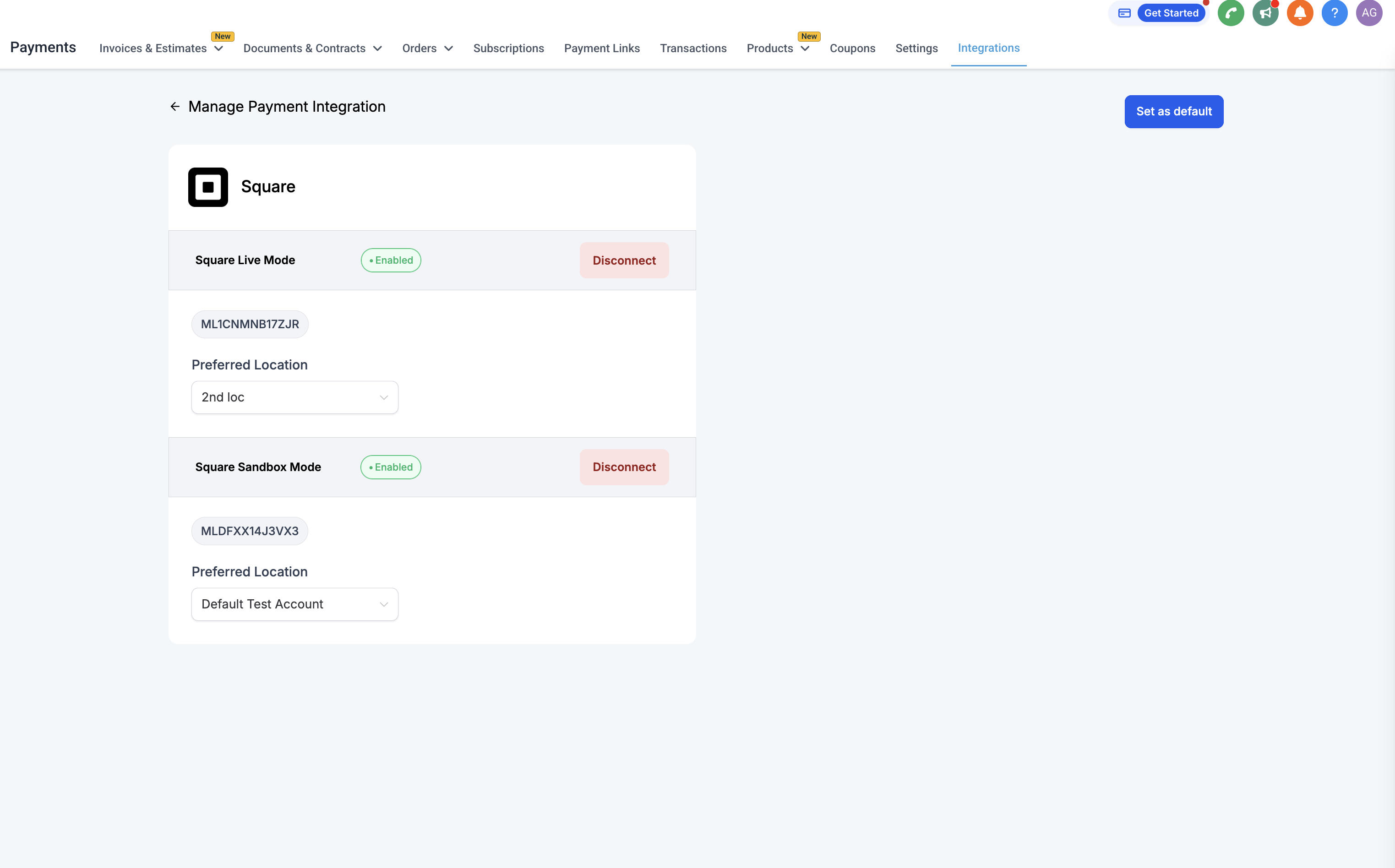
Connect Your Square Account
- Open your Enrollio web dashboard
- Go to Payments → Integrations
- Connect your Square account
- Select an active Square location in Live Mode
Update Your Mobile App
Make sure you're running Enrollio mobile app version 3.98 or higher. Check your app store for updates if needed.
How to Accept a Payment with Tap to Pay
Once you're set up, accepting payments is straightforward. Here's the process:
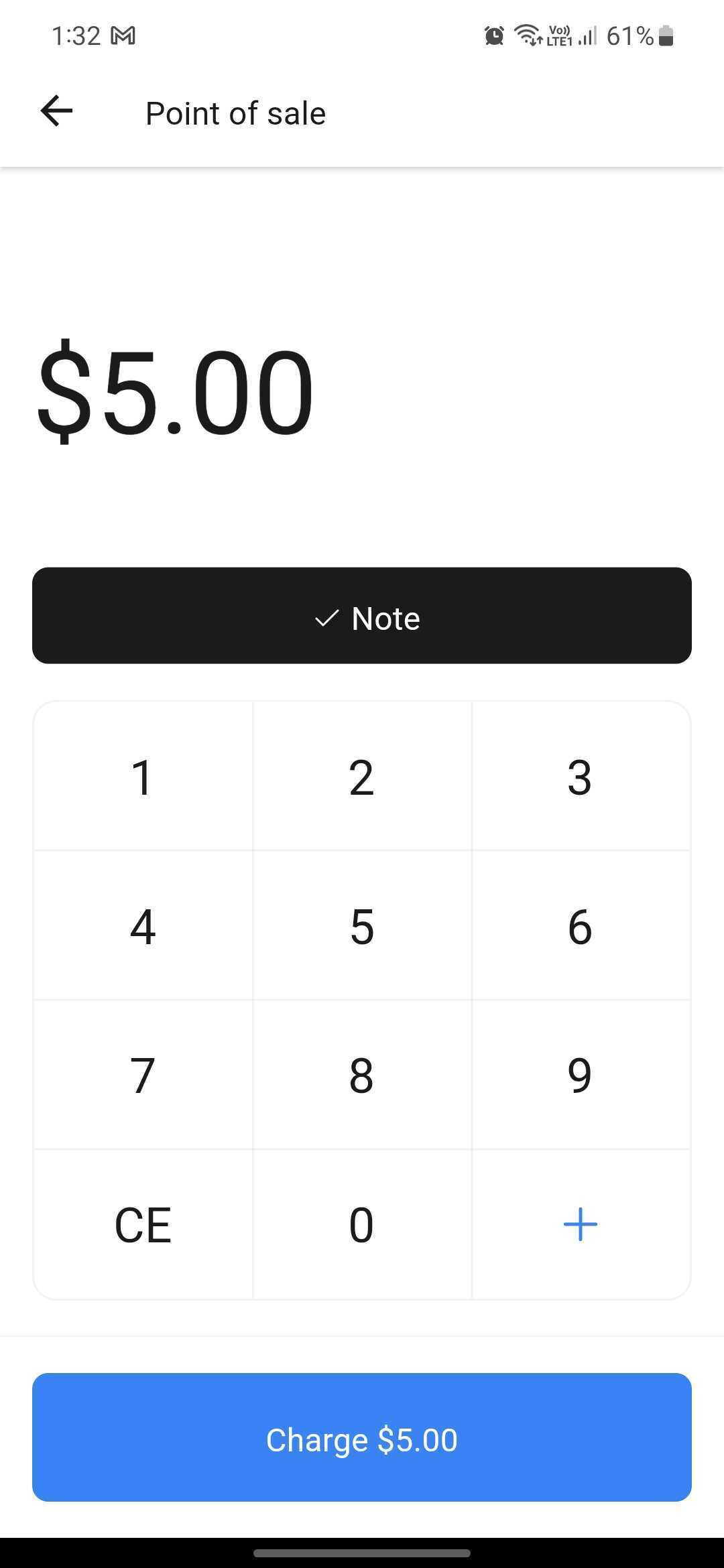
Start a New Sale
- Open the Enrollio mobile app
- Navigate to the client account you used to connect Square
- Go to POS
- Tap Start a Sale
- Add the items using the keypad or your catalog
- Link a parent or family if desired
- Apply any taxes or discounts
Process the Payment
- Tap Payment Instruments
- Select Square Payments
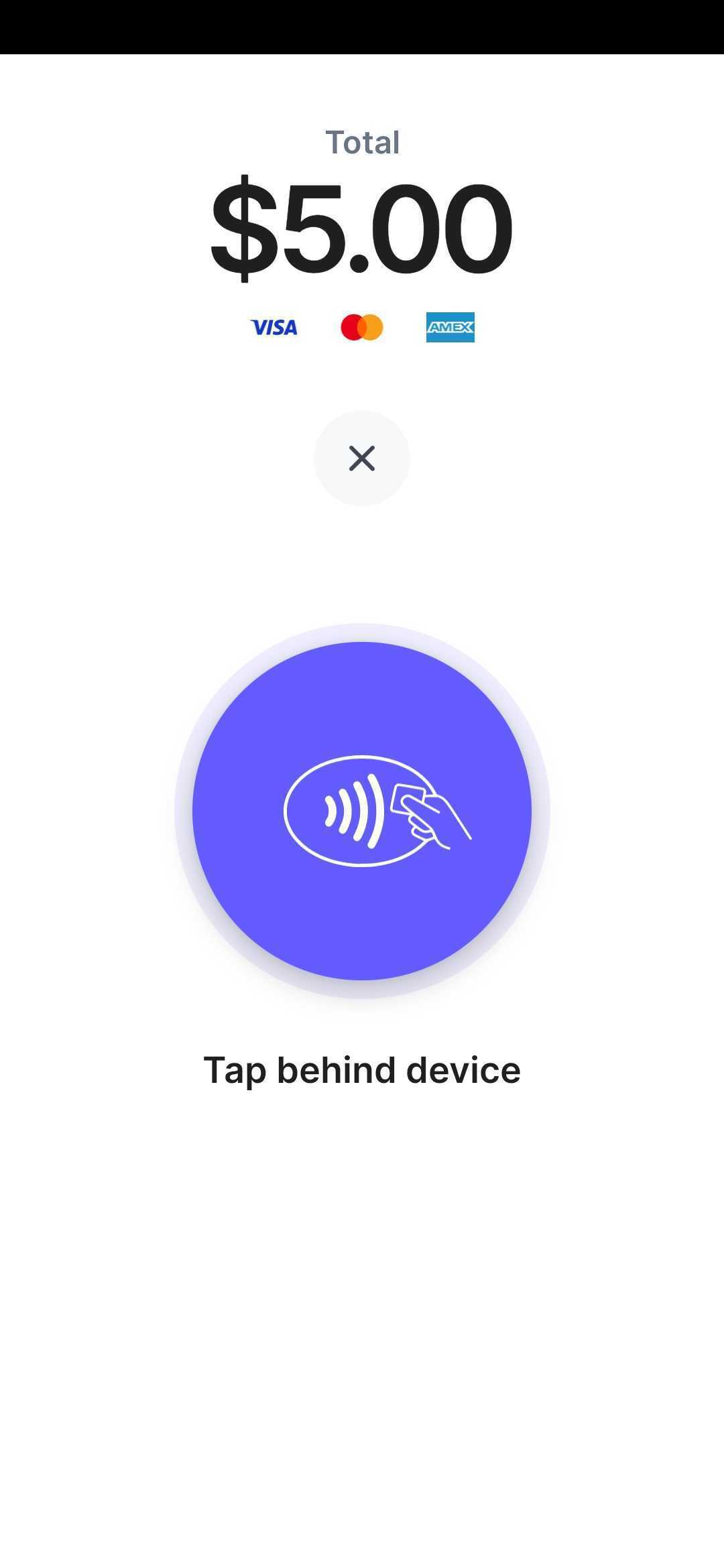
- Choose Tap to Pay on iPhone
- Have the parent tap their card or phone on your iPhone
- Wait for the confirmation screen
Complete the Transaction
Once the payment processes successfully, you'll see a confirmation screen. You can send a receipt via email or text if needed.
Device Requirements
To use Tap to Pay, you need:
- iPhone XS or newer
- iOS 16.4 or later
- Enrollio mobile app version 3.98 or higher
Important: Tap to Pay is currently available on iPhone only. Android support is not available at this time.
Setup Checklist
Before you use Tap to Pay for the first time, confirm you have:
- ✓ Active Square account with processing capabilities
- ✓ Square location connected in Enrollio (Live Mode)
- ✓ iPhone XS or newer running iOS 16.4+
- ✓ Enrollio mobile app updated to version 3.98 or higher
If you use a custom-branded Enrollio mobile app, contact support to request the version 3.98 update.
Frequently Asked Questions
Can I use Tap to Pay on Android devices?
Not currently. Tap to Pay is only available on iPhone XS or newer running iOS 16.4 or later.
Do I need to buy a card reader?
No. Your iPhone acts as the payment terminal. You don't need a Square Reader or any additional hardware for Tap to Pay transactions.
Can I use Tap to Pay across multiple client accounts?
Yes, but each client account needs its own active Square integration and location connected.
Does Tap to Pay work with Apple Pay and Google Pay?
Yes. Tap to Pay accepts Apple Pay, Google Pay, and any contactless credit or debit card.
How do I get the mobile app update if I have a custom-branded app?
Contact Enrollio support to request the version 3.98 update for your custom-branded mobile app.
Can I still use other Square payment methods?
Absolutely. You can continue using saved cards, manual card entry, and Square Readers alongside Tap to Pay.
Are there extra fees for Tap to Pay transactions?
Tap to Pay follows Square's standard processing fee structure. Enrollio doesn't charge any additional fees.
Next Steps
Ready to start accepting contactless payments? Connect your Square account and test Tap to Pay today. It's the easiest way to collect enrollment fees, deposits, and payments during tours or events.
If you use a custom-branded mobile app, submit an update request to get version 3.98.