
Overview
When families fill out your enrollment forms or surveys, you can now filter your automations based on whether they agreed to your Terms and Conditions. This helps you ensure compliance and create different paths for families who have and haven't agreed to specific terms.
Why This Matters
- Better Targeting: Automatically segment families based on their T&C agreement status
- Stay Compliant: Make sure only families who've agreed to your terms move forward in your enrollment process
- Custom Parent Journeys: Create different follow-up paths for families based on their agreement status
How to Set It Up
Step 1: Add the Filter to Your Automation
- Go to Automations in your dashboard
- Select the automation you want to update (or create a new one)
- Choose one of these triggers:
- Form Submitted
- Quiz Submitted
- Survey Submitted
- Click Add Filters
- Select the T&C Filter option
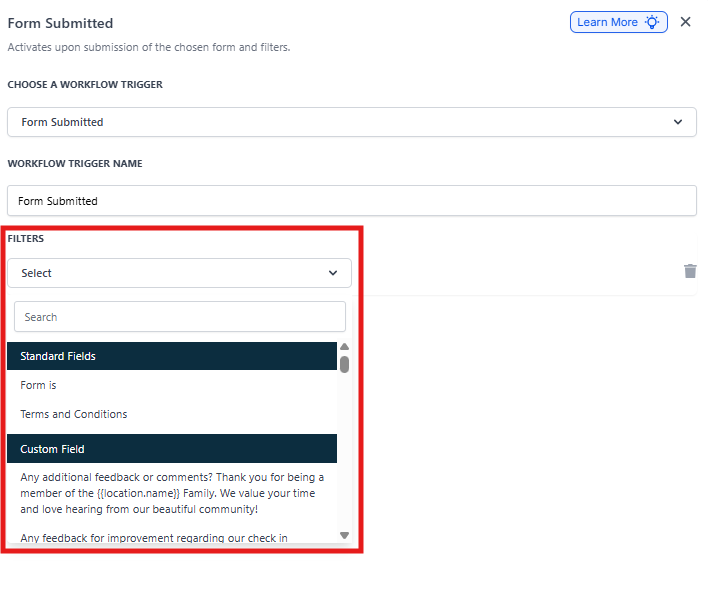
Step 2: Configure Your Filter
You can filter families into two groups:
- Agreed to T&C: Families who checked the agreement box
- Did Not Agree to T&C: Families who didn't check the agreement box
Choose which condition applies to this step of your automation.
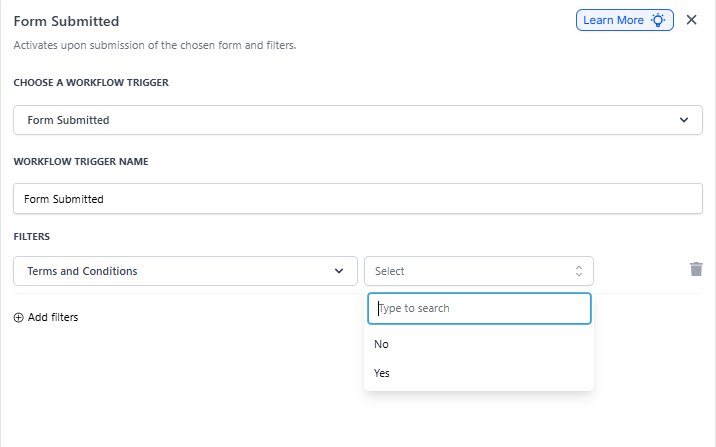
Step 3: Save and Test
- Click Save to apply your changes
- Run a test submission through your form to verify the filter works as expected
Real-World Examples
Updated Policies
If you've updated your pickup policy or health requirements, only send the new handbook to families who've agreed to your latest terms.
Special Programs
Require families to agree to specific terms before accessing premium programs like extended hours or specialized curriculum offerings.
Compliance Tracking
Ensure only families who've agreed to your photo release policy receive invitations to family events where photos will be taken.
Frequently Asked Questions
Can I combine the T&C filter with other filters?
Yes! You can layer the T&C filter with other conditions — like form responses or family tags — to create highly targeted automation paths.
What happens if a family doesn't interact with the T&C checkbox?
They'll be categorized as "Did Not Agree," giving you clear control over how to handle these families in your automation.
Can I use this filter for existing families?
The filter works based on form submissions, so it's perfect for re-enrollment forms where you need families to agree to updated terms.
Need Help?
If you have questions about setting up T&C filters in your automations, contact our support team. We're here to help!