
Speed up form and survey building with element and slide cloning. Duplicate form components and survey slides with a single click to create enrollment forms, parent surveys, and registration quizzes faster while maintaining consistent design.
What is Element & Slide Cloning?
Element and slide cloning lets you instantly duplicate any component you've already configured in a form, quiz, or survey. This is especially useful when creating enrollment forms with repeated sections or multi-step parent surveys.
With cloning, you can:
- Quickly replicate custom fields, text boxes, image elements, and question blocks
- Preserve styles, validations, and settings automatically
- Reuse proven form sections instead of rebuilding from scratch
The clone appears directly below the original and can be edited independently without affecting the source element.
Key Benefits
- Speed: One click duplicates any element; build multi-step parent surveys in minutes
- Consistency: Maintain the same spacing, labels, and formatting across your enrollment forms
- Efficiency: Reuse thoughtfully configured components like emergency contact sections or child information blocks
- Accuracy: Preserve required field rules and validations to avoid setup errors
- Design Continuity: Keep your enrollment forms looking professional and polished
What Gets Copied
When you clone an element or slide, these properties transfer to the duplicate:
- Styles & Layout: Fonts, spacing, widths, alignment, and color themes
- Validations: Required field toggles and validation rules
- Content: Labels, placeholders, dropdown choices, and helper text
- Images: Source files, alignment, and size settings
- Slides (Surveys/Quizzes): Complete visual design and layout
After cloning, you can modify the duplicate without affecting the original—perfect for creating similar but distinct sections like "Parent 1 Information" and "Parent 2 Information."
Clone Elements in Forms, Surveys & Quizzes
Use element cloning to duplicate individual form fields, questions, or content blocks. This works in all three builder types.
- Open your form, survey, or quiz in the builder
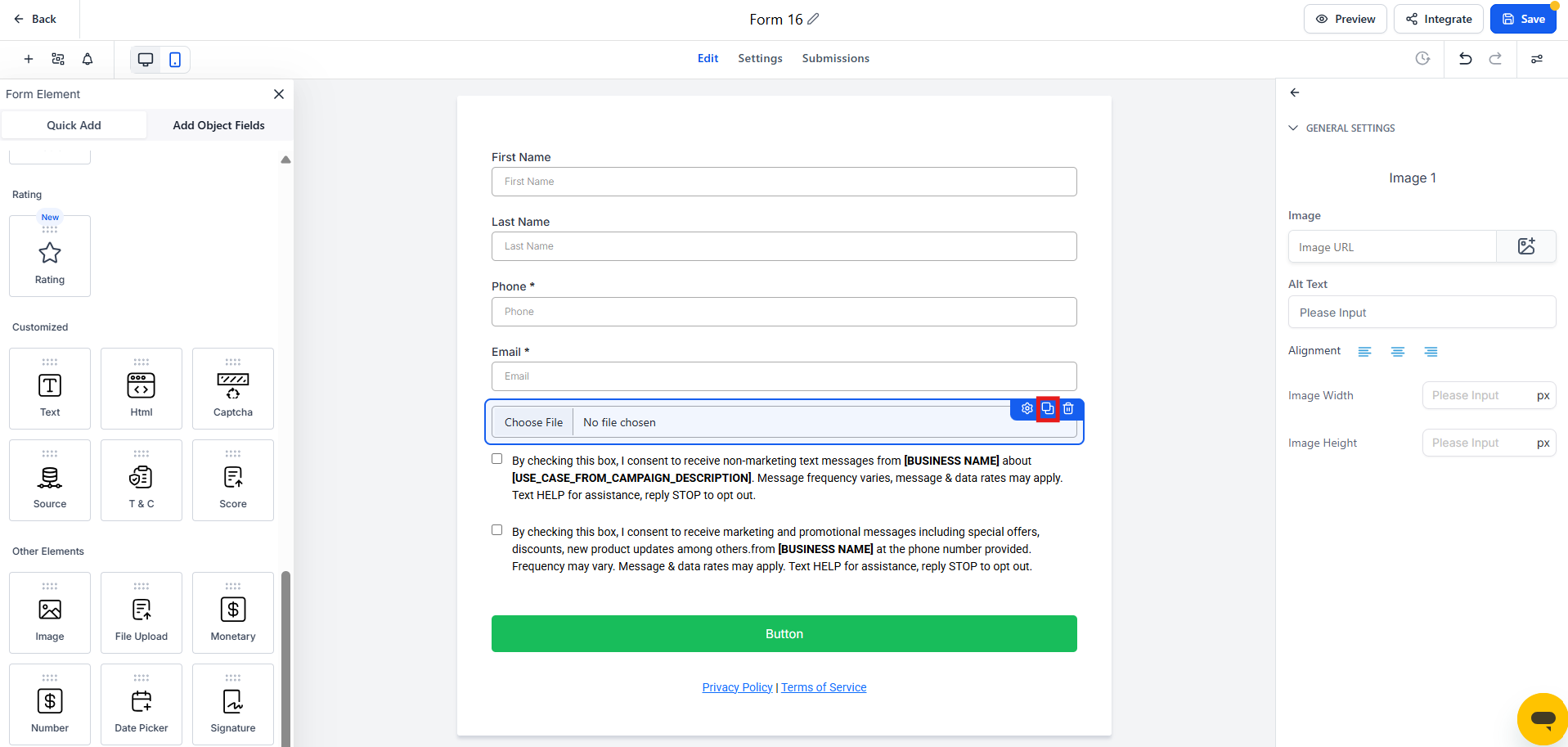
- Hover over the element you want to duplicate
- Click the Clone icon (two overlapping rectangles)
- The duplicate appears immediately below the original
- Click the cloned element to make any needed changes
Clone Entire Slides (Surveys & Quizzes Only)
Slide cloning duplicates the entire slide canvas—including layout, design elements, and all questions. This accelerates multi-step survey creation and keeps formatting consistent across your parent surveys or registration quizzes.
- Open your survey or quiz in the builder
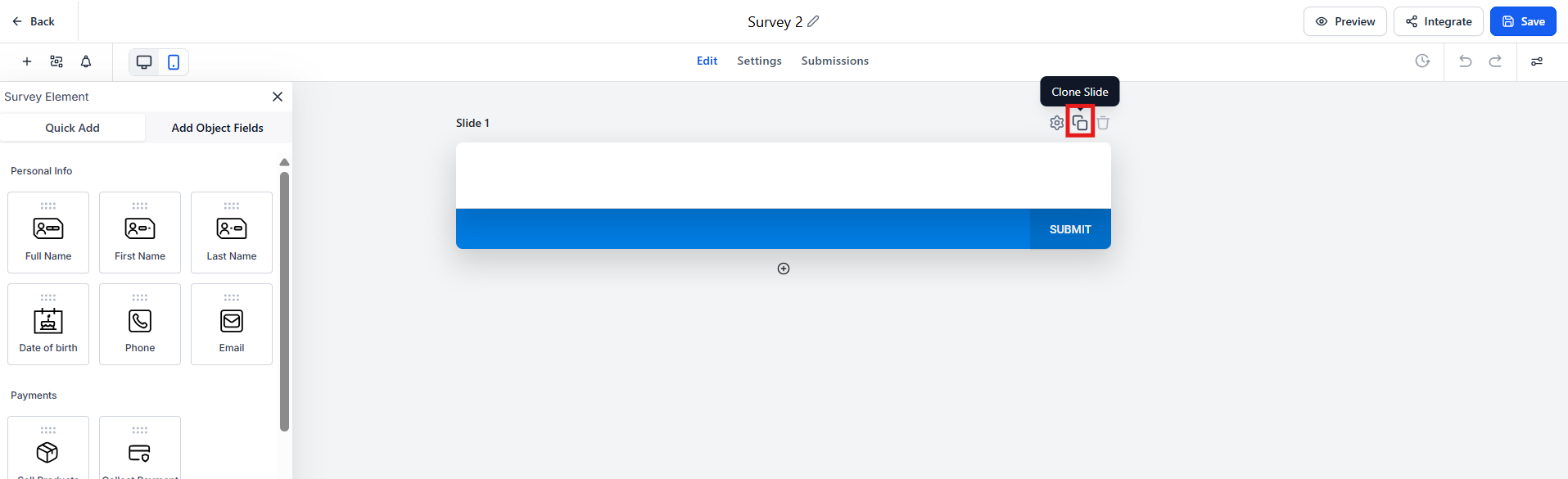
- Move your cursor to the top-right corner of the slide you want to duplicate
- Click Clone Slide
- A complete duplicate slide is created
- Edit the new slide as needed
Note: Slide cloning is not available in standard forms—only in surveys and quizzes.
Frequently Asked Questions
Does cloning work in forms, surveys, and quizzes?
Yes. You can clone individual elements in forms, surveys, and quizzes. Full slide cloning is available only in surveys and quizzes.
Where does the duplicate appear?
The cloned element or slide appears directly below the original.
Do cloned elements keep validations and styles?
Yes. Clones retain all settings including required field rules, validation rules, and styling. Review the duplicate and adjust as needed for your specific use case.
Can I clone the same element multiple times?
Absolutely. Clone an element as many times as you need—there's no limit.
How do I remove an accidental clone?
Hover over the element or slide and click the Delete icon (trash can).