
What is Enhanced Drag and Drop with Auto-Hierarchical Layout?
Build enrollment pages faster with true drag and drop freedom. Enrollio's auto-hierarchical logic lets you drop any element on the canvas while the builder creates Sections, Rows, and Columns for you automatically.
You can drop any element directly onto the canvas without worrying about setting up the correct structure first. The builder automatically creates the right layout hierarchy behind the scenes. This means fewer clicks, less confusion, and much faster page building.
The system automatically wraps each element within the appropriate layout containers. This reduces setup time and helps you maintain a clean, consistent structure across your enrollment pages.
Key Benefits of Enhanced Drag and Drop
This functionality significantly improves the speed and usability of building your enrollment pages:
- True Drag-and-Drop Freedom: Place any element directly on the canvas—no need to prep the layout first
- Auto-Wrap Logic: Builder auto-generates the correct structure (Section → Row → Column) behind the scenes
- Smart Placement Detection: Automatically detects valid drop targets and fits elements accordingly
- Inline Column Controls: Add new columns to existing rows directly from the canvas
- Improved Visual Feedback: Clear ghost outlines and drop zones help you preview where items will go
How To Use the Enhanced Drag and Drop Feature
This experience is available when Enhanced Drag & Drop is enabled in your account settings. Once enabled, you can drag new elements onto the canvas and also reposition existing elements by grabbing anywhere on the element.
Steps to Try It Out:
- Open any enrollment page or landing page in the page builder
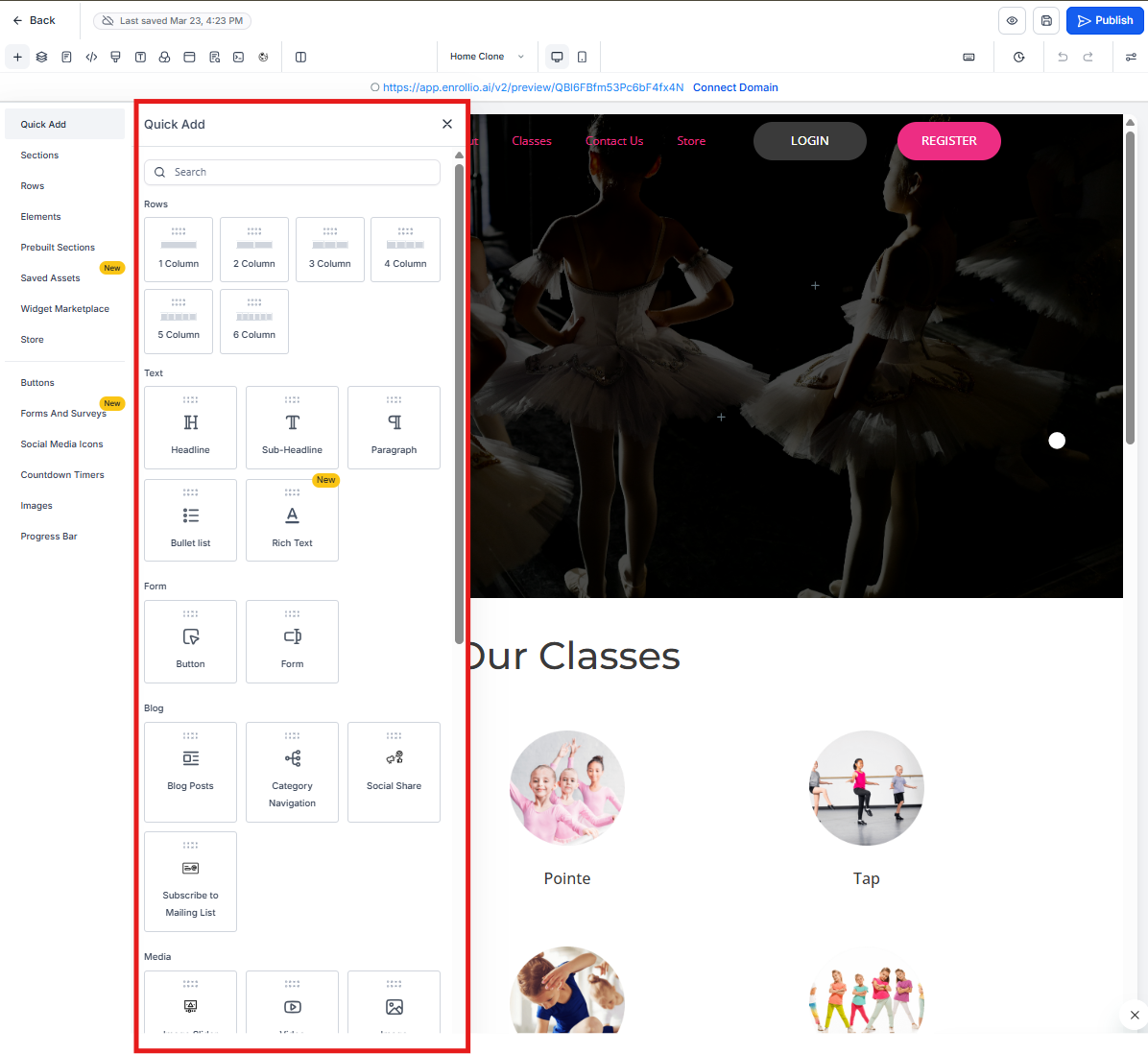
- Drag an element (for example, Text, Button, Image) from the sidebar onto an empty area of the canvas
- Watch as the builder automatically wraps the element with the correct layout containers
- To reposition an existing element, grab anywhere on the element and drag it to the desired drop zone (no move handle required)
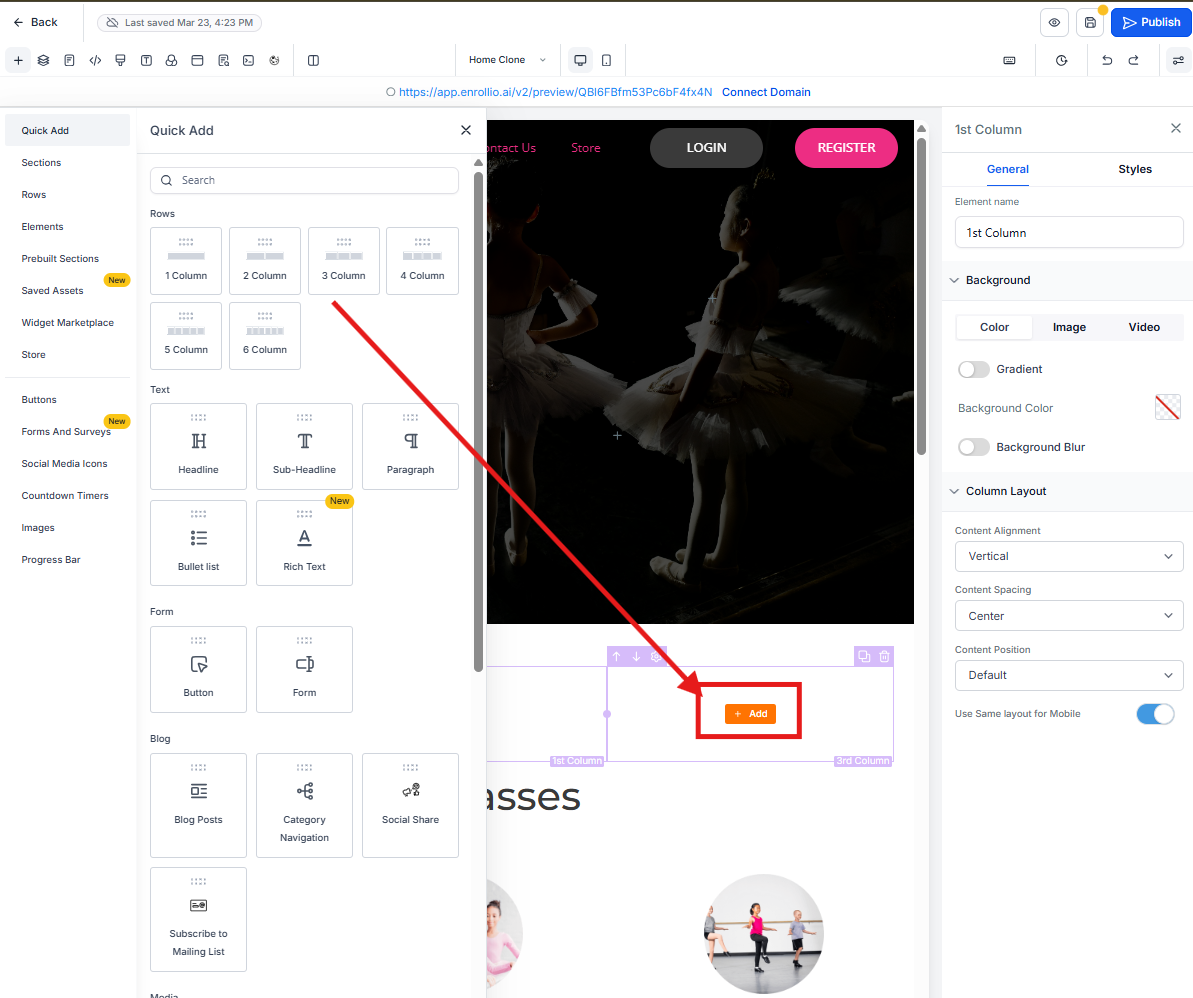
- Add new columns by hovering over a Row and clicking + Add Column
- Use visual cues like ghost outlines to align your elements with precision
Reorder Columns Within a Row
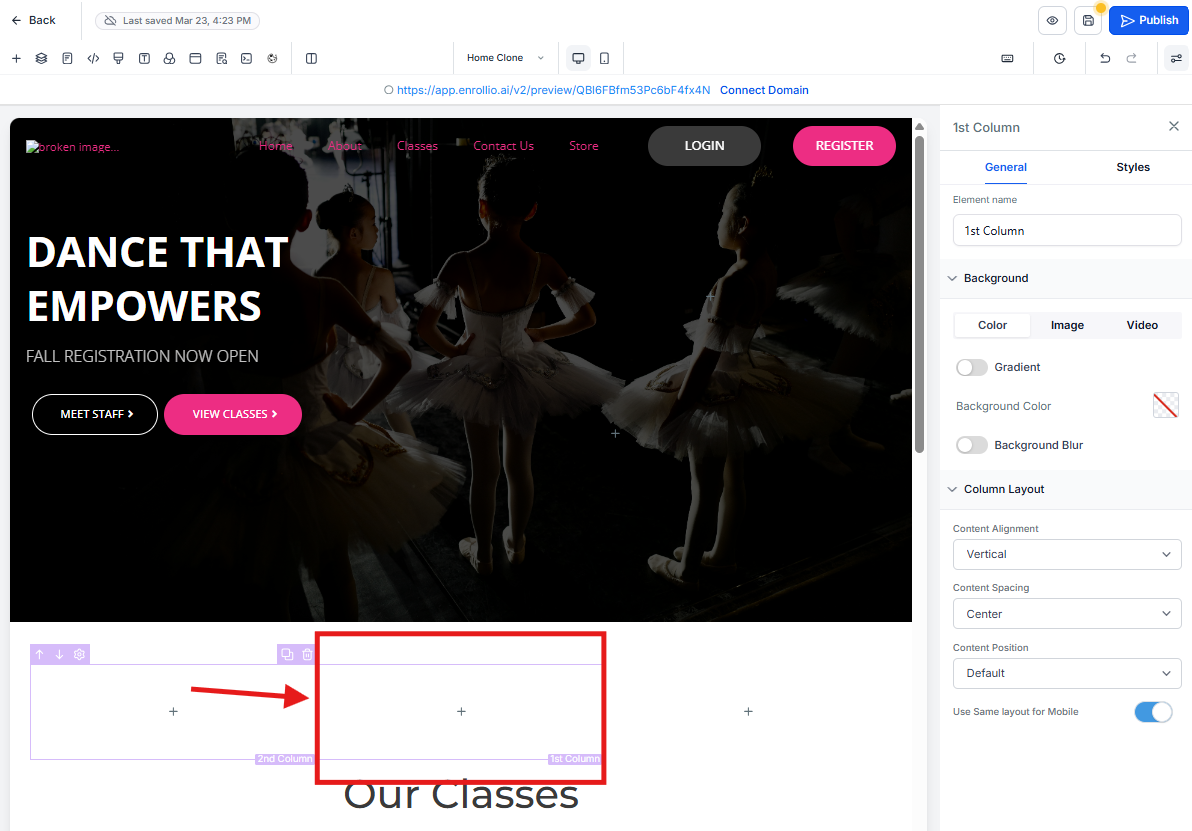
You can reorder columns within the same row to adjust layout and content flow without rebuilding the section.
- Hover over the row to reveal column boundaries and drop zones
- Grab the column you want to move and drag it left or right within the row
- Use the drop indicator to place it in the new position, then release to drop
Note: Column reordering is currently scoped to the same row. Reordering columns can change responsive stacking, so re-check tablet and mobile views after reordering.
Tips for Precision Placement
- Use zoom to make small placement changes easier
- Use rulers/guides (when available) to align elements consistently
- Use Undo/Redo to experiment safely and back out of misdrops quickly
Quick Examples of the Enhanced Drag and Drop Experience
These examples show how the builder handles layout creation dynamically:
Dragging a Text Element onto a Blank Canvas
Builder auto-creates: Section → Row → Column → Text
Dragging a Row onto a Blank Canvas
Builder auto-creates: Section → Row (with default columns)
Adding Columns to an Existing Row
Simply click the "+ Add Column" button inline on the canvas to expand the layout
Frequently Asked Questions
Do I still need to manually add Sections or Rows?
No, the builder creates them automatically based on what you drag and where you drop it.
Can I disable the auto-wrap behavior?
Currently, this behavior is automatic and cannot be disabled.
What if I want to customize the layout structure manually?
You can still add Sections, Rows, and Columns the traditional way if you prefer full control over the structure.
Does this feature work for both landing pages and enrollment sites?
Yes, the drag-and-drop enhancements apply to all page types you build in Enrollio.
Will this affect my existing pages?
No, this only impacts your experience when creating or editing new elements going forward. Your existing pages remain unchanged.
Do I still need the move handle?
No. You can grab any part of the element to move it.
Does this work in mobile view?
Yes. Re-check responsive order after reordering columns to confirm tablet and mobile layout appears as expected.
Pro Tip: When building enrollment pages for parents to view on mobile devices, always preview your page in mobile view after making layout changes. Most parents browse and enroll from their phones.