
Download File Action for Buttons, Images, and SVGs
Give families instant access to enrollment packets, tuition guides, handbooks, and more. The Download File Action lets you attach any resource—PDFs, images, videos, ZIPs—to buttons, images, or SVG icons on your enrollment pages. Parents get what they need with a single click, no extra steps or third-party storage required.
What is the Download File Action?
Turn any button, image, or SVG into a direct download link. Families click once and instantly receive your file—no copying links, no redirects, no confusion. Everything happens inside your Enrollio builder, and you don't need to write a single line of code.
Key Benefits
Deliver resources instantly while keeping families engaged on your enrollment pages.
- Instant Delivery: Families get your file the second they click
- No-Code Setup: Enable downloads right in the page builder—no technical skills needed
- Works Everywhere: Add downloads to buttons, images, and SVG icons
- Custom File Names: Brand your downloads with clear, professional filenames
- Uses Your Media Library: Choose any file already uploaded to Enrollio
- Any File Type: Share PDFs, videos, spreadsheets, ZIPs, and more
- Better Experience: Keep families on your page instead of sending them elsewhere
Requirements & Limitations
Here's what you need to know before setting up downloads:
- One file per element: Each button, image, or SVG links to a single file
- Must use media library: Files need to be uploaded to your Enrollio media library first
- File size limits: Standard media library upload limits apply
- Supported elements: Buttons, images, and SVGs only
- Supported file types: PDF, PNG, JPG, MP3, MP4, DOCX, XLSX, ZIP, and any other format the media library accepts
Best Practices for Downloadable Resources
Follow these guidelines to create smooth, professional download experiences:
- Use descriptive file names: Examples: "ABC_Academy_Enrollment_Packet.pdf" or "2025_Tuition_Guide.pdf"
- Optimize file size: Compress large images or videos to speed up downloads
- Label buttons clearly: Use text like "Download Enrollment Forms" or "Get Parent Handbook" so families know exactly what they're getting
- Only upload final versions: Replacing or deleting files in your media library will break existing download links
How to Set Up the Download File Action
Add a single-click download to any button, image, or SVG in minutes.
Step 1: Open Your Enrollment Page or Landing Page
- Click Sites in the left navigation
- Choose the Enrollment Sites or Landing Pages tab
- Select your site, then click the specific page you want to edit
- Click Edit to open the builder
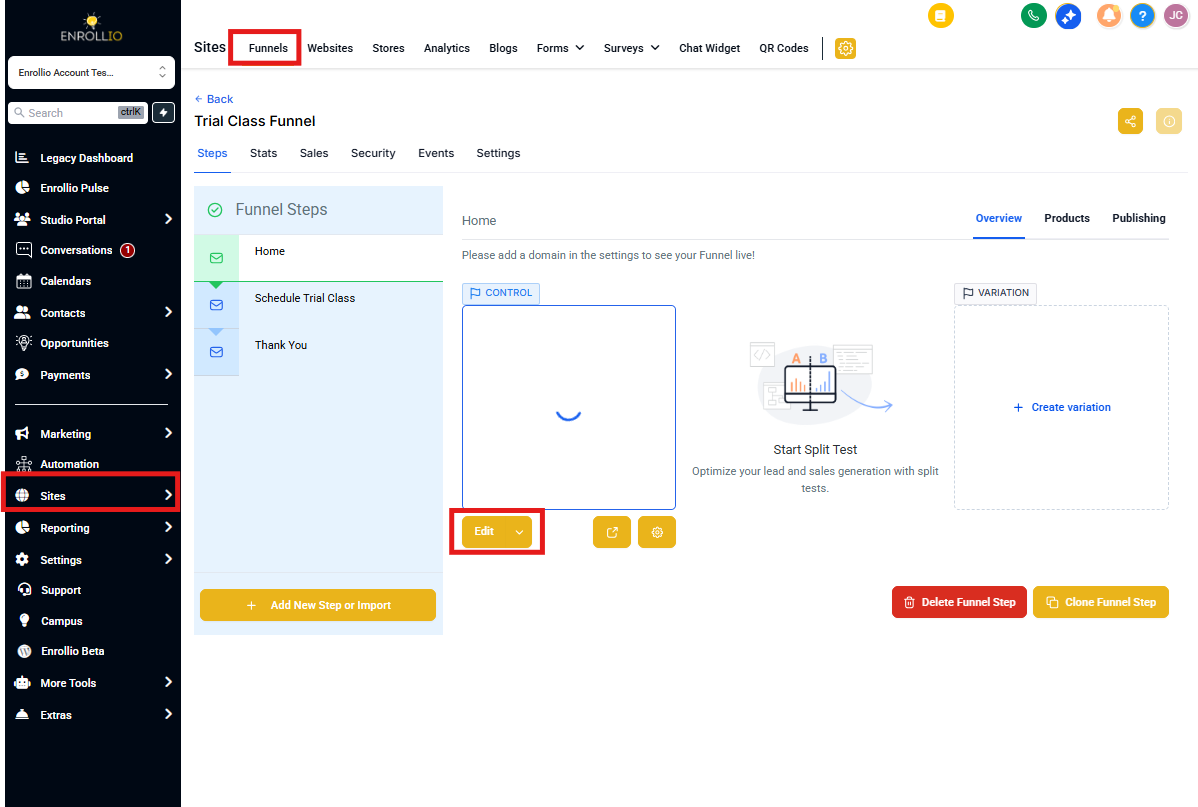
Step 2: Select Your Element and Choose Download Action
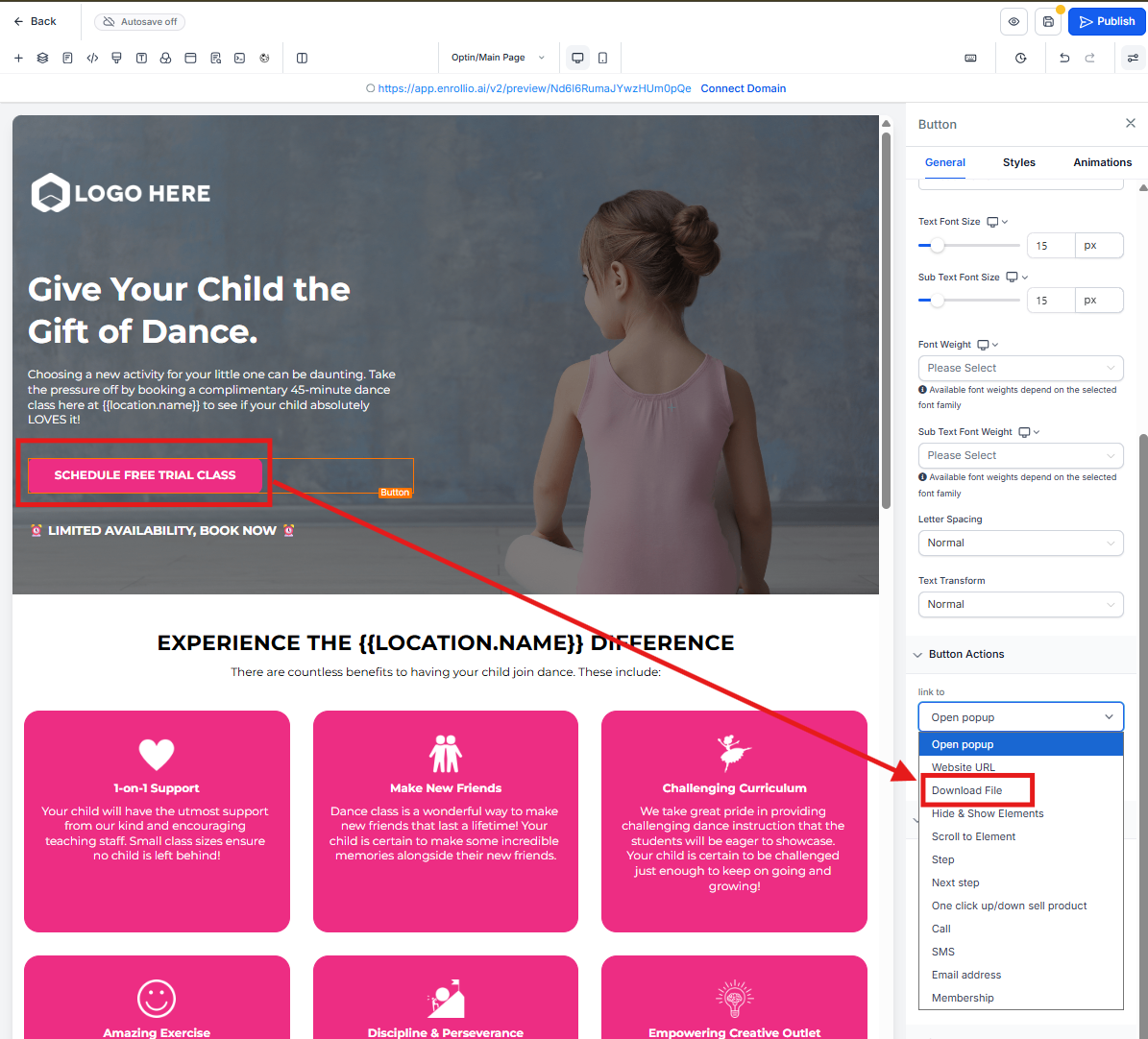
For Buttons:
- Click the button you want to make downloadable
- Go to the Settings panel
- Under Button Actions, use the Link To dropdown and select Download File
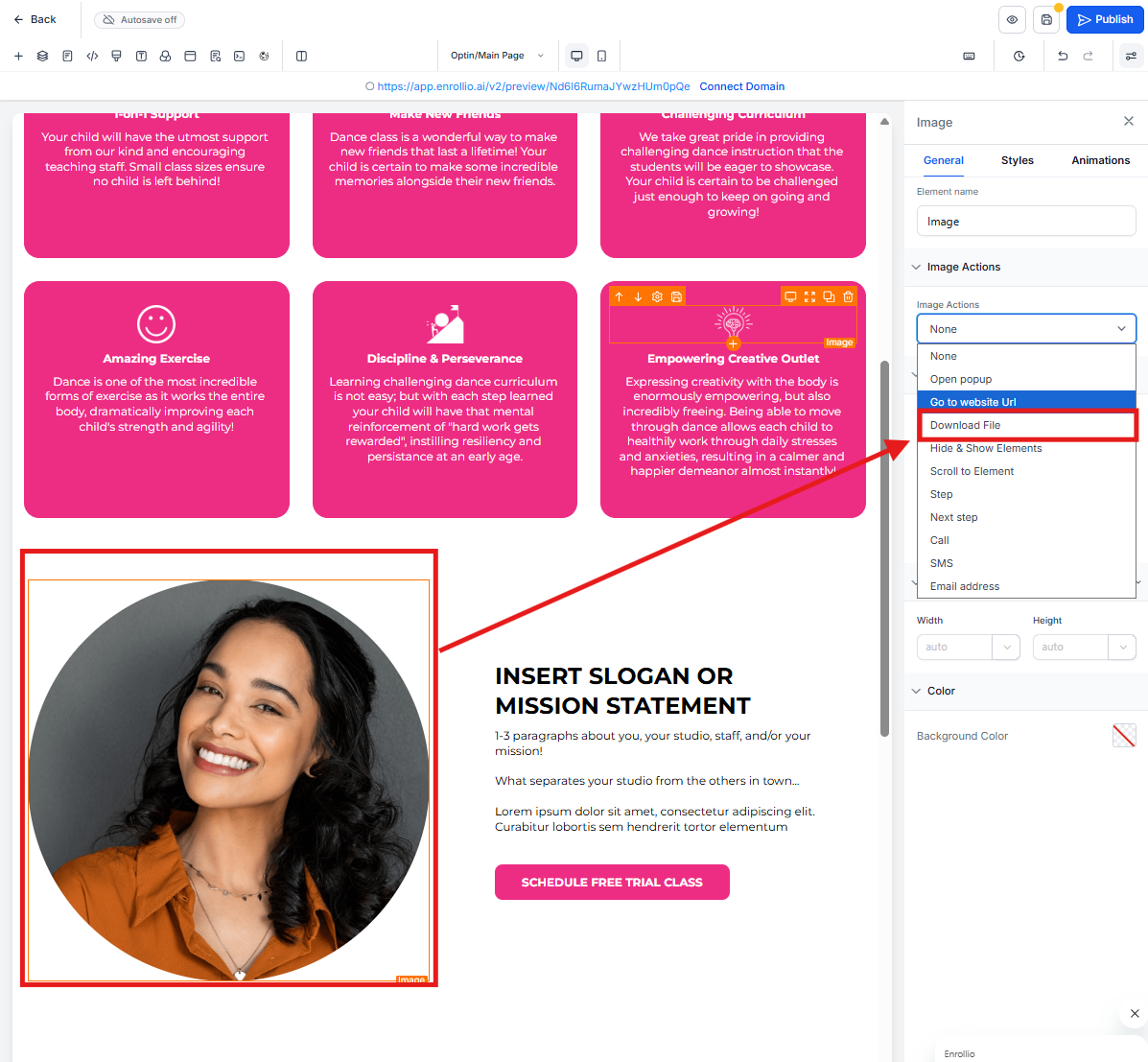
For Images:
- Select your image
- Open the Settings panel
- Use the Image Action dropdown and choose Download File
For SVGs:
- Select your SVG icon
- Open the Settings panel
- Use the SVG Action dropdown and choose Download File
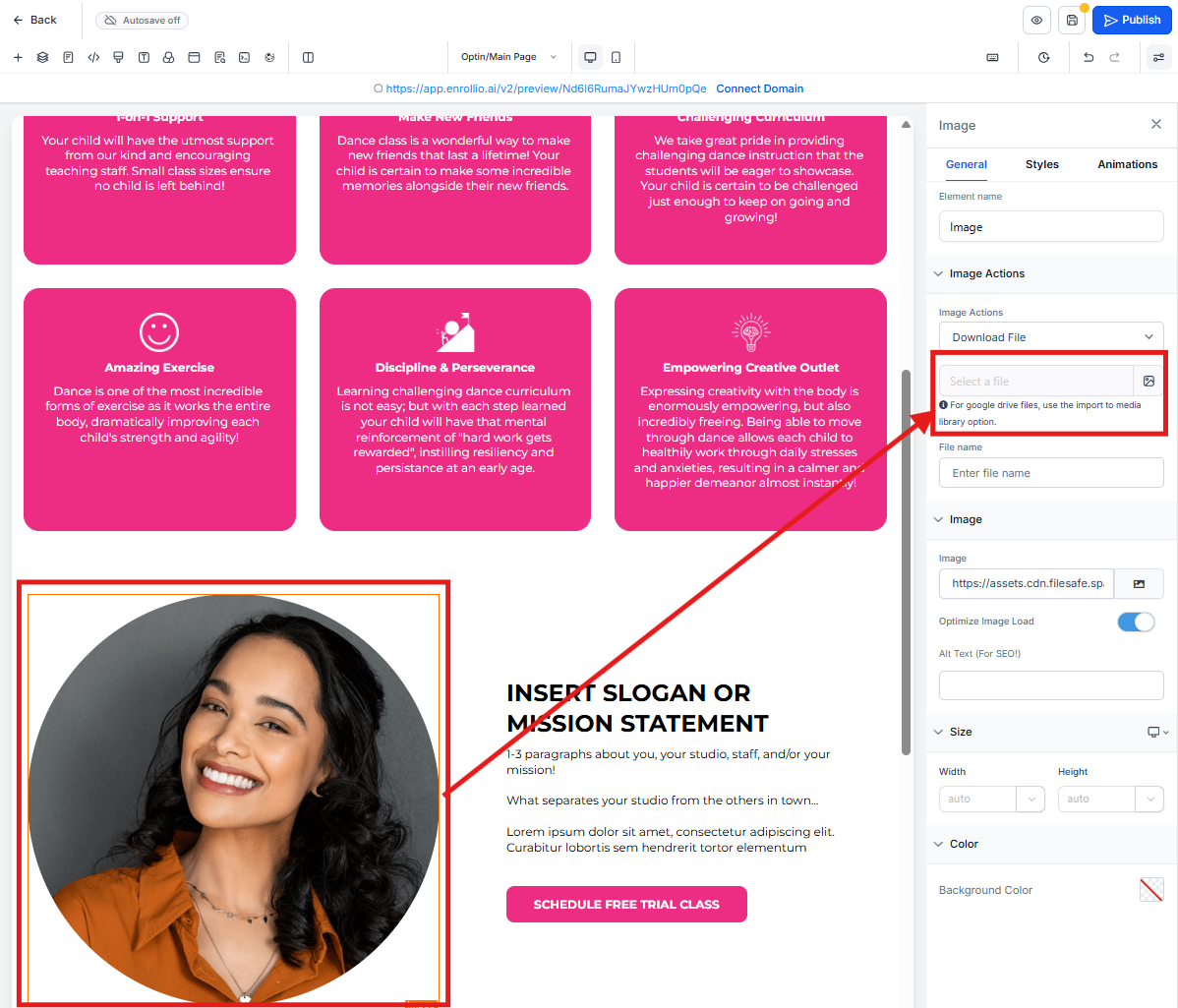
Step 3: Attach Your File
- Click Select File to choose from your media library or upload a new file
- Use the File Name box to set the name families will see when they save the file
- Save your changes
Troubleshooting Common Issues
Quick fixes for the most common download problems:
Nothing happens when clicked: Check that the Download File action is enabled and a file is attached.
404 or broken link error: Make sure the file still exists in your media library and hasn't been deleted or moved.
Download stalls or fails: The file may be too large. Compress it and upload a smaller version.
Need to share multiple files: Combine everything into a single ZIP file and link to that.
Frequently Asked Questions
Can I attach more than one file to a single button or image?
No. Each element supports one downloadable file. To share multiple files, combine them into a ZIP.
How do I make a file open in a new tab instead of downloading?
The Download File Action is for downloads only. Use "Open URL in New Tab" if you want files to open in the browser.
Will this work on mobile devices?
Yes. Some mobile browsers may prompt families to choose an app for opening the file.
Do I need to use Dropbox or Google Drive?
No. Simply upload your file to the Enrollio media library. Everything is handled inside the platform.
What happens if I update a file in my media library?
If you replace or delete a file that's being used in a download action, the link will break. Upload final versions only, or re-link the new file after uploading.