
Customize and manage your forms without leaving your enrollment page workflow
The built-in pop-up Form Builder allows you to edit forms directly inside the Page Builder for a more streamlined experience. No need to switch tabs or lose your place—edit forms right where you're building your enrollment pages.
What is the Form Builder Pop-Up?
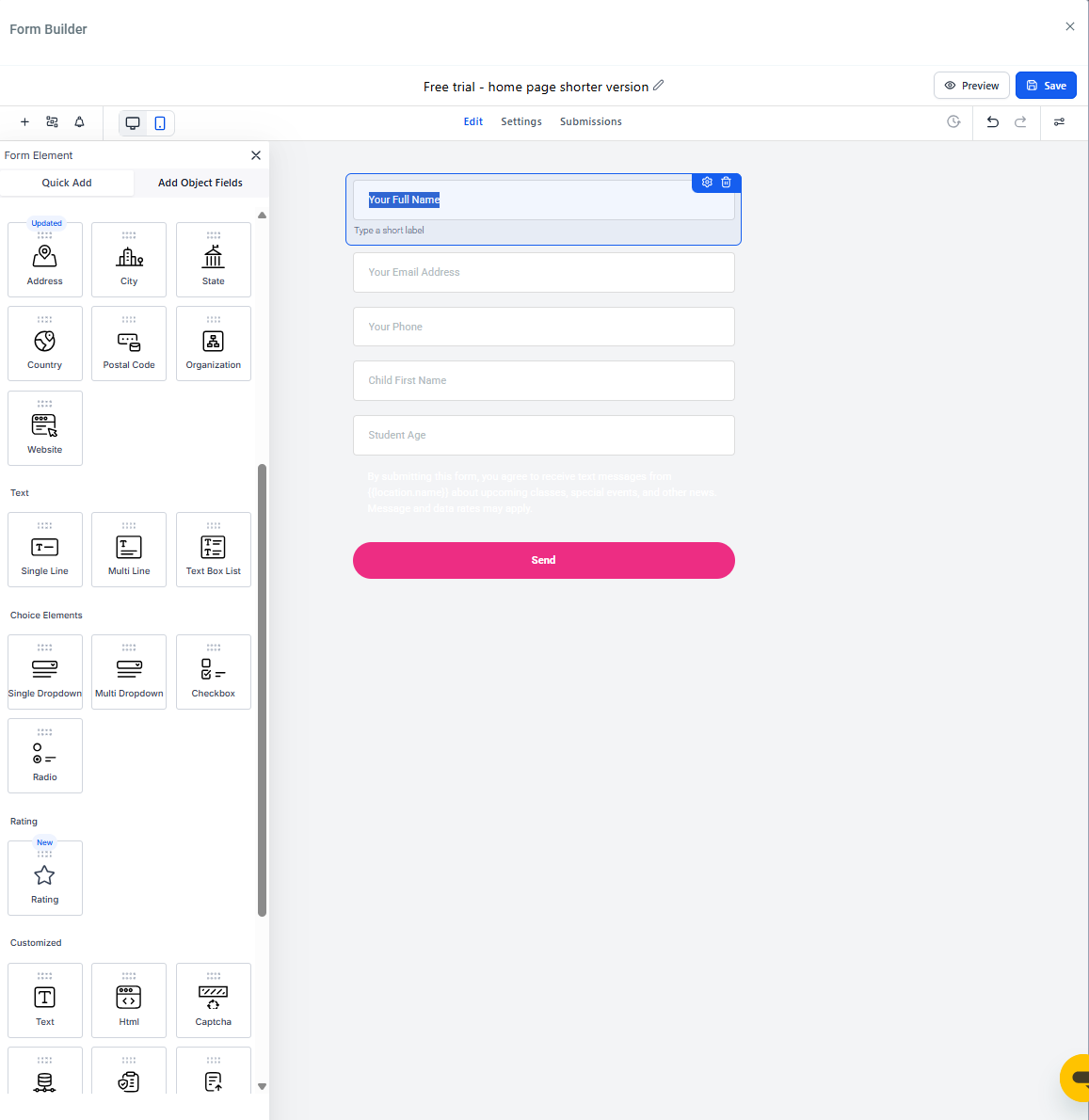
The Form Builder Pop-Up lets you create or edit forms directly within your enrollment page using a large modal window that overlays the Page Builder. This keeps you focused while building your pages—no more jumping between screens.
You can access form elements, custom fields, styling options, and themes all from the same pop-up window.
Key Benefits
- In-Page Editing: Make form changes directly within the Page Builder
- No Tab Switching: Stay in one view while editing, styling, and saving
- Context Preservation: Your place in the page remains unchanged
- All-in-One Access: Manage fields, styling, and themes in the same pop-up
- Faster Workflow: Reduced loading time between edits and page building
How to Edit Forms Using the Pop-Up Form Builder
Navigate to Sites
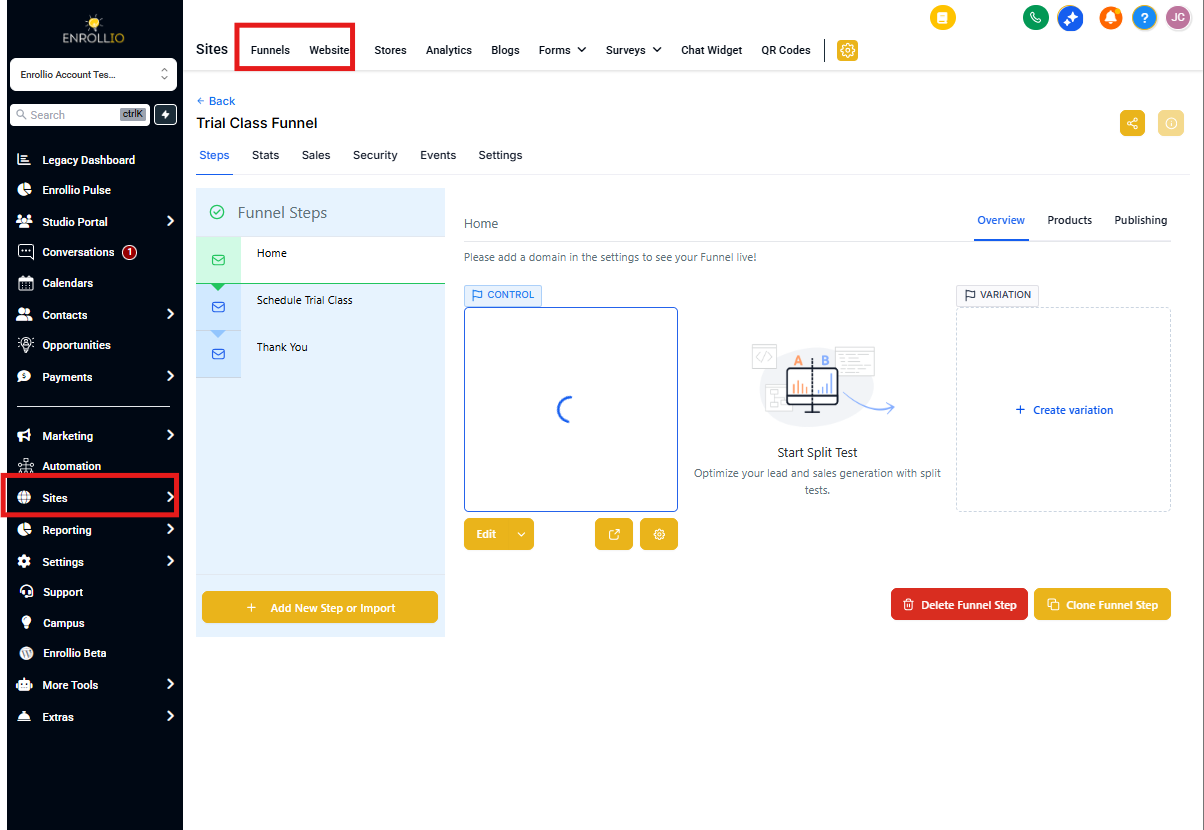
From the left-hand menu, click on Sites and then select the Enrollment Pages tab at the top. This opens your list of enrollment pages where you can manage or create pages that contain form elements.
Open or Create a Page
Use the search bar to locate an existing page or click + New Page to create a new one. This takes you into the page workspace where you can begin editing and adding form elements.
Select a Page Step
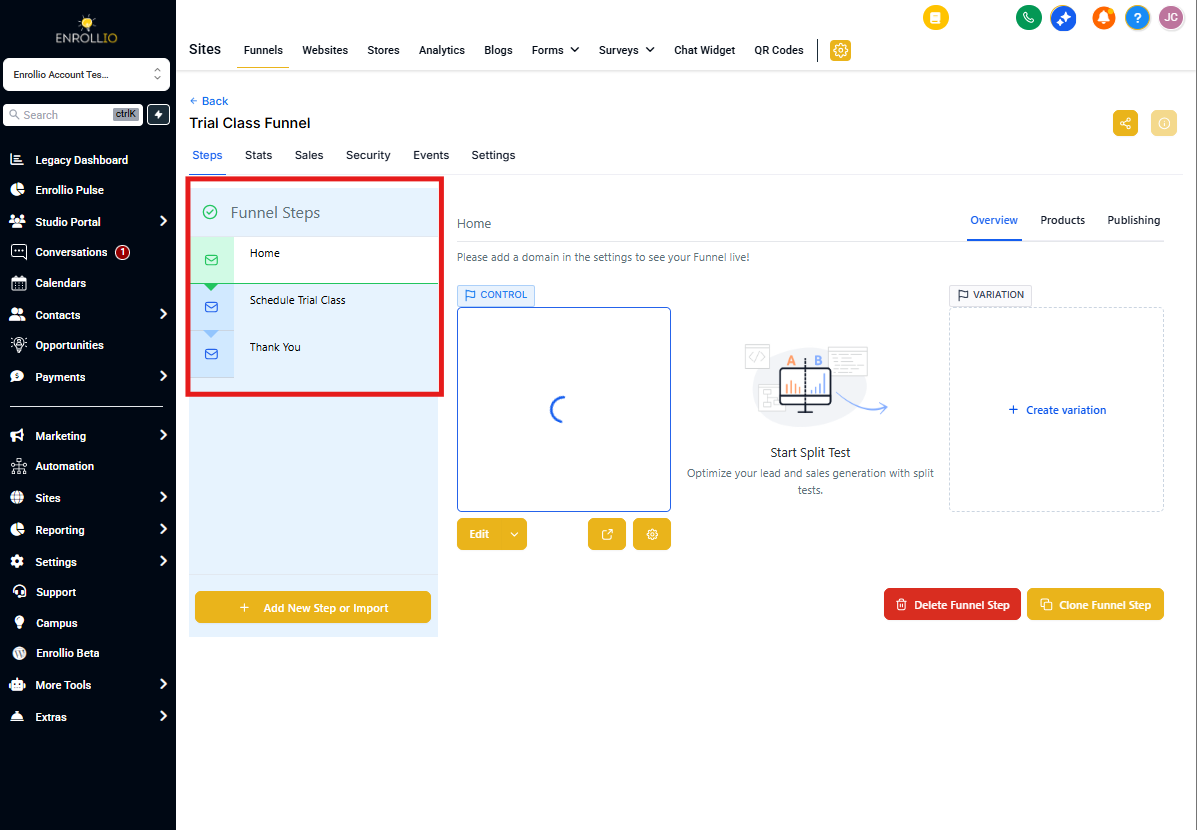
Click the Steps tab to view all steps within the selected page. From here, choose the specific step where you want to add or edit a form.
Open the Page Editor
- Click the Edit button below the page step preview to start editing
- Choose Edit page details to update basic settings, or Edit in a New Tab to open the Page Builder in a separate tab for full-page editing
Add a Form Element
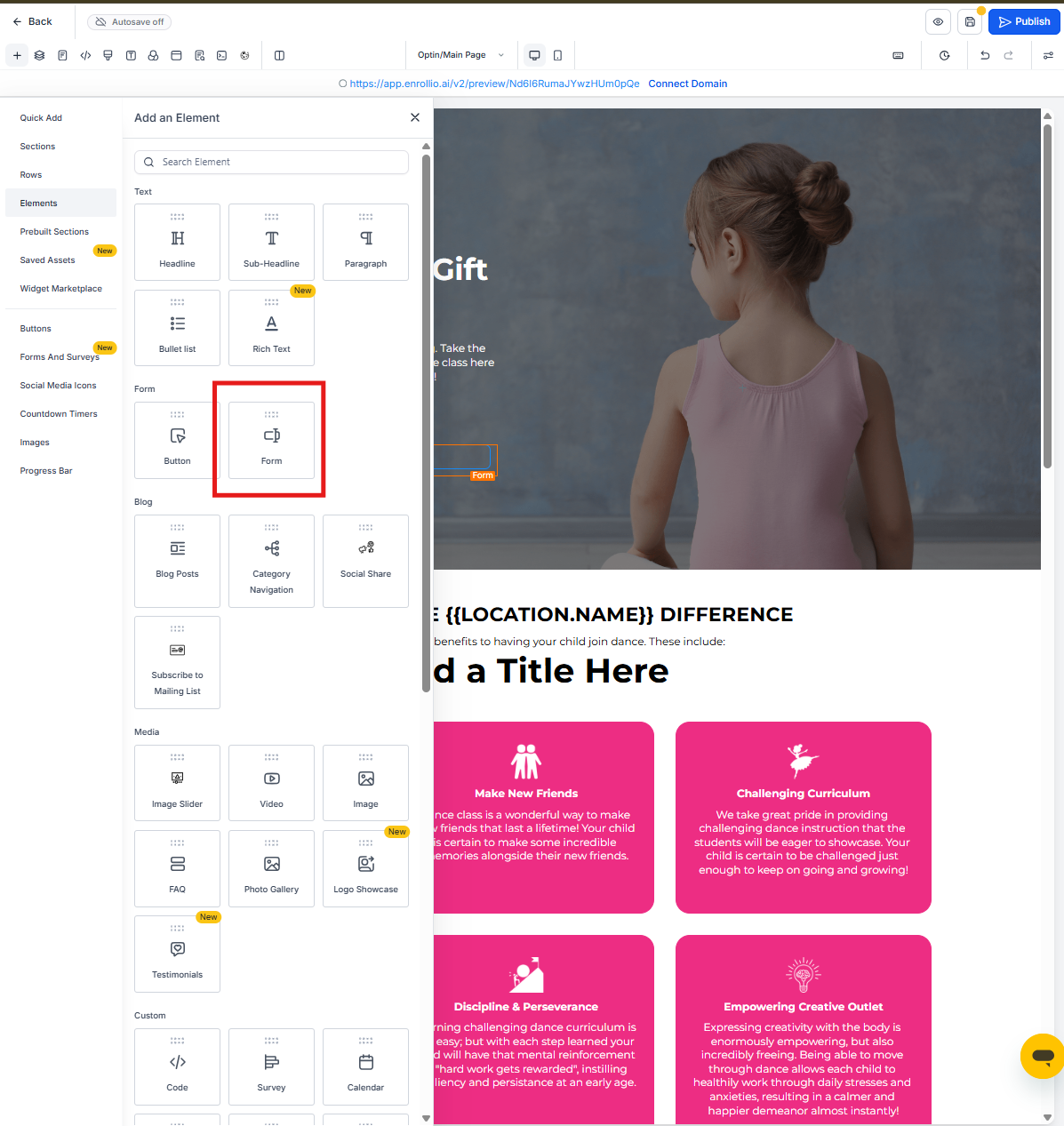
- Click the + icon in the top toolbar to open the sidebar
- Select Elements from the menu
- Scroll to the Form section and drag the Form element onto your page
Choose an Existing Form or Create a New One
When the Form Picker appears, use the dropdown to select from your existing forms. If you want to create a new form, click the "Click Here" link—this opens the Forms section within the Sites menu, where you can build and save new forms.
Edit Form Option
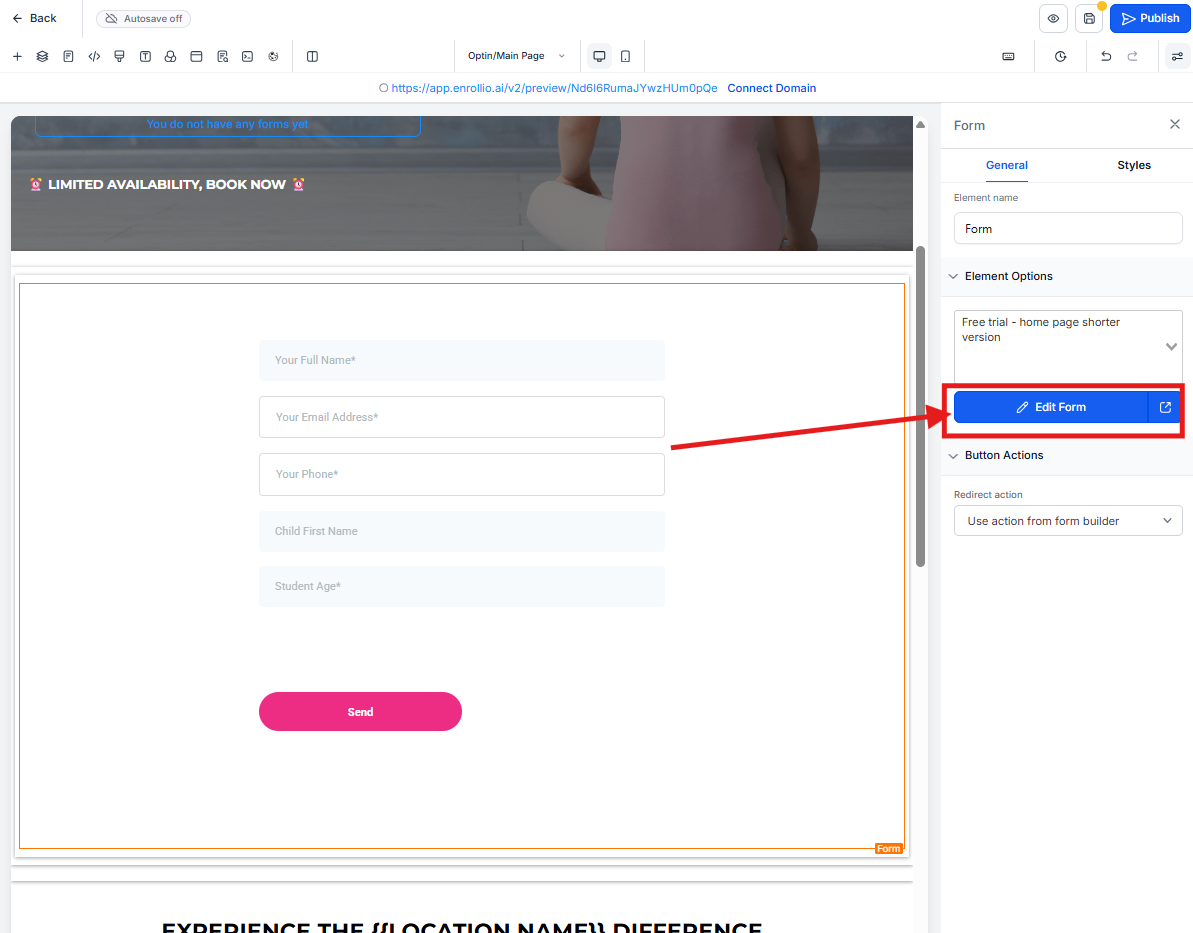
Once you've selected a form, click the Edit form button in the right-side panel. This opens a large pop-up window right within the Page Builder, allowing you to customize form fields, styles, and settings without navigating away from your page.
Customize the Form Inside the Pop-Up
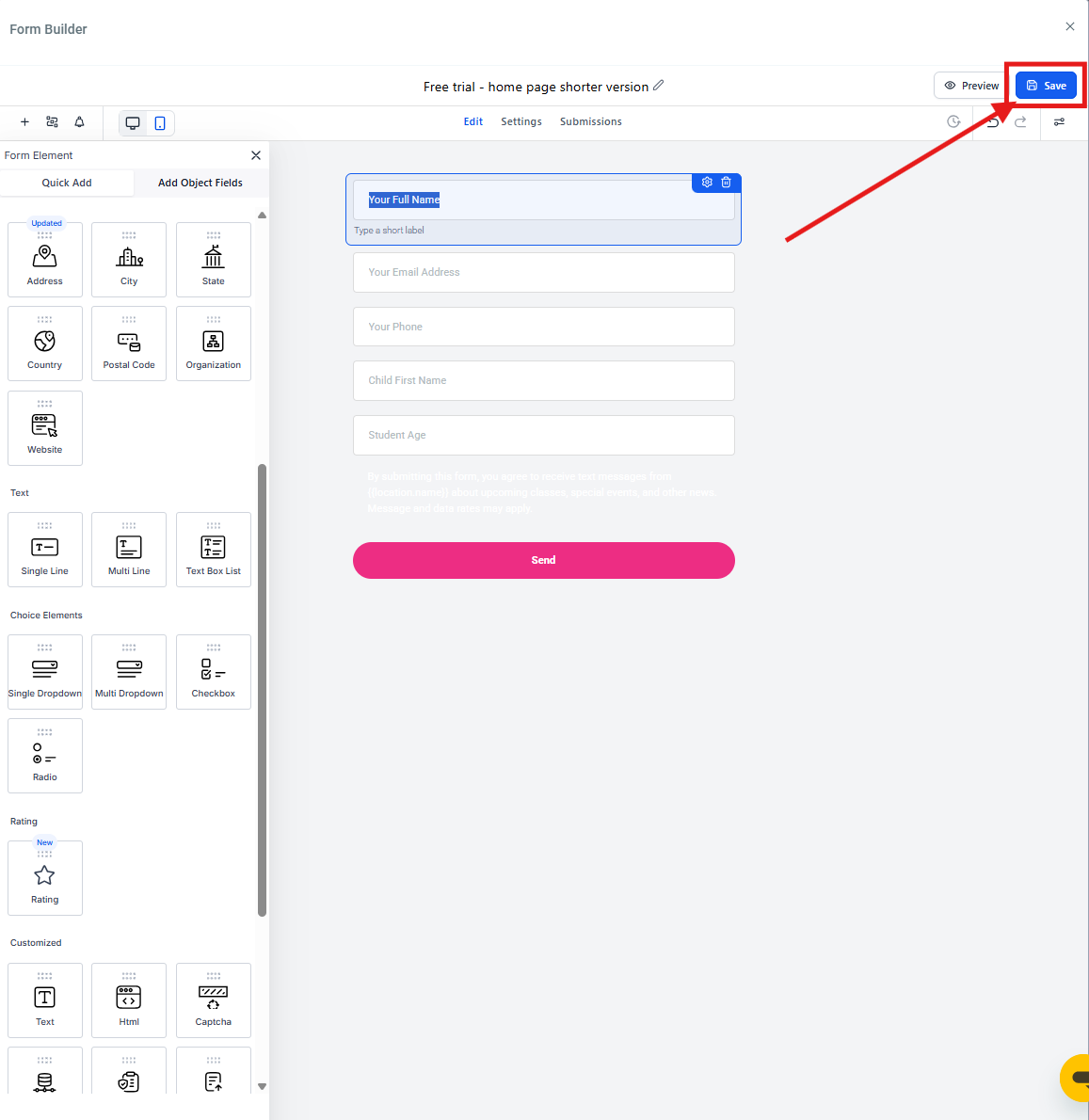
Once the form builder opens in the pop-up, use the Quick Add and Custom Fields panels to configure your form:
Quick Add: Instantly drag common fields like Full Name, Email, and Phone into your form.
Custom Fields: Add custom input types that match your enrollment needs—perfect for gathering child information, preferred start dates, program preferences, or other details specific to your childcare center.
This editing experience keeps your enrollment page in the background, helping you maintain your design context while making precise form updates.
Save Your Changes
Once your form edits are complete, click the Save button in the top-right corner of the pop-up. This instantly applies your updates and closes the modal, returning you to your exact spot in the Page Builder—without any page reloads or tab switching.
Your enrollment page building flow remains completely uninterrupted.
Frequently Asked Questions
Will this affect my existing forms or pages?
No, your forms and pages remain unchanged. The pop-up only changes how you access and edit them.
Can I access all form settings from the pop-up?
Yes, you can customize fields, styles, and themes directly within the modal. You have full access to all form builder features.
What happens if I close the pop-up without saving?
Any unsaved changes will be lost. Always click Save before closing the pop-up.
Can I create new forms from this interface?
Yes, both new form creation and editing are supported within the pop-up. You can build forms from scratch or modify existing ones.
What types of forms work best for childcare enrollment?
Common forms include tour request forms, waitlist signup forms, enrollment applications, and contact forms. Customize fields to collect parent information, child details, preferred programs, and start dates.