
Saved Sections - Enrollment Pages and Sites
This article explains how to save, reuse, and manage sections across your enrollment pages and sites in Enrollio. Learn the difference between Universal, Global, and Template sections, and how to use them to build faster while keeping your branding consistent.
What are Saved Section Templates?
Saved Section Templates let you create content blocks once and reuse them across multiple enrollment pages and sites. This saves time and ensures consistency across all your parent-facing content.
You have three options when saving a section:
- Template Sections: Static, reusable building blocks. Changes you make to one copy won't affect others.
- Global Sections: Sync within a single enrollment page or site. Update once, and it updates everywhere on that specific page/site.
- Universal Sections: Sync across your entire Enrollio account. Update once, and it updates everywhere - across all your enrollment pages and sites.
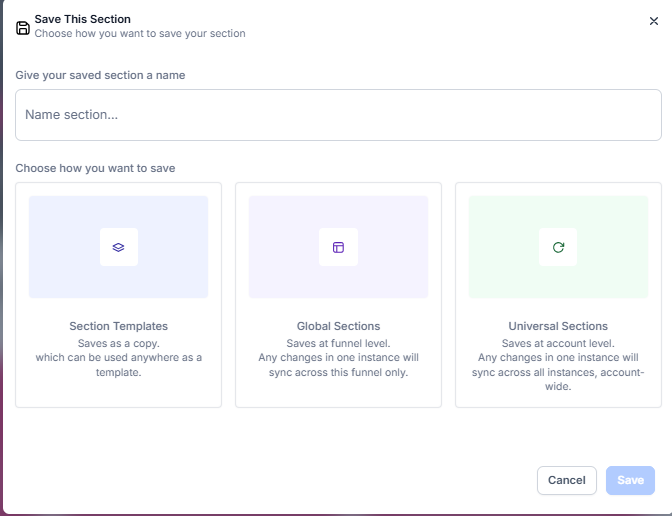
Universal vs. Global Sections: What's the Difference?
Universal Sections update automatically everywhere in your account - across all enrollment pages, sites, and landing pages.
Global Sections only update within the current enrollment page or site where you created them.
Why Use Saved Sections?
Saved sections help busy childcare owners work smarter:
- Update once, apply everywhere: Change your Universal Section header, and it updates across every enrollment page automatically.
- Choose your sync level: Pick Universal, Global, or Template based on whether you want changes to sync or stay isolated.
- Visual library: See thumbnail previews of your saved sections so you can quickly find what you need.
- Clone without worry: When you clone a section, it gets a unique ID so edits won't accidentally affect the original.
- Faster performance: Behind-the-scenes improvements mean sections sync quickly and reliably.
- Clear labeling: Know exactly how your edits will impact other pages before you make them.
- Privacy built-in: Only layout and design are saved - no parent or family data.
How to Save and Use Section Templates
Follow these steps to create reusable sections that save you time:
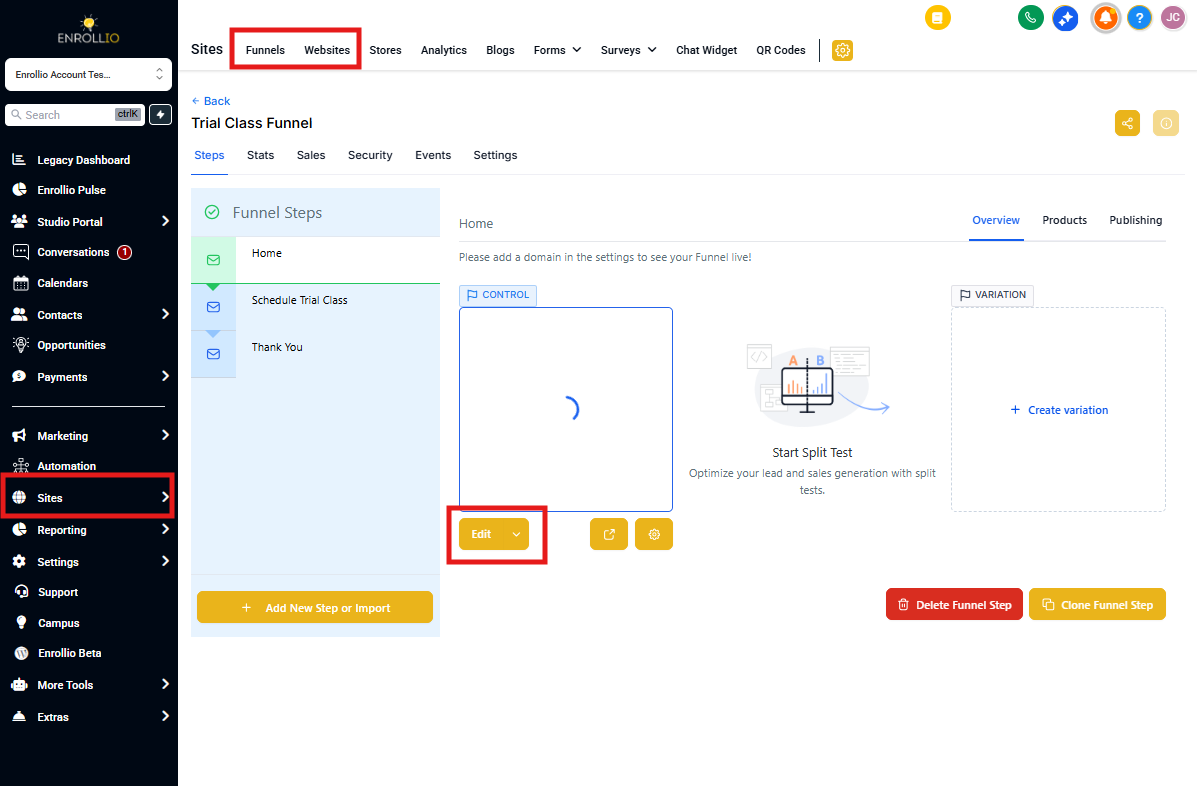
Step 1: Open Your Page Editor
Navigate to the enrollment page or site you want to edit and open the page editor.
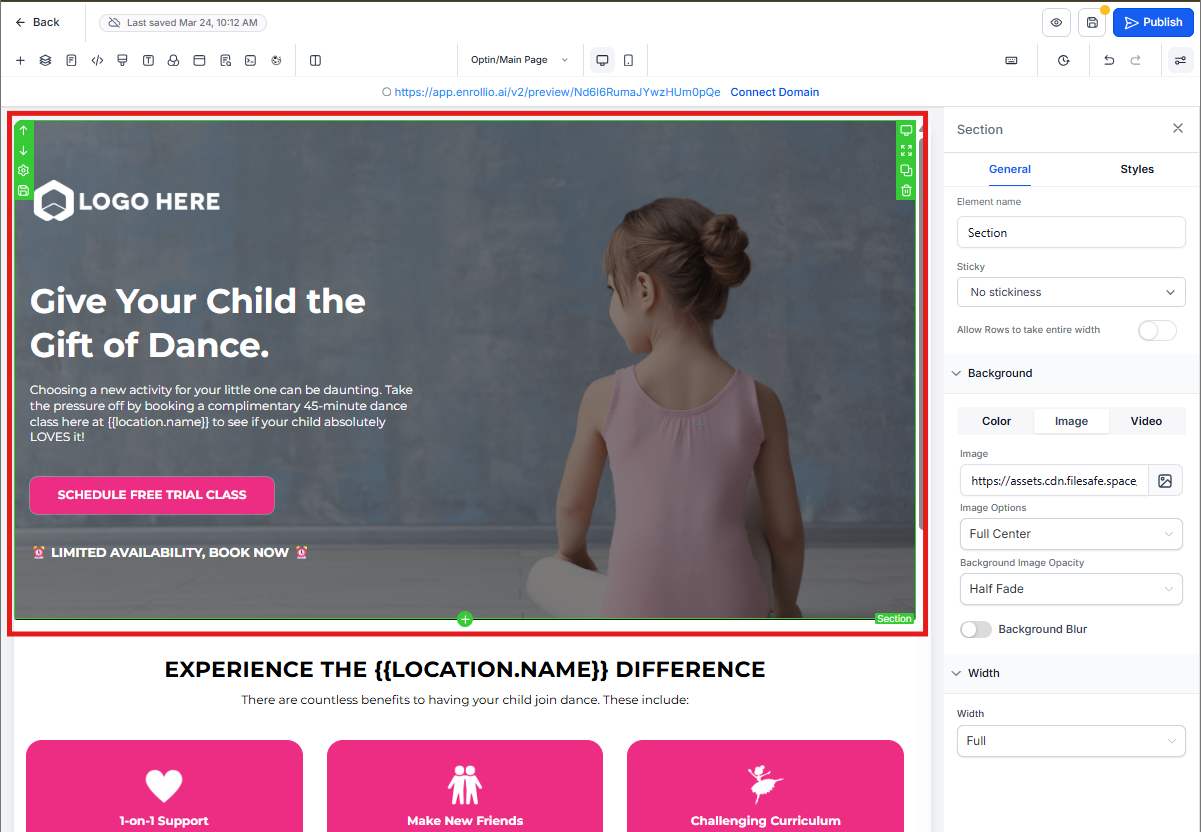
Step 2: Select a Section
Click on the section you want to save. This could be a header, testimonial block, tour booking form, or any other content block.
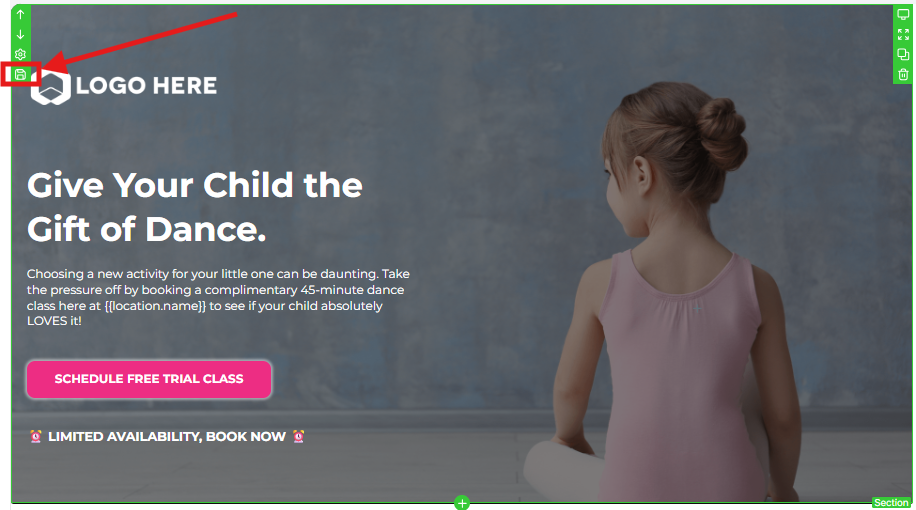
Step 3: Save the Section
Click the "Save Section" button. A save modal will appear.
Step 4: Choose Your Section Type
Select the type that matches how you want to use this section:
- Universal: Use for content that must stay consistent everywhere (headers, footers, contact info)
- Global: Use for content specific to one enrollment page or site (program-specific pricing tables)
- Template: Use for reusable starting points that you'll customize in each location (testimonial layouts, FAQ sections)
Important: Once you save a section with a type, you can't change it later. Clone it and resave if you need a different type.
Step 5: Name Your Section
Give your section a descriptive name so you can find it easily later. Examples: "Main Navigation Header", "Infant Program Pricing", "Parent Testimonial Block".
Step 6: Insert Saved Sections
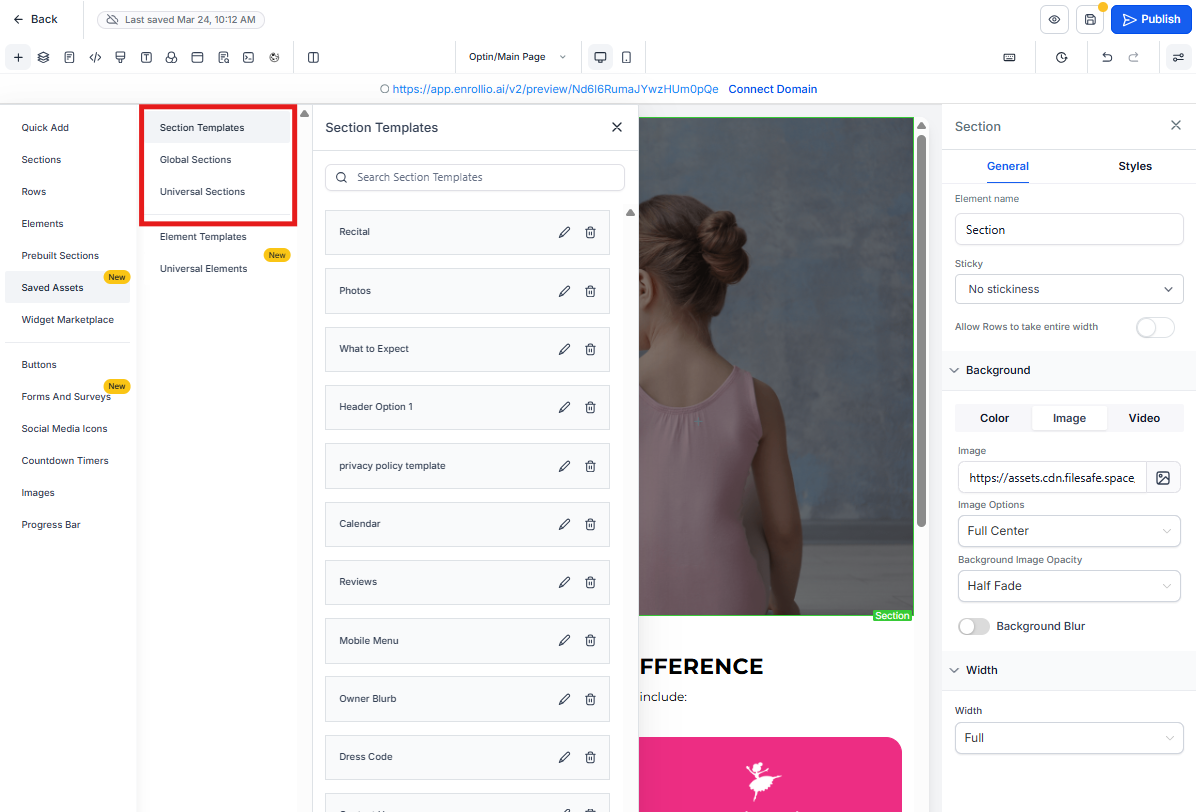
When editing another page, click "Add Section" to browse your saved sections. You'll see thumbnail previews of each one.
Click to insert any Universal, Global, or Template section into your current page.
Best Practices
Follow these tips to make the most of saved sections:
- Plan before saving. Choose your section type carefully - you can't change it later.
- Use Universal Sections for branding. Headers, footers, and contact blocks should be Universal so they stay consistent.
- Use Global Sections for page-specific content. Program details or location-specific information work well as Global.
- Use Templates for customizable blocks. Start with a Template when you want a consistent layout but different content in each location.
- Name sections clearly. "Homepage Hero 2024" is better than "Section 1".
- Clone to change type. If you need to change a section's type, clone it and save the copy under the new type.
Using Enrollio AI with Saved Sections
When you use Enrollio AI to revise pages that contain saved sections, understand how changes will apply:
Single Section Target
If you ask AI to update just one saved section, the changes apply only to that section without affecting other parts of your page.
Page-Wide Style Target
If you request page-wide changes (like updating colors or fonts), AI may update multiple sections including saved ones. This is expected behavior.
Sync Implications
Universal or Global sections: If AI edits a section that syncs, changes will propagate to other instances once you publish.
Template sections: Edits stay local to the current page only.
Frequently Asked Questions
Can I change a section's type after saving it?
No. Once saved as Universal, Global, or Template, the type is permanent. To get a different type, clone the section and save the clone under your preferred type.
Can I restore an older version of a Global or Universal Section?
No. Saved sections don't have version history. Once you edit and publish, previous versions can't be restored.
Why does an old page version still show the latest section changes?
Global and Universal Sections always display their latest saved version. Restoring a page to an earlier version doesn't restore older section versions.
Will edits to a Universal Section update everywhere?
Yes. Changes sync across all enrollment pages and sites in your account.
What happens if I clone a section?
Cloning creates a new unique ID. The cloned section won't sync with the original anymore.
What happens if I clone a page that contains Global or Universal Sections?
The same section IDs carry over. Edits will still sync everywhere unless you clone the individual sections themselves.
Can I share saved sections between different client accounts?
Universal Sections sync within a single Enrollio account only. If you manage multiple centers as separate client accounts, you'll need to save sections separately in each account.