
Track every change with confidence
This article explains how to use Audit Logs to track changes made to your enrollment pages and sites. Audit logs give you full visibility into who changed what and when—helping you troubleshoot issues, maintain accountability, and keep your enrollment process running smoothly.
What Are Audit Logs?
Audit Logs capture a complete history of changes made to your enrollment pages and sites in Enrollio. You'll see exactly who made each change, what they changed, and when it happened—making it easy to track edits, troubleshoot problems, and keep your team accountable.
Key Benefits
Audit logs help you manage your enrollment assets more effectively:
- Full transparency — See every edit and deletion across your enrollment pages and sites
- Team accountability — Know exactly who made each change
- Faster troubleshooting — Review the history when something breaks or changes unexpectedly
- Better compliance — Maintain records for regulatory requirements
- Easy filtering — Find specific changes by type, date, or asset
- Secure retention — Logs are stored for 60 days
How to Access Audit Logs
Audit Logs are organized by asset type, so you can track changes to your enrollment pages and sites separately.
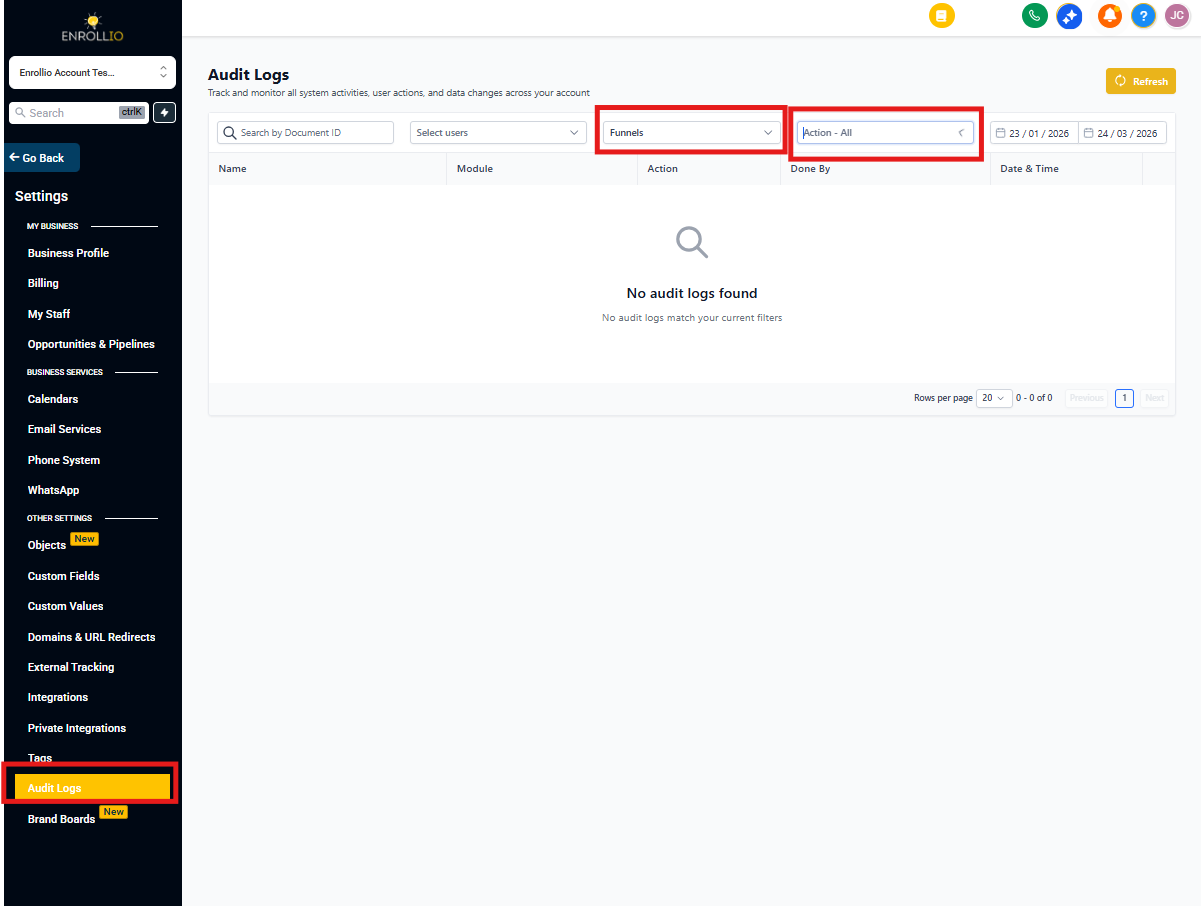
To view your audit logs:
- Click Settings in your left navigation menu
- Select Audit Logs
- Use the tabs at the top to switch between:
- Enrollment Pages
- Enrollment Sites
- Review the list of changes for your selected asset type
What Gets Tracked
Enrollio currently tracks these types of changes across your enrollment pages and sites:
Enrollment Pages
- Page settings changes
- Step edits and reordering
- Step deletions and restorations
- Split test changes (choosing a winner, resetting stats)
- Folder moves and deletions
- Domain configuration changes
Enrollment Sites
- Page edits and updates
- Site structure changes
- Content modifications
Each log entry includes a timestamp, the user who made the change, and the specific action taken.
Finding Specific Changes
Use the filters to quickly locate the events you're looking for. Each asset type has its own set of filters.
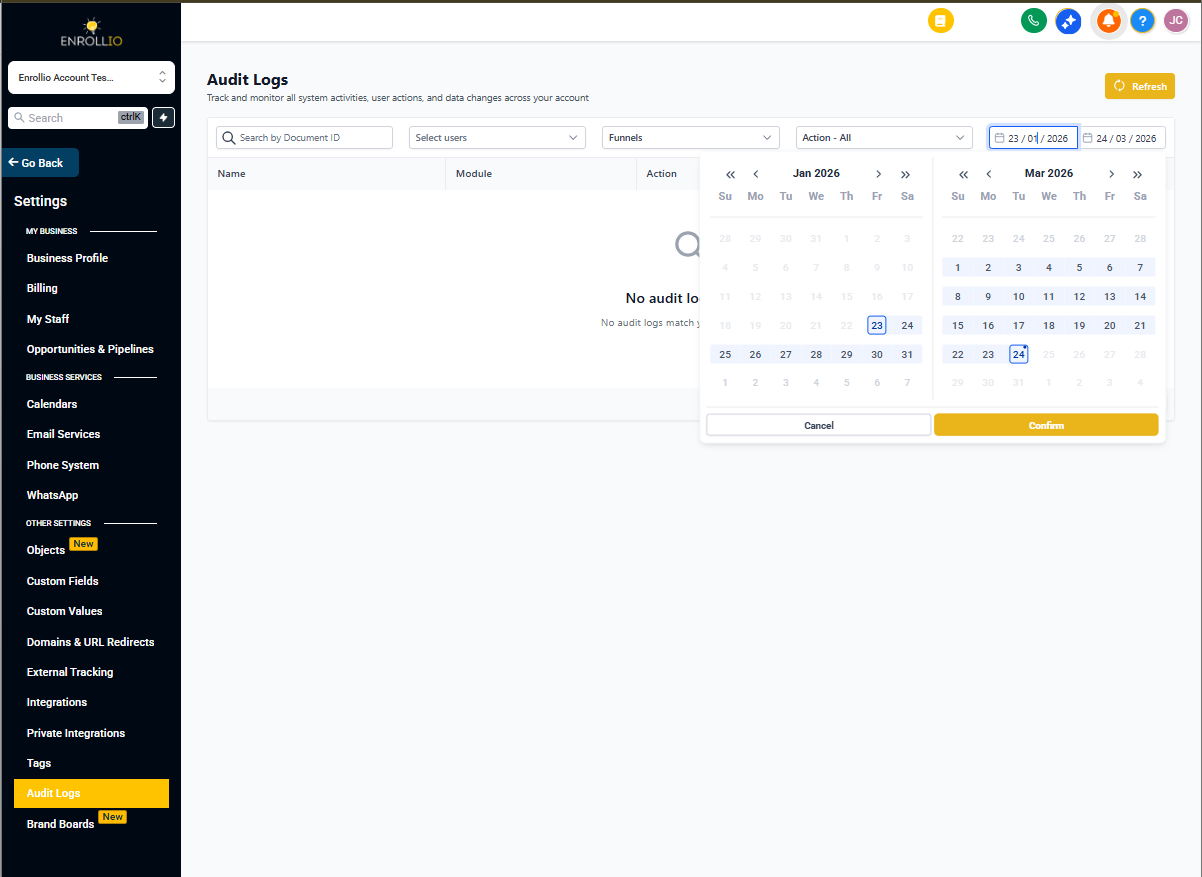
Filter by:
- Action Type — Show only deletions, edits, or other specific actions
- Date Range — View changes within a specific time period (up to 60 days back)
Data Retention
Audit logs are kept for 60 days, then automatically deleted. This gives you two months to review changes and troubleshoot issues.
Important:
- Logs older than 60 days cannot be recovered
- If you need long-term records, take screenshots or notes of important changes
- Set up a regular review process if you need to maintain compliance records
Frequently Asked Questions
Can I export audit logs?
Export isn't currently available within Enrollio. You can manually copy information or use browser tools to save specific log entries.
How long are logs stored?
Logs are retained for 60 days, then automatically deleted from the system.
Can I search logs by team member?
Currently, you can filter by action type and date. User-based filtering isn't available yet.
Do deleted pages show up in the audit logs?
Yes, deletion events are tracked. You'll see who deleted a page or step and when.
Will more tracking be added in the future?
Yes, we're planning to expand audit logging to more areas of Enrollio with more detailed tracking.
Next Steps
- Check your logs regularly to monitor changes across your enrollment assets
- Set up a workflow to review logs after making important updates
- Share this feature with your team to improve accountability
- Stay informed about upcoming expansions to audit tracking