
Overview
The Cookie Consent Banner helps you manage visitor consent for cookies on your enrollment pages and sites. It allows families to accept or decline cookies, supporting your efforts to comply with privacy regulations like GDPR and CCPA.
⚠️ Important: Using this tool does not guarantee compliance with any specific law. You are responsible for ensuring your overall compliance with applicable privacy regulations.
Setting Up the Cookie Consent Banner
1. Enable the Banner
- Open your enrollment page or site in the Page Builder.
- Navigate to the page where you want the banner to appear.
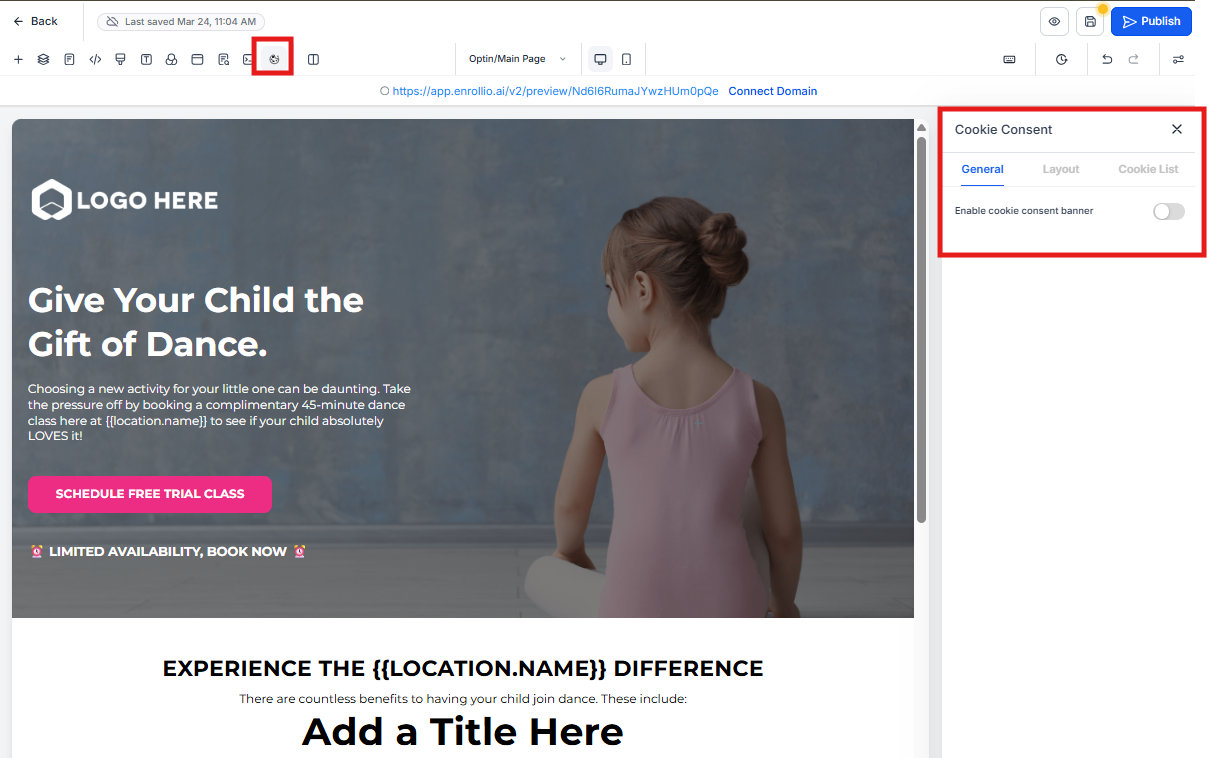
- Click the Cookie Consent Banner Settings icon.
- Toggle the switch to enable the banner.
2. Configure Button Actions
Choose how families can respond to your cookie banner:
- Accept Essential – Accepts only necessary cookies for your site to function
- Accept All – Accepts all cookies, including tracking and analytics
- Reject – Accepts only essential cookies
- Save Preferences – Saves the visitor's selected cookie settings
- Cancel – Closes the popup and returns to the main banner
Customizing the Cookie Consent Banner
General Settings
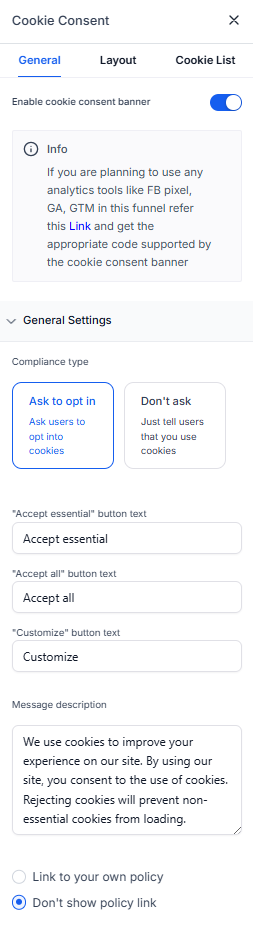
Tailor the banner to match your childcare center's brand and compliance needs:
- Enable or disable the detailed cookie list
- Choose your compliance approach:
- Ask to Opt-In – Shows "Accept Essential" and "Accept All" buttons
- Don't Ask – Shows only an "OK" button
- Add a custom message and link to your privacy policy
- Customize colors, fonts, and text size to match your branding
Advanced Settings
Consent Expiration: Set how many days before families need to re-consent to cookies. This helps you maintain up-to-date permissions.
Layout Options
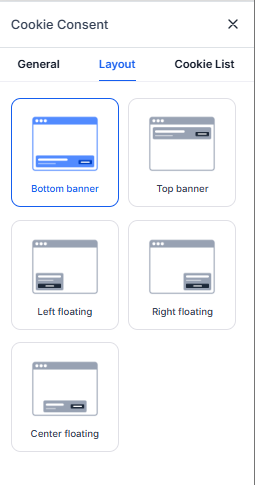
Choose from different banner display styles to match your site's design. Options include bottom bars, modal overlays, and corner notifications.
Customizable Button Text
You can edit the text for all buttons in both the banner and preferences popup to match your brand voice or support multiple languages:
Banner Buttons:
- Accept All
- Accept Essential
- Customize
- OK
Popup Buttons:
- Reject
- Save Preferences
- Cancel
⚠️ Important: Once you customize button labels, automatic translations are disabled. You'll need to manually add translations for all languages you support.
Region-Based Display Controls
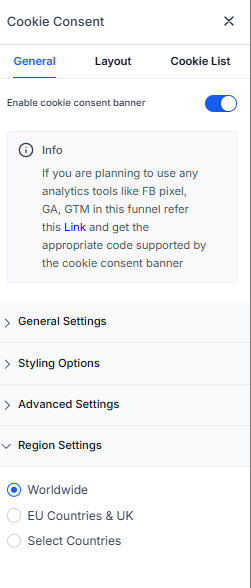
Control where the cookie banner appears based on visitor location. This helps you avoid showing unnecessary prompts to families outside regulated areas:
- Worldwide – Display the banner to all visitors
- EU & UK – Display only to visitors in the European Union and United Kingdom
- Select Countries – Manually choose specific countries where the banner should appear
Managing the Cookie List
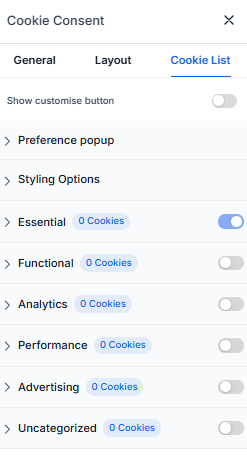
The Cookie List feature lets families enable or disable different types of cookies. When activated, visitors can select which cookies they want to allow.
Predefined Cookie Categories
- Essential – Required for your site to function (always enabled)
- Functional – Supports features like social media sharing and feedback collection
- Analytics – Tracks visitor behavior (e.g., page views, time on site)
- Performance – Helps optimize site speed and user experience
- Advertising – Used for targeted ads and marketing campaigns
- Uncategorized – Any cookies not assigned to the above categories
Adding Cookies to Categories
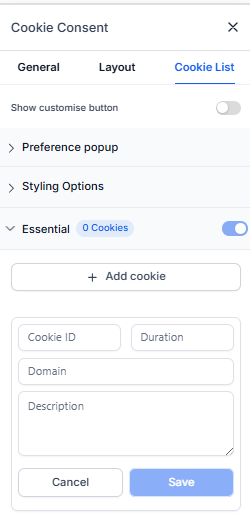
For each cookie you add, specify:
- Cookie Key – Name of the cookie (supports regex patterns for multiple cookies)
- Duration – How long the cookie lasts (e.g., 1 day, 30 days, 1 year)
- Domain – The domain setting the cookie
- Description – Clear explanation of what the cookie does
Using Regex Patterns
Save time by using regex patterns to match multiple similar cookies:
-
_ga-*– Matches all cookies starting with "_ga-" (e.g., _ga-1234, _ga-3241) -
_fbp– Matches Meta Pixel cookies -
_ga.*– Matches all Google Analytics cookies
Scanning Your Site for Cookies
To discover all cookies your enrollment site uses:
- Temporarily disable the Cookie Consent Banner (it blocks cookies during scanning)
- Use a free tool like CookieServe to scan your site
- Review the detected cookies
- Add them to the appropriate categories in your banner settings
- Re-enable the Cookie Consent Banner
Pro Tip: Scan your site every few months. New marketing tools and tracking codes can add cookies you'll want to manage.
Integrating with Marketing Tools
Properly categorize cookies from your marketing tools to ensure tracking works correctly when families give consent:
-
Advertising – Facebook Pixel (
_fbp,_fbc), Google Ads, other ad platform cookies -
Analytics – Google Analytics (
_ga,_gid), Google Tag Manager, other tracking tools
This ensures your marketing campaigns continue to track conversions and enrollments properly while respecting family privacy choices.
Best Practices
- Scan your enrollment site regularly for new cookies (quarterly is a good cadence)
- Write clear, simple descriptions for each cookie—avoid technical jargon
- Use regex patterns to organize similar cookies and keep your list manageable
- Ensure cookies from Facebook, Google, and other marketing tools are correctly categorized
- Keep cookie expiration settings accurate and up-to-date
- Test the banner on both desktop and mobile to ensure it displays properly
- Link to your actual privacy policy—don't use placeholder text
Frequently Asked Questions
Why do I need a Cookie Consent Banner?
This feature helps you comply with privacy laws like GDPR and CCPA if your enrollment site collects visitor data. Many childcare centers now need this, especially if you serve families in the EU, UK, or California.
Can families change their cookie preferences later?
Currently, families cannot update their preferences after making their initial selection. They would need to clear their browser cookies to see the banner again.
What happens if a family rejects all cookies?
Only essential cookies (required for your site to function) will be stored. All tracking and analytics cookies will be disabled, which may affect your ability to measure enrollment campaigns.
Can I customize how the banner looks?
Yes, you can adjust colors, fonts, button styles, and all text descriptions in the settings to match your center's branding.
Does the cookie consent apply to all pages?
Yes. Once enabled, the banner applies to all pages in your enrollment site because cookies are managed at the domain level.
Will this guarantee I'm compliant with privacy laws?
No. This tool helps you manage cookie consent, but you're responsible for overall compliance with applicable privacy laws. Consider consulting with a legal professional about your specific obligations.