
What is an Exit-Intent Pop-Up?
Exit-intent pop-ups appear when a visitor's cursor behavior shows they're about to leave your page — typically by moving toward the browser bar or close button. These pop-ups give you one last chance to capture a parent's information before they leave.
Enrollio lets you design and configure exit-intent pop-ups directly in your enrollment site builder. No third-party tools needed.
Why Use Exit-Intent Pop-Ups
Exit-intent pop-ups help you convert families who are about to leave without scheduling a tour or submitting their information. Here's what makes them valuable:
- Reduce bounce rate: Keep parents engaged by presenting a final offer right before they exit
- Capture hesitant families: Use one last message or incentive to collect contact information
- Boost enrollment conversions: Turn visitors into prospective families with time-limited offers or special discounts
- Fully customizable: Design the look, layout, and form fields to match your center's branding
- Built into Enrollio: No additional tools required — exit-intent behavior works right in your enrollment site builder
How to Create an Exit-Intent Pop-Up
Follow these steps to build and configure your exit-intent pop-up.
Step 1: Create a Form for Your Pop-Up
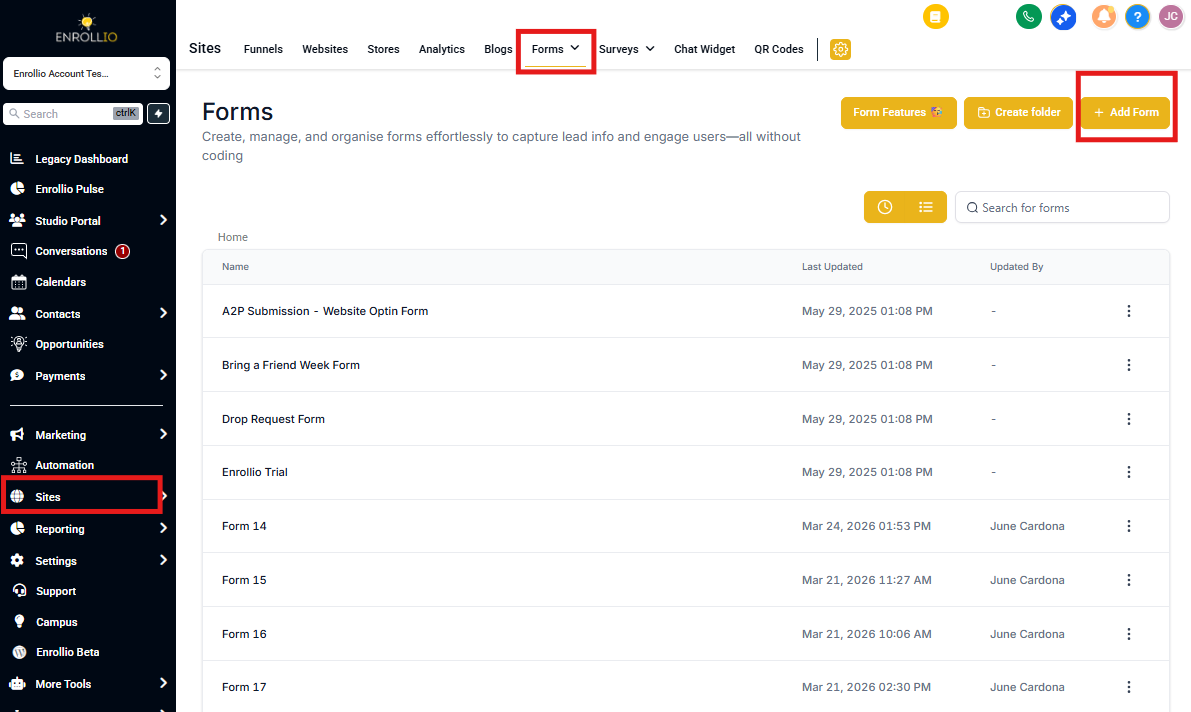
First, create the form that will collect information from parents in your pop-up.
- Navigate to Sites → Forms
- Create a new form or select an existing one
- Add fields you want to collect (name, email, phone, child's age, etc.)
- Save your form
Step 2: Add the Pop-Up to Your Enrollment Site
Now you'll create the pop-up on your enrollment site and add the form.
- Navigate to Sites → Enrollment Sites
- Select the enrollment site or landing page where you want the pop-up to appear
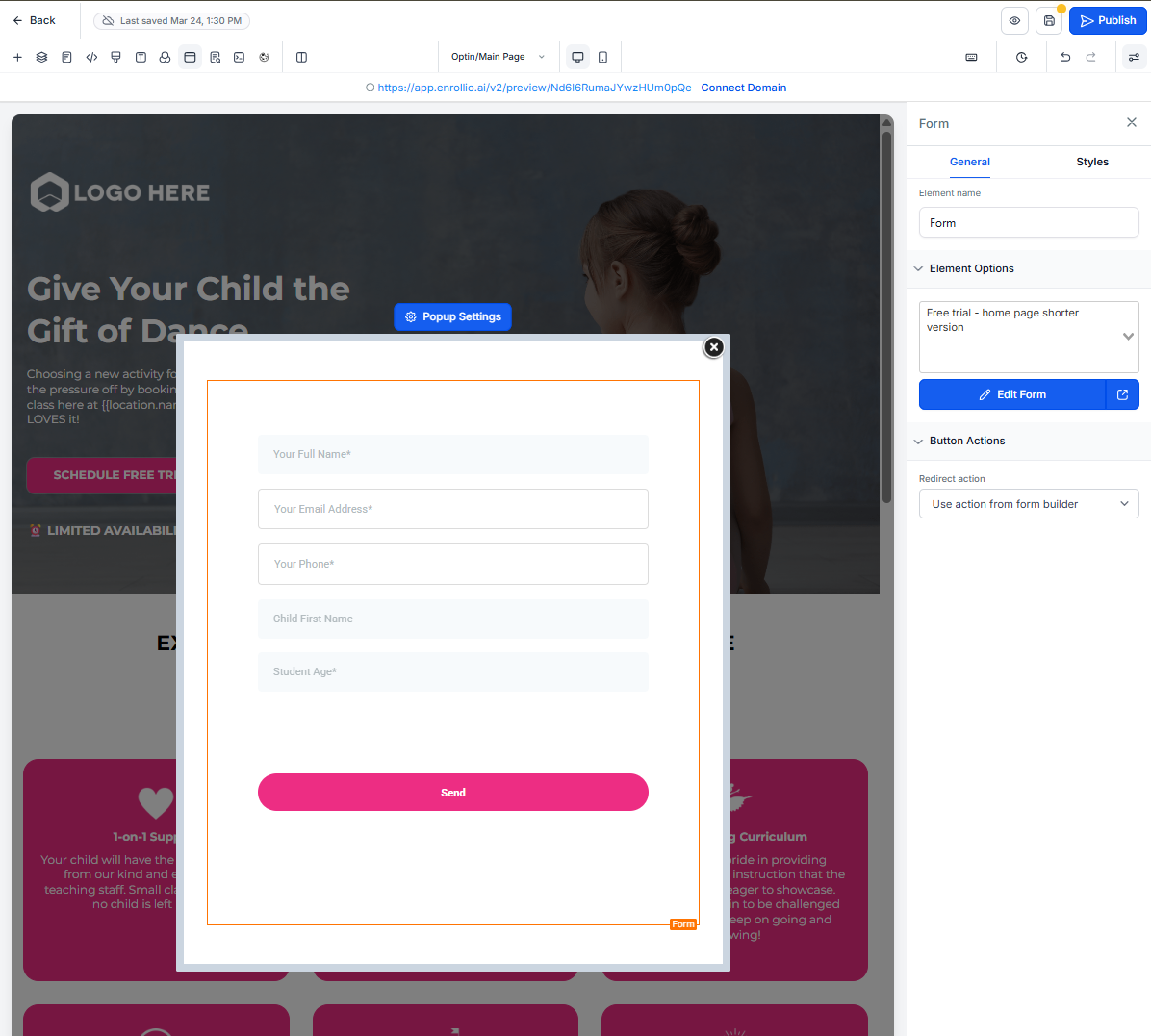
- Click the blue Edit button to open the page builder
- In the top navigation bar, click Pop-up Settings
- Click Add Row, then Add Element
- Select the Form element
- Use the form picker to select your form
- Customize the pop-up design to match your center's branding
Step 3: Configure Exit-Intent Trigger
This is the crucial step that makes your pop-up appear when parents try to leave.
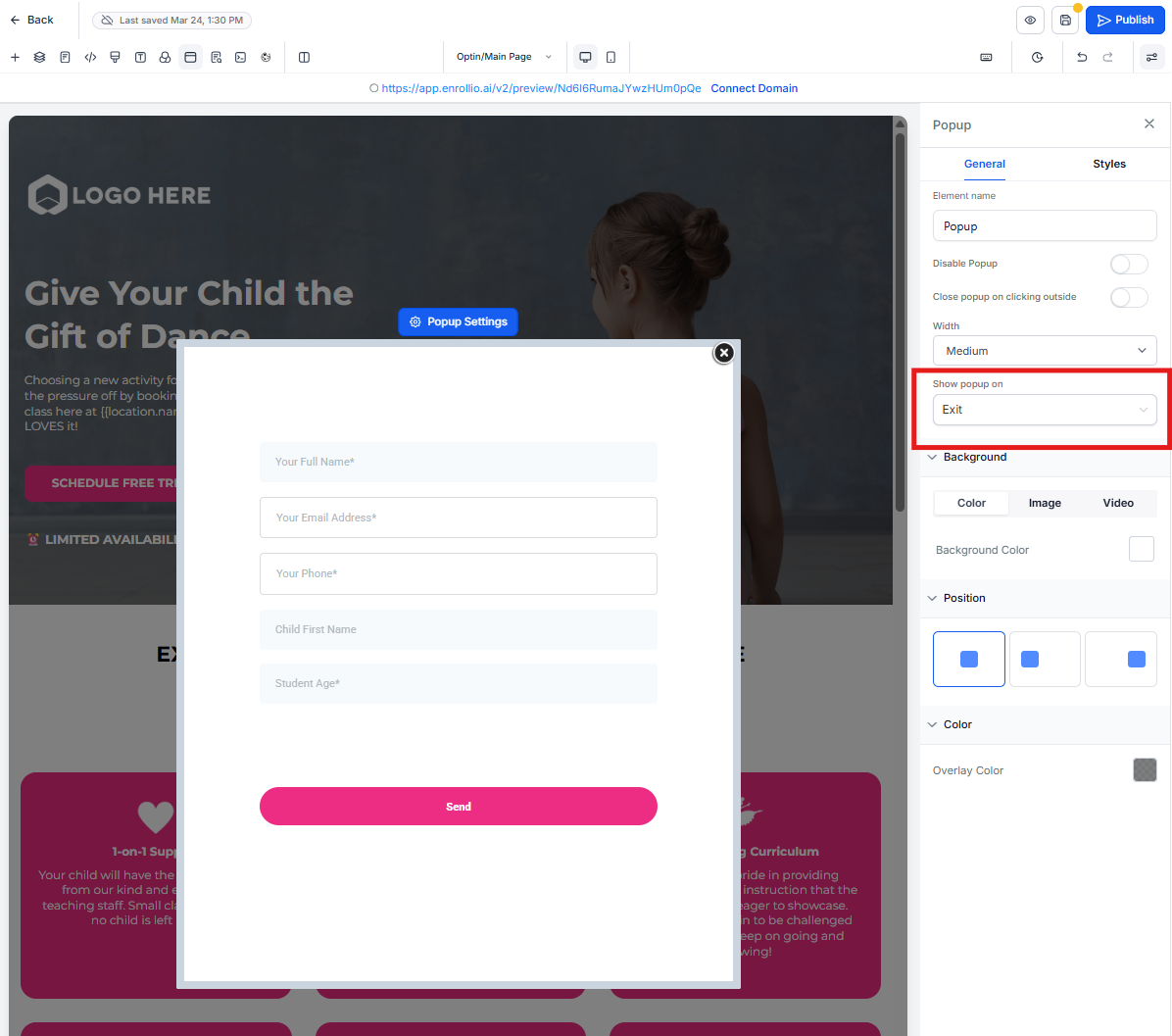
- Click the blue Pop Up Settings button (with the gear icon) at the top of the pop-up
- In the sidebar, scroll to Show Pop-up On
- From the dropdown, select Exit
- Save your changes
Important: If you select "None" or "Delay", the exit-intent behavior won't work. Make sure "Exit" is selected.
Step 4: Test Your Pop-Up
Always test before going live to make sure everything works correctly.
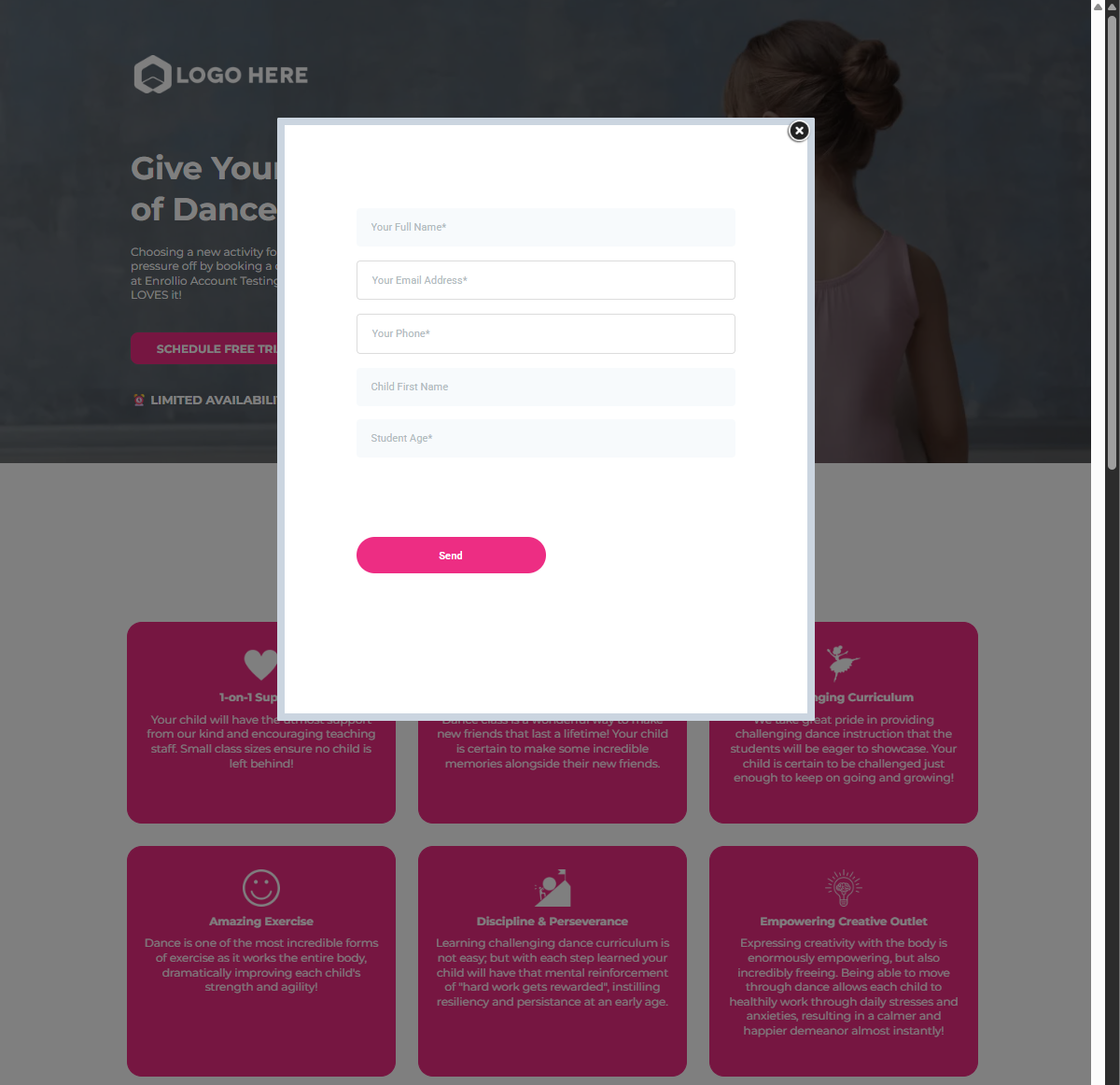
- Click Preview in the page builder
- Move your cursor toward the top of the browser window (as if you're about to close the tab)
- Confirm the pop-up appears
- Adjust styling and content as needed
- Click Publish when ready
Desktop vs Mobile Behavior
Exit-intent detection works by tracking mouse cursor movement, so it only functions on desktop devices. This behavior doesn't work on mobile because touchscreens don't have cursors.
For mobile visitors, consider using a timed pop-up or scroll-based trigger instead to capture families browsing on their phones.
Frequently Asked Questions
Can I use different forms for different pop-ups?
Yes. You can assign different forms to individual pop-ups on each enrollment page. This lets you customize the information you collect based on what that specific page offers.
What happens if I choose "None" or "Delay" instead of "Exit"?
The pop-up won't behave as an exit-intent prompt. "None" disables the pop-up completely, and "Delay" will show it after a set time instead of when the cursor moves to exit.
Can I preview the pop-up before publishing?
Yes. Use the preview option inside the page builder to test the exit-intent behavior before your page goes live.
Will the pop-up match my center's branding?
Absolutely. You can fully customize the pop-up's layout, colors, background, and form styles to match your enrollment site's branding.
Can I use exit-intent pop-ups on my own website outside of Enrollio?
No. Exit-intent pop-ups only work on enrollment sites and landing pages built inside Enrollio.