
The mega menu feature lets you create organized, visually rich navigation menus for your enrollment site. Parents can easily find the information they need about your programs, pricing, and enrollment process.
What is a Mega Menu?
A mega menu is an expanded navigation panel that appears when visitors hover over a menu item. Instead of showing a simple dropdown list, mega menus can display:
- Multiple columns of links
- Images and icons
- Descriptive text
- Custom formatting
This is especially useful for childcare centers with multiple programs, age groups, or locations. You can showcase your infant care, toddler programs, and preschool options all in one organized menu.
How to Add a Mega Menu
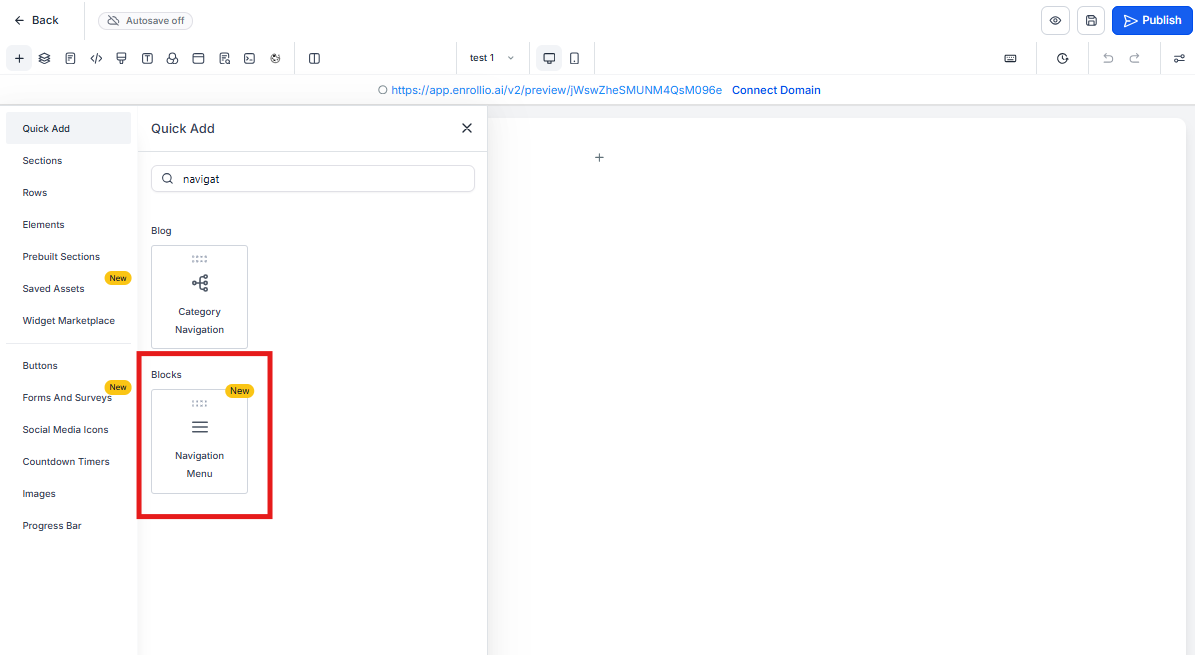
Step 1: Add the Navigation Menu Element
- Open your enrollment site in the Enrollio builder
- Click the Elements panel in the left sidebar
- Drag the Navigation Menu element onto your page
Step 2: Configure Your Navigation Menu
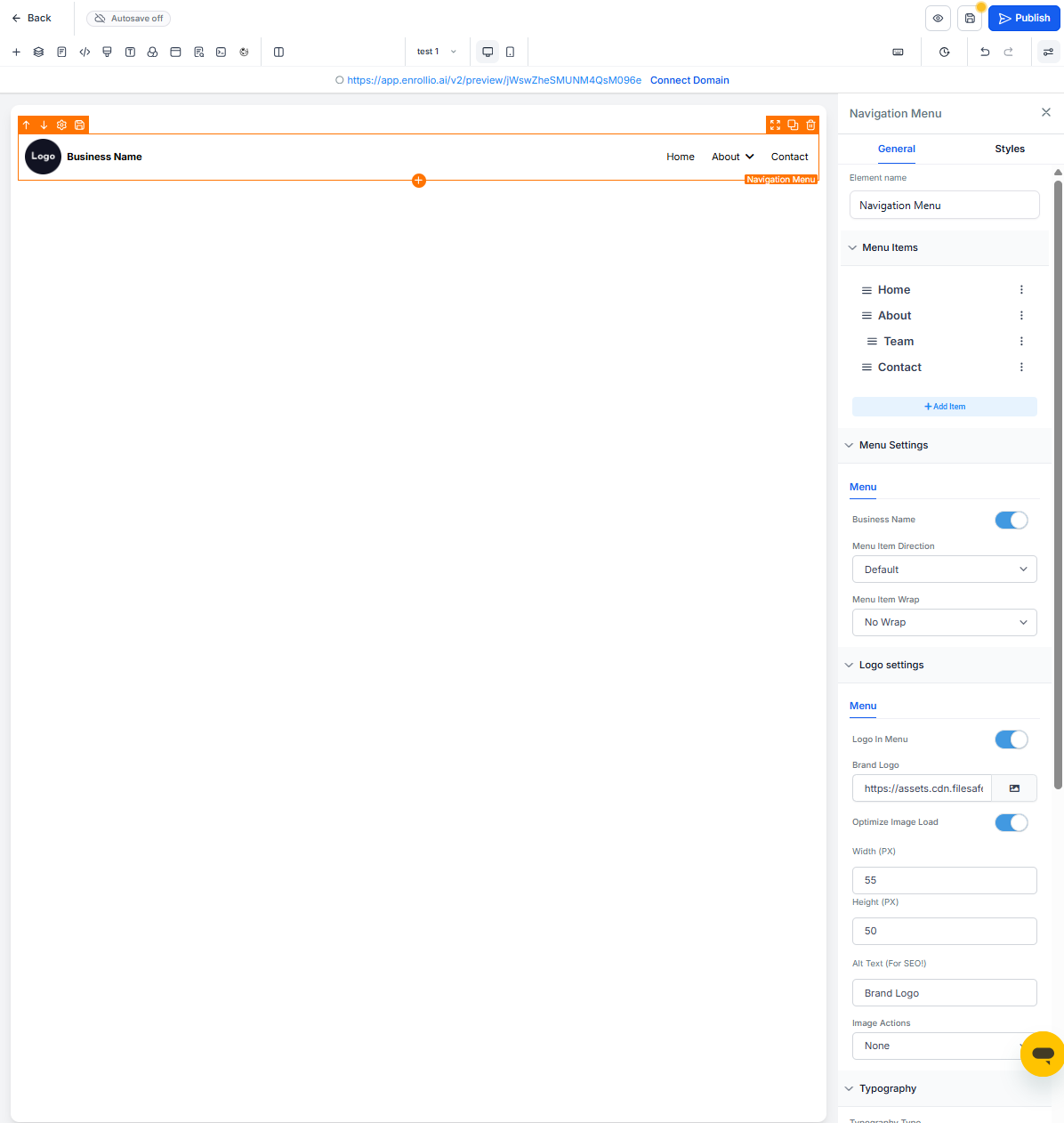
- Click on the navigation menu you just added
- In the right sidebar, you'll see the style editor settings
- Customize the layout, colors, and fonts to match your branding
Step 3: Add a Mega Menu Item
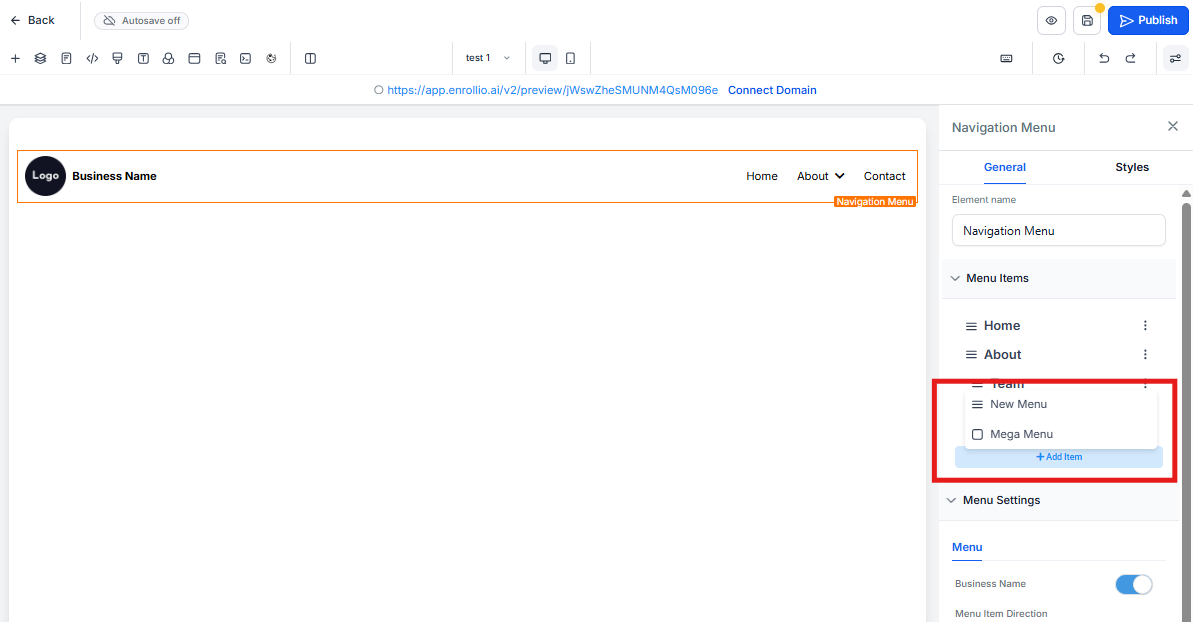
- Click Add Item in the navigation menu settings
- Select Mega Menu from the options
- Name your menu item (like "Programs" or "Enrollment")
Step 4: Build Your Mega Menu Content
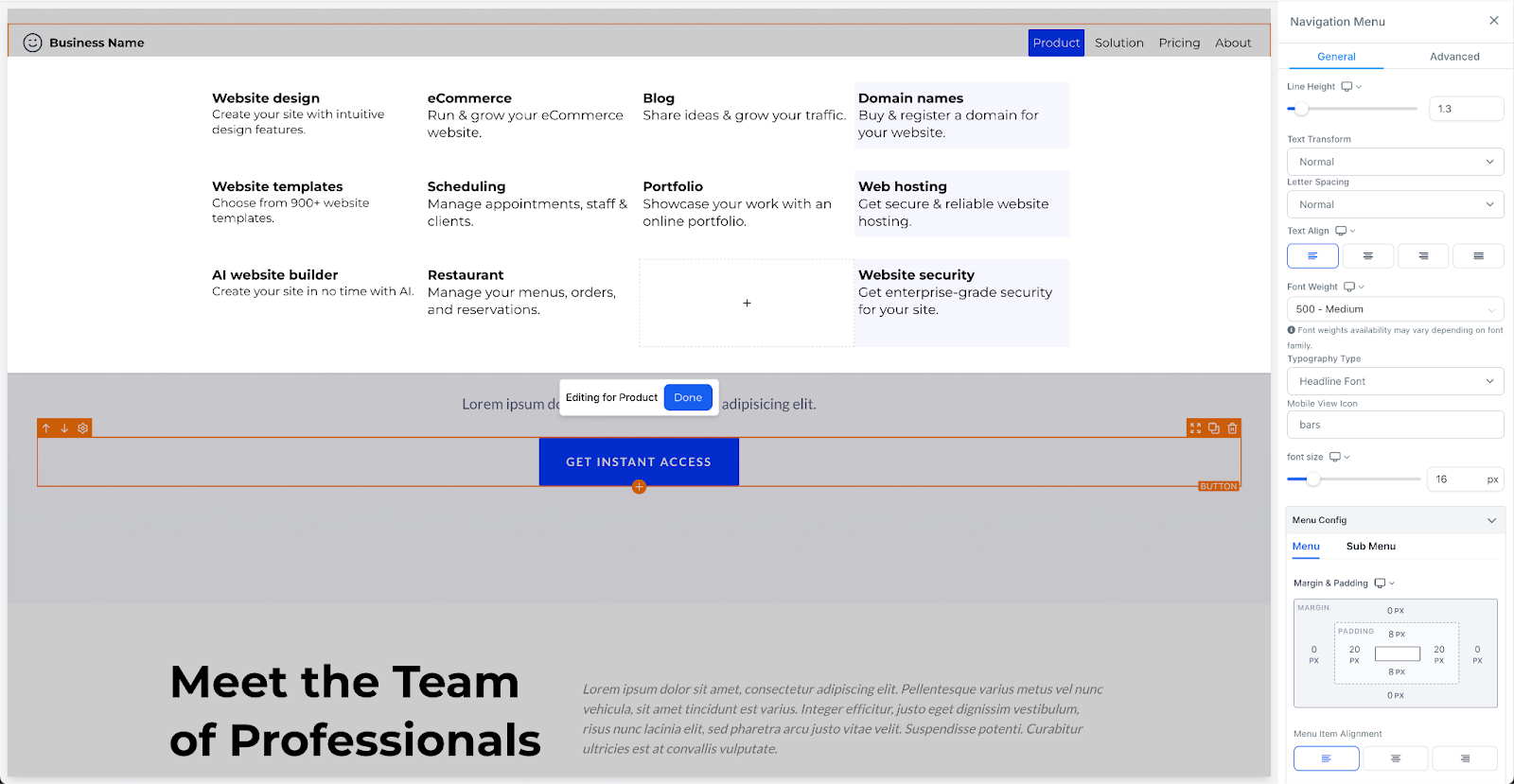
When you enter mega menu edit mode, an overlay appears to help you focus on customization. Now you can:
- Drag and drop elements like images, text blocks, and links into the mega menu
- Organize content into columns — perfect for showcasing different age groups or programs
- Add images of your classrooms or staff
- Include descriptions of each program
- Link to enrollment forms or tour scheduling pages
Step 5: Customize the Design
Make your mega menu match your brand:
- Adjust background colors
- Change fonts and text sizes
- Modify spacing between elements
- Set hover effects
Step 6: Preview and Publish
Use the live preview feature to see exactly how your mega menu will appear to parents visiting your site. When everything looks right, publish your changes.

Mega Menu Best Practices for Childcare Sites
Keep it organized: Group related information together. For example, put all enrollment-related links in one column and program information in another.
Use visuals: Add photos of your facility, classrooms, or happy children. Parents connect with images.
Limit the options: Too many choices can overwhelm. Stick to your most important pages and information.
Test on mobile: While mega menus work great on desktop, make sure your navigation adapts well for mobile devices where parents might be browsing.
Common Questions
Can I have multiple mega menus on one navigation bar?
Yes! You can add as many mega menu items as you need. Just click Add Item and select Mega Menu for each one.
Will the mega menu work on mobile devices?
The navigation menu automatically adapts for mobile. The mega menu content will be reorganized into a mobile-friendly format.
Can I change a regular menu item to a mega menu later?
Yes. Click on any existing menu item and change its type to Mega Menu in the settings.
What happens when visitors hover over a mega menu?
The mega menu panel appears below the navigation bar, displaying all the content you've added. It stays open as long as visitors keep their cursor over the menu area.