
Creating Mobile-Responsive Enrollment Pages and Sites
Most parents browse childcare options on their phones. Your enrollment pages need to look great on every device—from desktop to mobile.
Enrollio's page builder makes this easy with mobile-responsive controls for text, buttons, images, FAQs, and more. You can customize how each element appears on desktop versus mobile, ensuring your enrollment pages look professional and are easy to navigate regardless of screen size.
How Mobile Responsiveness Works
Every text element in your enrollment pages can be customized separately for desktop and mobile views. When you adjust the font size, spacing, or styling in mobile view, those changes only affect mobile devices. Your desktop design stays exactly as you set it.
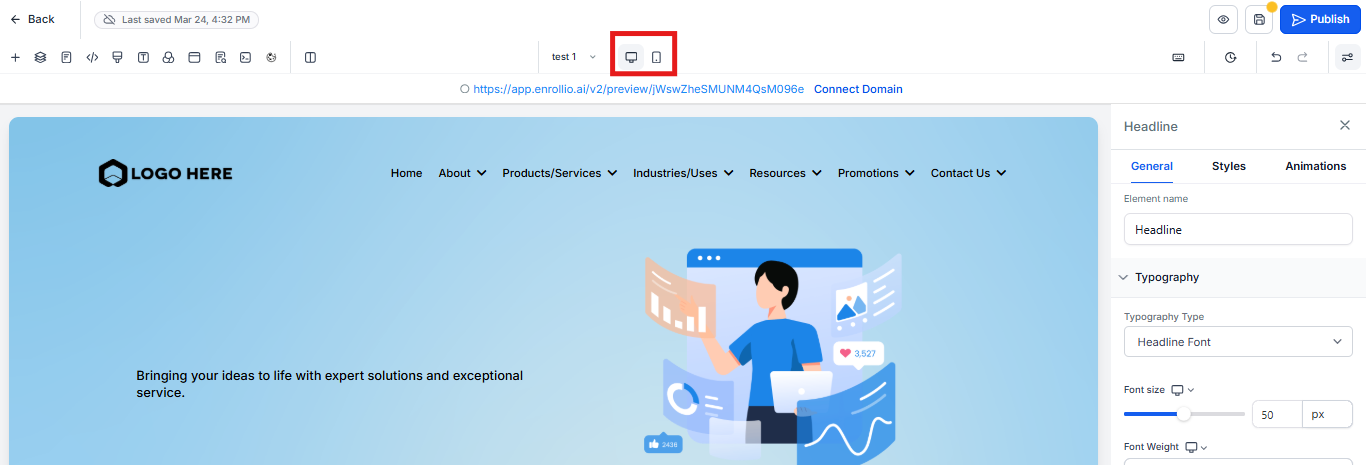
The key: Use the device toggle at the top of the editor to switch between desktop and mobile views while building your pages.
Customizing Text Elements for Mobile
This applies to all text elements: headings, subheadings, paragraphs, and bullet points.
Step-by-step:
- Select any text element on your enrollment page (like a headline or paragraph)
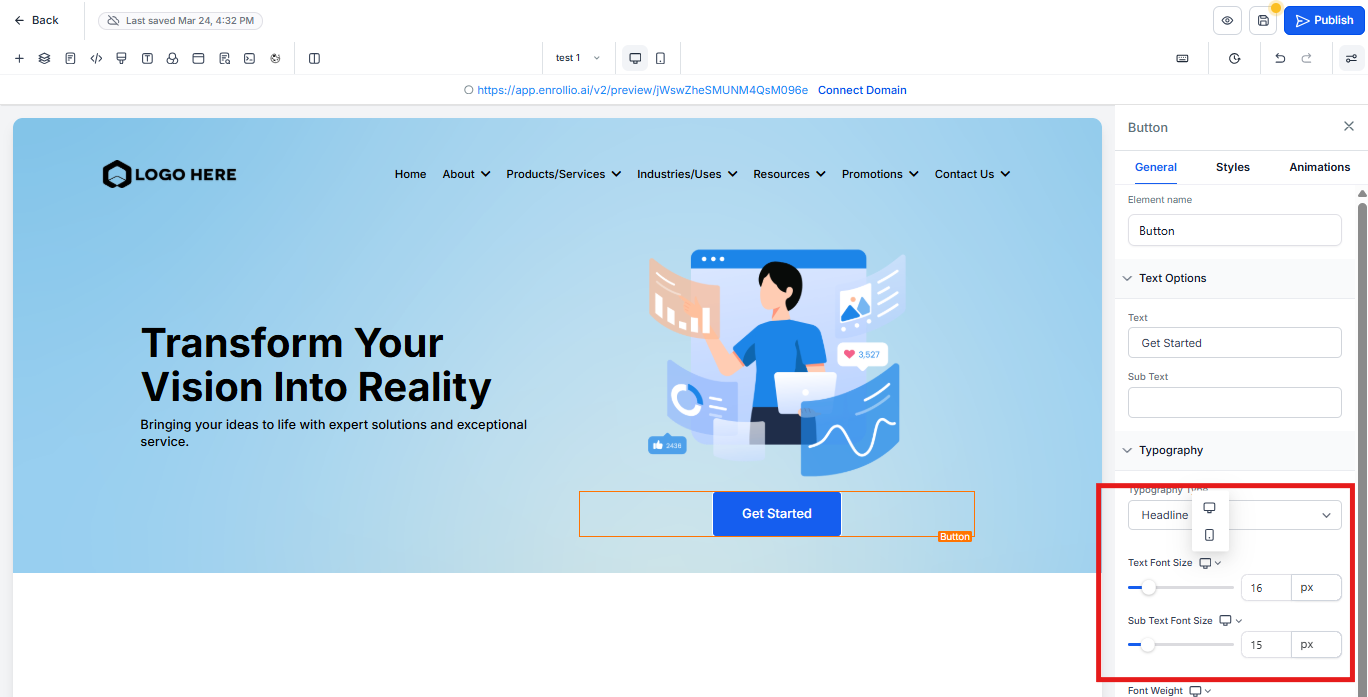
- In the element settings panel, find the font size option
- Adjust the font size for desktop view—this is your starting point
- Click the desktop icon in the top toolbar to switch to mobile view
- Adjust the font size specifically for mobile devices
- Preview your page to see how it looks on different screens
Pro tip: Start with your desktop design, then fine-tune for mobile. Mobile screens typically need larger, more readable fonts relative to the viewport size.
Mobile-Responsive FAQs
Parents often have questions about enrollment, tuition, and schedules. FAQ sections are perfect for enrollment pages—and they need to be easy to read on mobile.
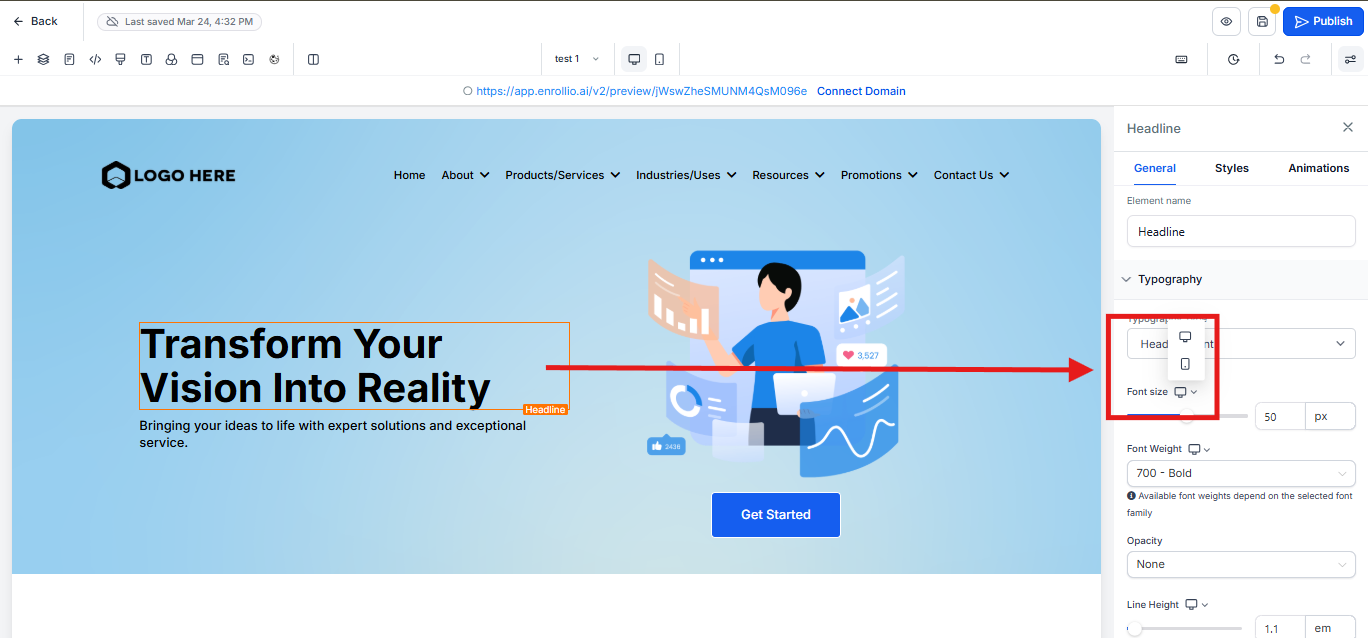
When editing an FAQ element, you can customize:
- Title font size (the question text)
- Content font size (the answer text)
Use the same desktop/mobile toggle to set different sizes for each device. Make sure questions are easy to tap and answers are readable without zooming.
Button Text and Styling
Your "Schedule a Tour" or "Start Enrollment" buttons are critical conversion points. They need to look clickable and be easy to tap on mobile devices.
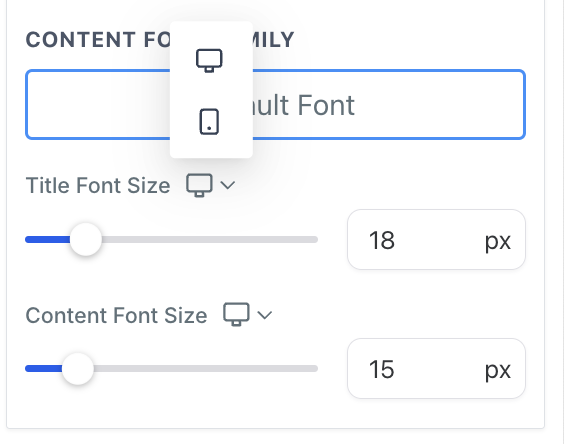
For button elements, you can customize:
- Button text font size
- Sub-text font size (if you add descriptive text below the button)
Switch to mobile view and increase button text size if needed. Mobile buttons should be large enough to tap easily (aim for at least 44x44 pixels of tappable area).
Text in Images
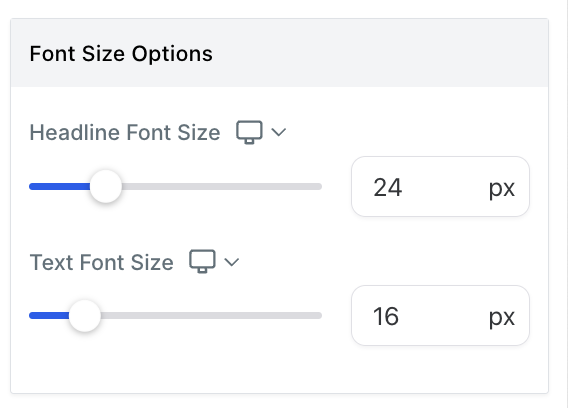
If you're using image elements with text overlays (like a hero banner with your childcare center's name), you can customize:
- Headline font size
- Body text font size
This is especially important for hero sections. Text that looks perfect on a wide desktop screen often becomes tiny and unreadable on mobile—unless you set mobile-specific sizing.
Social Media Icons
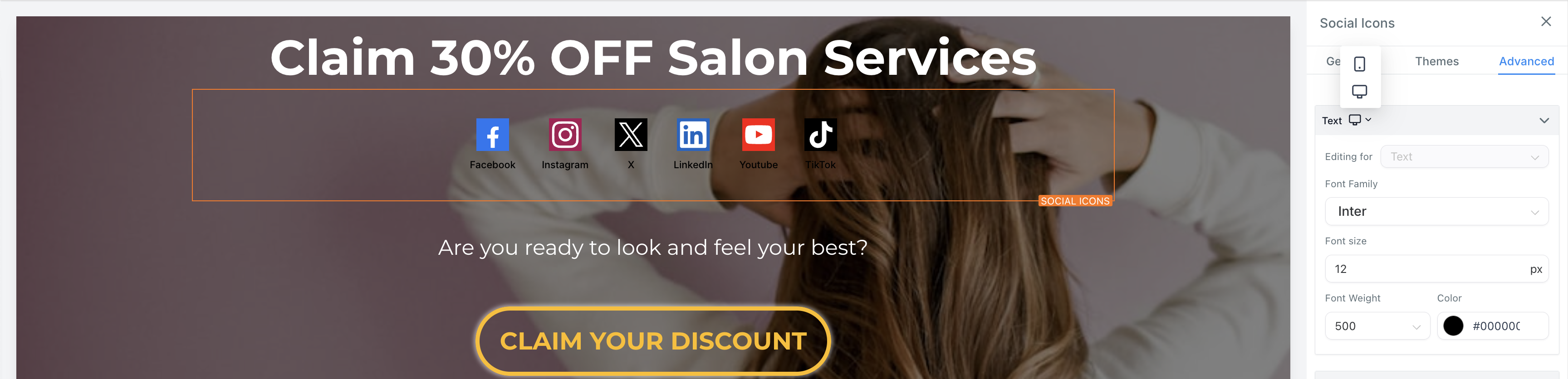
If you display social media links on your enrollment pages, these can be customized for mobile too.
You can adjust for desktop and mobile separately:
- Font family (if showing text labels)
- Font size
- Font weight
- Color
Use the same desktop/mobile toggle to ensure your social icons are visible and tappable on smaller screens.
Preview and Test
Always preview your enrollment pages on actual devices before publishing. The mobile view in the editor is helpful, but nothing beats seeing your page on a real phone or tablet.
Quick test: Send the page link to your phone and check:
- Is all text readable without zooming?
- Are buttons easy to tap?
- Do images and sections flow naturally?
- Does the page load quickly on mobile data?
Why This Matters
Parents are busy. If your enrollment page is hard to read or navigate on their phone, they'll move on to the next childcare center. Mobile-responsive design isn't optional—it's essential for converting visitors into enrolled families.
With Enrollio's mobile customization tools, you can create enrollment experiences that look professional and convert well on every device.