
Why Your Tracking Code Doesn't Copy
When you copy a landing page or enrollment page in Enrollio, you'll notice the tracking code doesn't come along for the ride. This is intentional, and here's why.
The Reason: Tracking Code is Page-Specific
Tracking codes (like Google Analytics, Facebook Pixel, or other analytics tools) are designed to track activity on a specific page. If we automatically copied them, you'd run into problems:
- Duplicate tracking: The same code firing on multiple pages can create inaccurate data in your analytics
- Wrong attribution: Events might get recorded to the wrong page, making it impossible to understand what's actually working
- Privacy concerns: If you're sharing page templates with team members or setting up similar pages across multiple locations, you probably don't want your tracking codes going along with them
What This Means for You
When you copy a page, you'll need to add your tracking code to the new version manually. This gives you control over:
- Which pages you're tracking
- What events you're measuring
- Where your analytics data is being sent
Pro Tip: Keep your tracking codes organized in a document so you can quickly add them to new pages. This also helps when you need to update codes across multiple pages.
How to Add Tracking Code to Your New Page
- Open your newly copied page in the page editor
- Click on Settings in the top menu
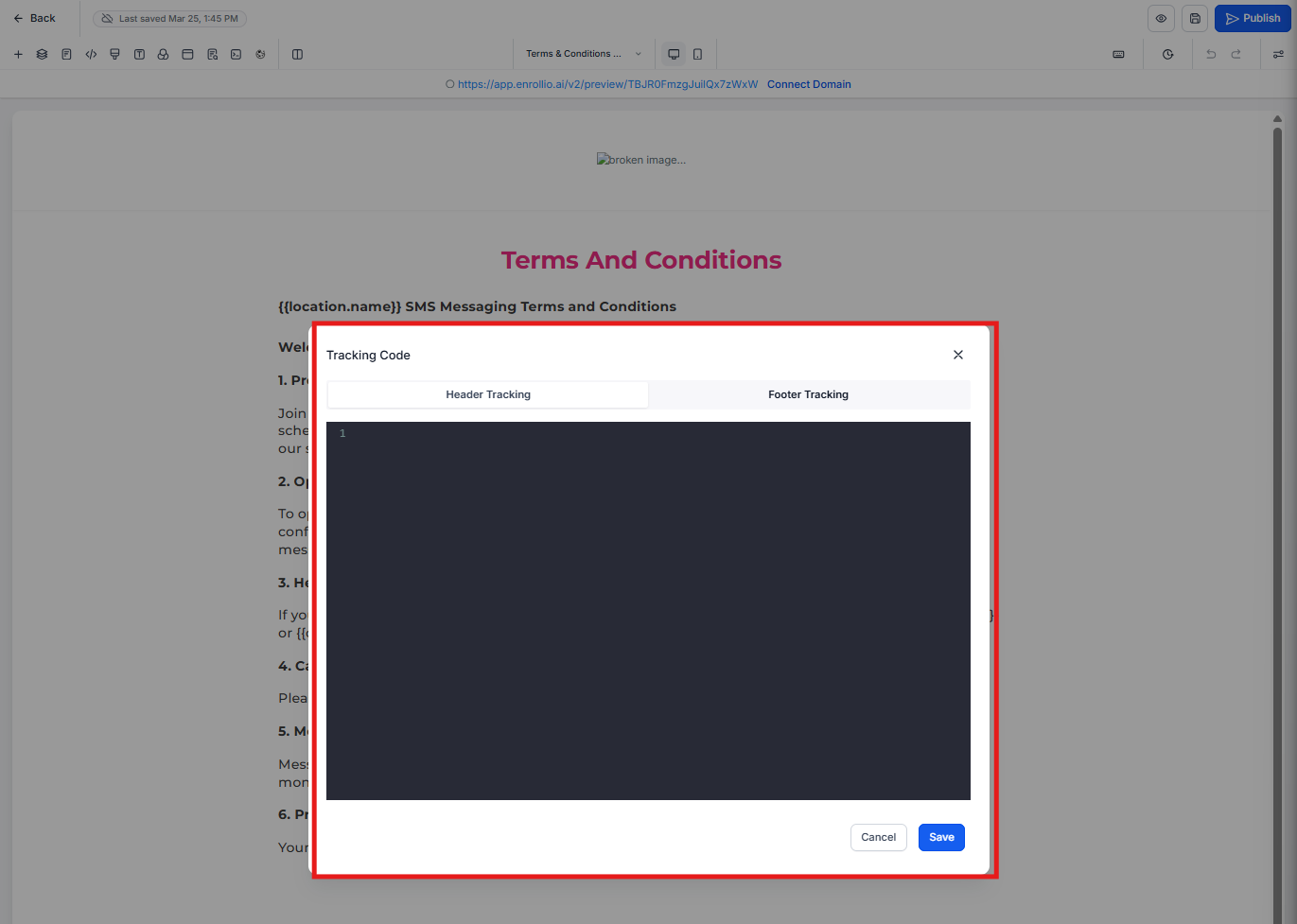
- Navigate to Tracking Code
- Add your tracking code in the appropriate section (header or footer)
- Save your changes
This way, each page has the right tracking code for accurate analytics, and you maintain full control over your data.