
How to Add Hyperlinks to Your Enrollment Pages and Sites
Adding hyperlinks to your enrollment pages and sites in Enrollio is straightforward. Whether you're linking to your tour booking page, policies, or external resources, you can turn any text or button into a clickable link.
Adding a Link to Text
This is the most common way to add hyperlinks — turning a word or phrase into a clickable link.
- Open your enrollment page or site in the builder
- Click the text element you want to edit
- Highlight the specific text you want to turn into a link
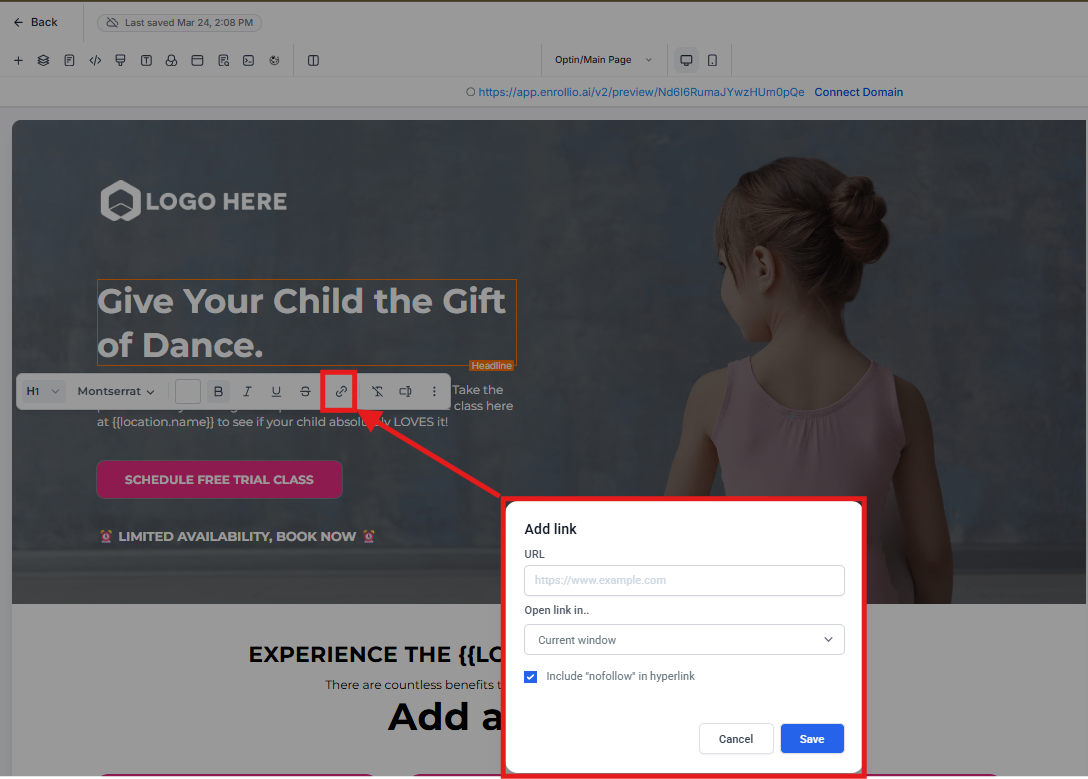
- Click the Link icon in the text editor toolbar (looks like a chain link)
- Enter the URL you want to link to (e.g., https://yoursite.com/tours)
- Choose whether the link opens in a new tab (recommended for external links)
- Click Save
Adding a Link to a Button
Buttons are great for calls-to-action like "Book a Tour" or "Apply Now."
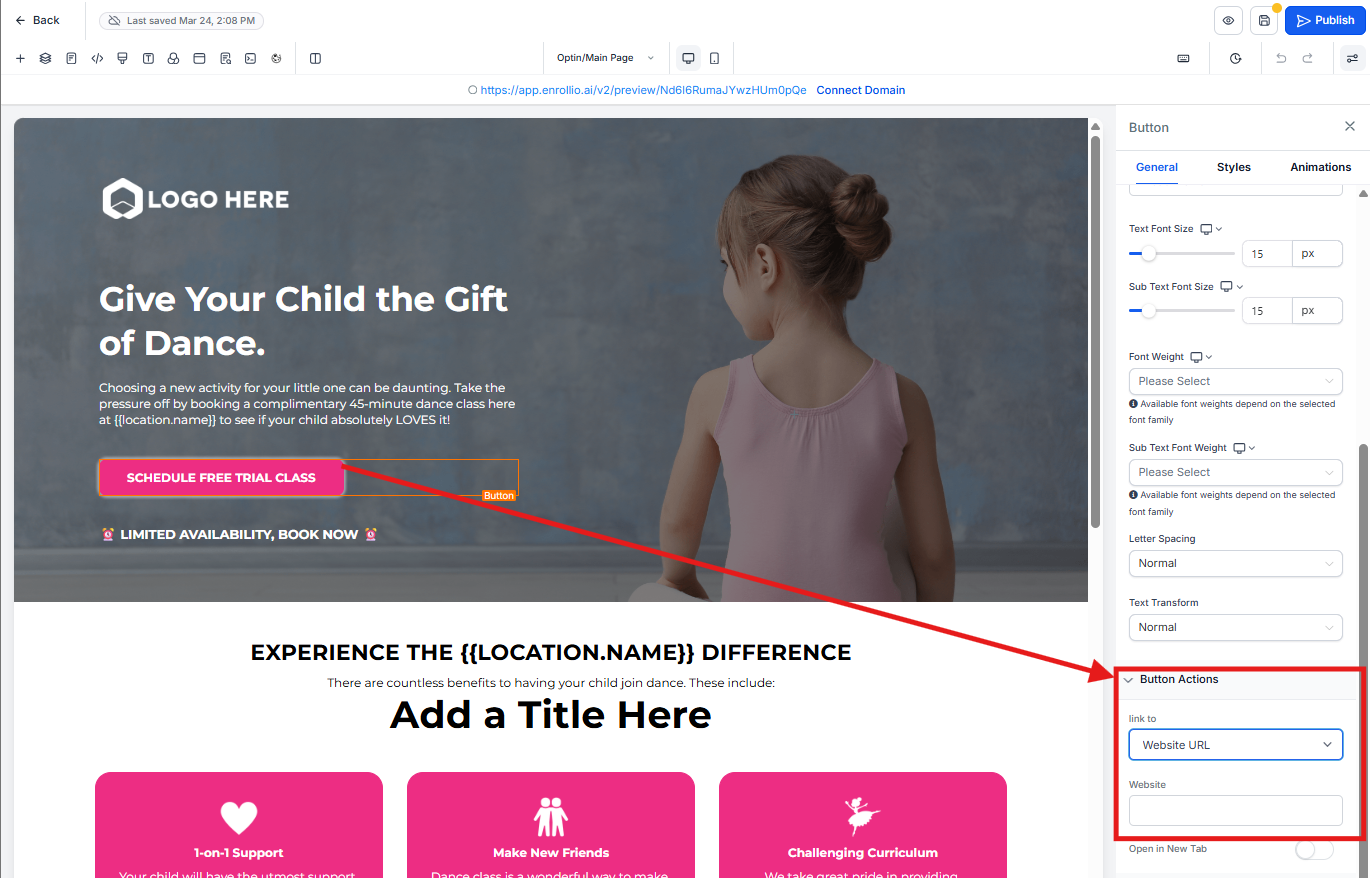
- Click the button element on your page
- In the settings panel on the right, find the Action or Link section
- Select Go to URL from the dropdown
- Enter your destination URL
- Choose whether to open in a new tab
- Click Save
Types of Links You Can Use
External URLs
Link to any website outside Enrollio. Always include the full URL starting with https:// (e.g., https://example.com).
Internal Page Links
Link to another page within your enrollment site. You can use either the full URL or a relative path (e.g., /about-us).
Anchor Links
Jump to a specific section on the same page. Use the format #section-name (e.g., #pricing-section). You'll need to set an anchor ID on the destination section first.
Email Links
Create a link that opens the parent's email client. Format: mailto:yourenter@enrollio.com
Phone Links
Create a click-to-call link for mobile devices. Format: tel:+15551234567
Best Practices for Links
- Test your links — Always preview your page and click every link to make sure it works
- Use new tabs wisely — Open external links in new tabs so parents don't lose their place on your site
- Keep links relevant — Only link to resources that help families make enrollment decisions
- Update broken links — Regularly check that your links still work, especially policy documents or forms
Common Link Issues
Link Doesn't Work
Make sure you included the full URL with https:// at the beginning. Links like "google.com" won't work — use "https://google.com" instead.
Link Opens Wrong Page
Double-check that you pasted the correct URL. Extra spaces or characters can break links.
Button Doesn't Click
Verify that you selected "Go to URL" in the button action settings, not just entering text in the label field.
Need help with a specific link type? Contact our support team — we're here to help you create the perfect enrollment experience for families.