
Enrollio's site builder automatically optimizes your enrollment site for both desktop and mobile devices. You can customize how each version looks to give parents the best experience on any device.
Understanding Desktop vs. Mobile Views
When you build your enrollment site in Enrollio, you're creating one site with two views. Parents on computers see the desktop version, while parents on phones see the mobile version.
You don't need to build separate sites — Enrollio handles the switching automatically based on the device.
How to Customize Each View
Step 1: Open your enrollment site in the site builder.
Step 2: Look for the device icons in the top toolbar — you'll see desktop and mobile options.
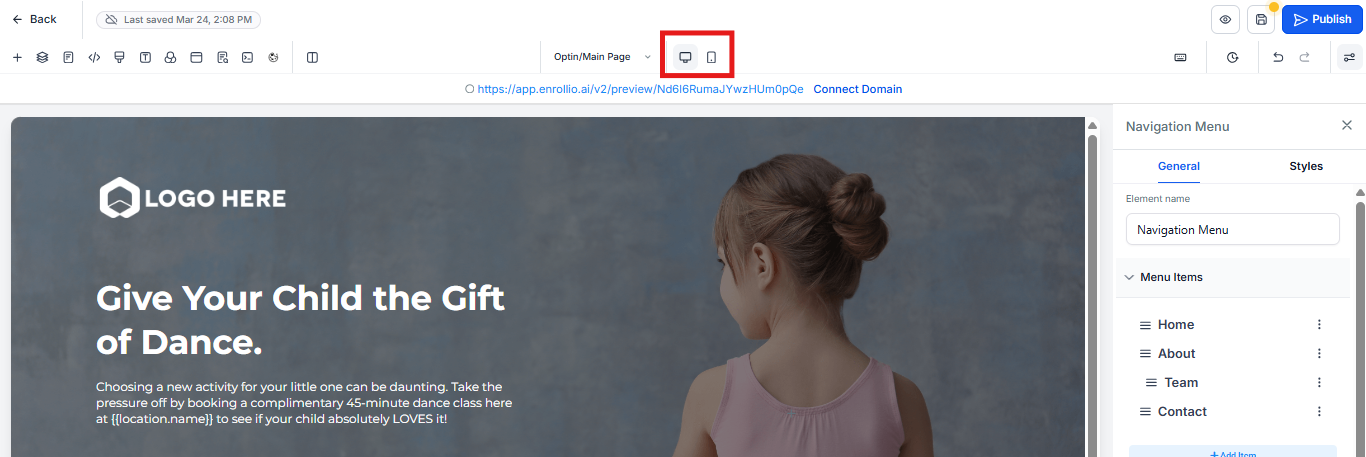
Step 3: Click the mobile icon to switch to mobile editing mode.
Step 4: Make your changes. Any adjustments you make in mobile view only affect how the site looks on phones.
Step 5: Switch back to desktop view to customize how the site appears on computers.
What You Can Customize Per Device
- Element visibility — Hide or show specific sections on mobile vs. desktop
- Image sizes — Use smaller images on mobile to improve loading speed
- Text size — Make headings and buttons easier to tap on mobile
- Layout spacing — Adjust margins and padding for smaller screens
- Navigation menus — Simplify menus on mobile devices
Pro Tips for Mobile Optimization
Make buttons thumb-friendly: On mobile view, make buttons at least 44 pixels tall so parents can easily tap them while multitasking.
Test on real devices: Preview your site on your actual phone before publishing. The mobile preview in the builder is helpful, but nothing beats testing on the real thing.
Keep forms simple on mobile: If you have enrollment forms, consider hiding optional fields on mobile to reduce scrolling and make it easier for parents to complete on their phones.
Common Questions
Do changes on desktop automatically apply to mobile?
Yes, unless you specifically customize the mobile view. Think of desktop as the default — mobile inherits those settings until you change them.
Can I hide entire sections on mobile?
Absolutely. This is common for detailed program descriptions or staff bios that work better on desktop. Just select the section in mobile view and toggle its visibility.
Will parents see a different URL for mobile vs. desktop?
No. Your enrollment site uses the same URL on all devices. Enrollio automatically serves the right version based on screen size.