
Make your enrollment forms feel like your brand! Enrollio's primary color setting lets every hover, click, and selection match your childcare center's look and feel.
What is the Primary Color Feature?
The Primary Color setting controls how your form elements look when parents interact with them. It automatically applies your chosen brand color to input fields, dropdowns, checkboxes, and other elements — keeping everything visually consistent with your branding.
This feature keeps your forms looking professional and cohesive without needing any design experience. It also improves accessibility by making active and selected elements easier to see.
Key Benefits
- Brand Consistency: Creates a cohesive look across all your forms, surveys, and quizzes
- Better User Experience: Highlights hover and active states so parents always know where they're typing or what they've selected
- Trust & Professionalism: Polished, responsive interactions can improve completion rates on your enrollment forms
- Save Time: Set it once and the color applies to all interactive elements automatically
- Flexibility: Optionally map the primary color to button colors for complete visual harmony
Where Primary Color Appears
When you set a primary color, it updates the appearance of form interactions. These visual effects help parents see where they're clicking or typing while keeping your forms aligned with your brand.
The primary color appears only when parents interact with your form, such as:
- Hovering over a field
- Clicking or typing in a field
- Selecting a checkbox or radio button
- Choosing a date or option
If no primary color is defined, the form uses default neutral styling.
Here's how the primary color appears in each element type:
Form Fields: The border highlights with your primary color when hovered or clicked.

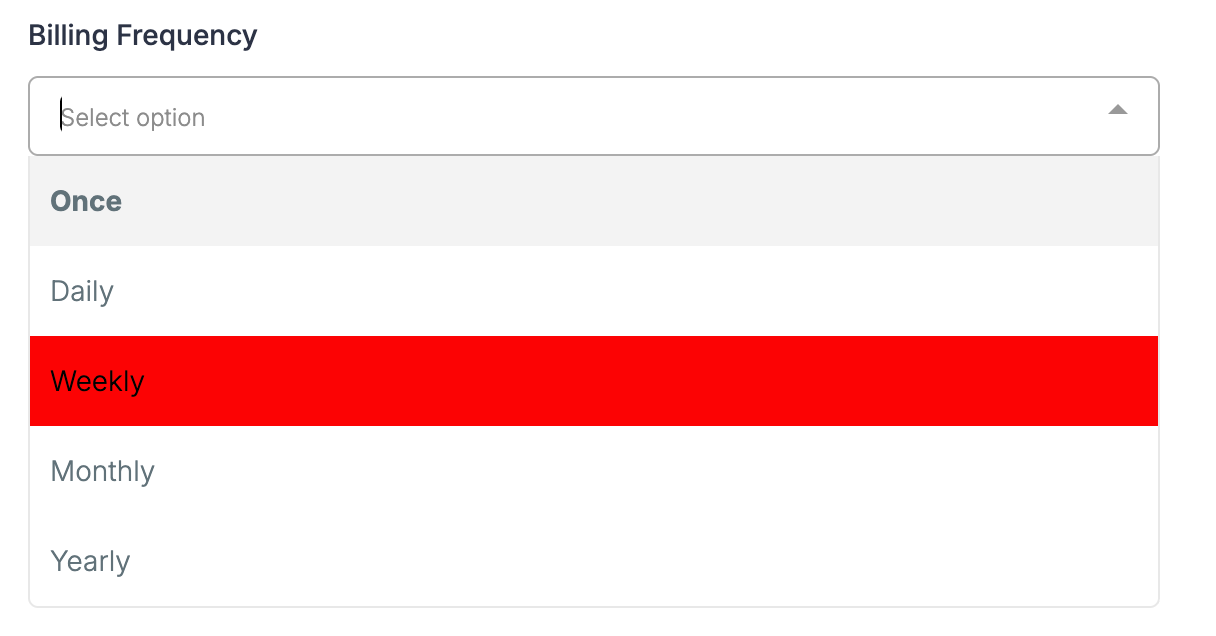
Dropdowns: Options and borders reflect the primary color when opened or selected.
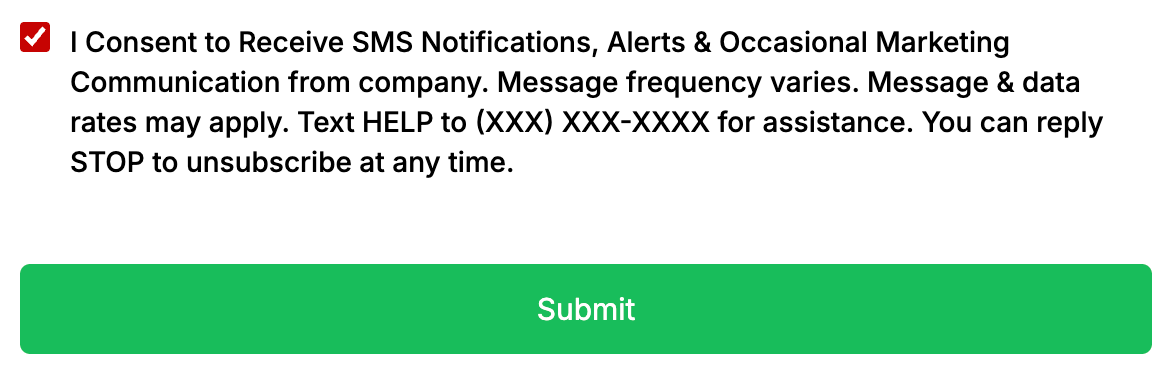
Checkboxes & Radio Buttons: Selected options fill with your primary color.
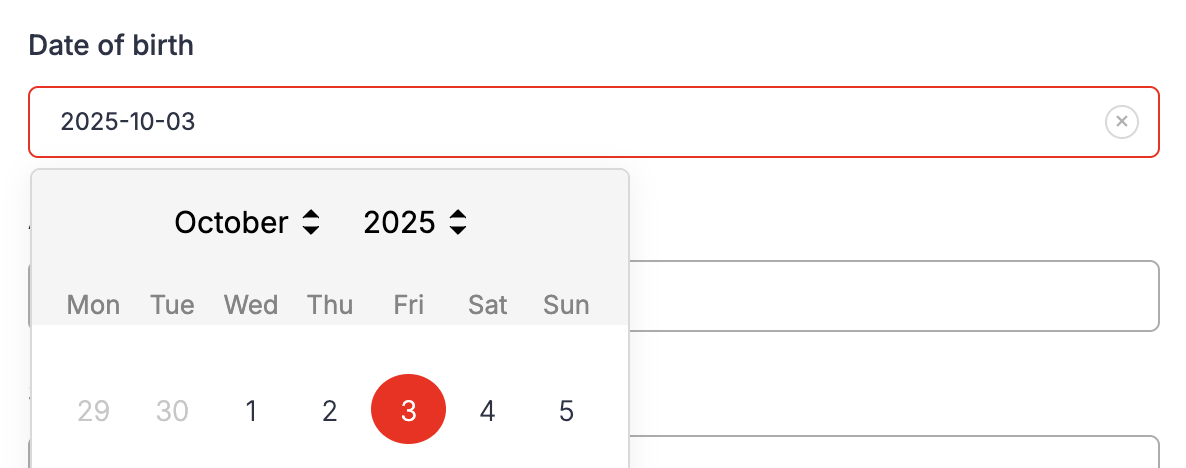
Date Picker: The active or selected date is highlighted in your primary color.
File Uploads & Signature Fields: Borders and sketch colors use your primary color.

How to Change Your Primary Color
- Open your form in the builder
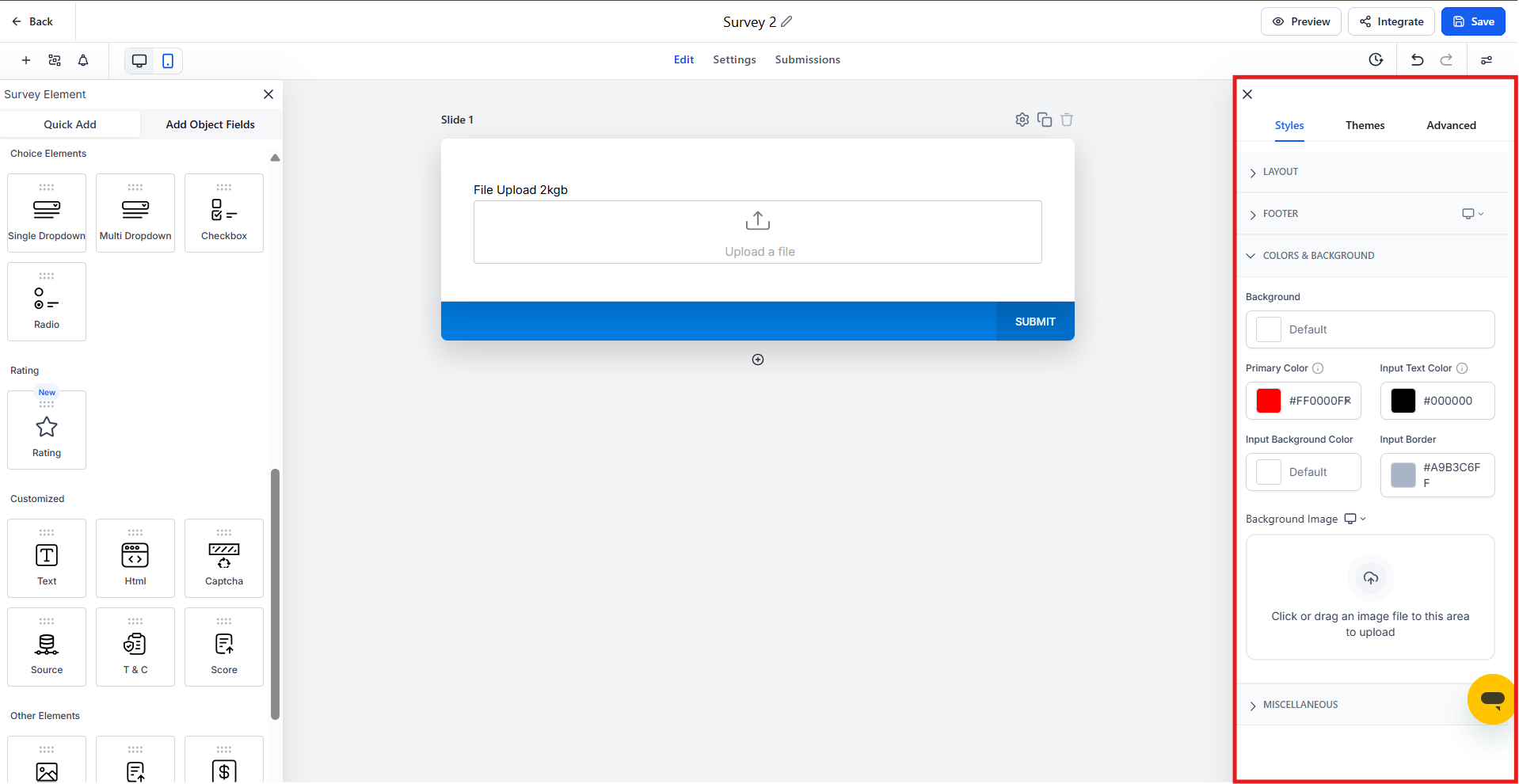
- Click Style and Options → Styles
- Scroll down to the Primary Color field under Colors and Background
- Select a color from the picker or enter a custom hex code
- Toggle "Map Primary color to Button color" if you want your buttons to match
- Click Save to apply the changes
Your forms will automatically update to use the new color for all interactive elements.
Frequently Asked Questions
Will this affect all my forms?
Yes. All forms using the default styling will update automatically when you change your primary color.
Can I set a different color for just one form?
Not right now. The primary color applies across all forms in your account.
Can I turn off the hover or focus effects?
No. These effects are built in to improve clarity and usability for parents filling out your forms.
Will mobile devices show the same effects?
Yes, the highlights work the same way on mobile devices.
Can I use a different button color than my primary color?
Yes. Leave the mapping toggle off and style buttons separately using your theme or custom styles.