
Rating Element for Forms, Surveys & Quizzes
Collect meaningful feedback from parents and families using the Rating Element in Enrollio Forms, Surveys, and Quizzes. This feature lets you add visually engaging rating options — like stars, hearts, or thumbs-up — to boost response rates and capture actionable insights.
What is the Rating Element?
The Rating Element is a customizable field that lets you capture feedback through intuitive icons. Add this element to Forms, Surveys, or Quizzes so parents can rate their tour experience, satisfaction with your center, or other aspects of your childcare program using stars, hearts, thumbs-up, and more.
This visual approach makes it simple for parents to provide feedback and helps you gather insights at a glance. You can customize the icon type, rating scale, labels, colors, and storage format. All ratings integrate seamlessly into your CRM, automations, and reporting tools.
Key Benefits
- Consistent Feedback Collection: Use the same rating system across all parent touchpoints for standardization.
- Flexible Icon Choices: Choose from stars, hearts, thumbs-up, flags, or light bulbs.
- Customizable Rating Range: Define your scale (1–10 steps) and set labels like "Poor" to "Excellent."
- Versatile Data Storage: Save values as absolute numbers, percentages, or fractions for easy analysis.
- CRM Integration: Map ratings to custom fields for use in automations and family records.
How To Set Up the Rating Element
Setting up the Rating Element is straightforward and ensures you capture actionable feedback efficiently.
Step 1: Navigate to Your Form, Survey, or Quiz Builder
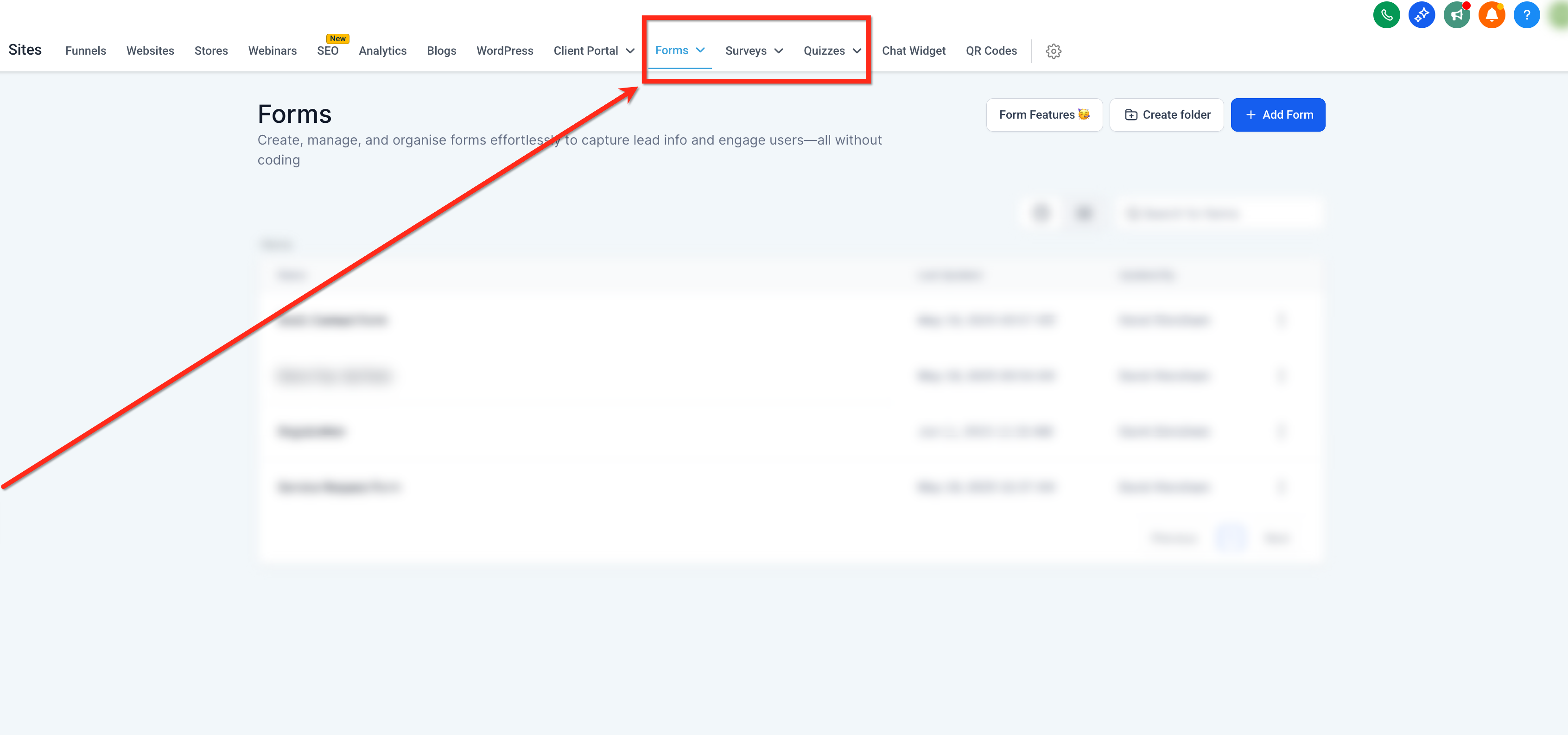
From your Enrollio Dashboard, click Sites → choose Forms, Surveys, or Quizzes. Create a new one or select an existing form to edit.
Step 2: Add the Rating Element
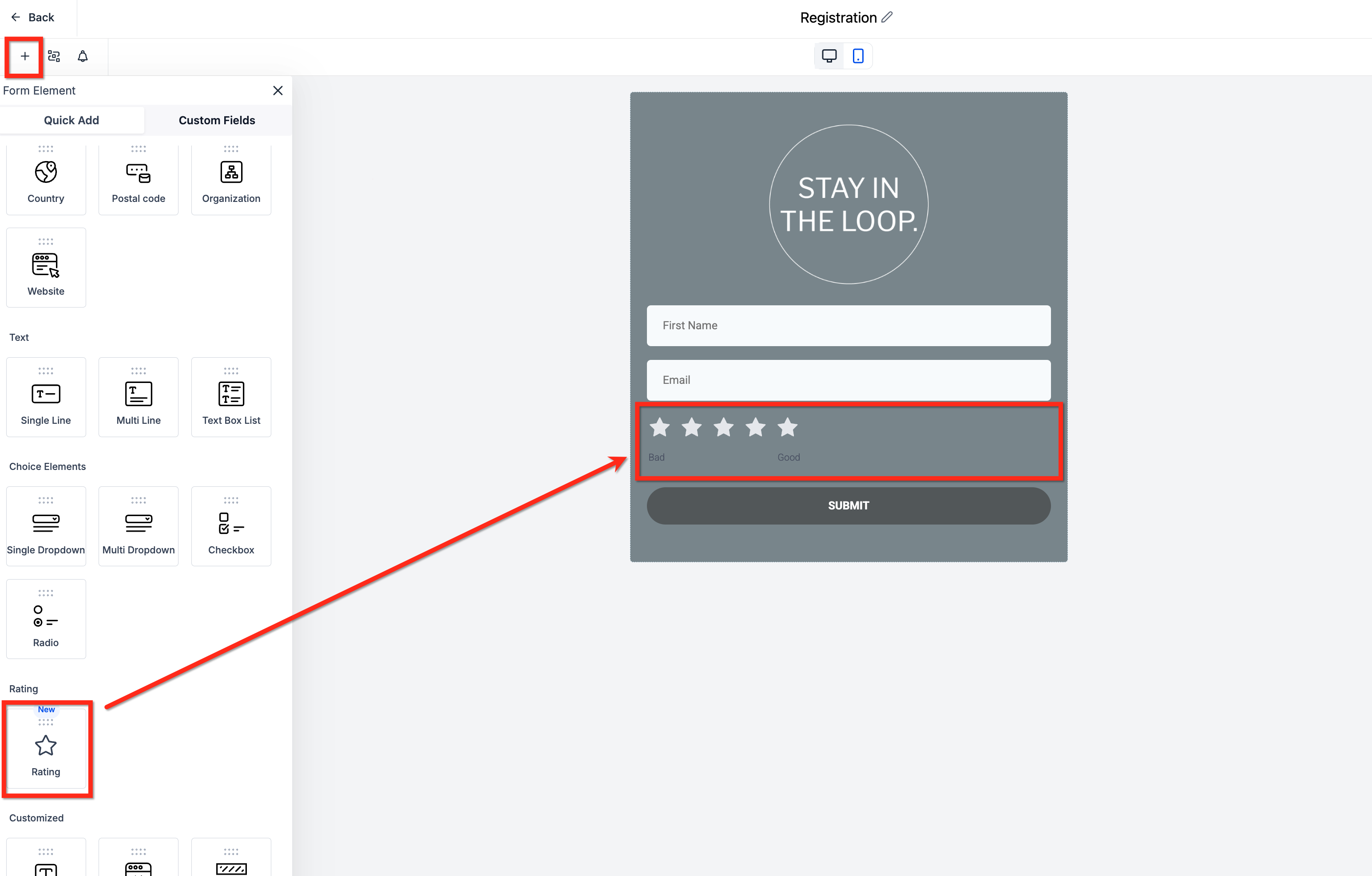
- Click the Add Form Element button (➕ icon at the top-left).
- Scroll down to locate the Rating Element.
- Drag the Rating Element into your desired location on the form.
Step 3: Configure Your Settings
After placing the element, click on it to open the settings panel on the right side of the screen. You'll see three configuration sections:
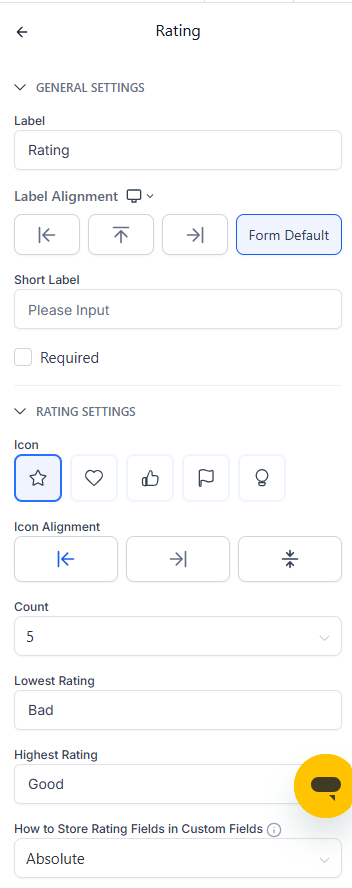
- General Settings: Set the label, width, and mark it required.
- Rating Settings: Choose your icon type, alignment, number of rating steps, labels, and data storage type.
- Advanced Settings: Map data to a custom field.
For a full breakdown of every customization option, see the Configuration Options section below.
Step 4: Preview Your Form
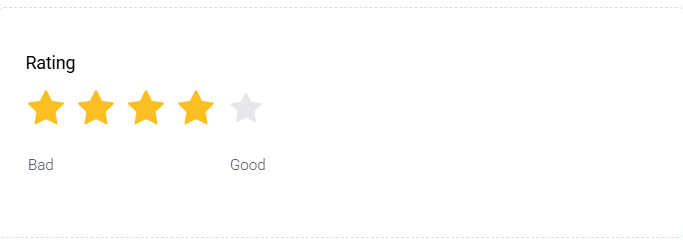
Click Preview to test how the form looks. When you hover over the rating icons, they'll highlight in your selected color, providing immediate visual feedback.
Rating Element Configuration Options
After placing the Rating Element, click on it to access three dropdown menus that control appearance, behavior, and data handling.
General Settings
- Label: Text shown to parents (e.g., "How would you rate your tour experience?").
- Short Label: Internal field name for your reference.
- Field Width: Set width as percentage (e.g., 100% or 50%).
- Required: Toggle ON to make this field mandatory before submission.
Rating Settings
- Icon Type: Select from stars, hearts, thumbs-up, flags, or lightbulbs.
- Icon Alignment: Choose left, center, or right alignment.
- Count: Set from 1 to 10 rating options.
- Lowest & Highest Labels: Customize labels for the lowest and highest ratings (e.g., "Poor" to "Excellent" or "Not Likely" to "Very Likely").
-
Data Storage Options: Control how ratings are saved — this impacts your reporting and automation strategies.
- Absolute Value: Stores the raw rating (e.g., 4).
- Percentage: Converts the rating to a percentage (e.g., 80%).
- Fraction: Stores as a fraction (e.g., 4/5).
- Icon Selected State: Color icons turn when selected.
- Icon Unselected State: Color icons appear when not selected.
Advanced Settings
- Custom Field Name: Assign a custom field for tracking and use in automations. Integrating ratings into your CRM enables powerful automation and segmentation.
For a full breakdown of custom fields for the rating element, see the Custom Field Mapping section below.
Custom Field Mapping
Mapping the Rating Element to a custom field lets you store parent feedback directly in the family record, making it actionable across your CRM.
Here's what you can do:
- Assign the rating to a custom field to capture responses at the individual family level.
- Use the stored rating to trigger automations, apply conditional logic, or personalize follow-ups.
- Leverage ratings for list segmentation and performance tracking.
Viewing and Tracking Submissions
Access and analyze rating submissions across multiple locations for full context:
- Submission Table: View all ratings in your form submissions dashboard.
- Family Record: See individual ratings directly on the parent/family record.
- PDF Exports: Export ratings as part of your documentation.
All rating activity is logged in the family timeline for comprehensive tracking.
Frequently Asked Questions
Can I use different icons for different forms or surveys?
Yes, you can select unique icons for each Rating Element you add to a form, survey, or quiz.
Is the Rating Element mobile-friendly?
Absolutely! The Rating Element is fully responsive and works smoothly on both desktop and mobile devices — perfect for parents filling out forms on the go.
Can I map the rating to an existing custom field?
Yes, you can map the Rating Element to any compatible custom field in your CRM for seamless data integration.
Can I use the rating value in automations?
Yes, once mapped to a custom field, the rating value can be used as a trigger or condition in your automations. For example, you could automatically send a follow-up text to parents who rate their tour experience 4 stars or higher.
What happens if I change the rating scale after responses have been collected?
Changing the scale may affect how previous responses are interpreted. It's best to finalize your configuration before publishing your form.
Use Cases for Childcare Centers
Here are some practical ways to use the Rating Element:
- Post-Tour Feedback: Ask parents to rate their tour experience immediately after visiting your center.
- Parent Satisfaction Surveys: Collect ongoing feedback about your program, staff, and facilities.
- Enrollment Process: Gauge how easy parents found your enrollment process.
- Event Feedback: Get quick ratings after open houses, parent nights, or special events.
- Staff Performance: Collect parent feedback on communication and responsiveness.