
Create Modern, Eye-Catching Pages with Gradients and Background Blur
Design professional enrollment pages with multi-color gradients and background blur effects. Build linear, radial, and angular gradients, fine-tune color stops, and add blur to create depth or modern glassmorphism effects — all without leaving Enrollio.
What are Gradients and Background Blurs?
Gradients blend two or more colors smoothly to create visual depth and interest. Background blur softens the content beneath an element to boost contrast and make text more readable.
Together, these tools help you build polished enrollment pages directly in Enrollio — no external design apps needed.
Key Benefits of Gradients & Background Blur
- Multi-Color Control: Build gradients with up to 10 color stops for subtle or vibrant blends
- Style Variety: Choose Linear, Radial, or Angular gradient types to match your layout
- Precision Editing: Drag color stops on a visual slider and set angles for exact results
- Instant Depth: Toggle Background Blur and adjust intensity to create soft, professional glass effects
- Clean Workflow: Switch quickly between Color, Image, and Video background tabs to pick the best background source
Where You Can Apply These Backgrounds
Backgrounds work at the container level. Apply them to sections, rows, or columns to control how effects cascade and how content appears above them.
- Sections: Use for full-width hero areas on your enrollment pages
- Rows: Create banded backgrounds across multiple columns
- Columns: Apply blur or a subtle gradient to improve text readability for specific content blocks
How to Add a Background Gradient
Follow these steps to add a gradient to your background. You can create multi-color gradients with up to 10 color stops.
Step 1: Navigate to Page Builder
- Go to Sites in your Enrollio dashboard
- Select Enrollment Pages or Enrollment Sites
- Open your page and click to edit it
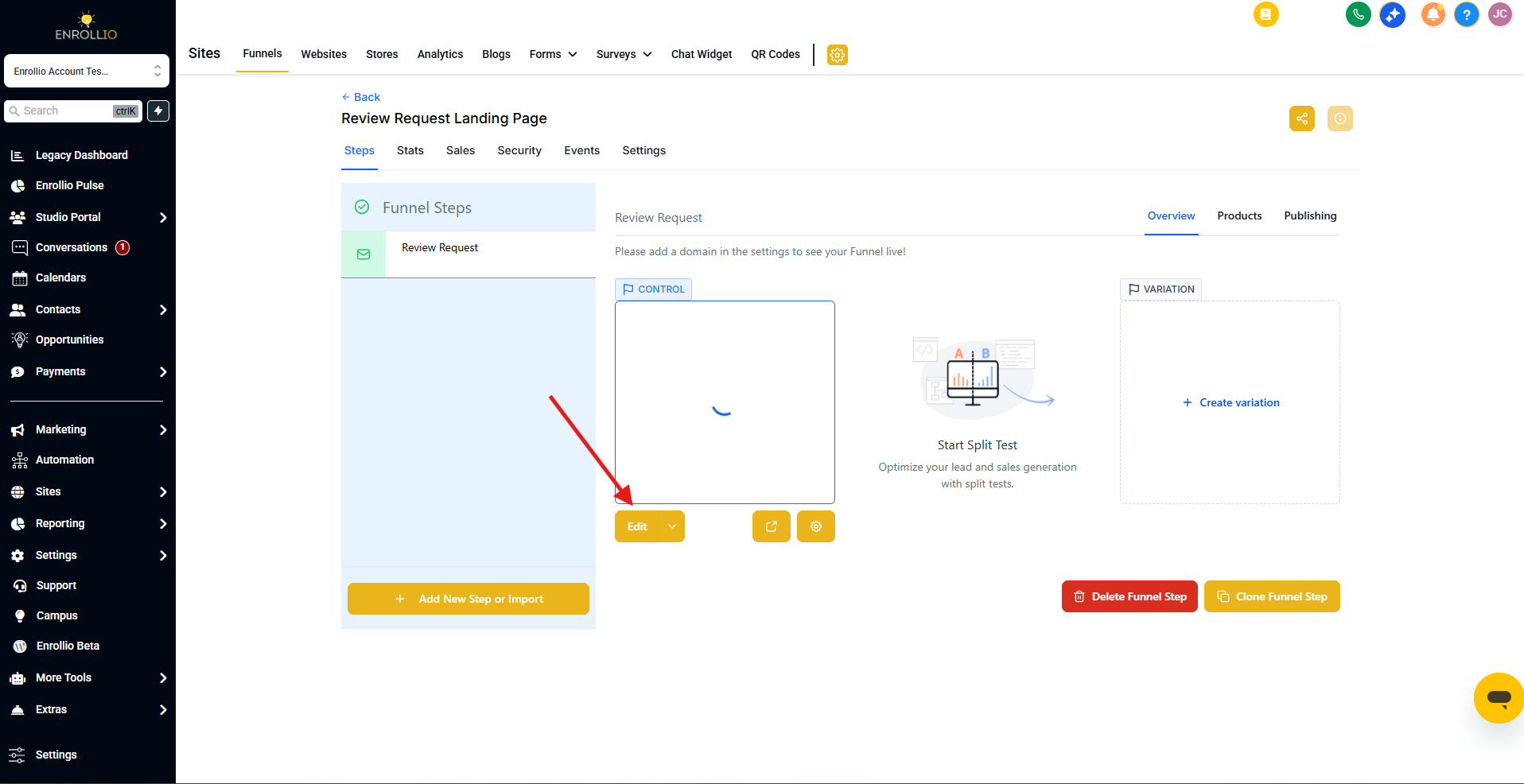
Step 2: Go to Color Settings
- Click on the Section, Row, or Column where you want to add the gradient
- Scroll to Background in the right-hand sidebar
- Select the Color tab to open color settings
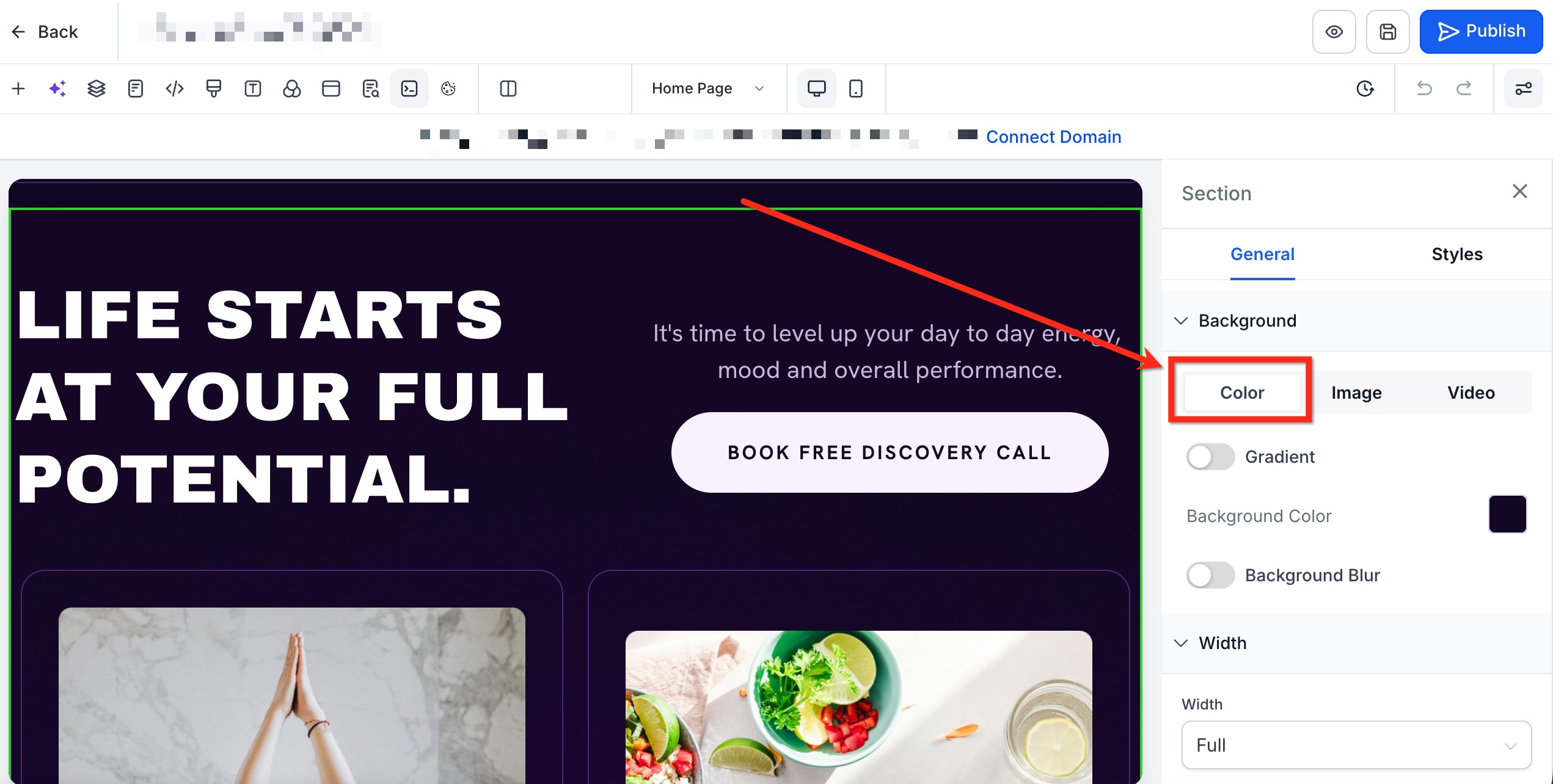
Step 3: Enable and Select Gradient
- Turn on the Gradient toggle
- Use the Type dropdown to select your gradient type:
- Linear (straight gradient)
- Angular (angled gradient)
- Radial (circular gradient from center)
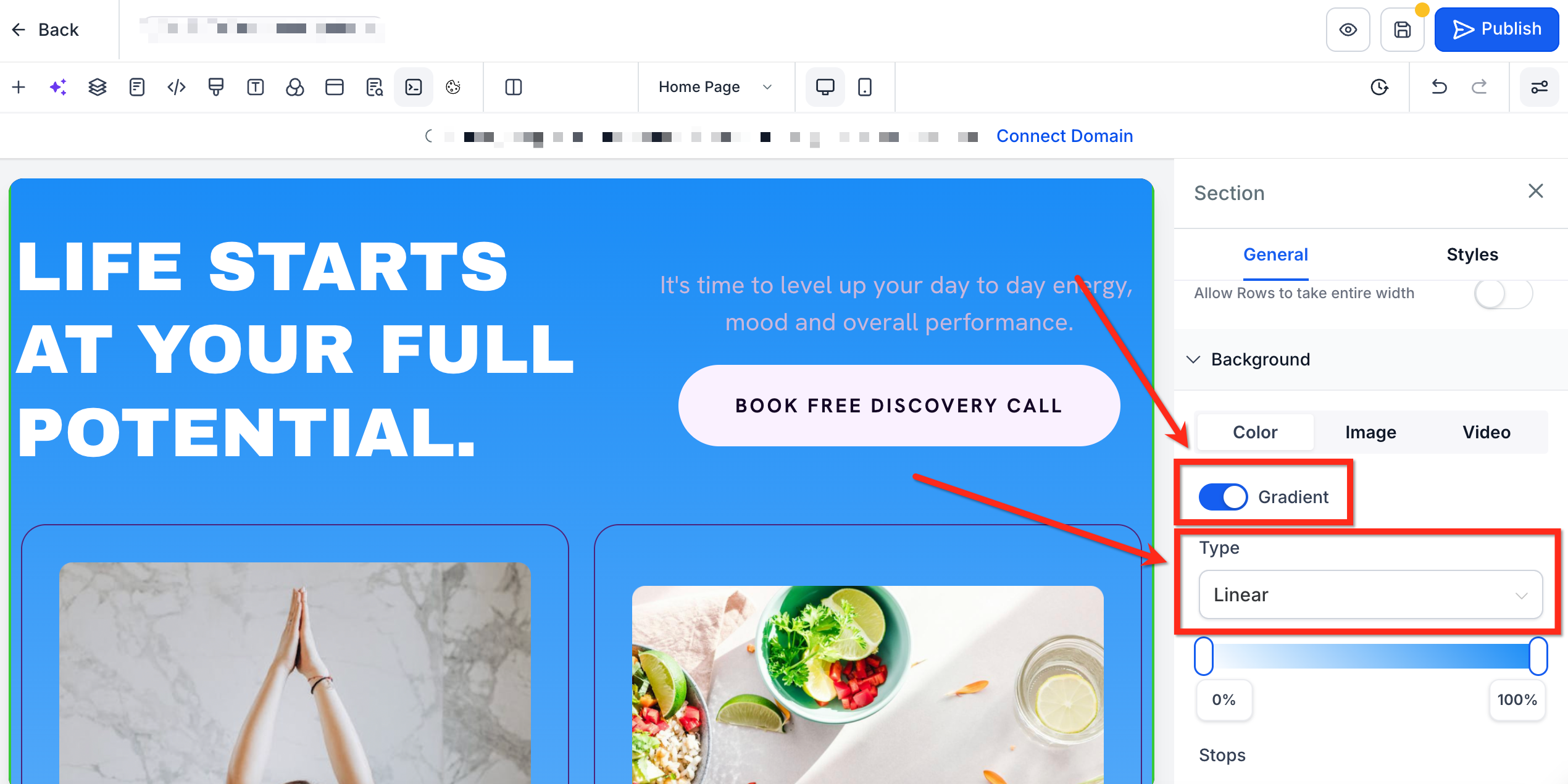
Step 4: Set Up Your Gradient
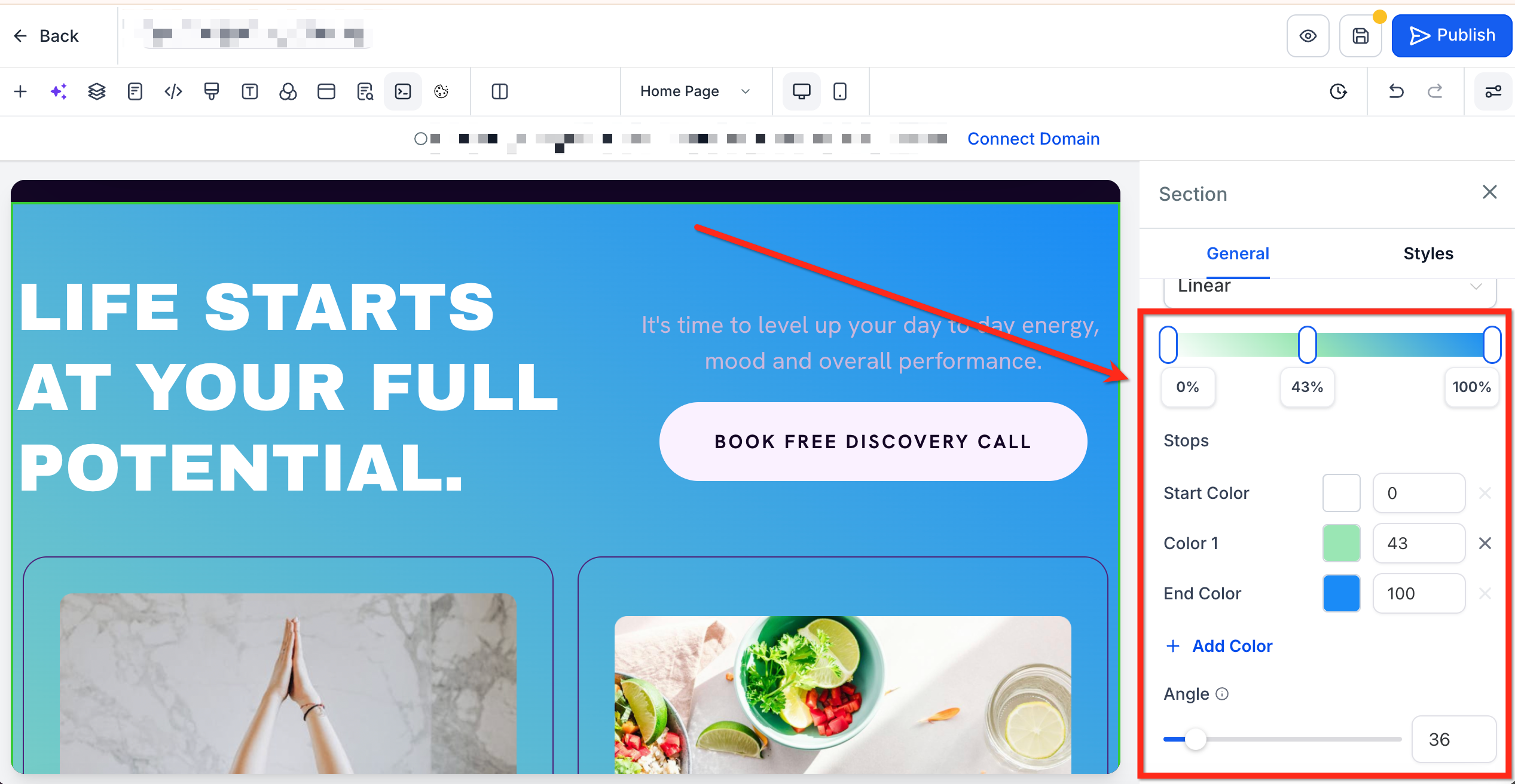
- Select colors by clicking + Add Color or clicking directly on the gradient slider
- Adjust colors using the color selector
- Drag color stops on the gradient slider to customize the blend
- Use the Angle slider to adjust the gradient direction (available for Linear and Angular types only)
How to Add a Background Blur
Soften your background with blur to create a modern glassmorphism effect. This works especially well with semi-transparent colors.
Step 1: Navigate to the Page Builder
- Go to Sites in your Enrollio dashboard
- Select Enrollment Pages or Enrollment Sites
- Open your page and click to edit it
Step 2: Enable Background Blur
- Click on the Section, Row, or Column where you want to add blur
- Scroll to Background in the right-hand sidebar
- Select the Color tab to open color settings
- Turn on the Background Blur toggle
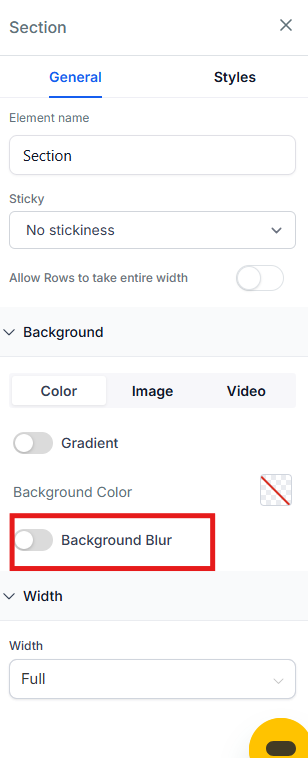
Step 3: Choose Your Blur Level
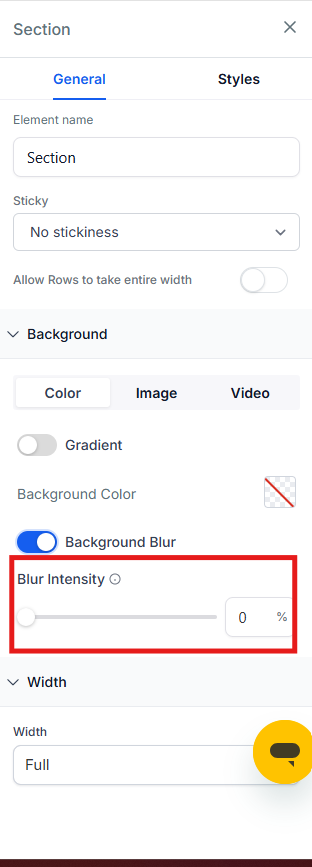
- Use the Blur Intensity Slider to set the desired level of blur
- Preview your page to see how the blur affects readability
Frequently Asked Questions
How many colors can I use in a gradient?
Up to 10 color stops.
Will this change my existing background images and videos?
No. Your previous settings remain as they are. Gradients and blur are additional options you can layer on top.
Does blur affect content inside the element?
No. Blur only softens what's behind the element. Content inside (like text, forms, and buttons) remains crisp and clear.
I'm seeing banding or stripes in my gradient. How can I fix it?
Try one or more of these fixes:
- Add an extra color stop near the harsh transition
- Choose colors that are closer in lightness
- Slightly adjust the Angle slider
How do I remove a color stop or revert to a solid color?
Click the X next to a color stop to delete it. To return to a solid color, toggle Gradient off and pick a single color on the Color tab.