
What are Nested Layouts?
Nested Layouts let you place layout containers within other layout containers, giving you precise control over how elements are structured on your enrollment pages and site. This means you can easily manage multi-column designs, adaptive spacing, and responsive sections with enhanced visual control.
Whether you're creating tour registration pages, program comparison tables, or parent testimonial showcases, Nested Layouts simplify the process while keeping everything aligned and consistent.
Key Benefits of Nested Layouts
Nested Layouts eliminate complexity and add power to your page design:
- Flexible Structure: Easily place rows, columns, and other layouts within one another
- Real-Time Settings: Instantly change layout direction (row, column, collage) with live previews
- Precise Spacing Tools: Set margins, padding, and alignment exactly how you want—at every level
- No More Workarounds: Design complex pages without custom CSS or third-party solutions
- Reusable Layouts: Save time by duplicating and modifying nested containers for consistent branding across your enrollment materials
How To Set Up Nested Layouts in the Builder
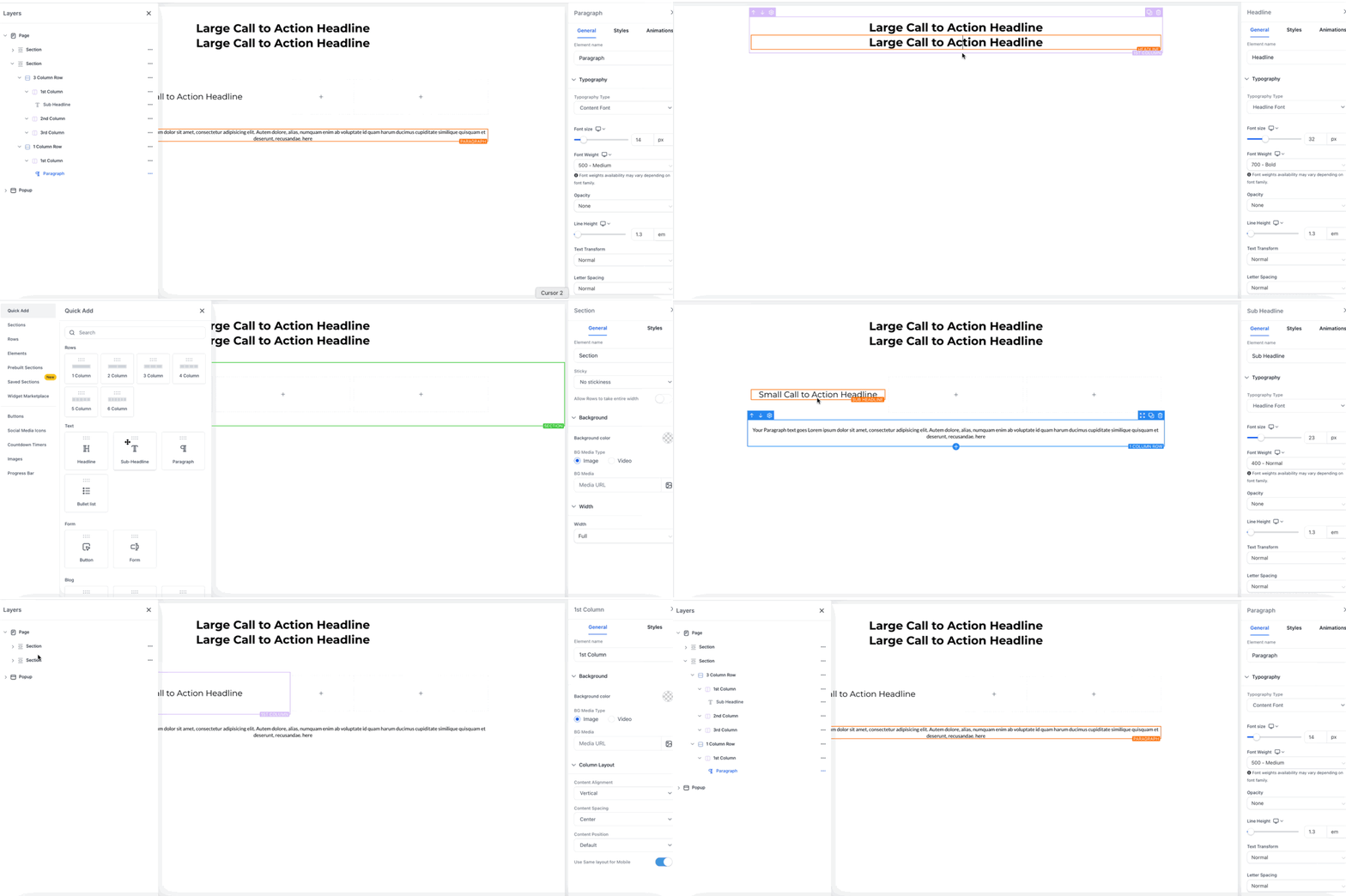
Nested Layouts are easy to implement using the drag-and-drop interface. Here's how to get started:
- Log in to your Client Account and open your enrollment page or site
- Drag a Layout Container onto the canvas
- Drag a second Layout Container into the first to form the nested structure
- Open Layout Settings and choose row, column, or collage orientation
- Adjust Spacing & Alignment for margins, padding, and positioning
- Repeat steps 3–5 for additional nested levels as needed
- Click Save to commit your layout or add it to Saved Sections for reuse
Examples of What You Can Build
Two-column tour registration pages: Put your headline and enrollment form on one side, parent testimonials and facility photos on the other.
Program comparison tables: Create multi-column layouts with different sized sections for age groups, schedules, pricing, and enrollment buttons.
Staff showcase grids: Build complex layouts with teacher photos, bios, and credentials that align perfectly across rows and columns.
💡 Pro Tip
Use nested layouts to create responsive sections that automatically adjust for mobile viewing. Your enrollment pages will look professional on any device without extra work.
Frequently Asked Questions
Q: How do I add a nested container?
Drag a Layout Container into an existing Layout Container—the blue highlight shows a valid drop zone.
Q: Can I nest Sections or Rows?
No. Only Layout Containers can be nested. Sections and Rows remain single-level for performance reasons.
Q: Is there a depth limit?
Practically no, but we recommend three to four levels for maintainability and load speed.
Q: Do Nested Layouts work in Saved Sections?
Yes. Saved Sections keep their nested structure and sync globally when updated across your enrollment pages.