
URL Parameters in Enrollment Pages and Sites
Your Enrollio enrollment pages and sites let you use {{keywords}} that get replaced with custom content when the page loads. This means each parent can see personalized content relevant to them — like their name or their child's name.
What Are URL Parameters?
The URL is the address of a webpage like https://google.com or https://help.enrollio.com
Parameters are key=value pairs added to the end of the URL like https://google.com?key=value&key2=value2
The address finds the webpage, and the parameters pass information into the page to customize what parents see.
Understanding the Different Types
URL parameters can be anything like parent_name=Sarah. You create these to display custom content on your enrollment pages.
UTM parameters are a type of URL parameter using industry-standard marketing keywords like utm_source=google or utm_medium=email. These track where your traffic comes from and help you optimize your marketing campaigns. They don't appear on the page itself.
Merge fields pull in dynamic data throughout Enrollio. The format looks like {{contact.email}} or {{parent.first_name}}. Enrollio finds these tags and replaces them with current information from your database.
Merge fields and URL parameters work the same way. When you use {{keyword}} in your enrollment page, Enrollio finds the best match. If it matches a merge field, it pulls data from your database. If it matches a URL parameter, it pulls the string from the URL.
Merge Fields in Pages
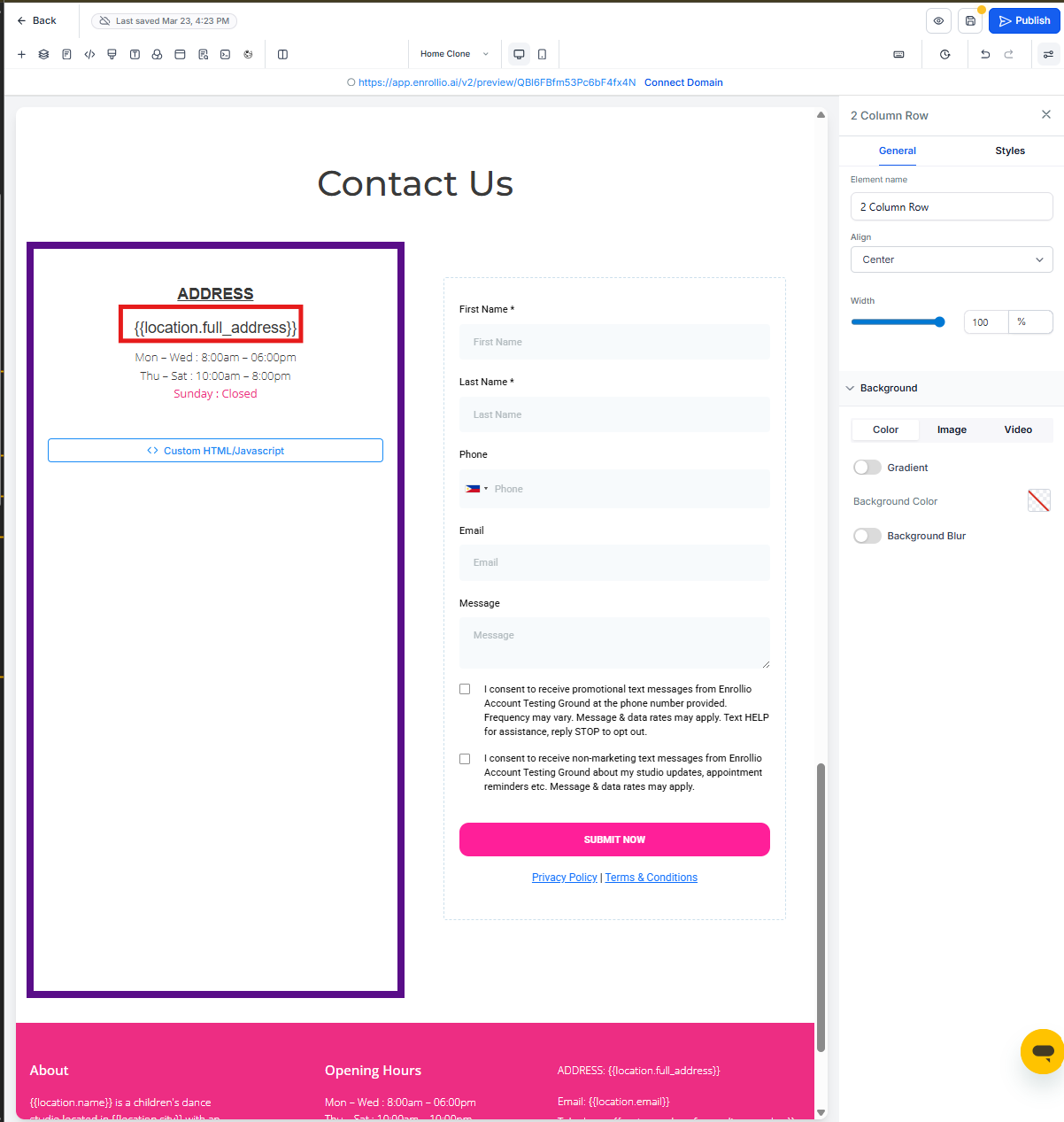
Many templates already include merge fields like these examples:
-
{{location.full_address}}— replaced by your center's full address (1234 Main St, Austin, TX 78701) -
{{location.phone}}— replaced by your center's phone number (512-555-1234) -
{{location.name}}— replaced by your center's name (Bright Horizons Learning Center)
URL Parameters In Pages
You can create your own URL parameters and use them just like merge fields. Here's how to test them:
Step-by-Step Example
1. Add the parameter to your page
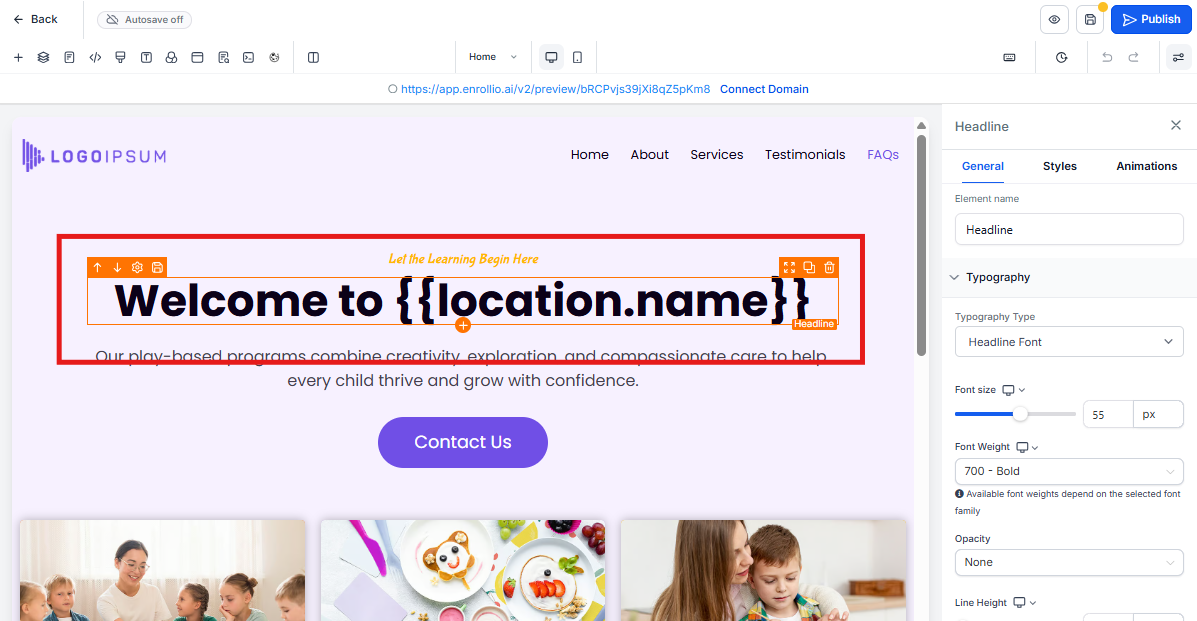
Change "Welcome to {{location.name}}" to "Hi {{parent_name}}, Welcome to {{location.name}}"
2. Save and preview your page
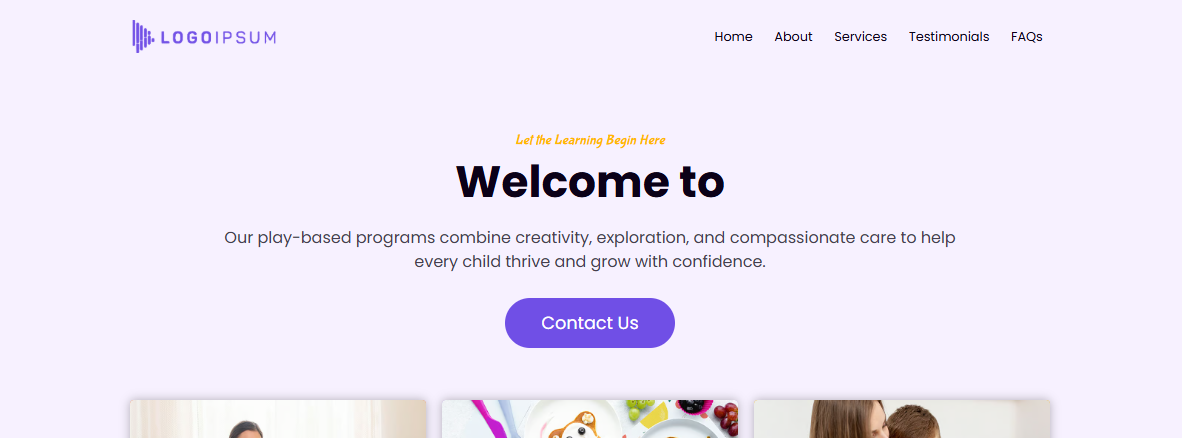
When you first load the preview, you'll see "Hi ," but no name appears yet. That's because you haven't added the URL parameter.
3. Test the parameter
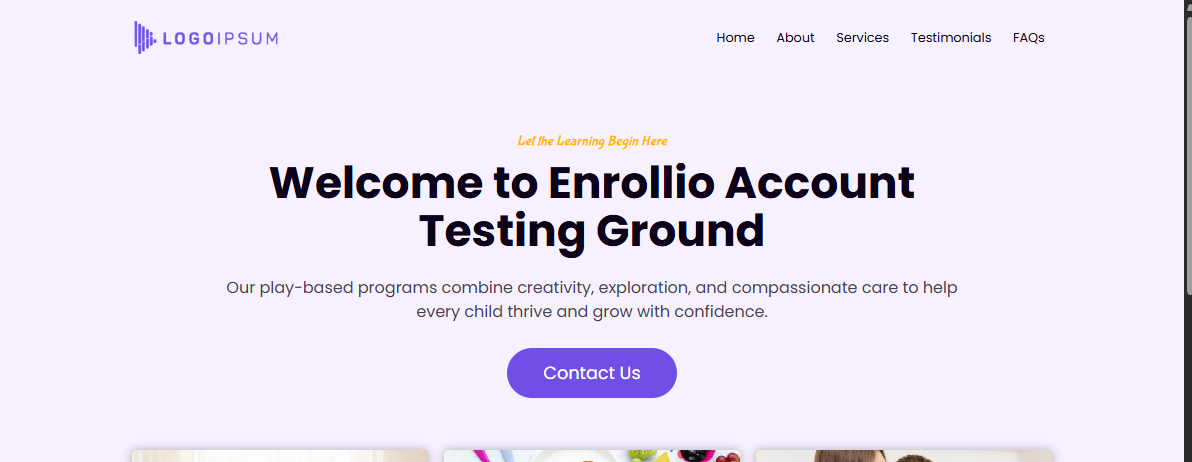
Edit the URL in your browser's address bar by adding ?parent_name=Sarah and press Enter. The page will now display "Hi Sarah, Welcome to Bright Horizons Learning Center"
Pro Tip: Test URL parameters before sending links to parents. Load your page preview and manually add parameters to the URL to see how they'll appear.
URL Parameters in Links
After you add URL parameters to your page, include them in links to that page. For example, in an email or text message, you can use the URL you just tested.
But don't hard-code values that should be dynamic. Instead, insert a merge field into the URL so each parent's information is personalized automatically.
Example: Personalized Email Link
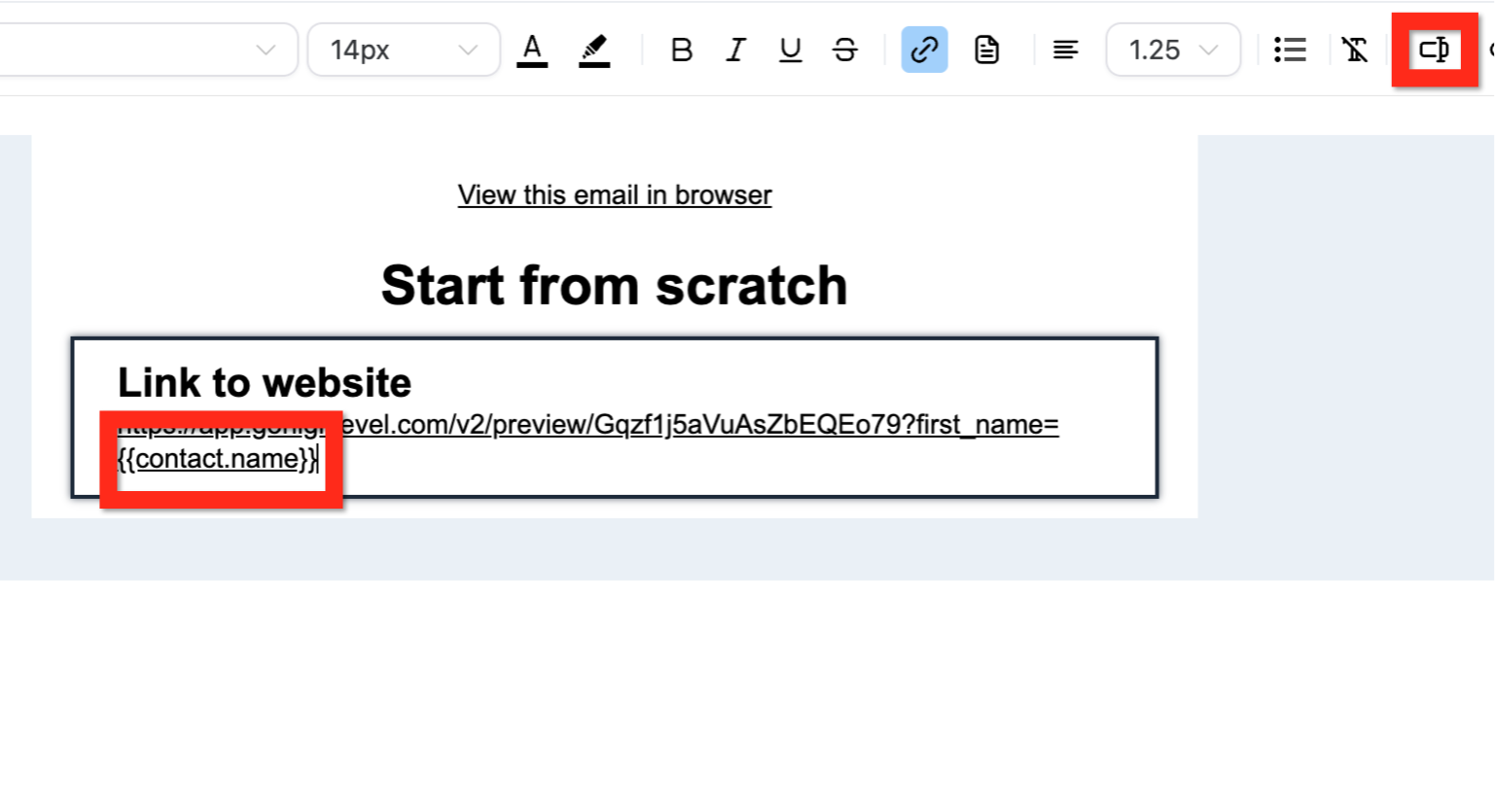
In your email, create a link like this:
https://yourdomain.com/enroll?parent_name={{contact.first_name}}
When the email goes out, Enrollio replaces {{contact.first_name}} with each parent's actual name.
Using Custom Values for Reusable URLs
If you want to use the same personalized URL in multiple places, save it as a custom value. Then pull that custom value wherever you need it.
Option 1: Store the base URL
Save https://yourdomain.com/enroll as a custom value called "enrollment_page"
Then build the full URL in your email like this:{{custom_values.enrollment_page}}?parent_name={{contact.first_name}}
Option 2: Store the complete URL with parameters
Save the entire URL with parameters as a custom value:https://yourdomain.com/enroll?parent_name={{contact.first_name}}
Name it "enrollment_page_personalized"
Then just insert {{custom_values.enrollment_page_personalized}} wherever you need it.
Pro Tip: Store frequently-used URLs as custom values to save time and ensure consistency across your emails, text messages, and automations.
Common Use Cases for Childcare Centers
- Personalize tour confirmation pages with the parent's name
- Show specific classroom information based on the child's age
- Display waitlist position or enrollment status
- Customize pricing pages based on program interest
- Track which marketing campaign brought families to your site