
What You'll Learn
This article shows you how to make buttons, images, and graphics downloadable on your Enrollio enrollment pages and sites. Perfect for offering parent handbooks, enrollment forms, or program brochures with a single click.
What is the Download File Action?
The Download File action lets parents and prospective families download a file (PDF, image, ZIP, etc.) when they click a button, image, or graphic on your enrollment page or site. This is ideal for parent handbooks, enrollment packets, tuition guides, or any digital resource you want to share instantly—no code or tech skills required.
Why Use File Downloads?
Make your enrollment pages more valuable and interactive:
- Instantly share downloadable resources like enrollment forms, parent handbooks, or tuition schedules
- No need for external download services or complicated setups
- Works on buttons, images, and custom graphics
- Simple one-click setup
- Customize file names to match your center's branding
- Keep prospective families engaged by delivering helpful information right away
How to Add a File Download
Follow these steps to attach a downloadable file to any button or image:
- Open your enrollment page or site in the editor
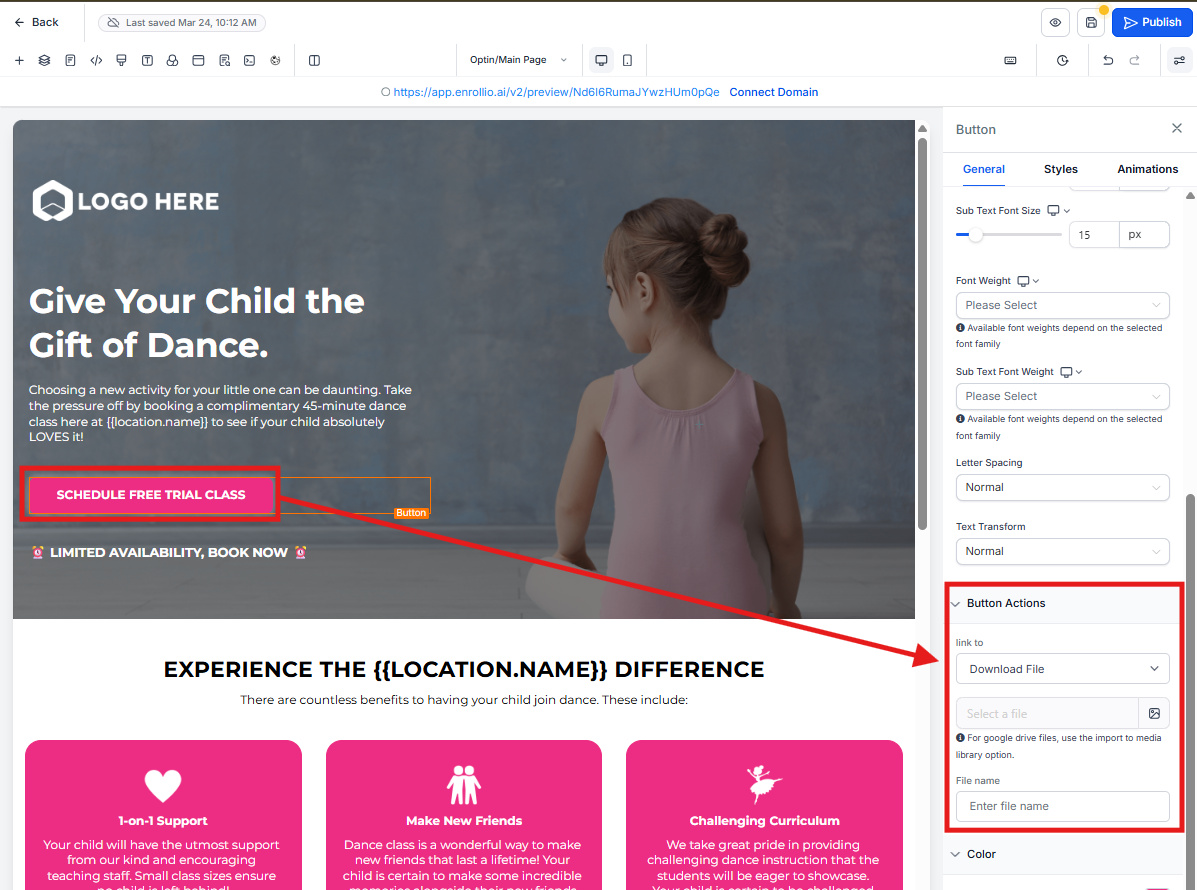
- Select the Button, Image, or SVG element you want to make downloadable
- In the right-hand settings panel, toggle Download ON
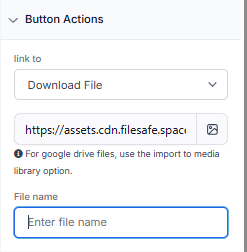
- Click Link File to open the Media Picker
- Select or upload your file from the Media Library
- (Optional) Customize the file name that parents will see when downloading
- Save and preview your page or site
Which Elements Support File Downloads?
You can add file downloads to these common page elements:
- Buttons: Perfect for clear calls-to-action like "Download Enrollment Packet" or "Get Tuition Guide"
- Images: Make icons, logos, or graphics clickable for instant downloads
- SVGs: Use custom graphics to trigger downloads
Customizing the Download File Name
Make your downloads look professional and clear for parents.
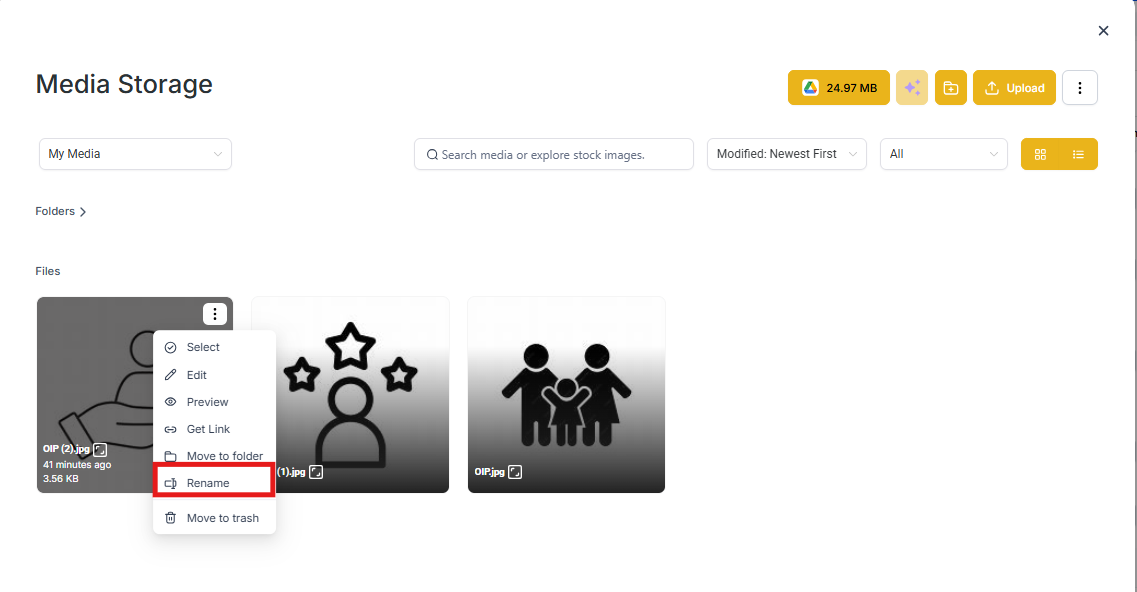
When you link a file, you can rename it to something more meaningful. For example, change "file_123.pdf" to "Sunshine_Academy_Enrollment_Guide.pdf." This keeps downloads organized and professional for busy parents.
Pro Tips
Keep file names parent-friendly: Use clear, descriptive names like "Parent_Handbook_2025.pdf" instead of technical file names.
Test before sharing: Always preview your page and test the download to make sure the right file is attached.
Common use cases: Enrollment applications, parent handbooks, tuition schedules, program calendars, health forms, or facility tour guides.
Frequently Asked Questions
Can I add more than one download to a button?
No. Each button or image can only link to one downloadable file. If you need to share multiple files, consider creating a ZIP file or using multiple buttons.
What file types can I use?
Any file stored in your Media Library works—PDFs, images, Word documents, ZIPs, and more.
Can I track who downloads my files?
File downloads aren't tracked automatically. If you need to know who downloaded something, pair the download with a form submission and use an automation to track it.
Will parents see a preview or start a direct download?
When a parent clicks the button or image, the file downloads immediately to their device—no preview screen.
Can I use this for enrollment forms?
Yes! This is a great way to offer downloadable enrollment forms. Just remember that parents will need to fill them out offline and return them to you. For online form submissions, use Enrollio's built-in form features instead.
What to Do Next
Now that you know how to add file downloads, consider:
- Creating a "Resources for Parents" page with downloadable handbooks and forms
- Adding a "Download Tuition Guide" button to your enrollment pages
- Offering tour guides or program calendars as downloadable PDFs