
We've introduced Auto-Save and an improved Version History feature to make editing your enrollment pages and sites more reliable and user-friendly. Your changes are saved automatically, and you can easily access previous versions whenever you need them.
How Auto-Save Works
Real-Time Auto-Save
As you make changes to your pages, they're automatically saved in real time. No need to click "Save" manually — just keep working and we'll handle the rest.
Visual Indicators
You'll see indicators like "Saving…" and "Auto Saved" to confirm your progress is being saved. This gives you peace of mind that your work is protected.
Manual Save Still Available
Prefer to save manually? The "Save" button remains available if you want full control over when changes are saved.
Version History Overview
Version History lets you review and restore previous versions of your content. This is incredibly useful for undoing changes, reverting to earlier designs, or tracking how your enrollment pages have evolved over time.
Key Details
- Time-Stamped Versions: Each version is labeled with the date and time it was saved for easy reference.
- Auto-Save Timing: A new version is saved every 10 minutes, but only if you made changes during that time.
- Version Limit: Up to 50 versions (auto and manual combined) are stored for each page. The oldest versions are removed once this limit is reached.
- Global Section Alert: When editing a Global Section, a popup will appear to let you know that changes will apply across all instances where that section is used.
How to View Version History
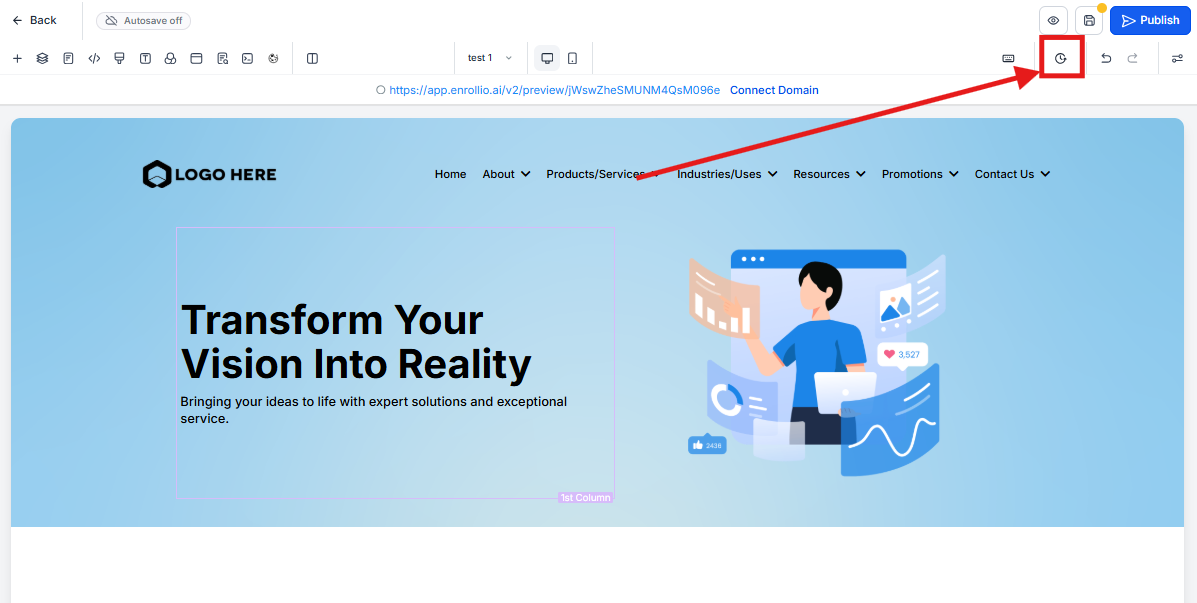
Step 1: Click Version History
Click the Clock icon in the upper right corner of the page editor. This opens the version history panel.
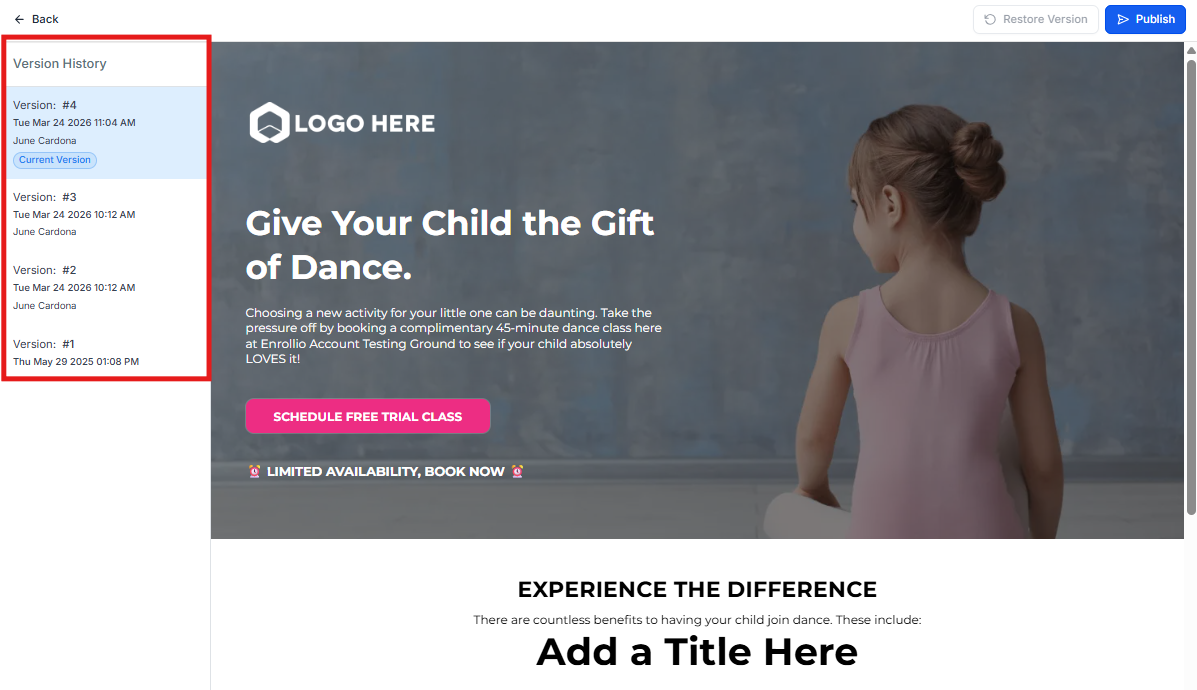
Step 2: Select a Version
All available previous versions appear on the left. Click on any version to preview it.
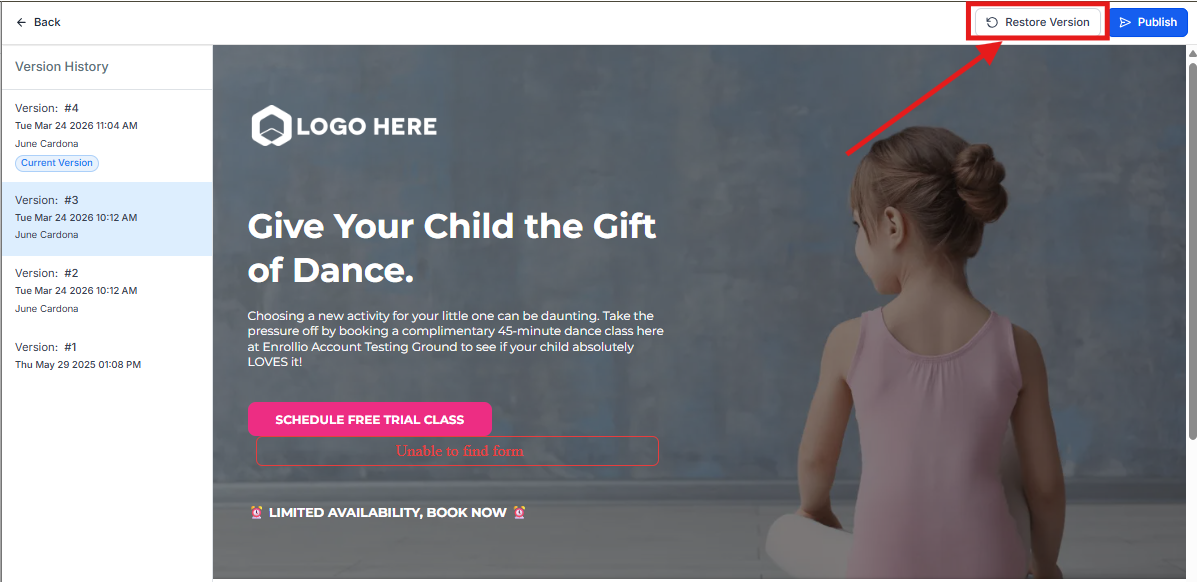
Step 3: Restore or Publish
To publish or restore to a previous version, select the version you want, then use the Publish or Restore Version buttons in the top right corner.
Where It's Available
Auto-Save and Version History are supported in:
- Enrollment Pages — All steps, elements, and sections
- Enrollment Sites — All pages and components
- Blogs
- Webinars
Additional Information
- Triggered by Edits: Auto-Save kicks in automatically when changes are detected.
- Crash and Tab Close Protection: Helps reduce the risk of losing work due to unexpected browser events.
- Optimized for Performance: Designed to support smooth editing, even on complex pages with lots of content.
For any questions about using Auto-Save or restoring from Version History, contact our support team.