
How to Add Animations to Images and Buttons
Make your enrollment pages more eye-catching with animations that bring your images and buttons to life. These visual effects help draw parents' attention to important elements like tour booking buttons, enrollment forms, and featured program images.
What You Can Do
Enrollio lets you add three types of animations to images and buttons on your enrollment pages:
- Entrance animations — Elements animate into view as parents scroll down your page
- Hover animations — Elements respond when parents move their cursor over them
- Loop animations — Elements continuously animate to maintain attention
All animations work seamlessly across desktop, tablet, and mobile devices, so your pages look great no matter how families visit your site.
Available Animation Effects
Choose from these animation styles to match your brand and page design:
- Fade — Elements gently fade into view
- Slide — Elements slide in from the top, bottom, left, or right
- Bounce — Elements bounce playfully into position
- Rotate — Elements rotate as they appear
- Zoom — Elements zoom in or out into view
How to Add Animations
- Open your enrollment page or landing page in the page builder
- Click the image or button you want to animate
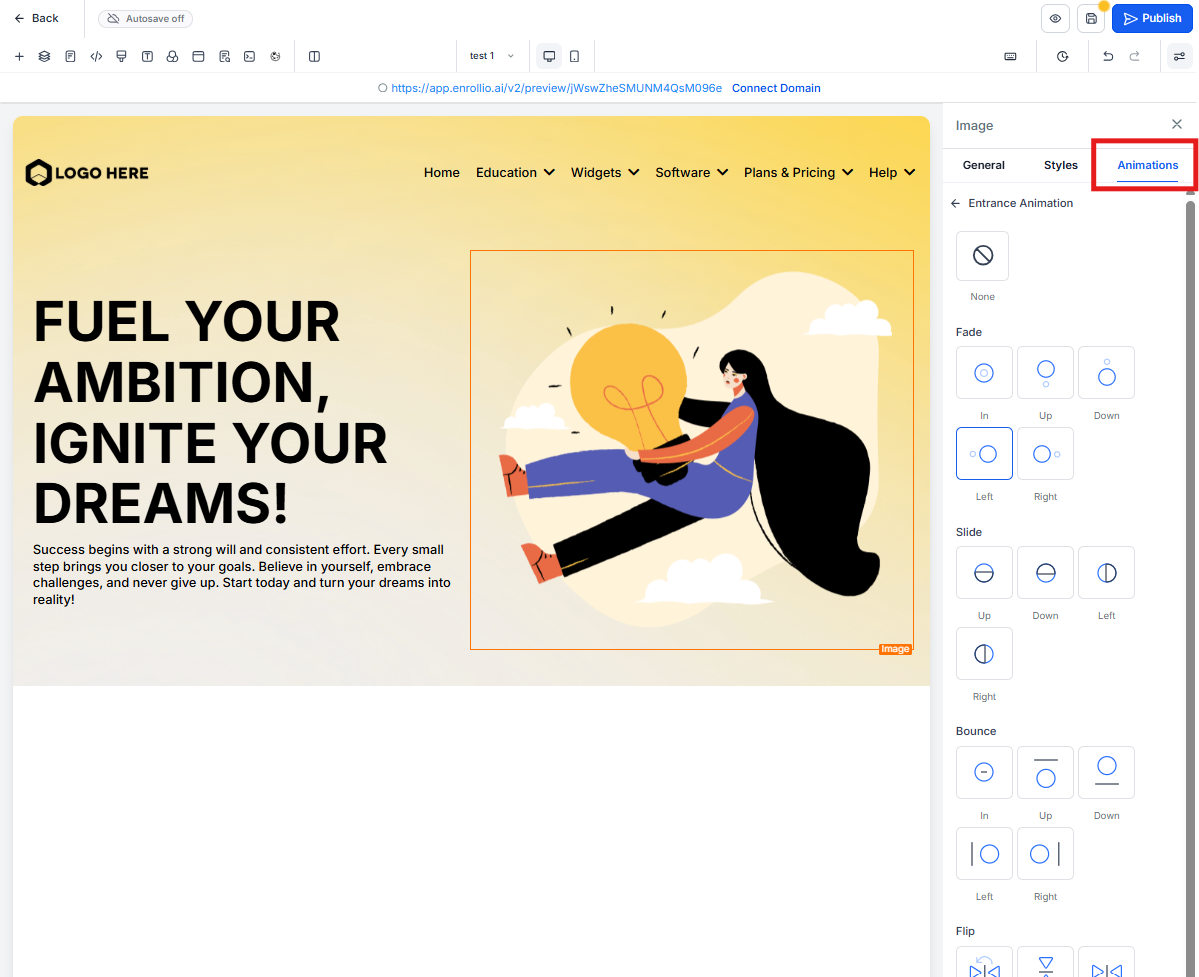
- Click the Animations tab in the style editor on the right
- Choose your animation type: entrance, hover, or loop
- Select your preferred animation effect from the dropdown
- Watch the animation preview directly on your page
- Click Save and then Publish to make your changes live
Using Animations Effectively
Entrance animations work great for:
- Tour booking buttons that appear as parents scroll
- Featured program photos in your page sections
- Enrollment call-to-action buttons
Hover animations work well on:
- Navigation buttons
- Program selection cards
- Any clickable element you want to highlight as interactive
Loop animations are best for:
- Limited-time enrollment offers
- Waitlist signup buttons
- Special announcements that need ongoing attention
Important Notes
If you previously added button effects in the Advanced tab, they've automatically moved to the new Animations tab. All your existing animations continue to work exactly as before — nothing has changed except where you'll find the settings.
You can preview all animations live while editing your page, so you'll see exactly how they'll look to parents before publishing.