
Page View Triggers for Enrollment Pages and Sites
Want to automatically follow up when a parent visits your enrollment page? The Page Visited Trigger lets you set up automations based on which pages families view on your enrollment site or landing pages.
This guide shows you exactly how to track page visits and trigger actions — like sending a follow-up text when someone checks out your tuition page or scheduling a tour reminder when they view your tour booking page.
How to Create a Page View Trigger
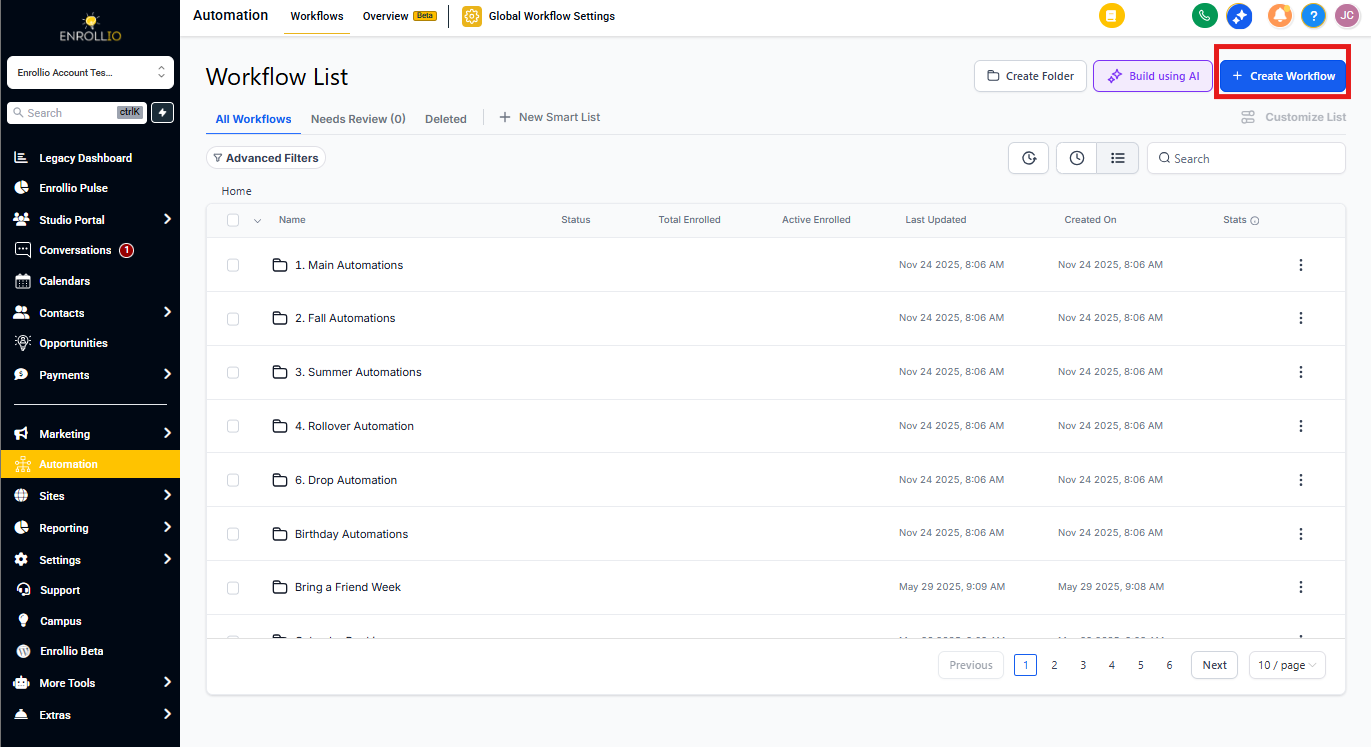
Step 1: Open Your Automation
Navigate to the Automation tab in Enrollio and create a new automation or open an existing one.
Step 2: Add the Page View Trigger
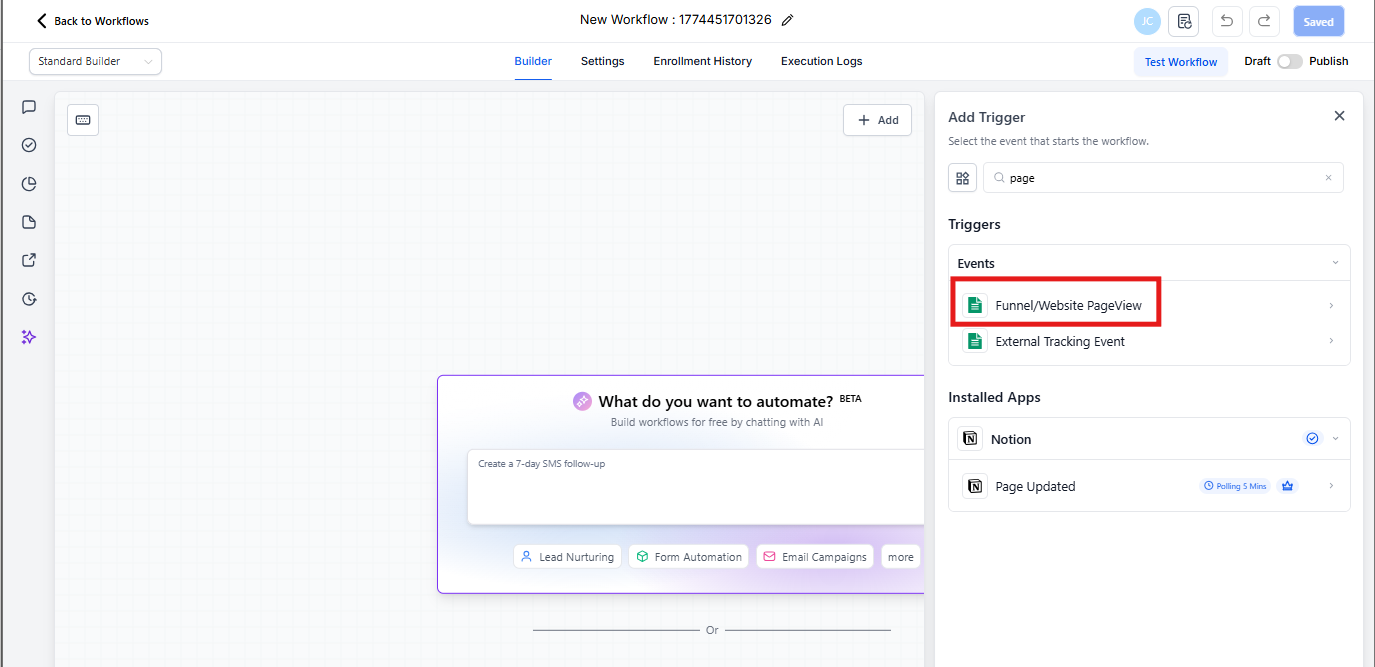
Click to add a trigger and select Enrollment Page/Site Pageview. This trigger fires when a parent or prospective family views a page on your enrollment site or landing page.
Step 3: Select Your Site or Page
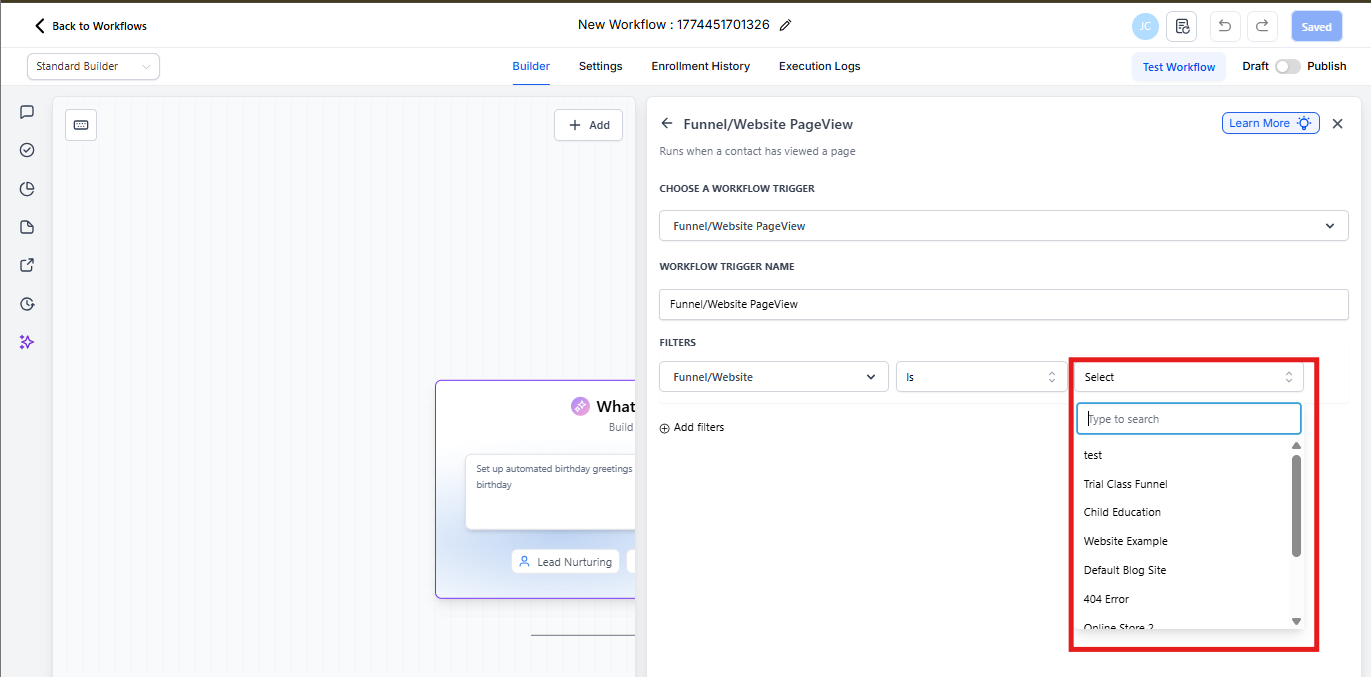
Choose which enrollment site or landing page you want to track. You can monitor your main enrollment site, a specific tour booking page, or any landing page you've built.
Step 4: Target Specific Pages (Optional)
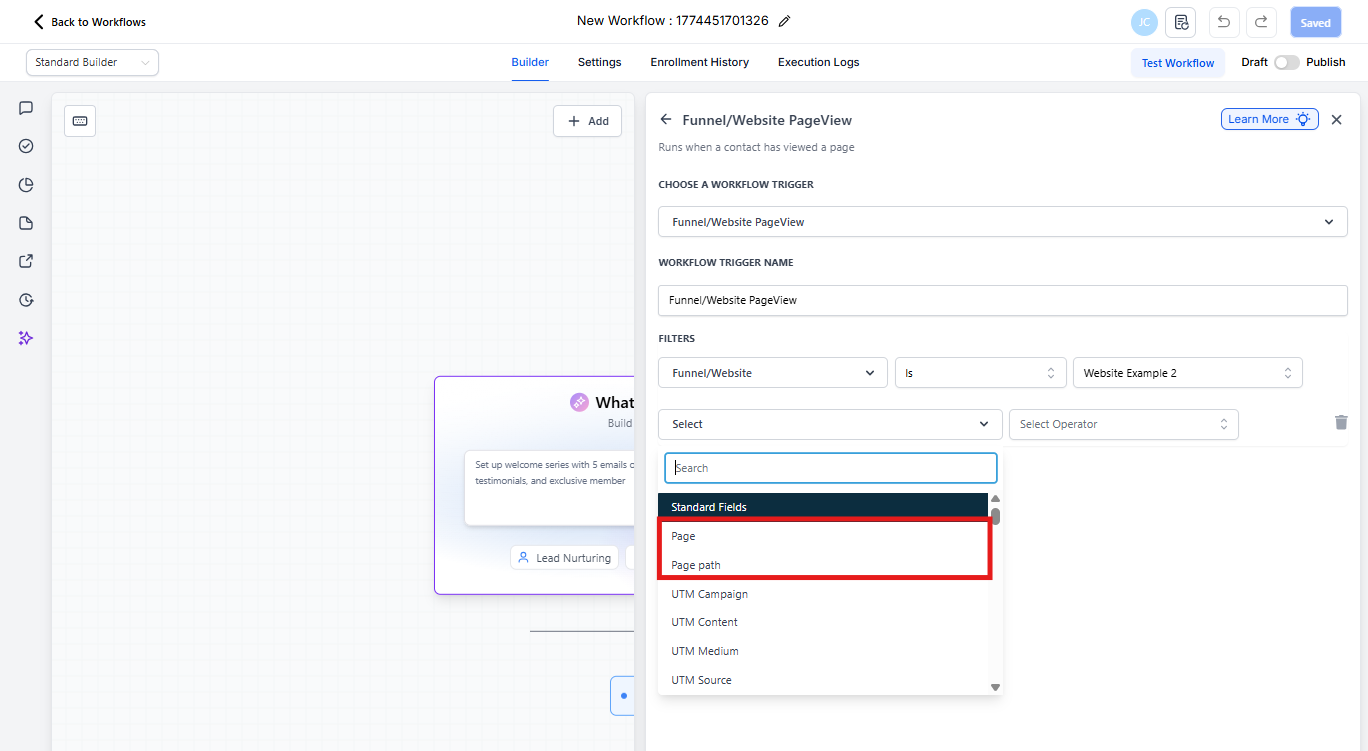
Want to get more specific? You can trigger the automation only when someone visits a particular page instead of any page on your site.
You have two options:
- Specific Page: Select a particular page from your site (like your "Tuition" or "Programs" page)
- Page URL: Enter the exact URL path to trigger on
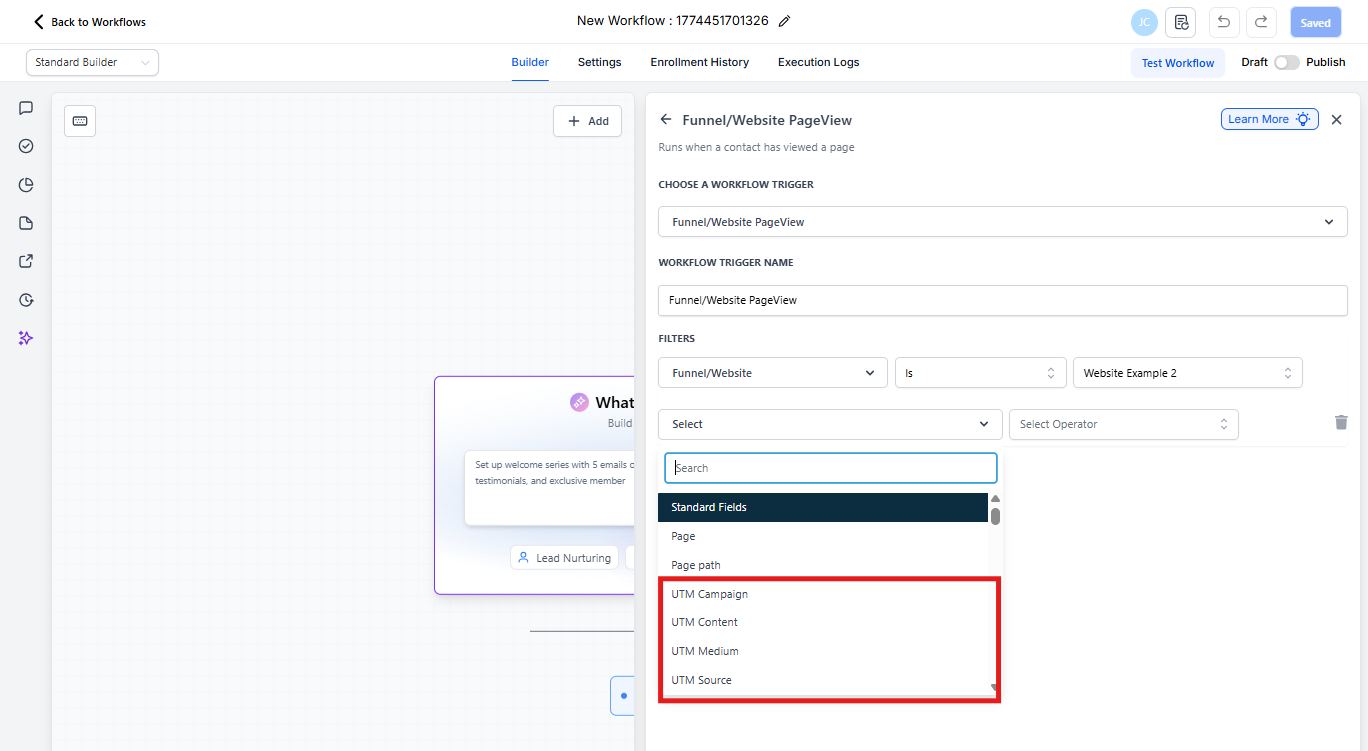
Step 5: Add Campaign Tracking (Optional)
Running Facebook ads or email campaigns? Add UTM parameters to track which marketing campaigns are driving page visits and trigger different automations based on the source.
Common Use Cases
Pricing Page Follow-Up
When a prospective family views your tuition page, automatically send a text message offering to answer questions about pricing or payment plans.
Tour Page Reminder
If someone visits your tour booking page but doesn't schedule, send a follow-up email the next day with available time slots.
Application Abandonment
Track when families start your enrollment application but don't complete it, then trigger a reminder sequence to help them finish.
Campaign Performance
Use UTM parameters to identify which Facebook ad or email campaign brought a family to your site, then customize your follow-up based on what they already know about your center.
Frequently Asked Questions
Can I track multiple sites or landing pages at once?
Yes. You can create separate automations for different sites or pages, or use filters to track visits across multiple enrollment pages simultaneously.
Can I trigger automations for specific pages only?
Absolutely. You can specify particular pages or exact URLs to trigger your automation, giving you precise control over when follow-ups are sent.
What are UTM parameters and why would I use them?
UTM parameters are tags you add to URLs in your marketing campaigns (like Facebook ads or email links). They help you track where your traffic is coming from. In Enrollio, you can use them to trigger different automations based on which campaign brought a family to your site — letting you personalize your follow-up based on what they already know about your center.
Do page view triggers work for anonymous visitors?
Page view triggers work when a known parent or prospective family (already in your Enrollio system) visits your page. For new visitors, they'll need to fill out a form first so Enrollio can track their activity.