
Your enrollment pages and sites now include a powerful versioning feature that lets you save drafts and publish different versions of your live pages. This gives you complete control over your content creation and publishing process—no more worrying about accidentally breaking a live page.
Save Drafts
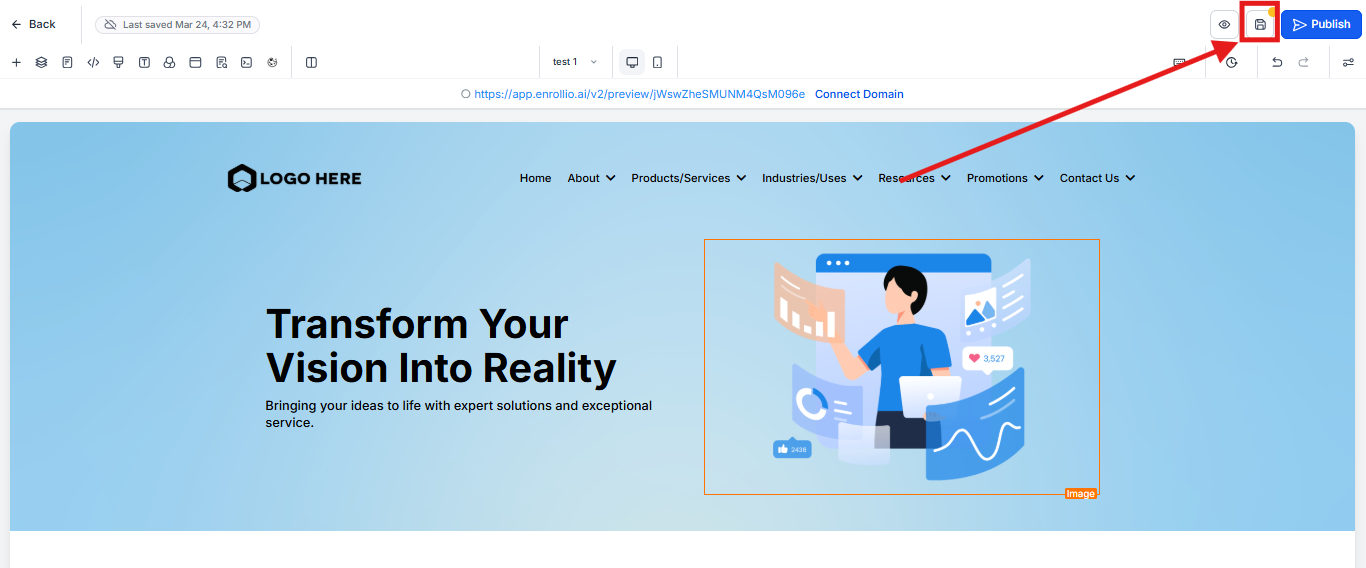
Create and save drafts of your enrollment pages before publishing them. This feature enables a more iterative workflow, perfect for when you're testing different designs or waiting on final copy approval.
Your progress is automatically saved, and you can return to it later without impacting what families see on your live site.
How to save a draft:
- Create or edit your enrollment page as usual
- Click Save to save your work in progress as a new version
- Continue editing or come back to it later
Publish
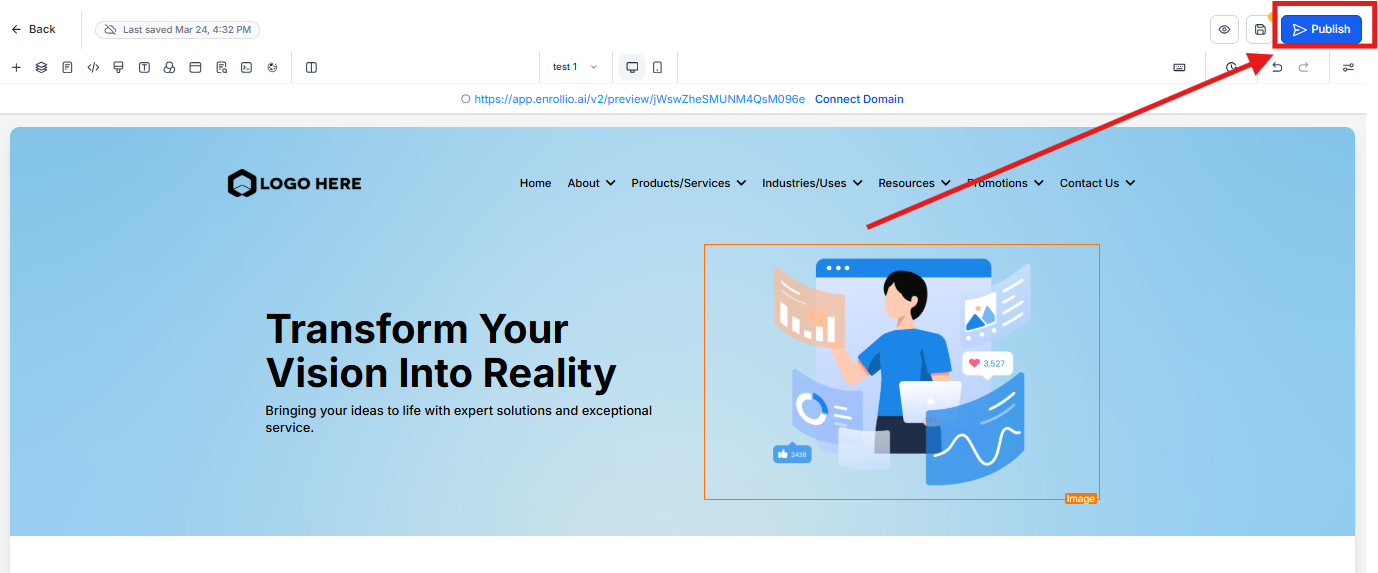
Choose exactly which version of your enrollment page to publish. Only finalized, approved content reaches prospective families—minimizing errors and giving you confidence in what goes live.
Click Publish to make your chosen version live on your site.
Attach Domain from Builder
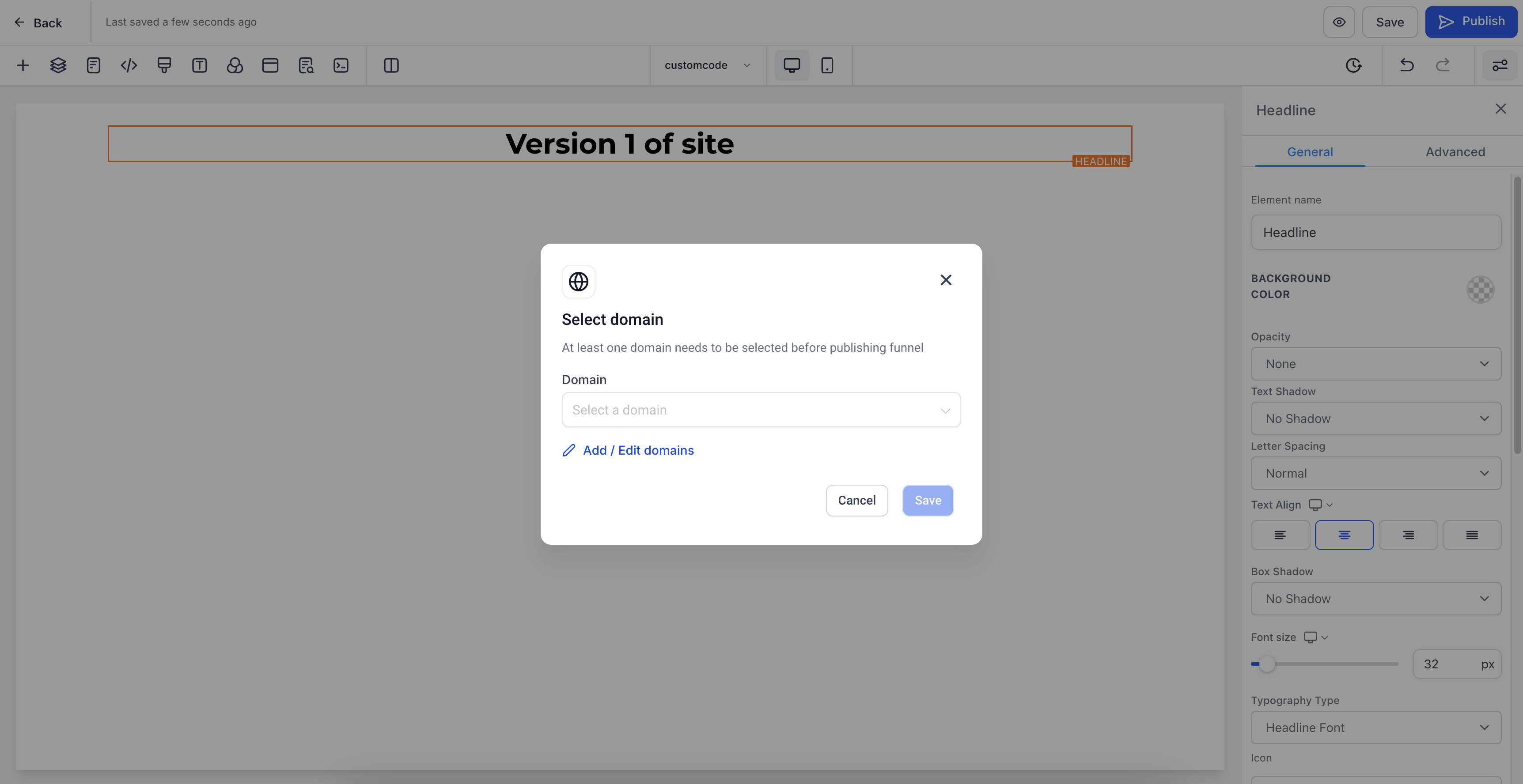
You can now connect a domain to your enrollment page right when you publish—even if you haven't set up a domain yet.
If your page isn't connected to a domain, clicking Publish will prompt you to attach one. Once connected, your version will go live immediately.
Publish from Versions List
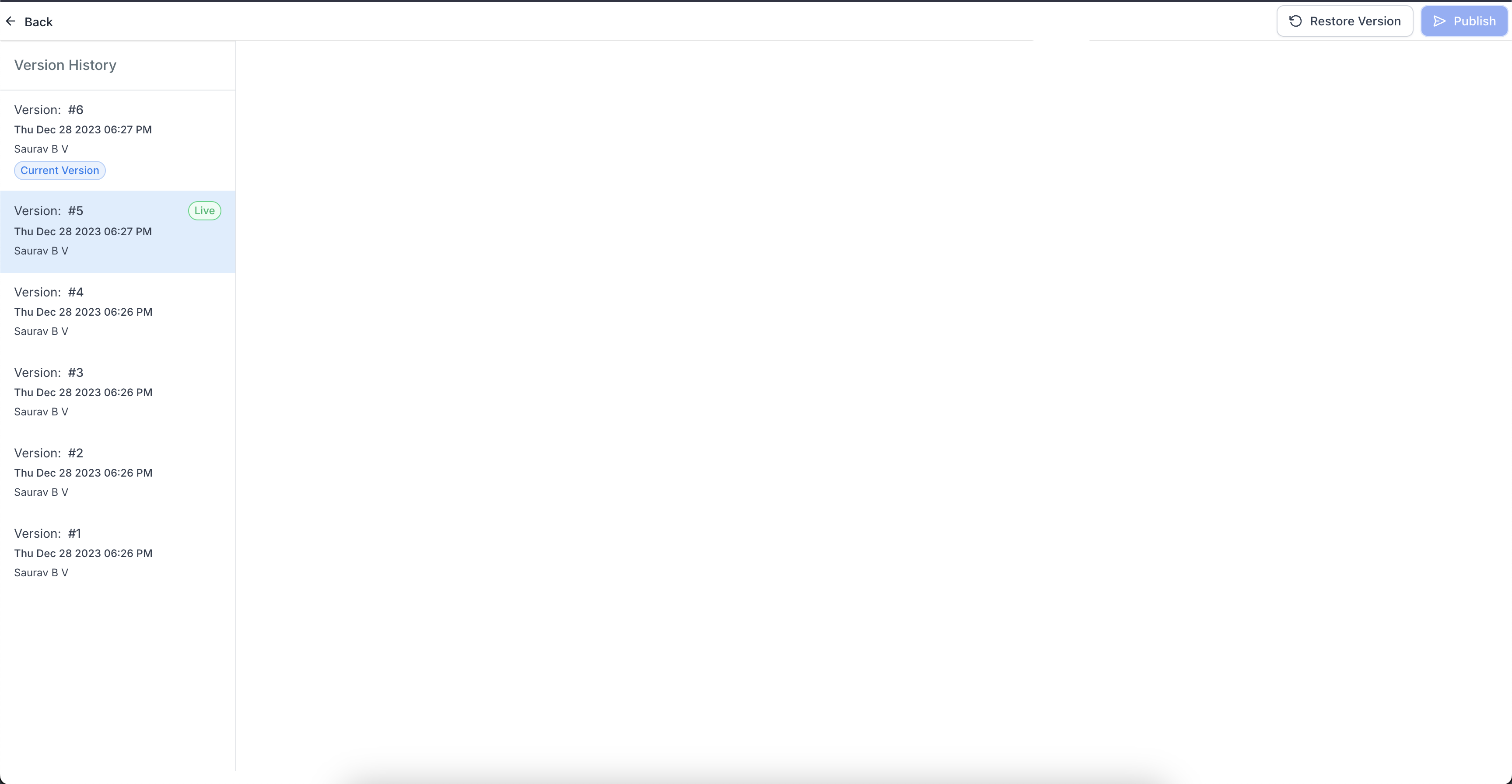
Access the Versions tab to view and manage all saved versions of your page.
You can select any previous version and publish it directly—no need to restore it first. A Live tag shows which version is currently published and serving families.
How to publish a previous version:
- Click the Versions tab in your page editor
- Find the version you want to publish
- Click Publish next to that version
Frequently Asked Questions
What happens to existing pages with no published version?
Your existing pages will work without any changes. If there's no published version marked as Live, the most recent version will be served automatically.
What happens when I duplicate or import pages?
These features work exactly as they did before—the new versioning system doesn't affect duplicating or importing pages.
Is there a limit to the number of versions a page can have?
Yes, each page can have a maximum of 30 versions. When you save additional drafts beyond that limit, older versions are automatically deleted.
If the oldest version is currently published (marked Live), the system will delete the next oldest version instead to protect your live page.
Can I collaborate with team members using this feature?
Absolutely! The save and publish feature is perfect for collaboration. Team members can save drafts and only publish changes when they're ready. This is especially helpful when different staff members are working on enrollment pages or your main site.
How do I attach a domain to my enrollment page from the builder?
If your page isn't connected to a domain yet, clicking Publish will prompt you to attach one. A popup will appear where you can select or add a domain. Once connected, your version will be published immediately.