Image Slider Element for Engaging Enrollment Pages
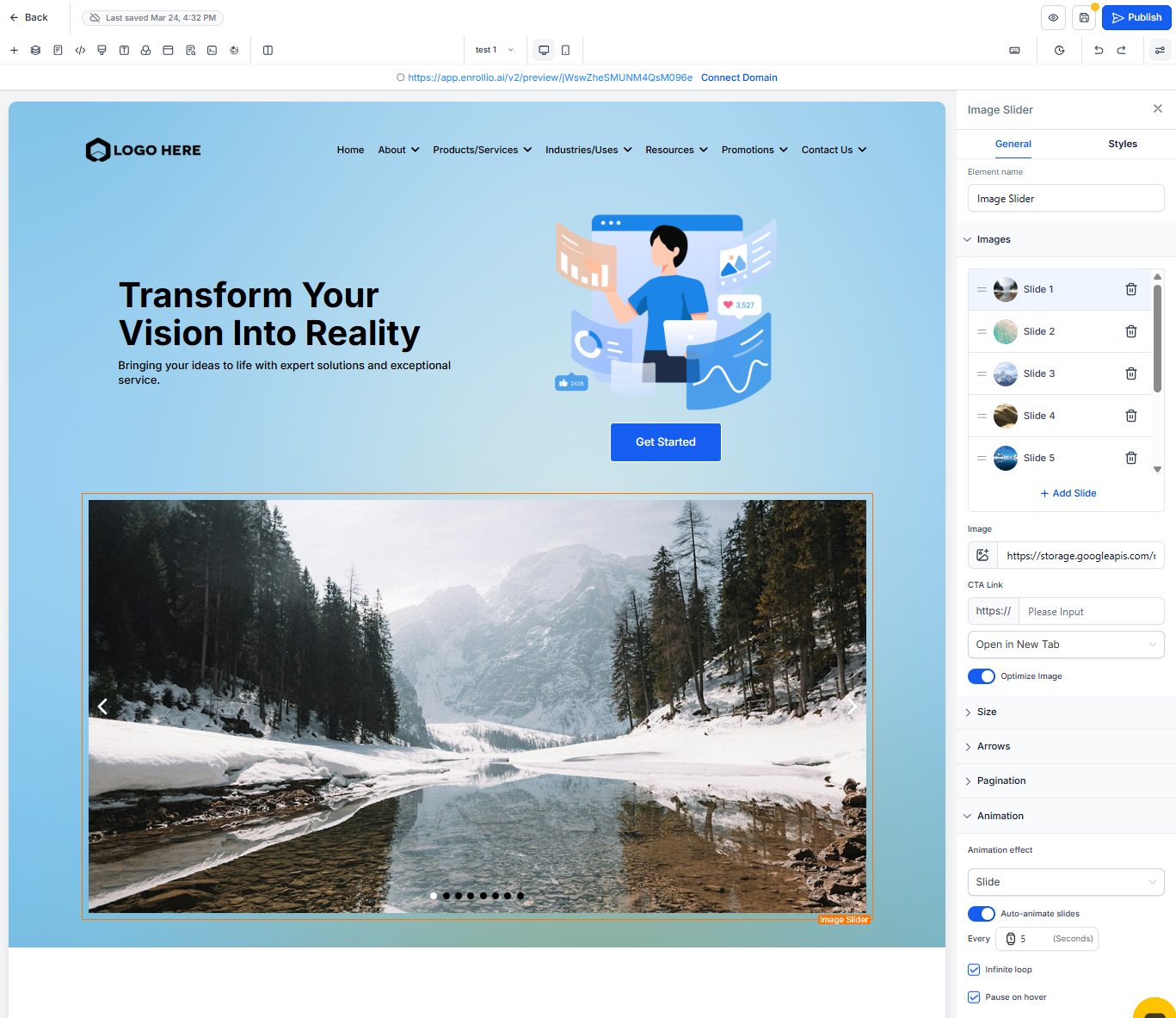
Your enrollment page builder now includes an Image Slider element, making it easy to showcase your childcare center through dynamic, interactive photo galleries. Display your classrooms, playgrounds, activities, and happy families in a visually engaging way that captures attention and builds trust with prospective families.
What's Included
Image Slider Element: Add interactive image sliders to your enrollment pages and landing pages. Customize everything from carousel style to animation speed, navigation arrows, and pagination dots.
Margin Padding Element: Control spacing around elements with precision for a polished, professional look.
Shadow Element: Add depth and dimension to your designs with customizable shadows.
Custom Class Element: Apply custom CSS classes for advanced styling and design flexibility.
Visibility Element: Show or hide elements based on device type — perfect for creating mobile-optimized experiences.
Why Use Image Sliders
Build Trust Faster: Image sliders let you showcase multiple aspects of your center — from bright classrooms to outdoor play areas — without overwhelming the page.
Increase Engagement: Interactive sliders naturally draw attention and encourage prospective families to explore your center visually.
Complete Control: Build and customize sliders directly in the page builder without any technical knowledge required.
Professional Design Options: Fine-tune spacing, add shadows, and control visibility to create enrollment pages that look polished on every device.
How to Add an Image Slider
- Open your enrollment page or landing page in the page builder
- Navigate to the section where you want to add the slider
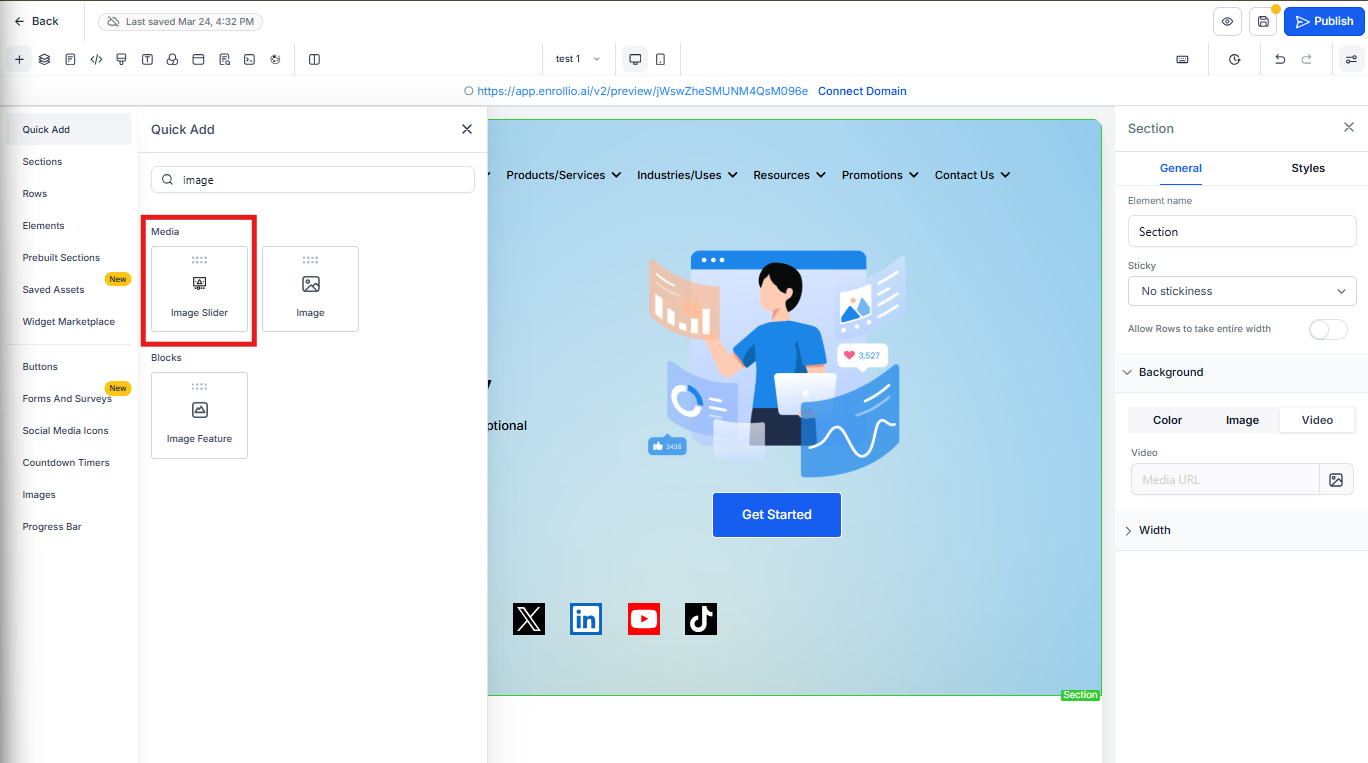
- Drag and drop the Image Slider element onto the page
- Customize transition effects, pagination style, autoplay settings, and navigation options
- Add your images from the Media Library
- Save your changes
Frequently Asked Questions
What is the Image Slider element?
The Image Slider element lets you embed interactive photo galleries into your enrollment pages and landing pages. You can customize animation speed, navigation style, autoplay behavior, and more to create an engaging visual experience.
How do I add an image slider to my enrollment page?
Open your page in the builder, drag and drop the Image Slider element where you want it, customize the settings, add your images, and save. Your slider will appear immediately on your live page.
Can I control what happens when someone clicks an image?
Yes. In the general options, you can set a URL redirect for each slide. Choose whether links open in a new tab or the current tab. This is great for directing families to specific tour booking pages or program details.
How many slides should I add?
You can add as many as you want, but 3-5 slides is standard practice. This gives families a good sense of your center without overwhelming them.
Can I resize images in the slider?
Yes. The general options include image sizing controls so you can adjust how images display within the slider.
Does this work on mobile devices?
Absolutely. The Image Slider element is fully responsive and looks great on smartphones, tablets, and desktop computers.
Can I hide the slider on certain devices?
Yes. Use the Visibility element to control whether the slider appears on desktop, mobile, or both. This gives you flexibility to optimize the experience for different screen sizes.