
Track Video Progress on Enrollment Pages
When you host videos on your enrollment pages—like virtual tour videos or welcome messages—you can track exactly how much each visitor watches. This lets you trigger automations based on video completion, so you can follow up at just the right time.
For example, if a parent watches 75% of your center tour video, you can automatically send them a text inviting them to schedule an in-person visit.
How Video Tracking Works
Enrollio tracks video progress for any visitor on your enrollment pages. You set a completion percentage (like 50%, 75%, or 100%), and when someone hits that mark, an automation triggers.
Preparing Your Video for Progress Tracking
Step 1: Encode Your Video
Your video needs to be encoded in Enrollio before it will appear in automation triggers. When you upload a video to the hosted video player, encoding happens automatically.
Step 2: Turn Off the Progress Bar (Recommended)
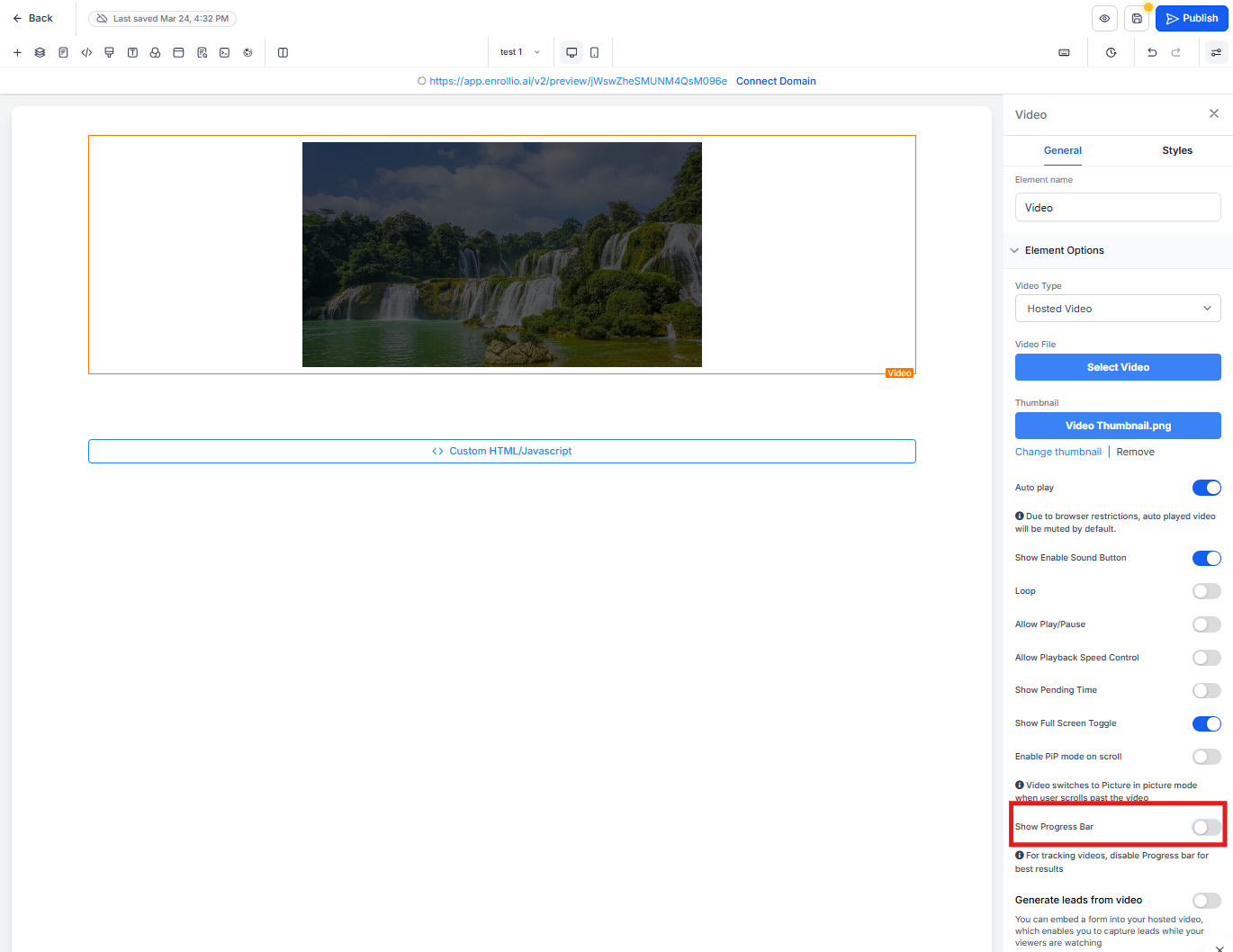
To get accurate tracking, we recommend hiding the progress bar in your video element settings. This prevents viewers from skipping ahead, ensuring you know exactly how much they actually watched.
To disable the progress bar:
- Click on your video element in the page editor
- In the settings panel, find Show Progress Bar
- Toggle it off
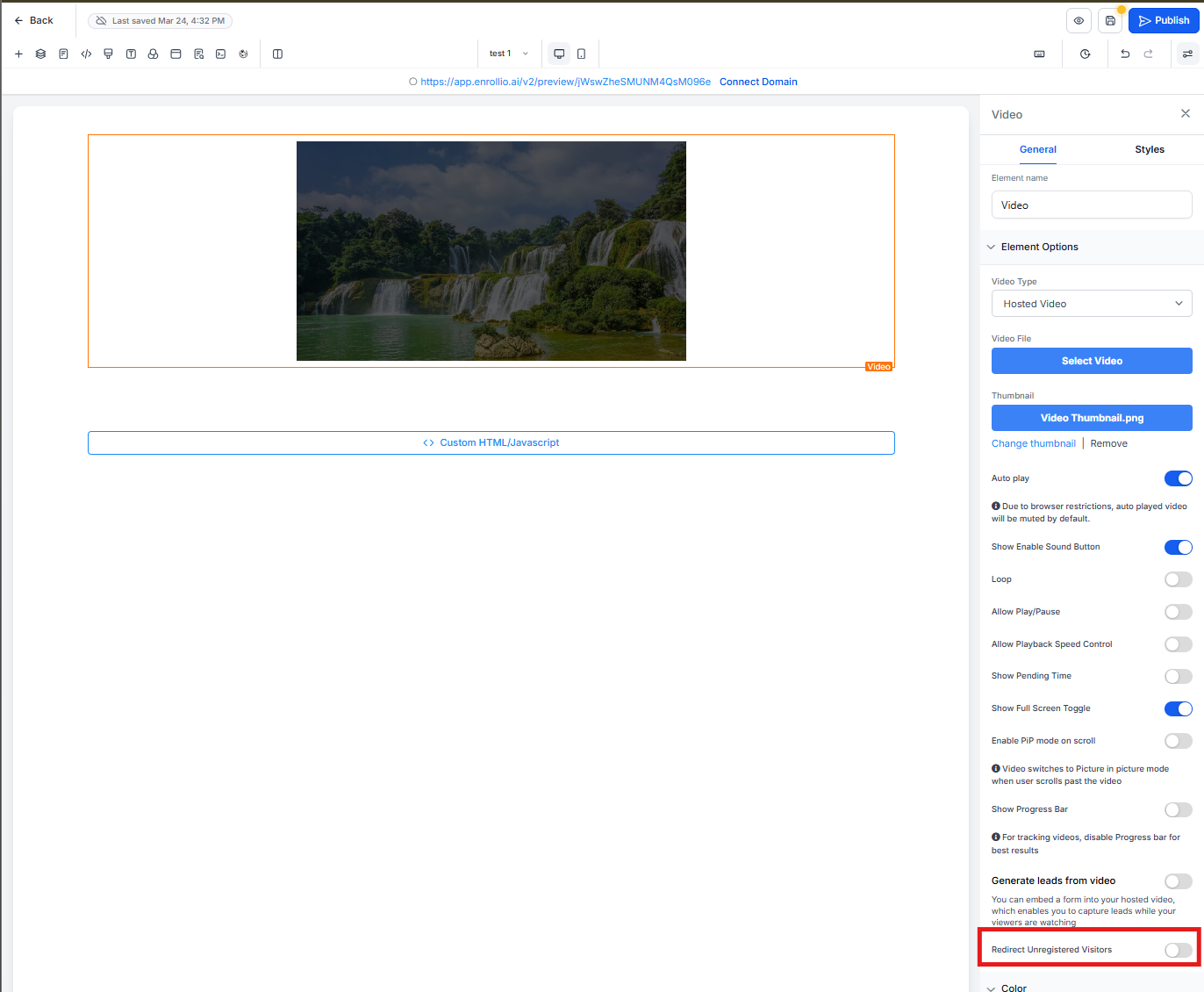
Step 3: Redirect Unregistered Visitors (Recommended)
Set up a redirect for visitors who haven't filled out your contact form yet. This ensures you can identify who watched your video and follow up appropriately.
Setting Up a Video Tracking Automation
Once your video is ready, create an automation that triggers when someone watches it.
- Go to Automations in your Enrollio dashboard
- Click Create Automation
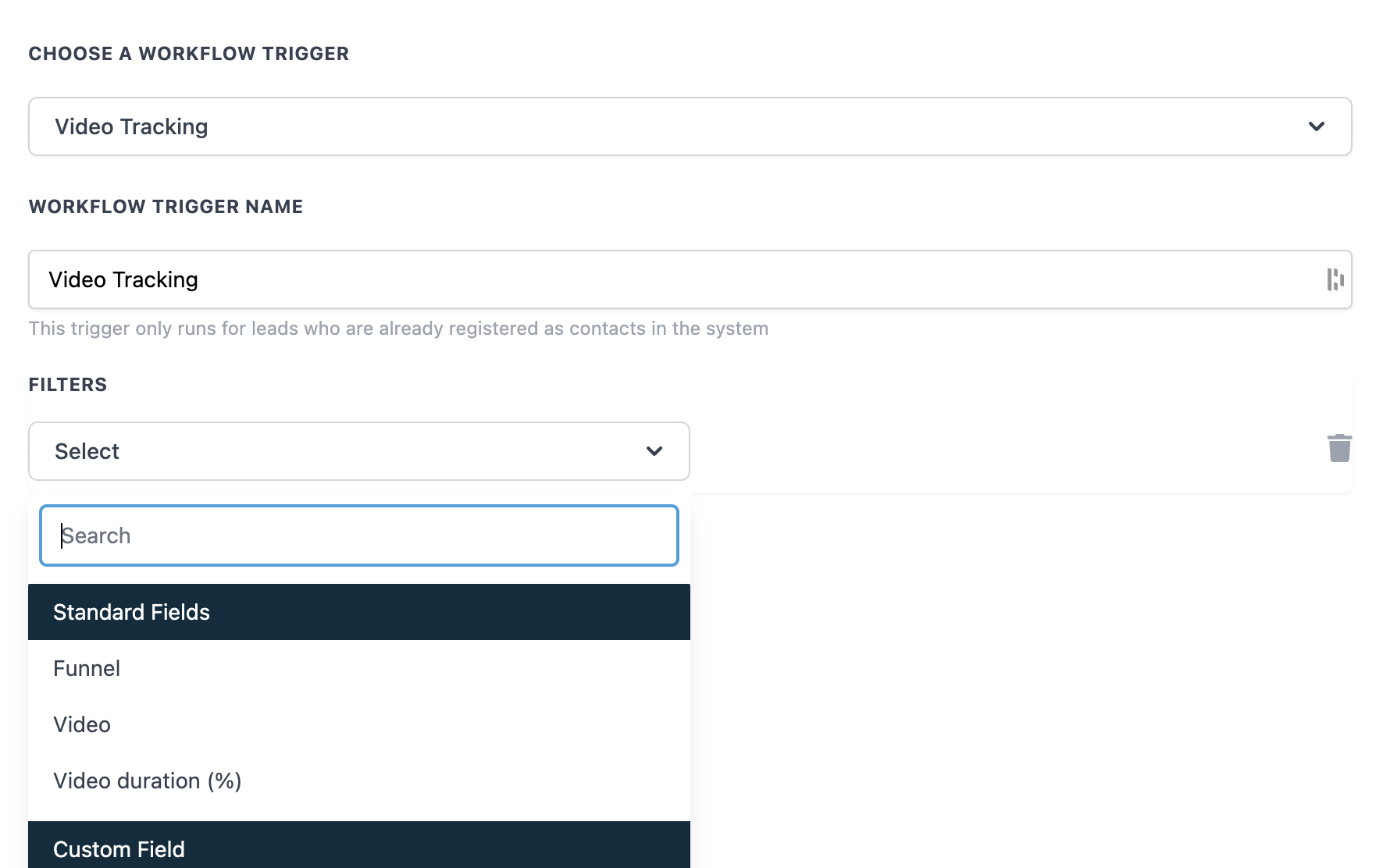
- Under triggers, select Video Tracking
- Choose your encoded video from the dropdown
- Set your completion percentage (e.g., 75%)
- Add your follow-up actions—send a text, create a task, update the family record, etc.
Accuracy Note
The accuracy of video tracking depends on whether you've disabled the progress bar. If viewers can skip around in the video, the tracking won't reflect their actual viewing behavior—it will just show where they've clicked.
Ideas for Video Tracking Automations
- Virtual tour completion: When a family watches 75% of your center tour, text them with available tour times
- Director introduction: After watching your welcome video completely, send an email with next steps
- Parent testimonials: Tag families who watch parent testimonial videos as "highly engaged"
- Program overview: Send curriculum details to families who finish your program explanation video