
Hosted Video Player for Enrollment Pages
Upload and stream videos directly on your enrollment pages with Enrollio's built-in video player. Perfect for virtual tours, parent testimonials, or introducing your childcare program.
Key Features
- Upload videos up to 4GB in all major formats
- Play in multiple qualities (480p, 720p, 1080p, Auto)
- Adjust playback speed (0.5x, 0.75x, 1x, 2x)
- Picture-in-picture mode
- Customizable playback controls
- Progress tracking for parent engagement
- Works in all major browsers
How to Add a Hosted Video
Step 1: Open your enrollment page editor and add a Video element to your page.
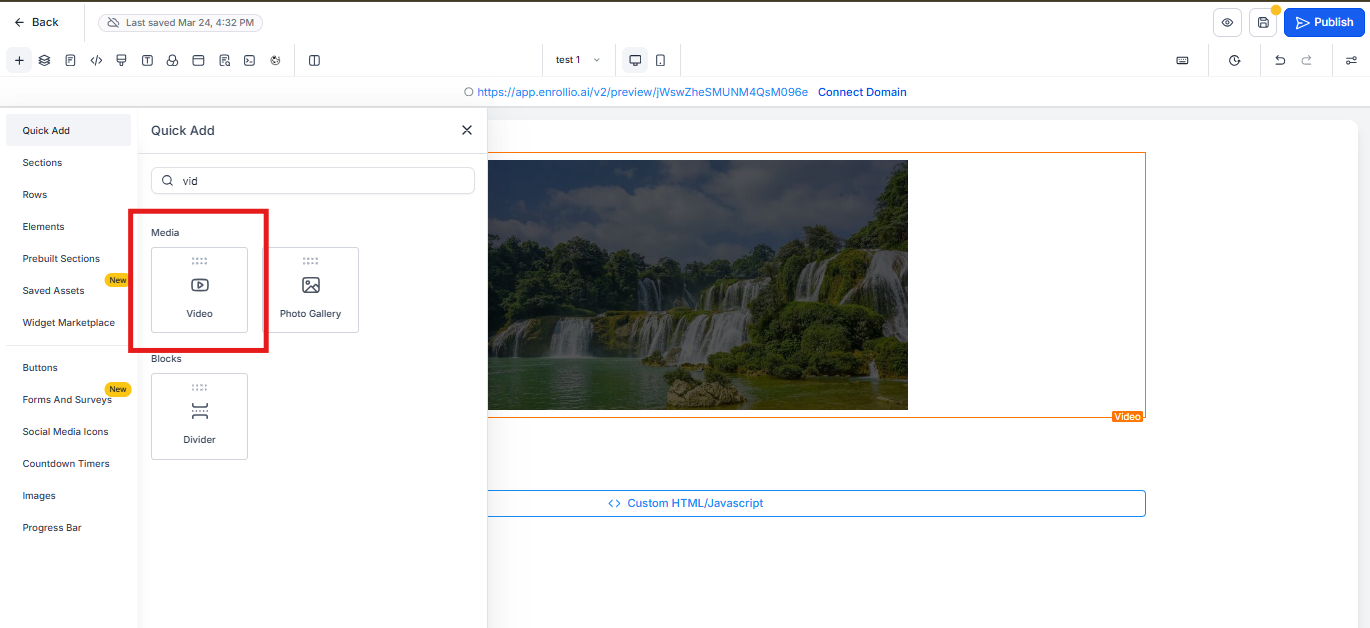
Step 2: Click on the Video element, then go to Video Settings in the left panel.
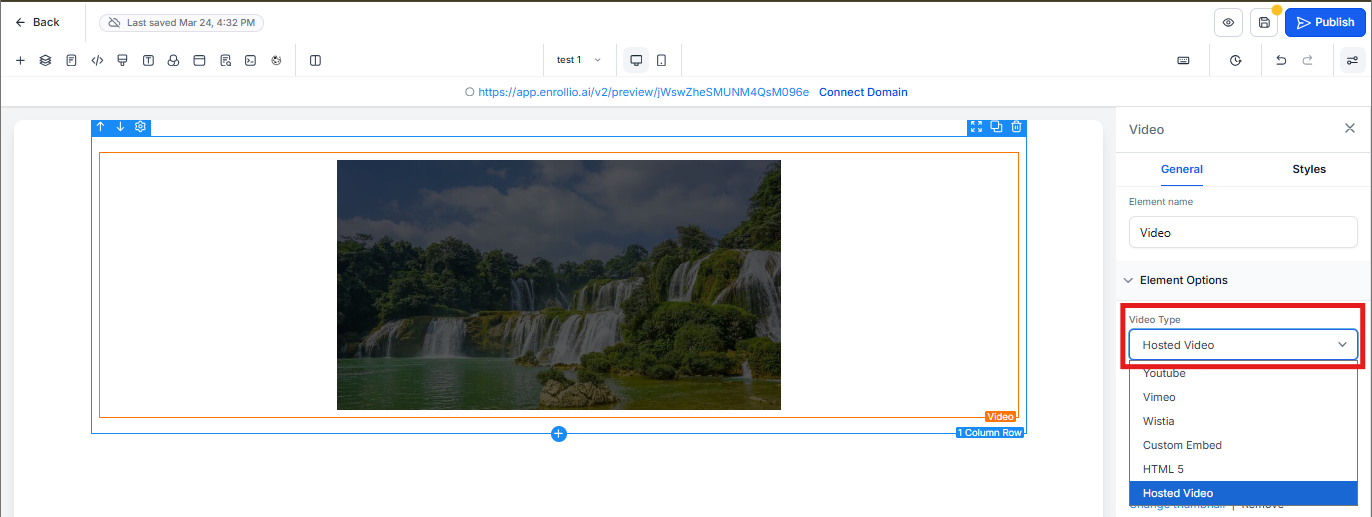
Step 3: Scroll to Video Type and select Hosted Video.
Step 4: Click Select Video to open your Media Library.
Step 5: If your video isn't uploaded yet, click Upload and choose your file. Videos must be under 4GB and in a standard format (MP4, MOV, etc.).
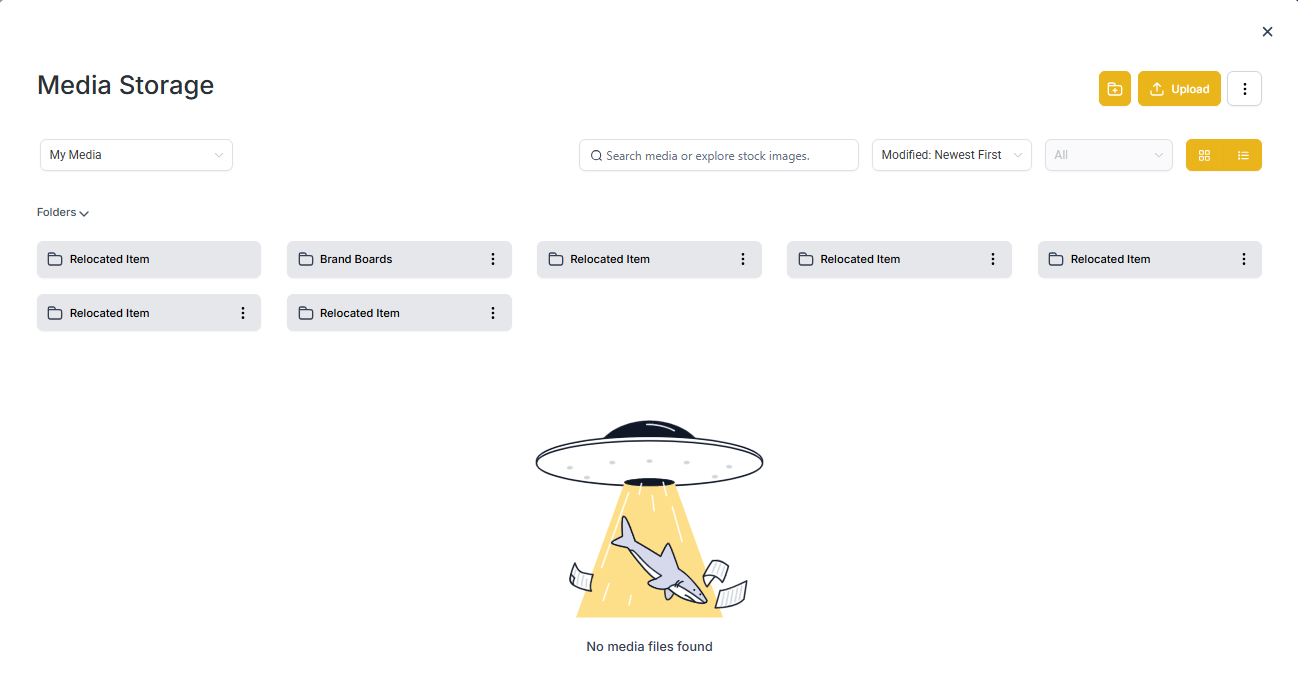
Step 6: Once uploaded, double-click the video file to begin encoding it.
Encoding typically takes a few minutes depending on video length. If encoding fails, you can retry by reselecting the video. Videos processing for more than 24 hours are automatically marked as failed.
Playback Control Options
Customize how parents interact with your video using these settings:
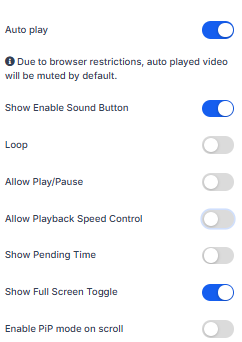
Autoplay
Automatically start playing when the page loads. Important: Due to browser policies, autoplayed videos must start muted on iOS, Safari, Chrome, Android, Firefox, and Edge. Parents can unmute after playback begins.
Allow Play/Pause
Let viewers pause and resume the video. Disable this if you want parents to watch the entire video without interruption.
Allow Playback Speed Control
Give viewers the option to speed up or slow down playback (0.5x to 2x speed).
Show Pending Time
Display the remaining time in the video. Helps parents know how long your virtual tour or presentation will take.
Show Full-Screen Toggle
Allow viewers to watch in full-screen mode for a better viewing experience.
Show Progress Bar
Display the playback timeline. Disable this if you want to prevent parents from skipping ahead in your presentation.
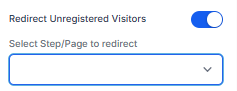
Redirect Unregistered Visitors
If someone lands directly on your video page without filling out a form first, you can redirect them to a page with an opt-in form. This ensures you capture their contact information before they view your content.
This is especially useful if you're tracking video engagement for follow-up. Without contact information, your tracking automation would create blank entries with no parent details.
To set this up, specify which enrollment page or step should collect their information:
Note: This redirect requires browser cookies. If a visitor blocks cookies, the redirect may not work.
Troubleshooting
My encoded video won't embed on the page
If your video shows as "encoded" in the Media Library but you can't select it when adding to your enrollment page, try these steps:
- Wait a few minutes: Encoding may still be finishing in the background even if it appears complete.
- Refresh the page: Reload your enrollment page editor or Media Library.
- Retry encoding: Go to the Media Library and reselect the file to trigger a new encoding attempt.
- Check your file: Verify the video is in a supported format (MP4 recommended) and under 4GB.
Video Ideas for Your Enrollment Pages
- Virtual tours of your facility and classrooms
- Meet the team videos introducing your staff
- Parent testimonials sharing their experiences
- Program overviews explaining your curriculum and daily routine
- Welcome messages from your director or owner
- Safety and security walkthroughs showing your protocols