
This article shows you how to create drop-down categories in your enrollment site or landing page navigation menu by nesting menu items under parent items. This helps organize your navigation and improves the experience for parents visiting your site.
What Are Categories in the Navigation Menu?
Creating categories in your navigation menu means grouping related menu items under a single parent item, forming a drop-down menu. This allows you to structure your navigation for clarity and efficiency.
In Enrollio, you can build these drop-down menus using a simple drag-and-drop method inside the Navigation Menu element.
Key Benefits of Navigation Menu Categories
- Cleaner Navigation: Declutters your main navigation bar by nesting related links
- Improved Parent Experience: Families can find grouped pages quickly and intuitively
- Drag-and-Drop Simplicity: Build drop-down menus easily with no code
- Flexible Structure: Rearrange or update categories by dragging items
- Mobile-Friendly: Menus adapt automatically to desktop and mobile layouts
How to Create Categories in the Navigation Menu
To create drop-down menus (categories), follow these steps:
- Open your enrollment site or landing page in the builder
- Select the Navigation Menu element in your layout
- In the right-hand panel, click Add Item → New Menu Item
- Name the item something descriptive (like "Programs" or "About Us")
- Drag and drop the new item underneath a parent item (e.g., "Home"). When it indents slightly, that means it's nested and will appear as a drop-down
- Click Save then Preview and hover over the parent item to see the drop-down appear
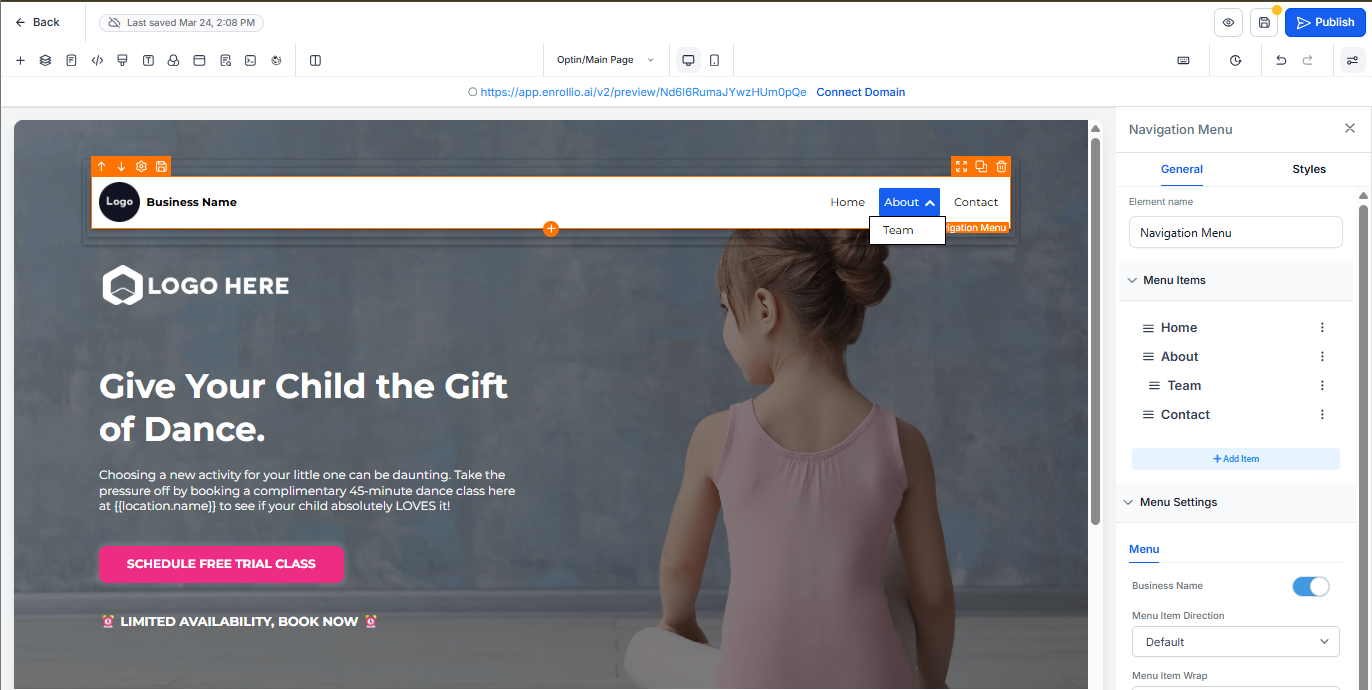
Previewing and Organizing Menu Items
- Preview your navigation menu to verify the structure
- Hover over any parent item (like "Home") to confirm drop-down functionality
- Use the drag-and-drop interface to reorder or rename menu items
- You can nest multiple items under the same parent
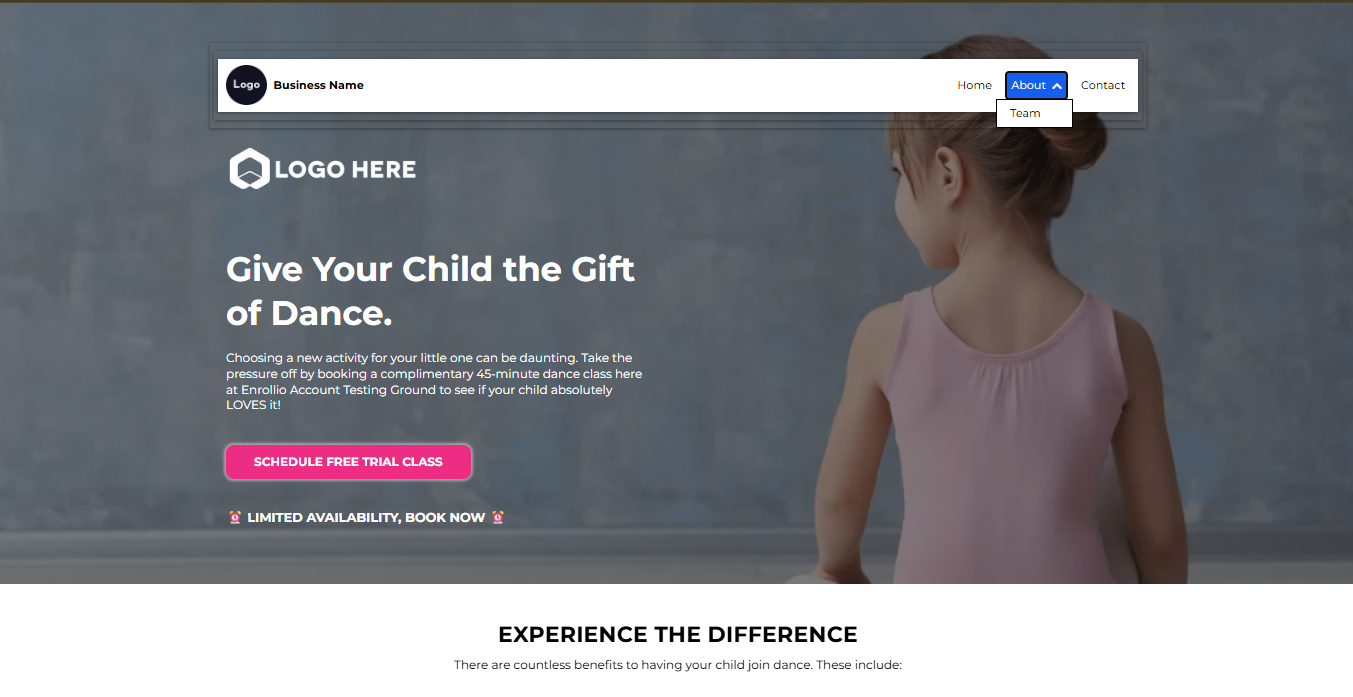
Pro Tip: Keep your navigation simple and parent-focused. Use categories like "Programs," "Enrollment," and "About Us" to help families quickly find what they need.
Frequently Asked Questions
Can I create more than one level of drop-downs?
No. To keep navigation user-friendly, especially on mobile devices, Enrollio limits nested pages to one layer. This ensures parents can easily navigate your site from any device.
Can menu items link to sections within the same page?
Yes. Use anchor links to scroll to specific sections on the same page. For more information, see our article on scrolling to elements or sections.
How do I remove or rename items?
Click on the 3 dots next to the item in the sidebar. Edit the name or click the Delete button to remove it.
Does this work the same for landing pages and enrollment sites?
Yes, the Navigation Menu element behaves the same across both landing pages and full enrollment sites.