
Recover Lost Sales with Automatic Abandoned Checkout Emails
When families start purchasing items from your online store but don't complete checkout, you're leaving money on the table. This article shows you how to use Enrollio's automatic abandoned checkout email feature to recover those lost sales.
You'll learn how to access the settings, customize your email templates, and optimize them for higher conversions.
What is Automatic Abandoned Checkout Email?
An automatic abandoned checkout email is triggered when a customer adds items to their cart, begins checkout, enters their email address, but doesn't complete the purchase.
Enrollio detects this incomplete action and automatically sends a follow-up email encouraging them to return and finish checkout. The email includes a direct link to their abandoned cart.
This feature is enabled by default and runs automatically in the background — helping you recover revenue without manual effort.
Key Benefits of Abandoned Checkout Emails
- Sales Recovery: Convert lost opportunities into sales by re-engaging customers who dropped off
- Fully Automated: Once enabled, the system tracks and sends emails without manual work
- Customizable Messaging: Tailor the email content to match your brand and the items in cart
- Dynamic Product Display: Show the exact products left behind, increasing emotional connection
How the Abandoned Cart Link Works
Customers can resume checkout from any device using the unique link sent in the abandoned checkout email. Here's how it works:
- Cross-device access: The link works across devices, browsers, and sessions
- One link per cart: Each URL represents a single abandoned session with only those items
- View-only cart: Shoppers can't add new items from this link
- Dynamic updates: The checkout shows current product names and prices when opened
- Inventory aware: If an item is out of stock, a "Remove item" button appears
- Guest checkout support: Guest shoppers get a temporary session to complete purchase
How to Access and Configure Abandoned Checkout Notifications
All settings for abandoned cart emails are found at the Client Account level. Here's how to set them up:
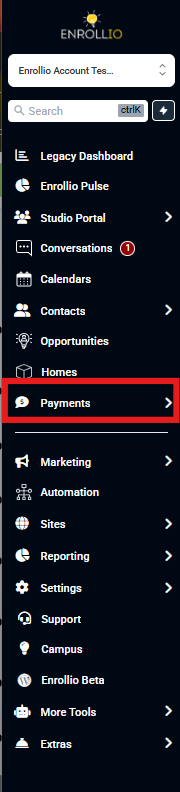
Step 1: Open Payments Settings
Click Payments in the left-hand navigation menu of your Client Account. This is where all eCommerce-related settings, including checkout notifications, are managed.
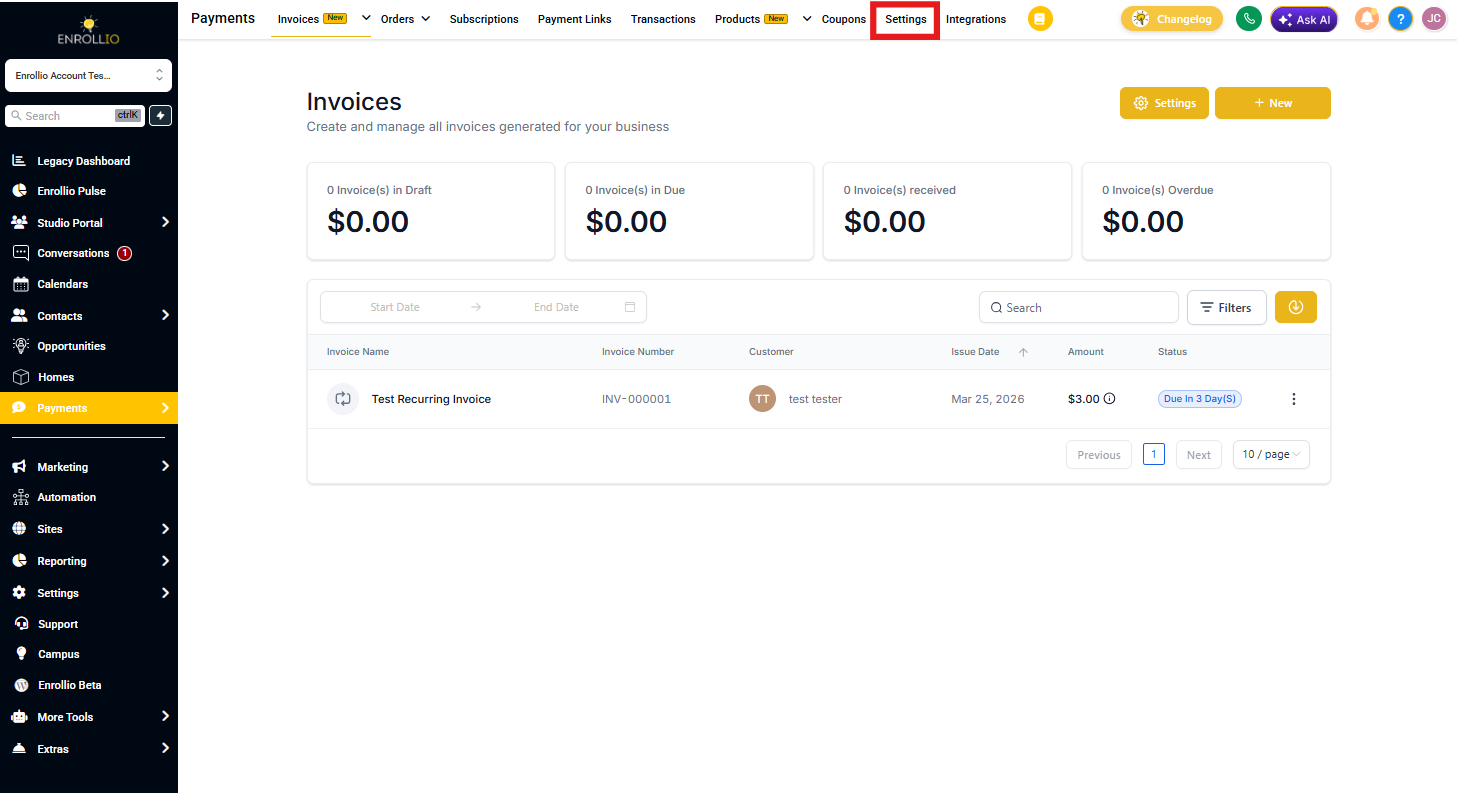
Step 2: Go to Settings Tab
Click the Settings tab at the top of the Payments section. This opens the configuration panel where you can set up abandoned cart emails and other order-related automations.
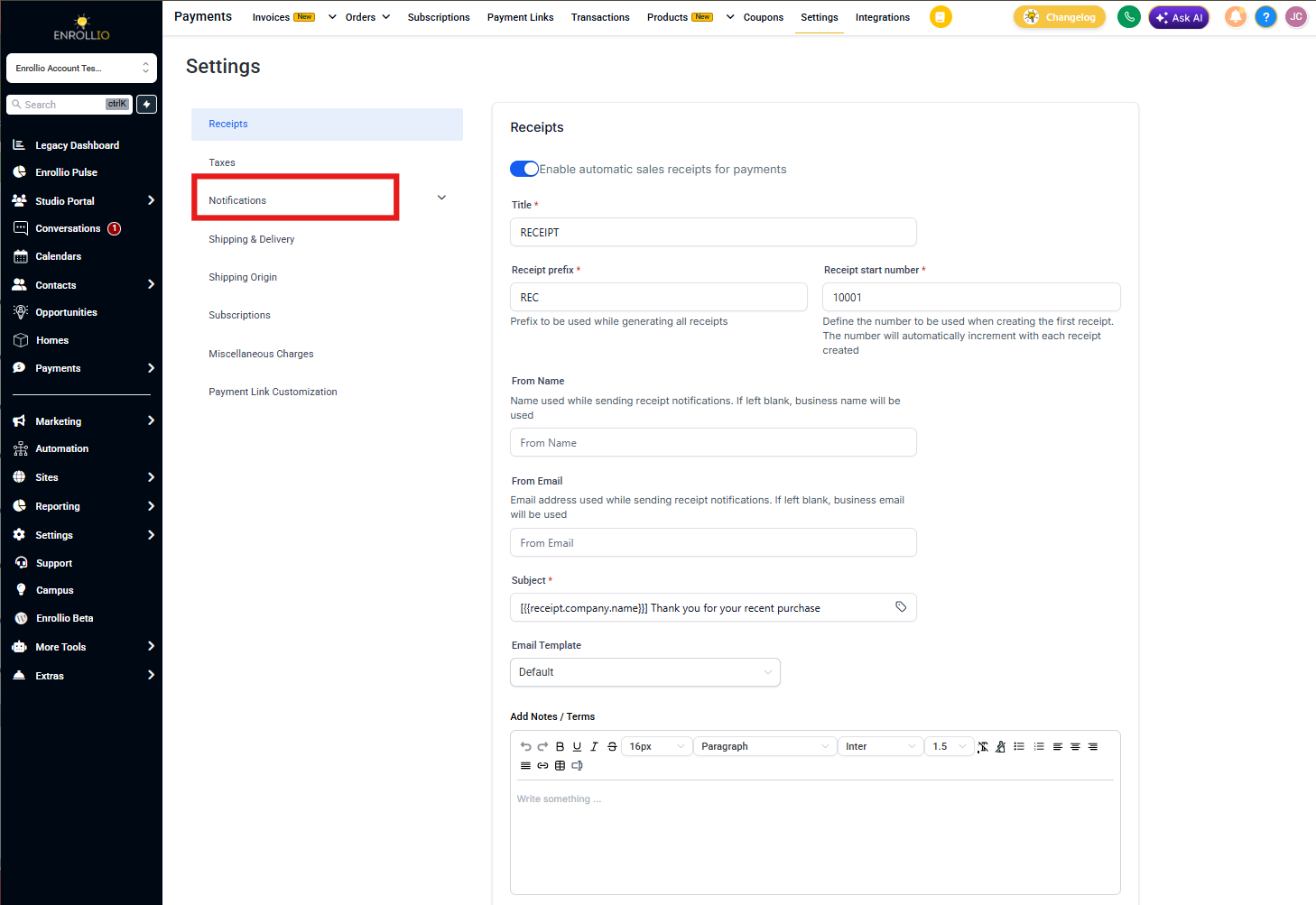
Step 3: Navigate to Notifications
In the Settings panel, select Notifications from the left-hand menu. This opens the area where you manage abandoned cart alerts and automated email communications.
Step 4: Enable Abandoned Cart Emails
Toggle on Enable Abandoned Cart emails to activate automated reminders for customers who leave checkout without completing their purchase.
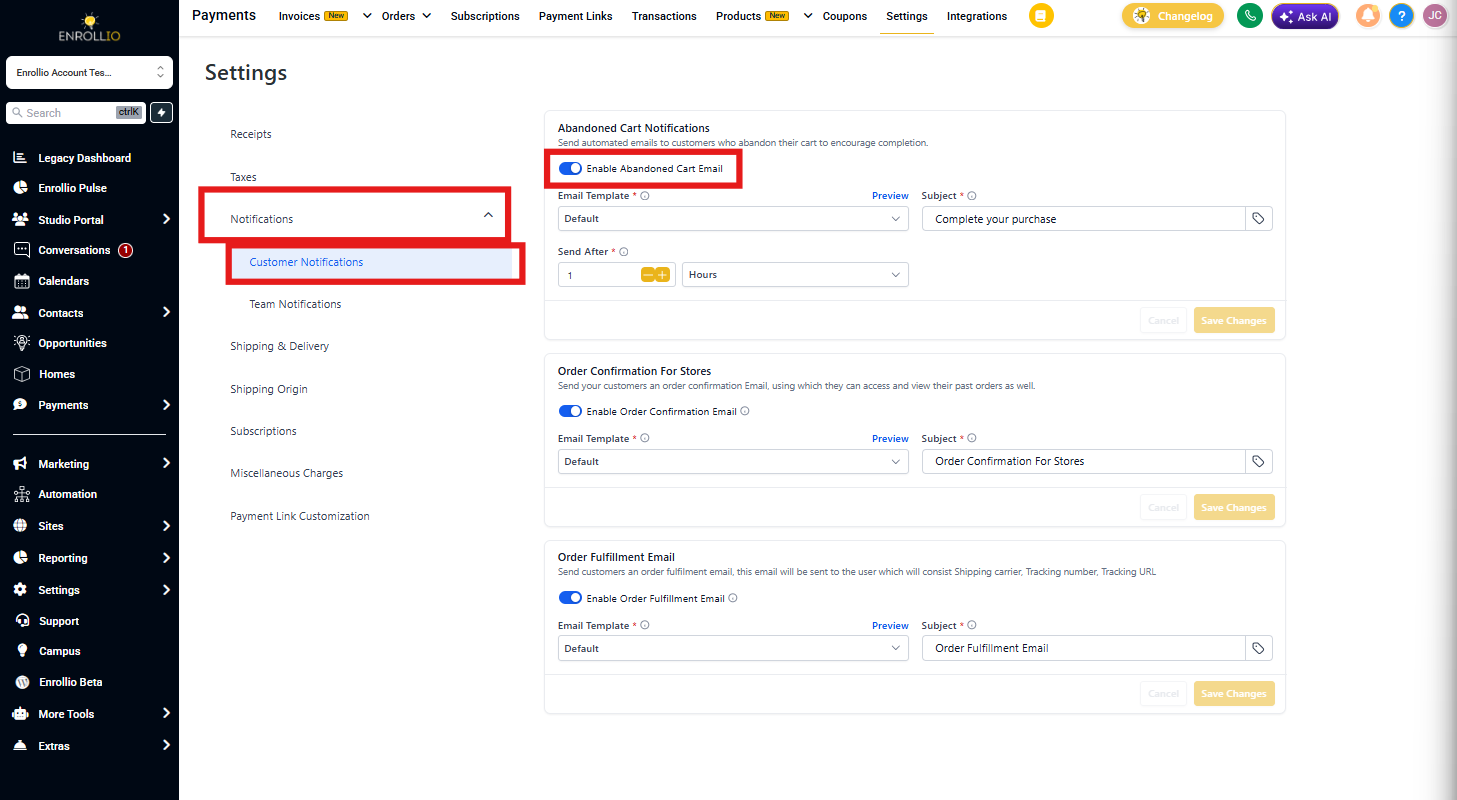
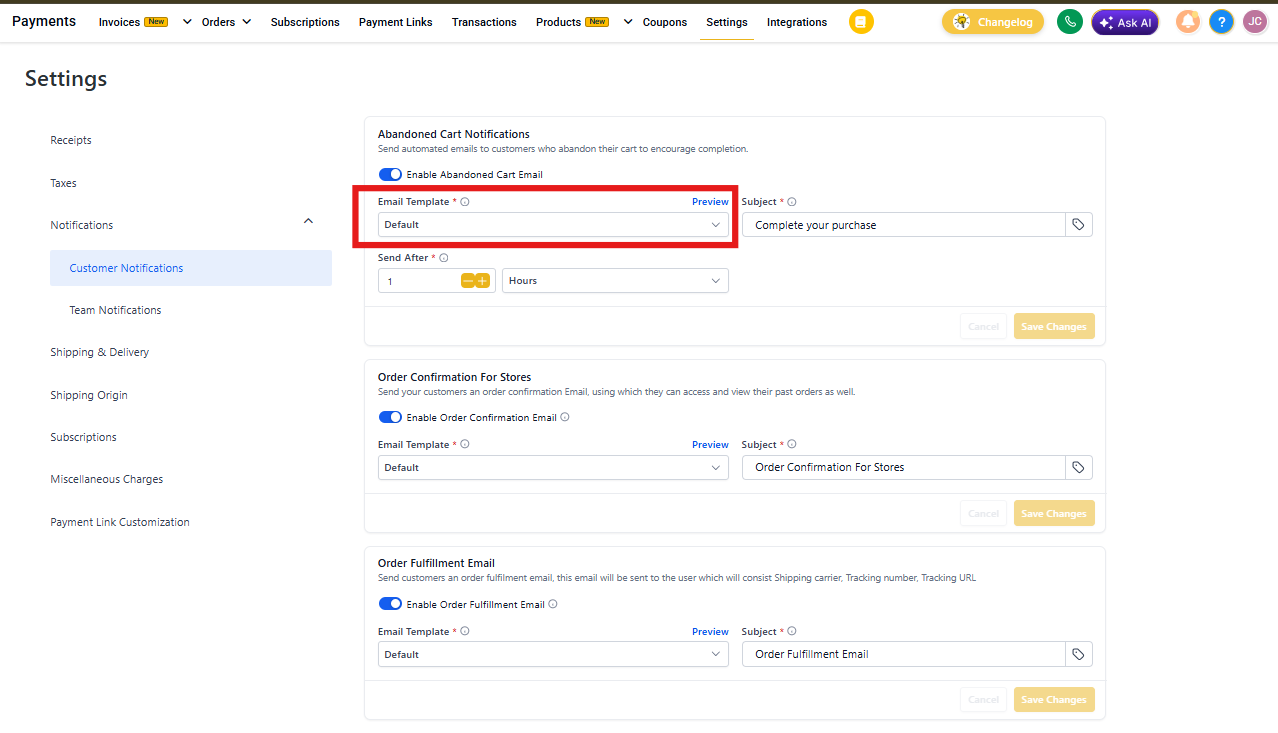
Step 5: Select Email Template
Choose an email template from the dropdown to define the layout and content. You can use the default or link a custom template designed in the Email Builder.
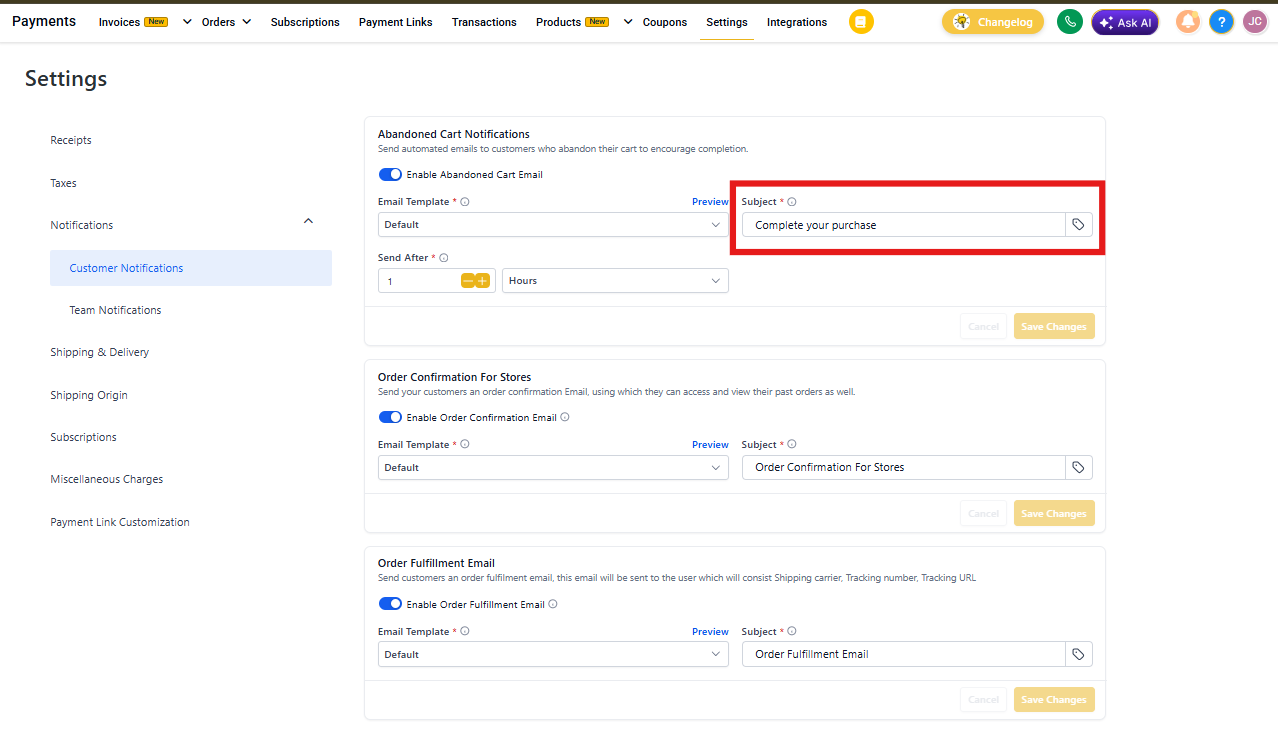
Step 6: Set Email Subject
Enter a subject line that will appear in the customer's inbox. Use a friendly, action-driven phrase to encourage them to complete their purchase.
Example: "You left something behind! Complete your order now"
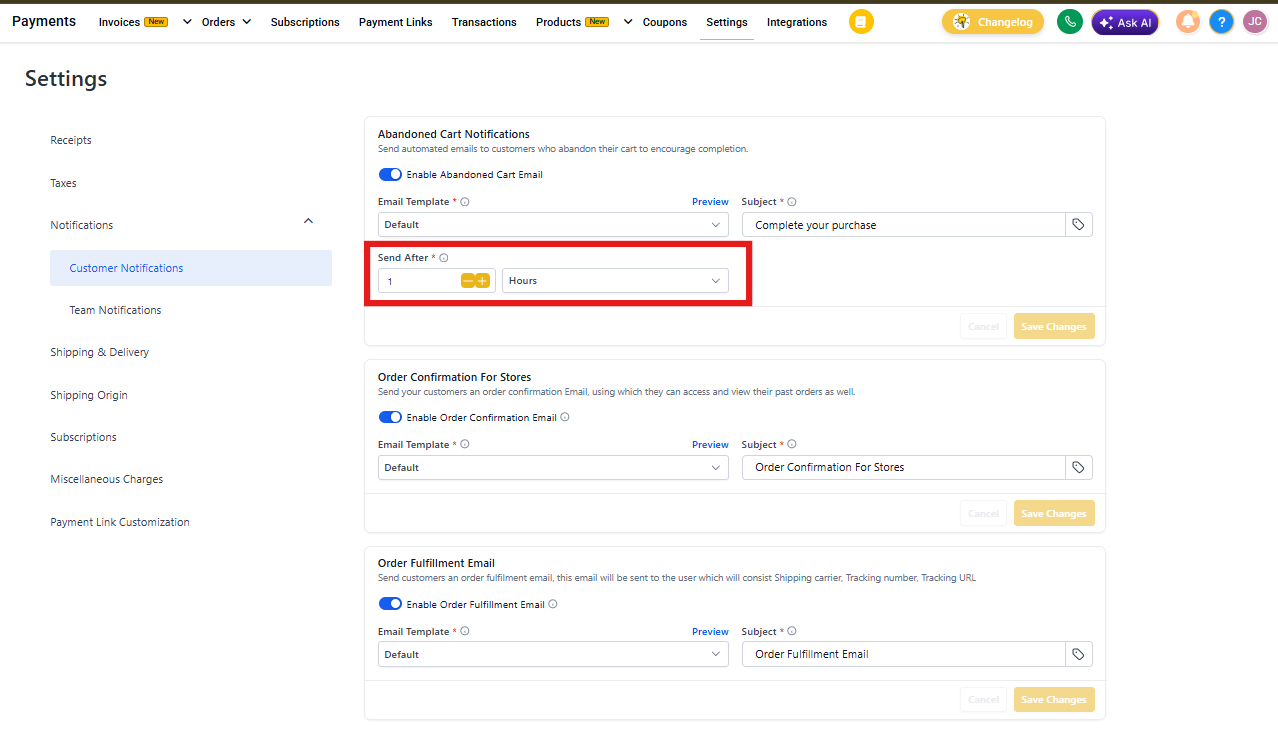
Step 7: Set Email Delay
Use the "Send after" option to define how long to wait before sending the abandoned cart email. You can choose the delay in hours or minutes based on your follow-up strategy.
The default is 10 hours, but you can adjust based on what works best for your customers.
Customizing the Abandoned Checkout Email
To maximize the impact of your follow-up emails, customize both the design and content. Here are two key ways to do this:
Override the Default Email Template
Enrollio includes a basic abandoned checkout email, but you can make yours more engaging with a custom template.
Step 1: Open Email Templates
Navigate to Marketing → Emails → Templates to create or edit the email used for abandoned checkout reminders. This is where you design a branded, personalized message using the Email Builder.
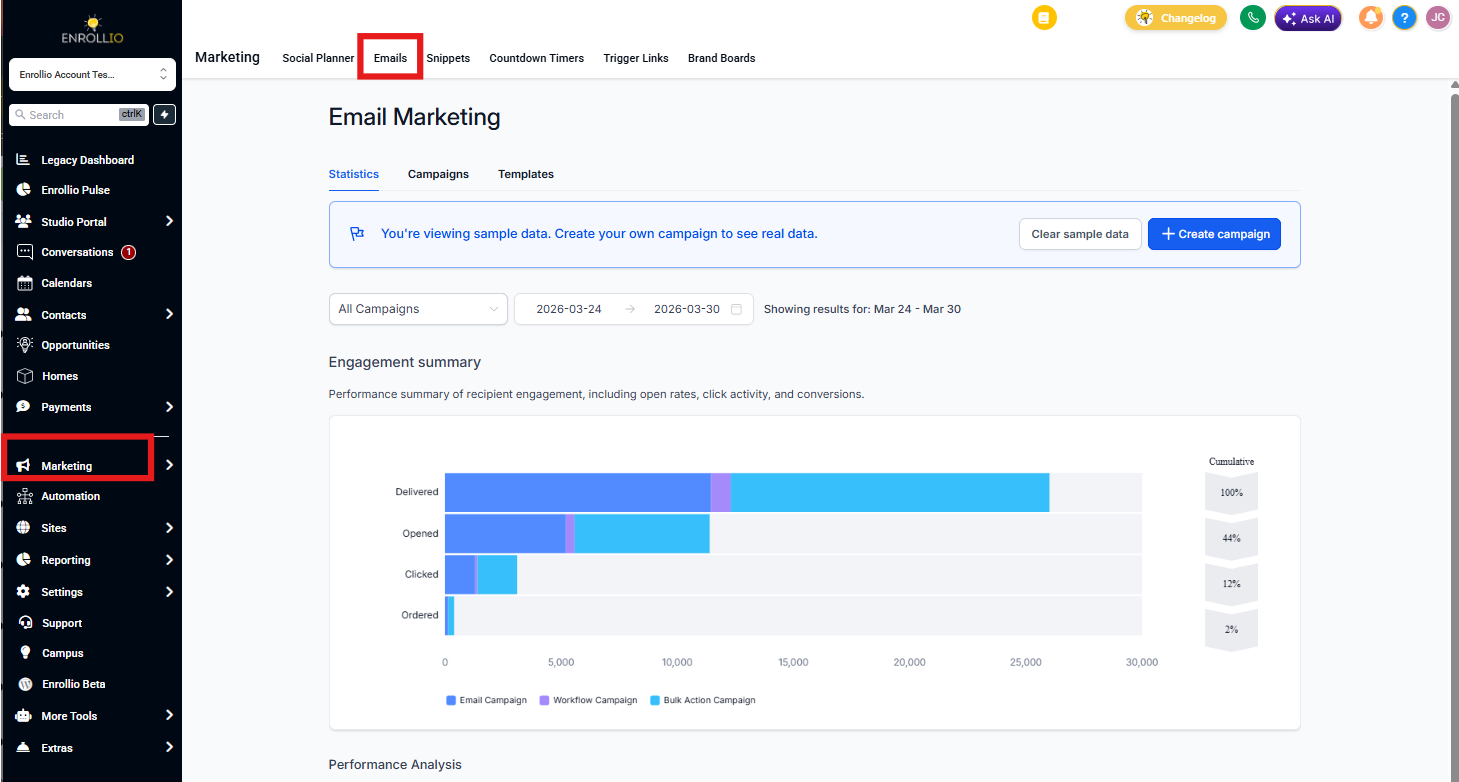
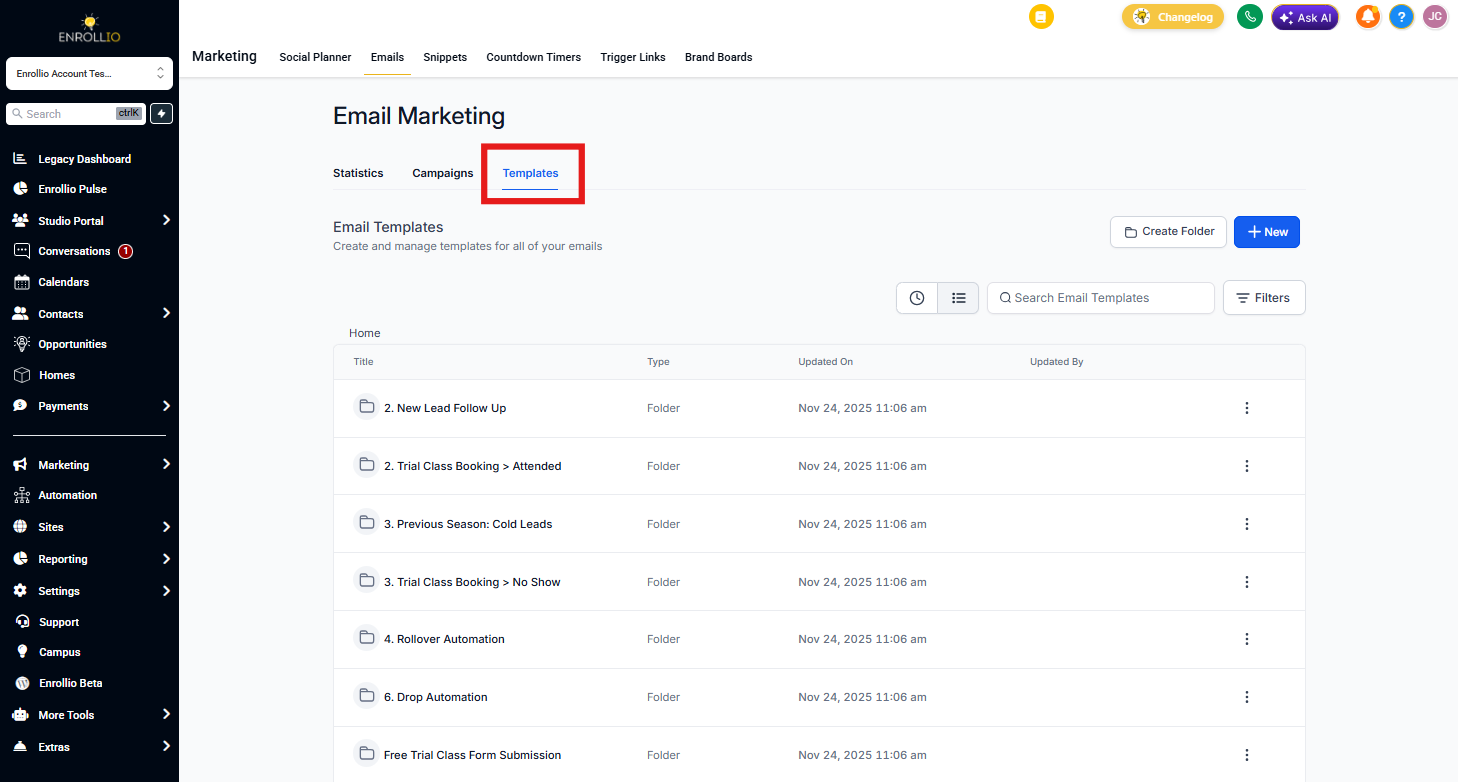
Step 2: Use the Templates Tab
Click the Templates tab within Email Marketing to view all your saved email designs. This is where you'll select or create the template for your abandoned cart notification.
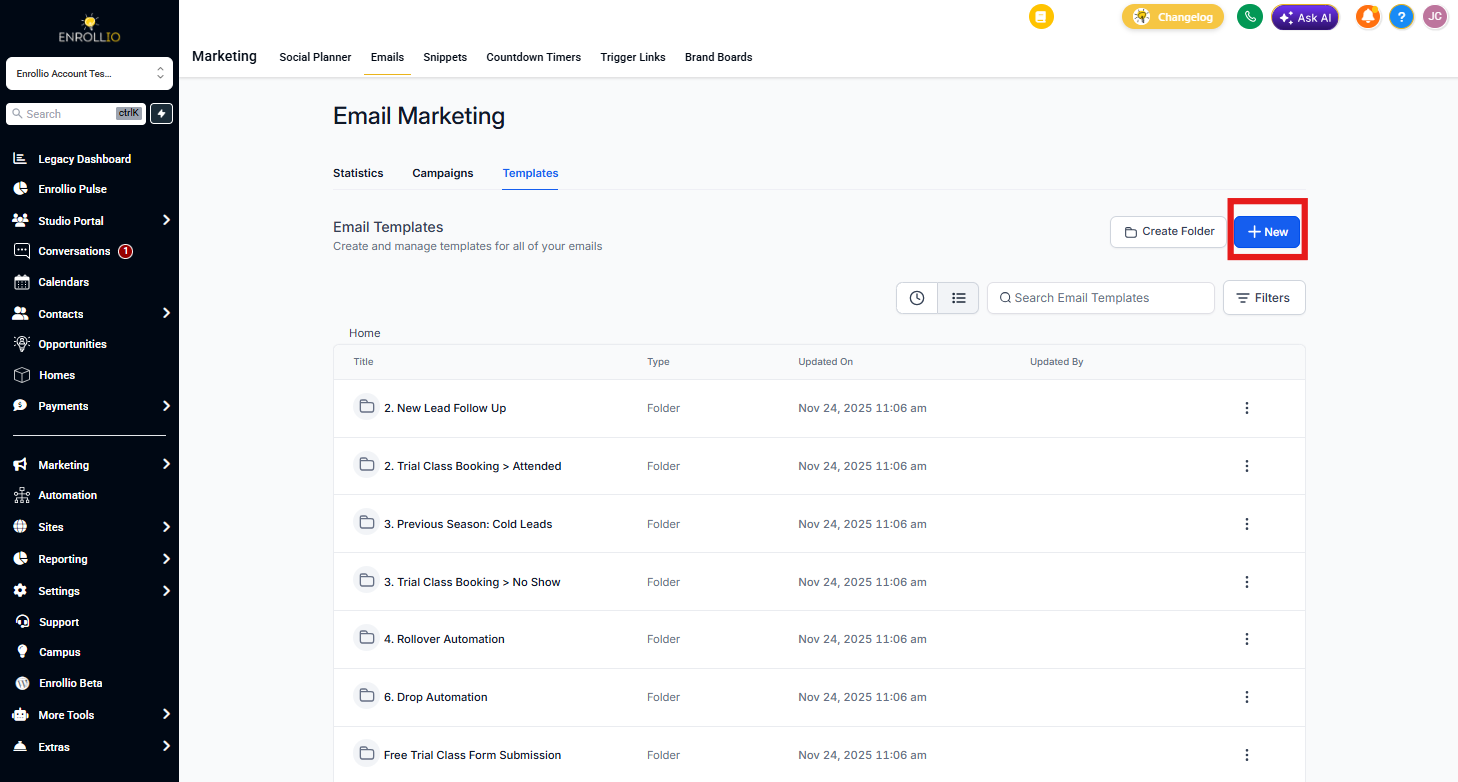
Step 3: Create or Select a Template
Click the + New button to build a fresh email template, or choose an existing one from the list. These templates can be linked to your abandoned cart notification to deliver a customized message.
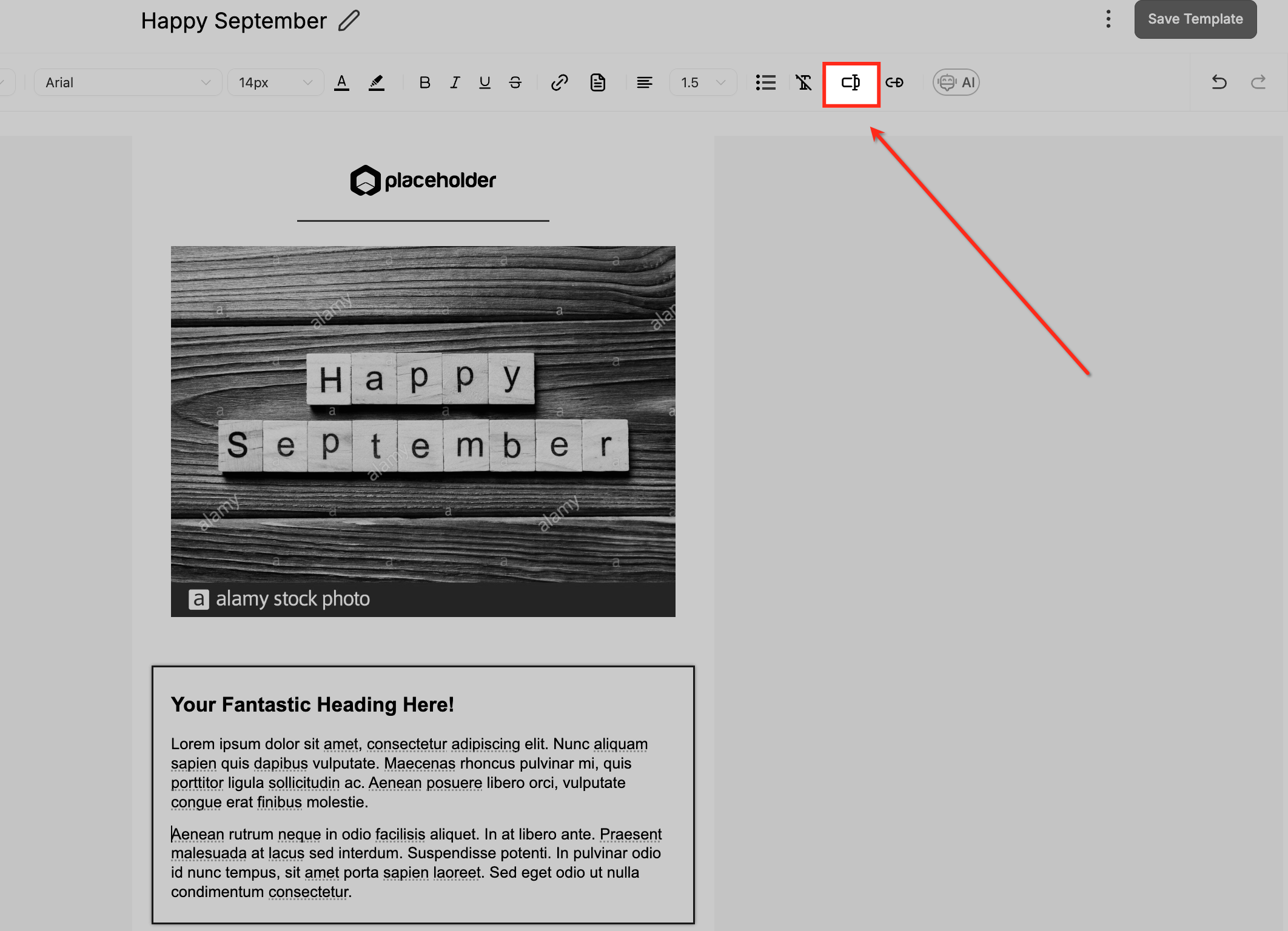
Step 4: Add Custom Values
Click the custom value icon in the email editor toolbar to insert eCommerce fields like {{ ecom_checkout_page_url }}. This allows the email to link directly to the customer's abandoned cart or product list.
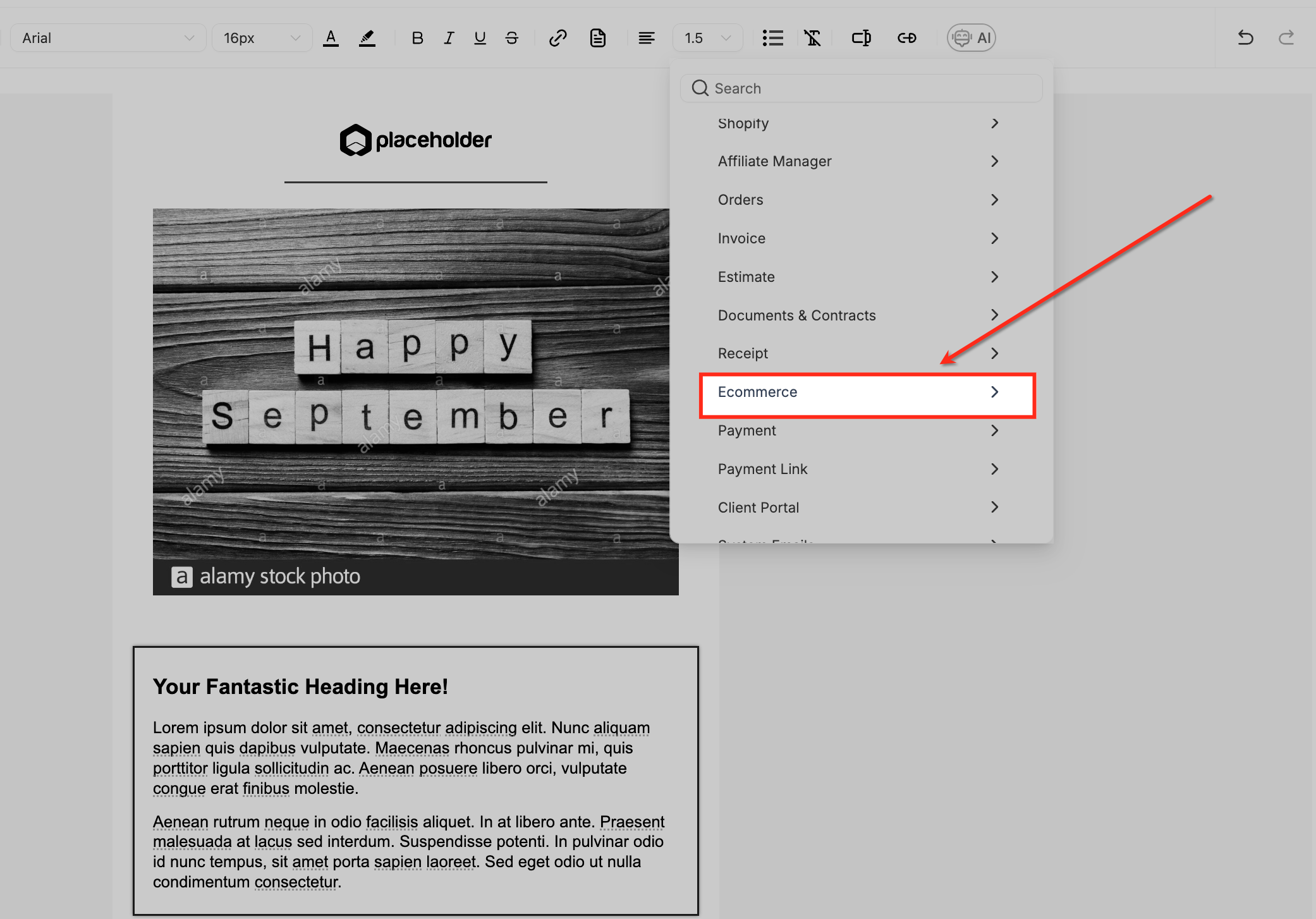
Step 5: Insert eCommerce Links
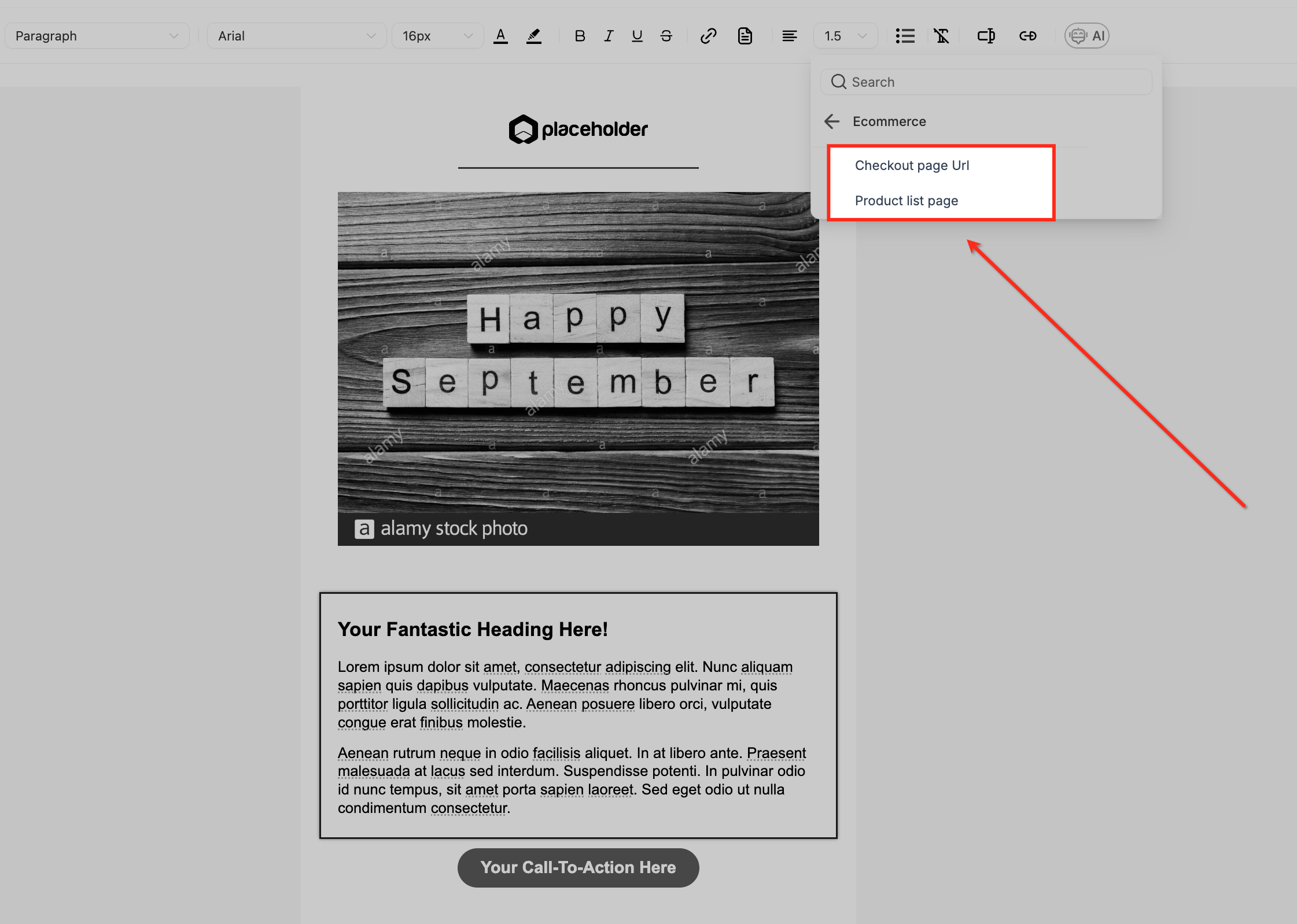
From the custom value menu, select Ecommerce to access dynamic fields specific to your online store. This includes options like the checkout page URL and product list page URL for abandoned cart recovery.
Step 6: Add Checkout and Product Links
Choose between Checkout page URL or Product list page to insert dynamic links in your email. These guide customers back to either their abandoned cart or your store's full product catalog.
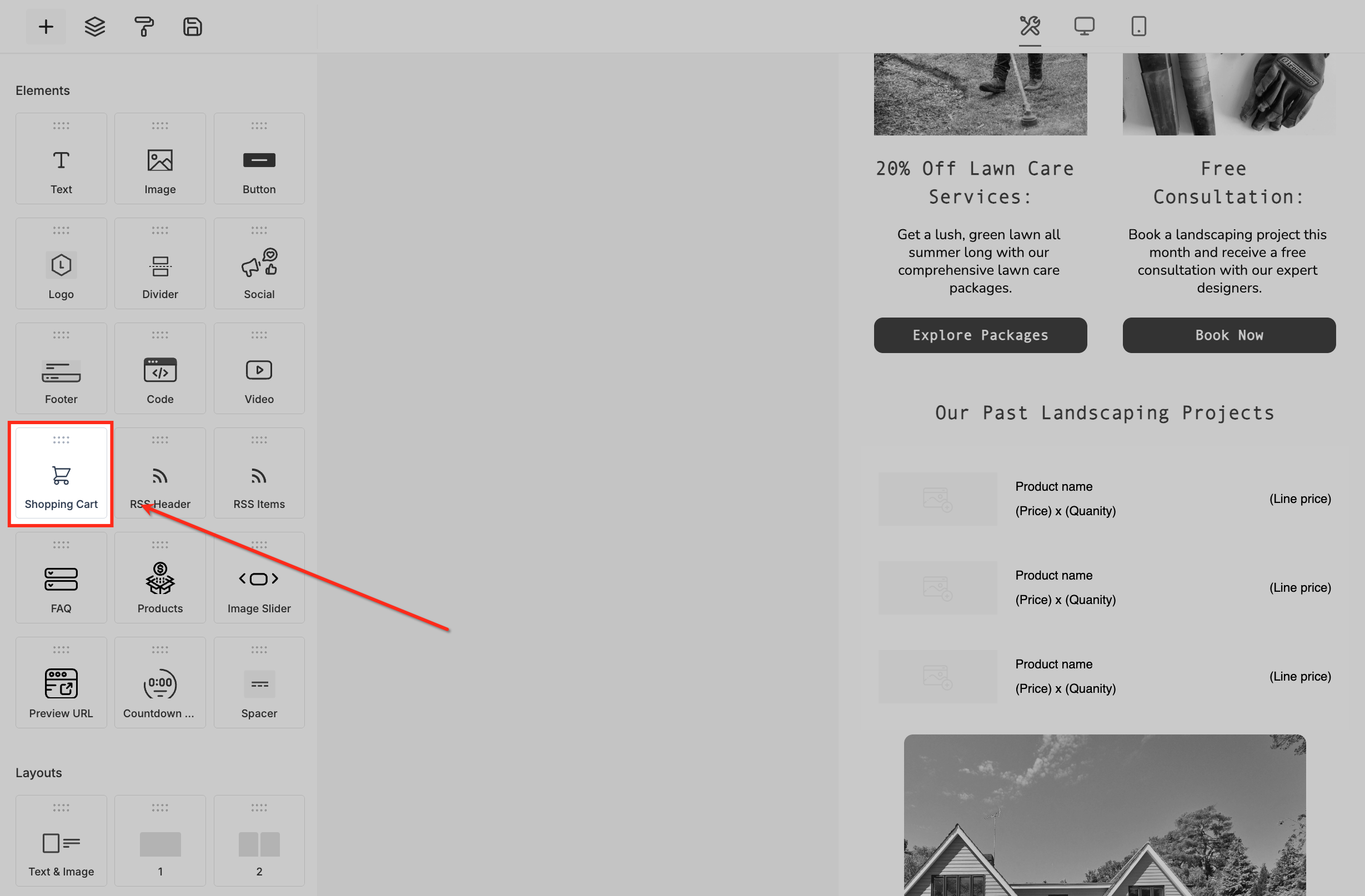
Add Dynamic Cart Display with Shopping Cart Element
Make your emails more personalized by displaying the exact items left in the cart — including product images, names, prices, and quantities.
How to do it:
- In the email builder, locate the Shopping Cart element under eCommerce elements
- Drag and drop it into your email layout
- The element auto-populates with cart contents (if the customer reached the checkout page)
💡 Pro Tip: This works only if the system has captured the cart data — typically when the user reaches the checkout page and provides an email address.
Frequently Asked Questions
Can I disable abandoned checkout emails?
Yes. Go to Payments → Settings → Notifications in your Client Account and toggle the email off.
What happens if the customer doesn't provide their email?
No notification is sent. The system requires an email address to trigger abandoned cart recovery.
Can I adjust when the email is sent?
Yes. The default delay is 10 hours, but you can modify it from the notification settings panel.
Can I send multiple abandoned cart reminders?
Currently, Enrollio supports only one automated abandoned checkout notification per cart abandonment.
Can I use text messages instead of email for abandoned checkout?
Not by default — the system is designed to send emails. You could set up a custom automation to send text messages manually or as part of a follow-up sequence.
Is the abandoned cart link shareable?
Yes, the link can technically be shared, but it's tied to a specific cart session and won't show any other items or allow new additions.