
How to Connect and Use Square as Your Payment Processor
You can connect your Square account to Enrollio to process tuition payments, enrollment fees, and other childcare charges directly through the platform.
What You Can Do with Square in Enrollio
Once connected, you'll be able to:
- Process one-time payments (enrollment fees, supply fees, field trips)
- Set up recurring subscription payments for tuition
- Accept payments through invoices, payment links, and online forms
- Track all transactions in one place
- Trigger automations based on successful payments
Note: Square integration is not currently available for reselling Enrollio to other childcare centers.
How to Connect Square to Enrollio
Step 1: Navigate to Payment Settings
- Click Settings in your Enrollio dashboard
- Go to Payments → Integrations
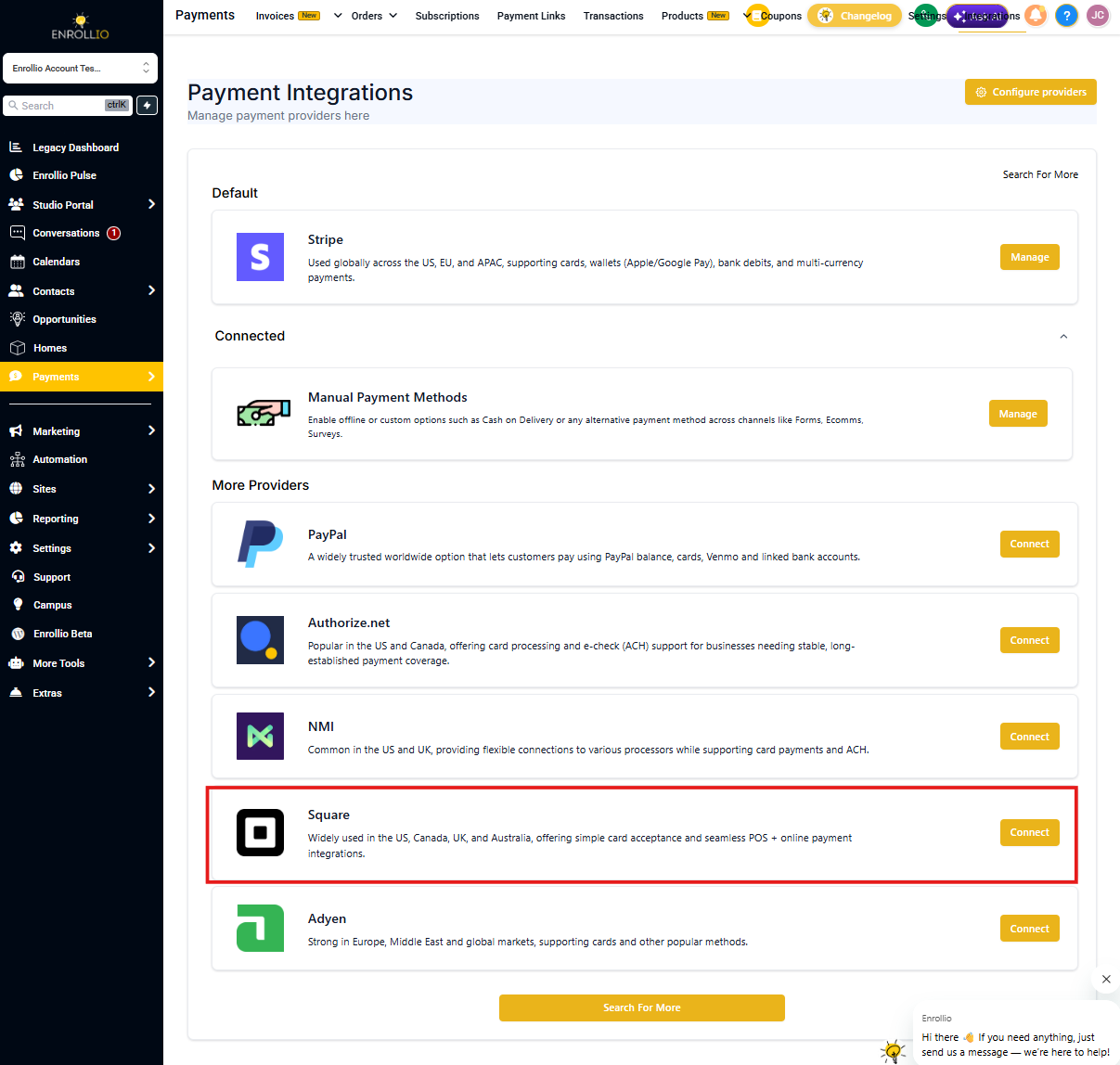
- Find Square in the list of payment processors
Step 2: Connect Your Square Account
- Click Connect next to Square
- You'll be redirected to Square's authorization page
- Log in to your Square account and authorize the connection
- You'll be redirected back to Enrollio
Step 3: Select Your Square Location
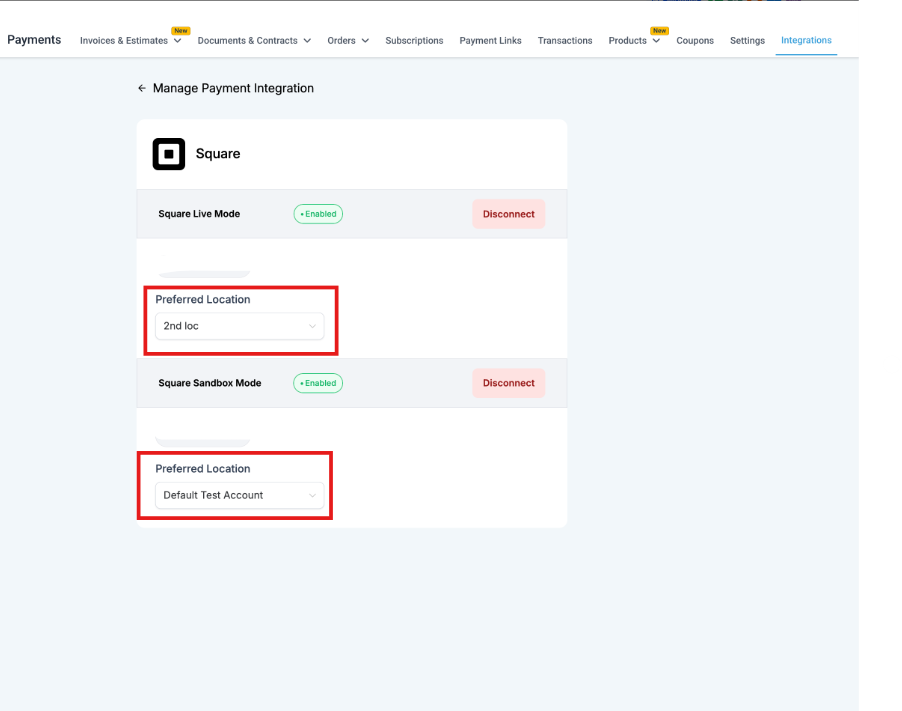
If you have multiple locations in Square, you'll see all of them listed in Enrollio. Choose which physical location should be associated with this childcare center.
A default location will be selected automatically, but you can change it anytime in your payment settings.
Setting Up Products for Payment
After connecting Square, set up your tuition rates and fees:
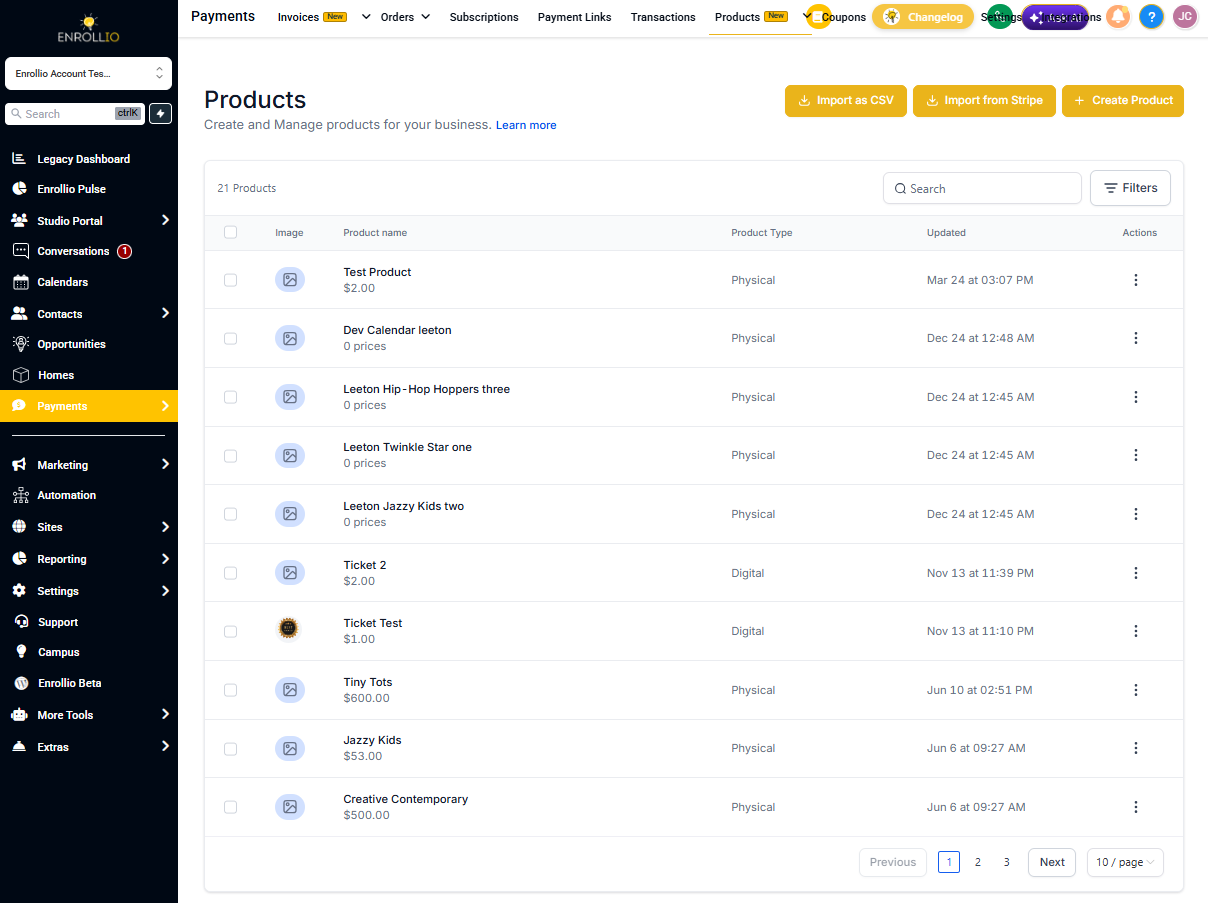
- Go to Payments → Products
- Click Create Product
- Set up your tuition plans, enrollment fees, or other charges
- Configure whether it's a one-time or recurring payment
Where Families Can Pay with Square
Once connected, families can pay using Square through:
- Invoices — Send payment requests directly to parents
- Payment links — Share a link via text or email
- Online forms — Collect payments during enrollment
- Order forms — For supply fees, field trips, or other one-time charges
- Your enrollment site — Process payments on your website
Tracking Payments
View all Square transactions in one place:
- Go to Payments → Orders or Transactions
- Filter by date, payment status, or parent name
- Click any transaction to view full details
Testing Square Before Going Live
Want to test Square payments before processing real transactions? Connect Square in test mode:
- Log in to your Square account at app.squareup.com/login
- Open your Square sandbox account from your Square dashboard
- Stay logged in as a sandbox user
- In Enrollio, click Connect for Square Test Mode
- Enrollio will automatically detect your sandbox account and connect it
Reconnecting Square
If you've already connected Square but need to update your connection or access additional locations:
- Go to Payments → Integrations
- Click Reconnect next to Square
- Authorize the connection again
- Select the correct location for your center
Setting Up Payment Automations
Trigger actions automatically when payments are processed:
- Send a receipt confirmation to parents
- Update enrollment status when the first payment is received
- Tag families based on payment history
- Notify your office staff when a payment succeeds or fails
Set these up in Automations using payment-related triggers.
Need Help?
If you're having trouble connecting Square or processing payments, reach out to our support team. We're here to help get your payment processing running smoothly.