
Overview
You can update subscriptions to reflect changes in products, quantities, or subscription dates. This helps you manage parent and family needs without cancelling and recreating subscriptions, while keeping billing dates consistent.
What does this feature do?
The Modify Subscription option allows you to:
- Add additional products to an existing subscription (they must share the same billing frequency and currency)
- Remove products so they no longer appear in future billing cycles
- Adjust the quantity of any product in the subscription (between 1–1000)
- Edit subscription dates: change the start date if the subscription is scheduled but not yet active, or update the end date for active subscriptions
- Preview all changes and updated totals before saving
Note: This feature doesn't currently prorate charges. That functionality is coming soon.
What you need to use this feature
- Access to Payments → Subscriptions
- A subscription that is in scheduled, trialing, or active status
- Supported payment providers: Stripe, Square, NMI, Authorize
How to modify a subscription
Step 1: Access the subscription
- Go to Payments → Subscriptions
- Select the subscription you want to modify
- Open the menu and click Update
Alternatively, you can open the Subscription Details page and view the Update option under Actions.
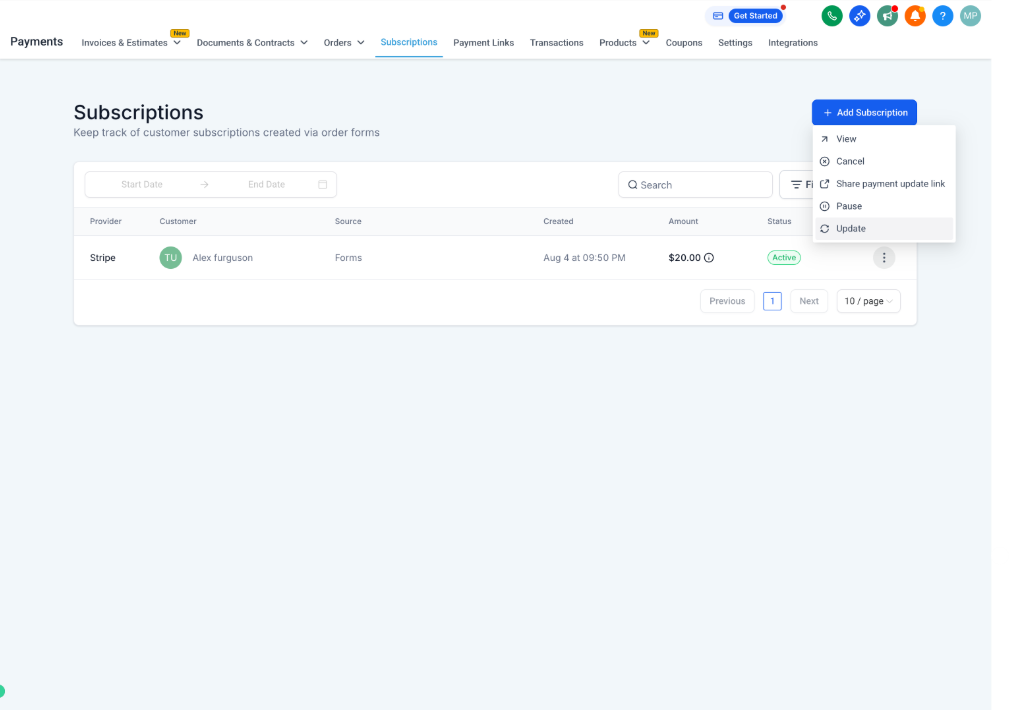
Step 2: Make changes
- To add a product: Click the '+' button. Products available will match the billing frequency of the subscription
- To remove a product: Use the delete icon next to the product name
- To update quantities: Adjust the number in the Quantity field
- To edit dates: Select the Start Date (for Scheduled subscriptions) or update the End Date (for Active subscriptions)
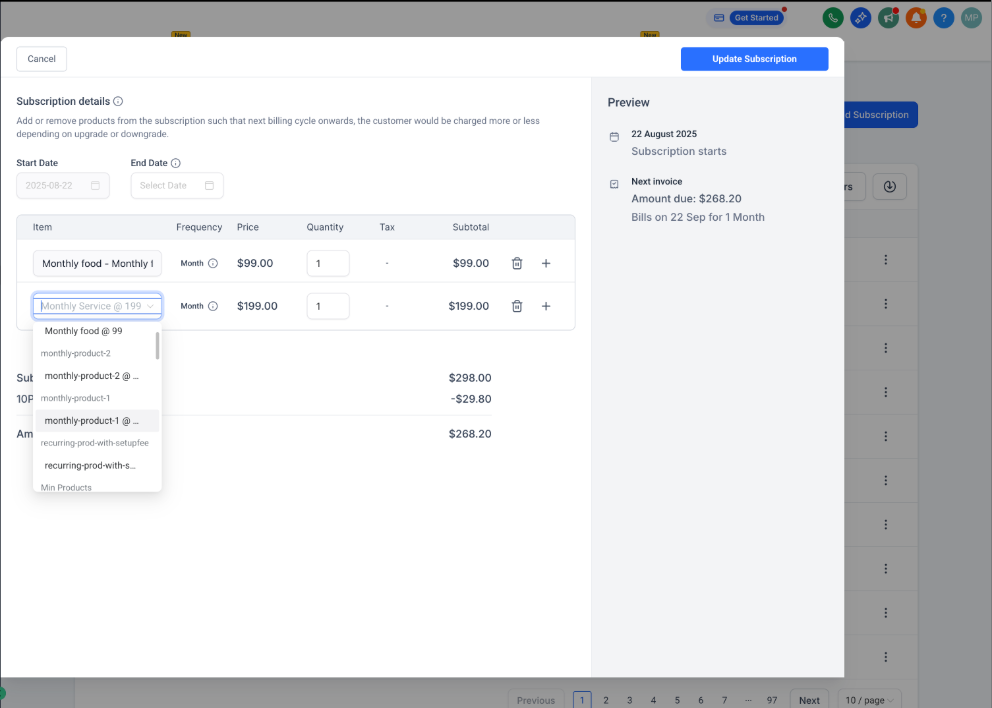
Step 3: Review and save
A preview will display updated products, quantities, dates, and new total amounts. Confirm the changes to update the subscription.
The new settings will apply from the next billing cycle onwards.
Note: Functionality to prorate charges is coming soon. Currently the new total applies on the next charge date.
Frequently Asked Questions
Does changing a product or quantity affect past transactions?
No, past transactions remain unchanged. Updates only apply to future billing cycles.
What happens to the charge date when changes are made?
The charge date doesn't change. All updates take effect on the same billing schedule.
Can I add multiple products at once?
Yes, as long as they share the same billing frequency.
Where can I find modification history?
All changes are logged under the Subscription Details page for reference and auditing.
What happens if the product has a trial period and is now being added to a subscription?
Trial periods are skipped if a product is added to an ongoing 'Active' subscription or if quantities are changed for an ongoing 'Active' subscription.
If the subscription is in 'Trial' state, the new product will also trial until the original subscription's trial date, and all charges apply on the next billing cycle after the trial ends.
What happens if the product has a setup fee?
Setup fees apply to the total as a one-time charge on the next billing cycle if the newly added product has a setup fee associated with it.
If you increase quantities of an existing product that has setup fees, these are charged for the additional quantities on the next billing cycle.
If the subscription is in 'Trial' state, the new product's setup fee will be charged on the next billing cycle (when the trial ends).
What happens if the subscription has an ongoing coupon?
If the coupon is applicable to the newly added product, it will apply to the new product from the next billing cycle.
Note: An option to change coupons from an ongoing subscription is coming soon.
Can I modify a subscription with Cancelled, Overdue, or Unpaid status?
No, only the following subscription statuses allow modification: Scheduled, Active, and Trialing.
How can I update a parent's credit card details in a subscription?
You can update a parent's credit card by sharing a secure payment update link from their subscription:
- Go to Payments → Subscriptions
- Find and select the parent's subscription
- Click the three dots (⋮) on the right
- Select Share Payment Update Link
- Send the link to the parent by copying and sharing it via chat/message, or using the Email option to send it directly from the platform
The parent can use this secure link to update their card details on their own.