
Tax Inclusive or Exclusive Pricing
This article explains how to set up tax-inclusive or tax-exclusive pricing for your childcare products and services in Enrollio. Choose the model that matches how you present pricing to families.
What's the Difference?
Tax Exclusive: The price you show families does not include tax. Tax is added at checkout.
Tax Inclusive: The price you show families already includes tax. What they see is what they pay.
You can set this globally for all products (tuition, fees, supplies) or customize it per product.
Setting Your Tax Preference Globally
To set a default for all your products:
- Go to Payments → Settings → Taxes
- Look for "Include tax in prices"
- Select Yes for tax inclusive or No for tax exclusive
- Click Save
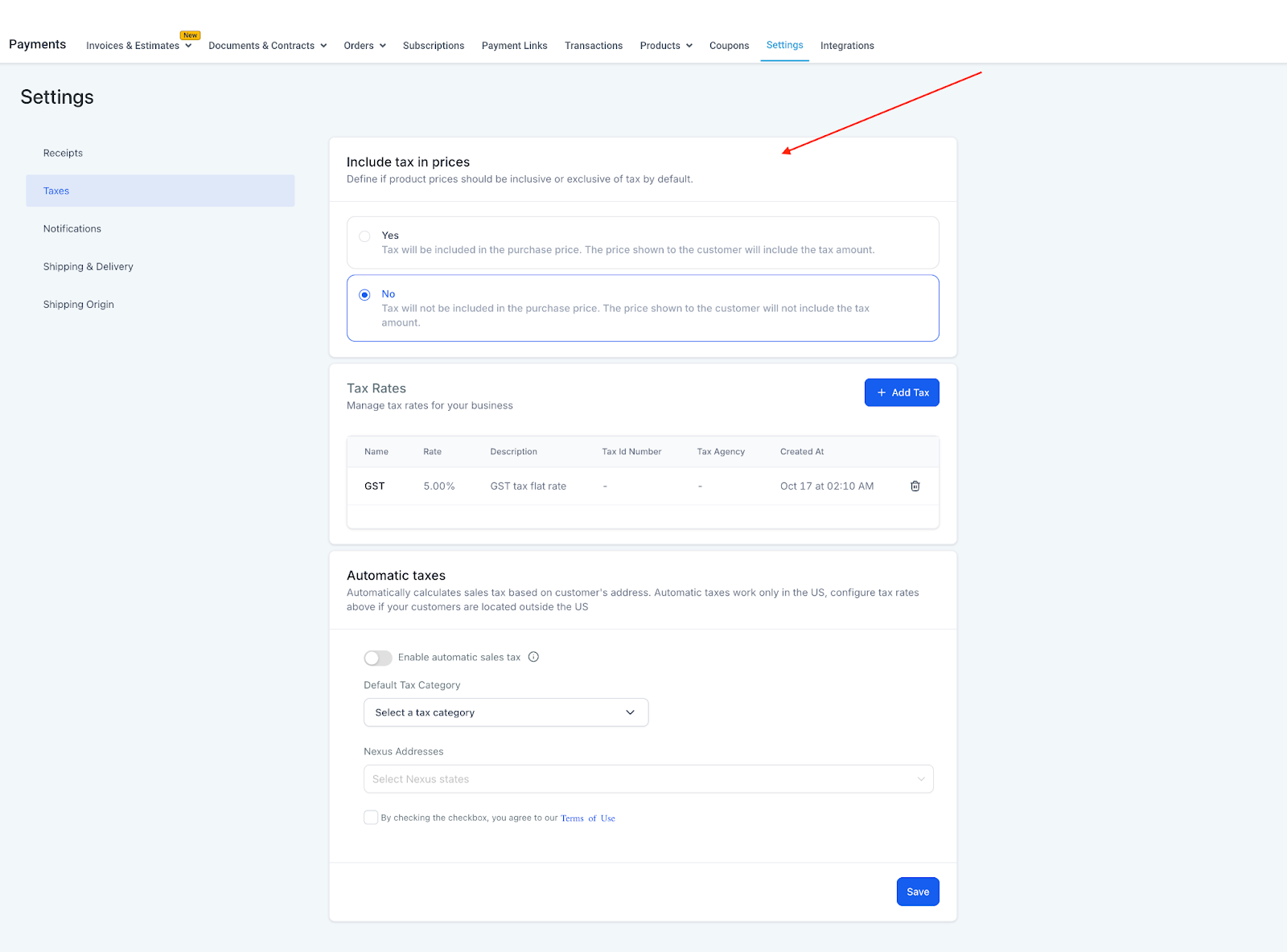
Pro Tip: If you haven't set this yet, Enrollio defaults to tax exclusive pricing. All existing products will follow your global setting unless you override them individually.
Setting Tax Preference Per Product
When creating or editing a product, you have three options:
- Follow Global Settings — Use whatever you set in Payments Settings
- Tax Inclusive — Price includes tax for this product only
- Tax Exclusive — Tax added at checkout for this product only
To change this for a specific product:
- Go to Payments → Products
- Click the product you want to edit
- Scroll to "Include tax in prices"
- Choose your preference
- Click Save Product
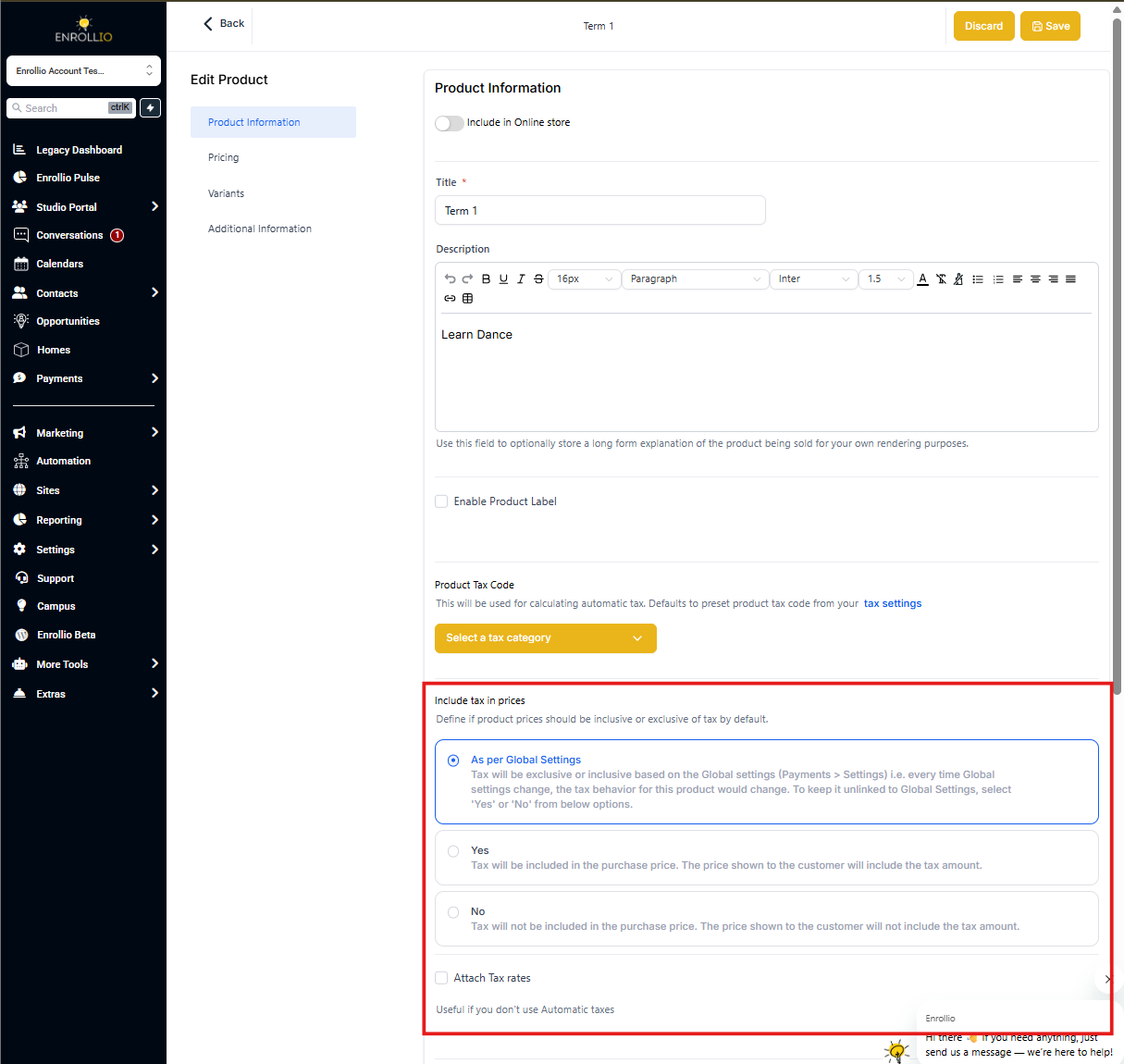
Note: Once you set a product to tax inclusive or exclusive (instead of following global settings), it won't change even if you update your global tax settings later.
How Families See Tax
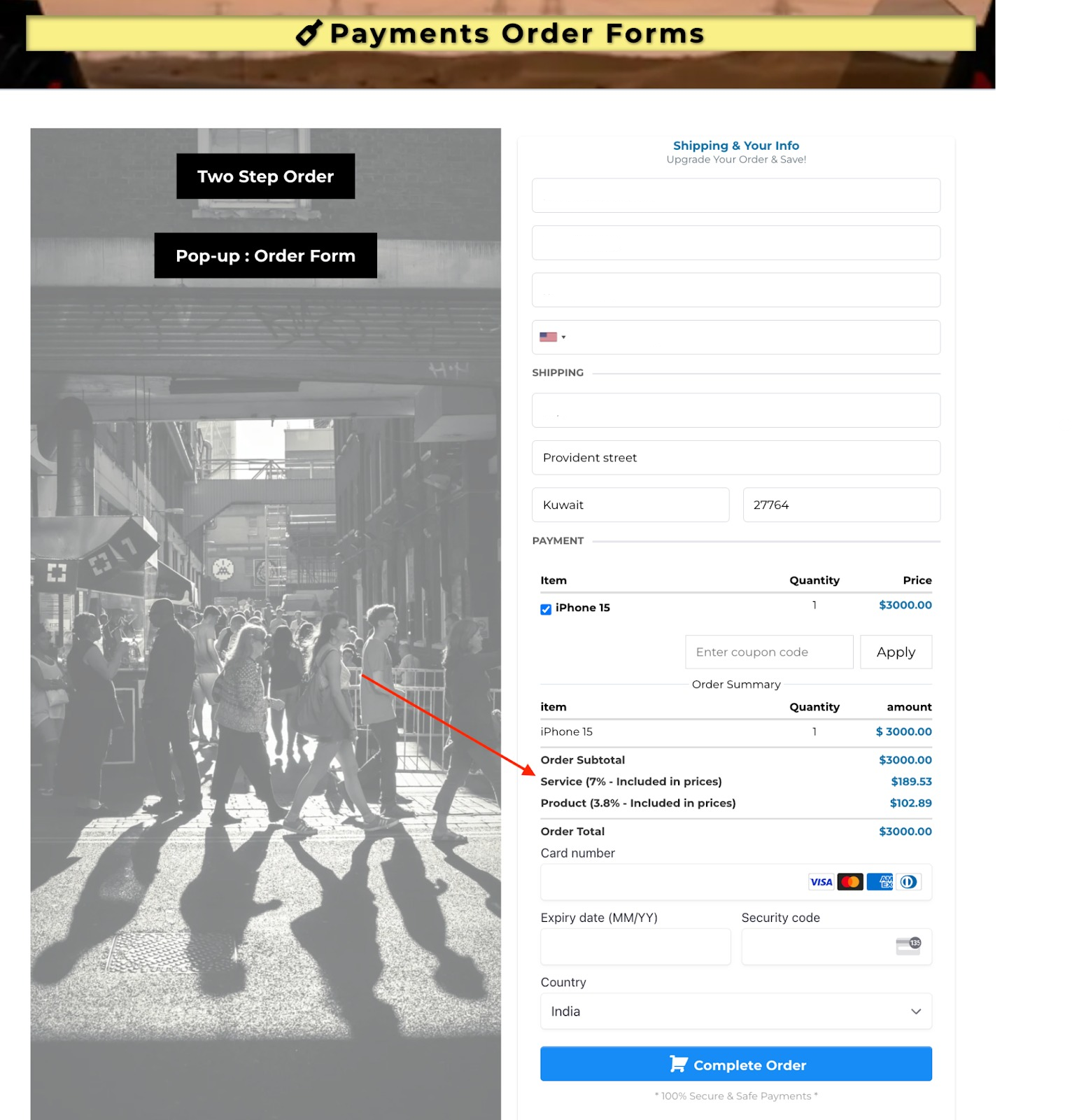
On Order Forms
Tax Exclusive: Families see the base price, then tax is added as a separate line item before the total.
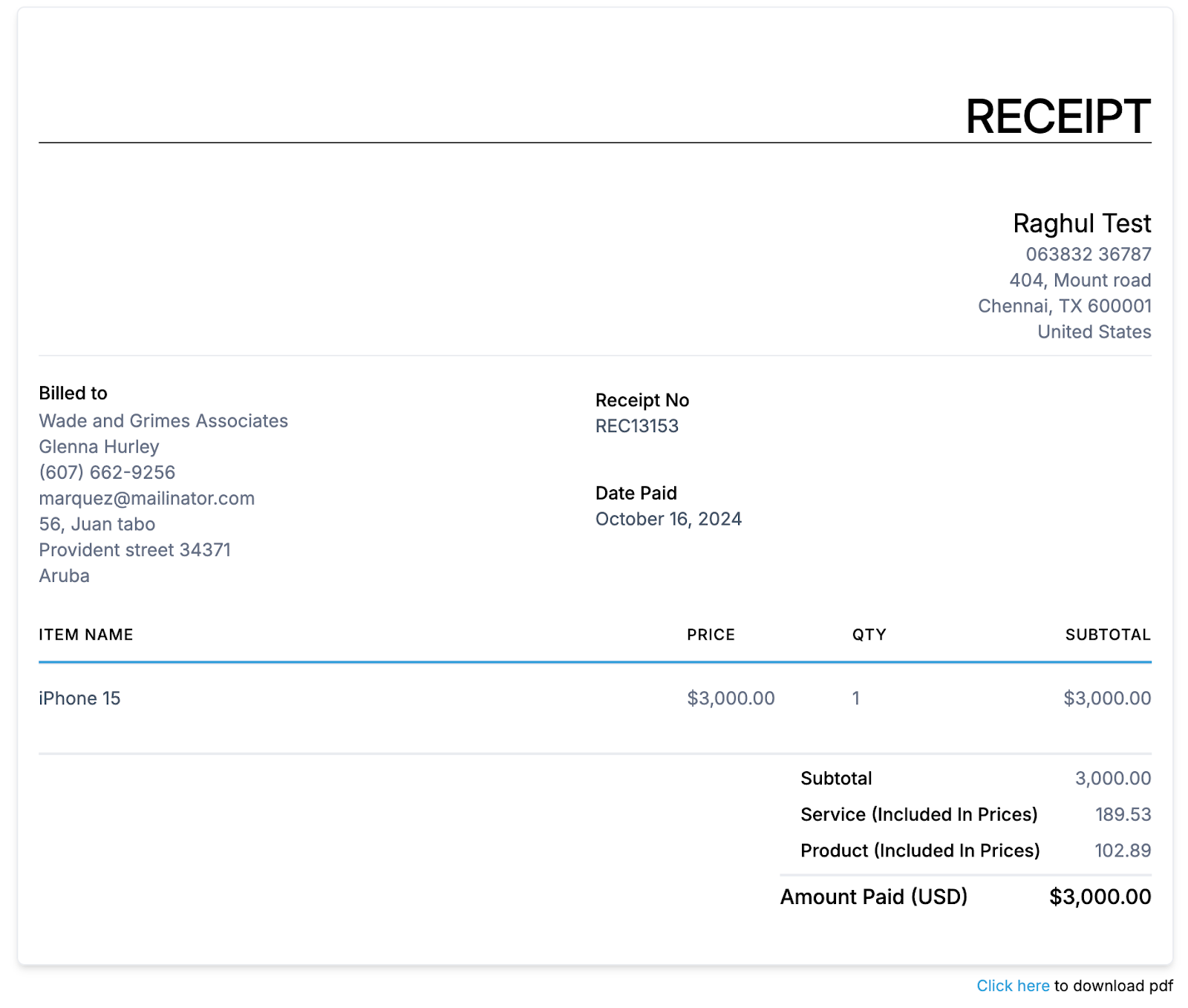
Tax Inclusive: Families see one price that already includes tax. A note may show "(includes tax)" for clarity.
On Invoices and Order Summaries
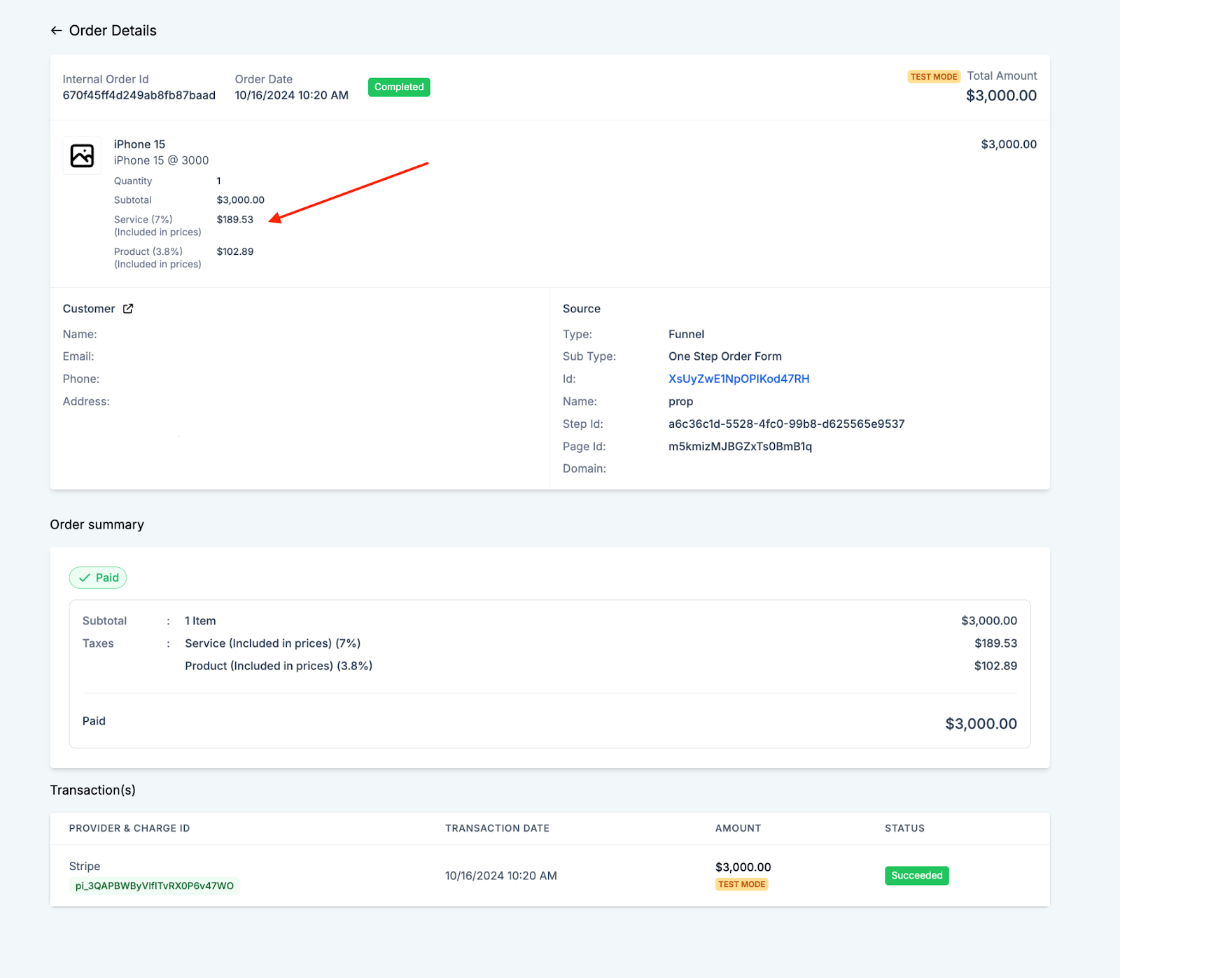
The invoice will clearly show whether tax is included in the price or added separately, along with the tax rate applied.
On Receipts
Receipts display the same tax information as invoices, making it easy for families to see exactly what they paid and any tax collected.
Common Questions
Can I switch between tax models after I'm already set up?
Yes, you can switch anytime. However, changing your tax model may affect existing invoices and recurring tuition payments. Review any active enrollments and outstanding invoices before making changes.
What happens to existing subscriptions if I change my tax model?
Existing recurring payments may need manual adjustments to reflect the new pricing structure. Check your active tuition subscriptions and update them as needed to ensure correct tax amounts.
Can I use tax inclusive for some products and tax exclusive for others?
Yes. While you set a global default, you can override it for individual products. For example, you might show tuition as tax inclusive but registration fees as tax exclusive.
How are discounts applied with tax-inclusive pricing?
With tax-inclusive pricing, discounts apply to the total price (which already includes tax). The final tax is recalculated based on the discounted amount.
With tax-exclusive pricing, discounts apply only to the base price before tax is added.
Can I manually adjust tax on a specific invoice?
Yes, you can manually adjust tax amounts on individual invoices. Keep in mind this won't change your automated tax rules or location settings.
How does Enrollio handle tax for families in different regions?
Enrollio uses region-specific tax rates based on the family's location. If you serve families across different tax jurisdictions, make sure your tax zones are properly configured in Payments Settings.
With tax-inclusive pricing, the total price stays the same but the tax portion adjusts based on the family's location.
Pro Tip: If you operate in multiple states or regions with different tax rates, tax-exclusive pricing may be simpler to manage.