
Overview
Enrollio's Quiz Builder includes powerful tools for customizing result pages — with drag-and-drop section management, templates, visibility controls, and a unified 0–100 scoring system. These features make it easy to create interactive quizzes for families, like "Find Your Perfect Program" or "Is Your Child Ready for Preschool?"
What is Section Control and Global Scoring?
Section Control lets you organize result pages visually using a left-side panel. You can add, reorder, hide, or delete sections without rebuilding your entire quiz.
Global Score Tiers use a standardized 0–100 percentage scale, so every quiz scores consistently. This makes it easy to trigger automations based on results — like sending follow-up texts to families who score in certain ranges.
Key Benefits
- Centralized section management: Navigate between all result page sections from one panel
- Drag-and-drop editing: Reorder quiz elements instantly without rebuilding
- Prebuilt section templates: Add formatted blocks like "Overall Score" or "Call to Action" in one click
- Visibility toggle: Hide sections from families while keeping their configuration
- Normalized scoring: All results follow the same 0–100 scale for reliable automations
How to Set Up Your Quiz
1. Access the Quiz Builder
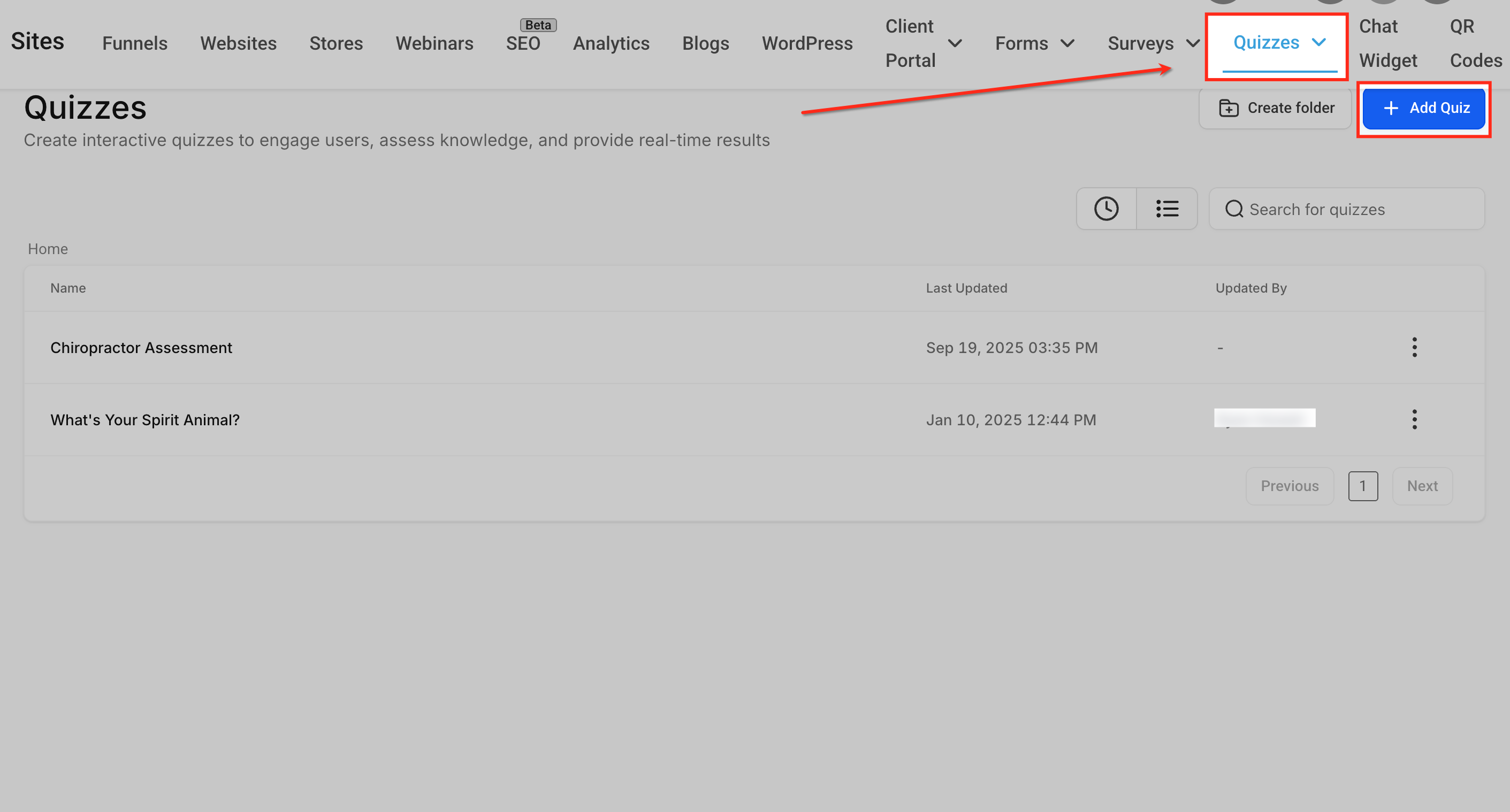
- Navigate to Sites → Quizzes
- Click + Add Quiz
2. Use Templates to Speed Up Creation
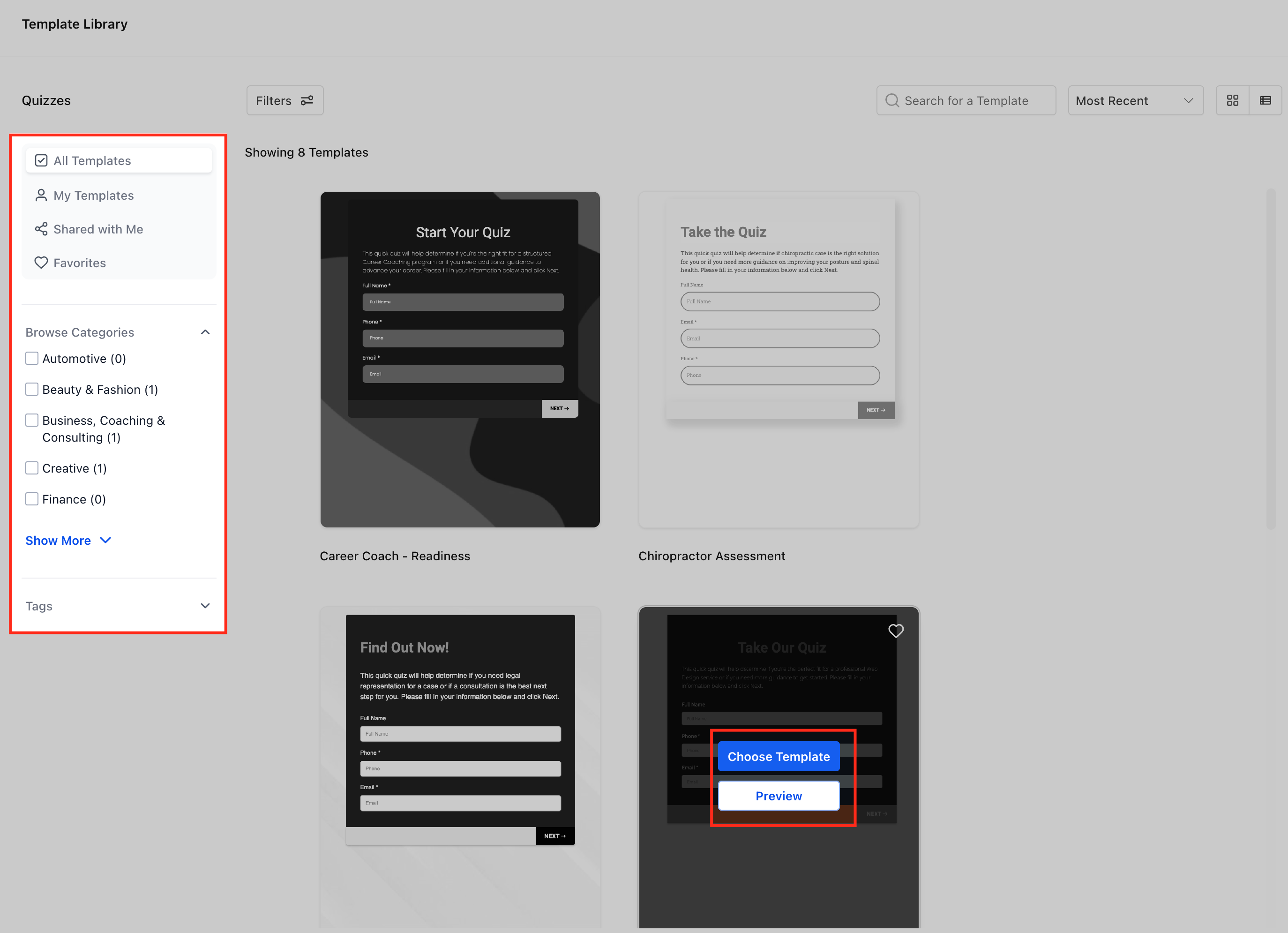
Templates let you insert pre-designed blocks like Overall Score, Category Score, or Call-to-Action sections that automatically match your quiz design.
- In the quiz builder, browse the Template Library
- Hover over your preferred template
- Click Choose Template to apply it
3. Access the Result Template
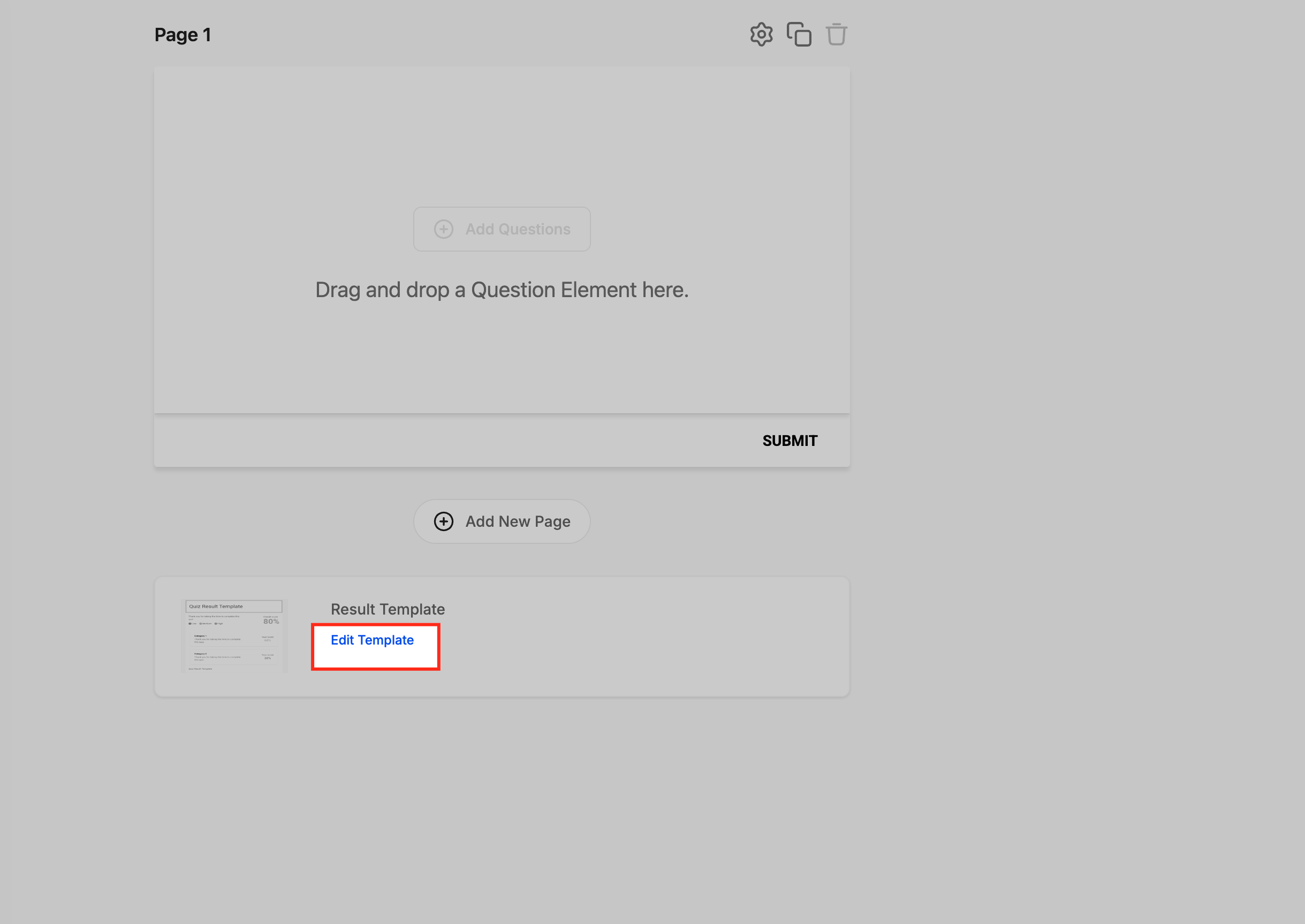
- At the bottom of the quiz builder, locate the "Result Template" card
- Click Edit Template to open the Result Page customization view
This is where you'll manage sections, reordering, and score tiers.
Managing Sections
Reorder Sections with Drag-and-Drop
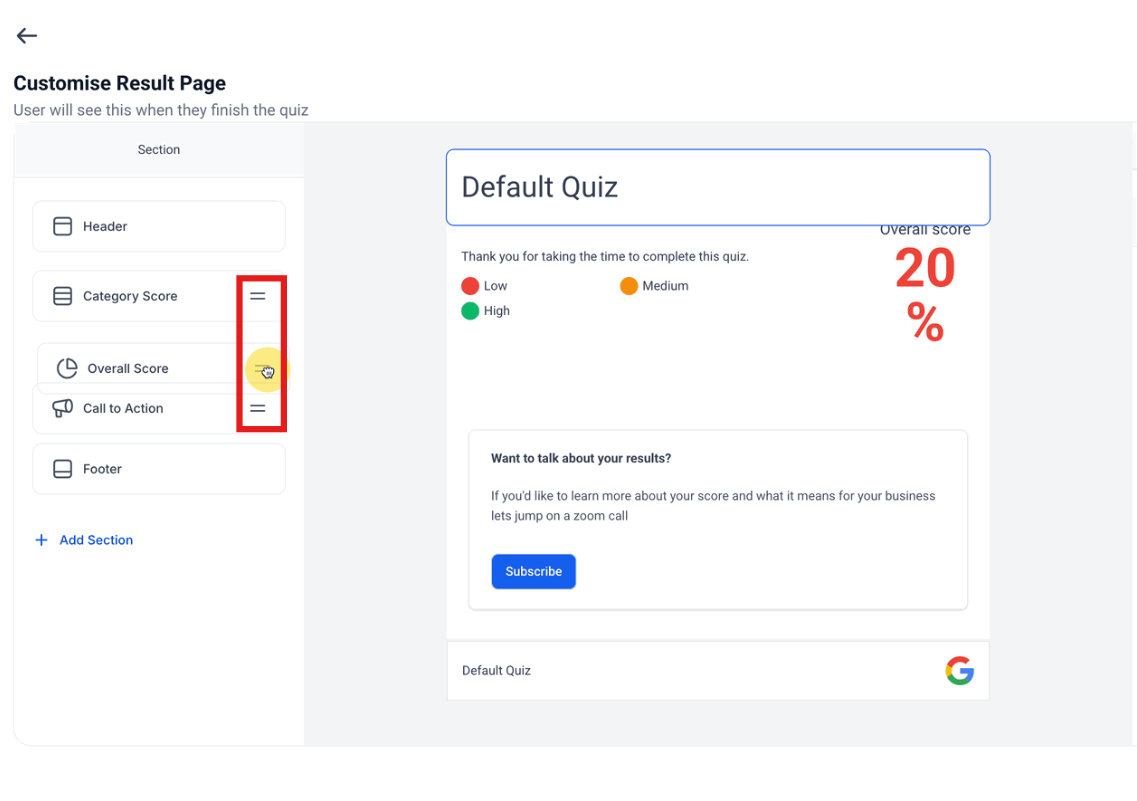
The Section Visibility panel on the left shows every section on your result page. You can reorder them instantly without rebuilding.
- Hover over a section name to reveal the drag handle
- Click and hold the handle
- Move the section to your desired position
- Release to drop — the preview updates immediately
Hide or Delete Sections
Keep your result pages clean and focused by hiding or removing sections.
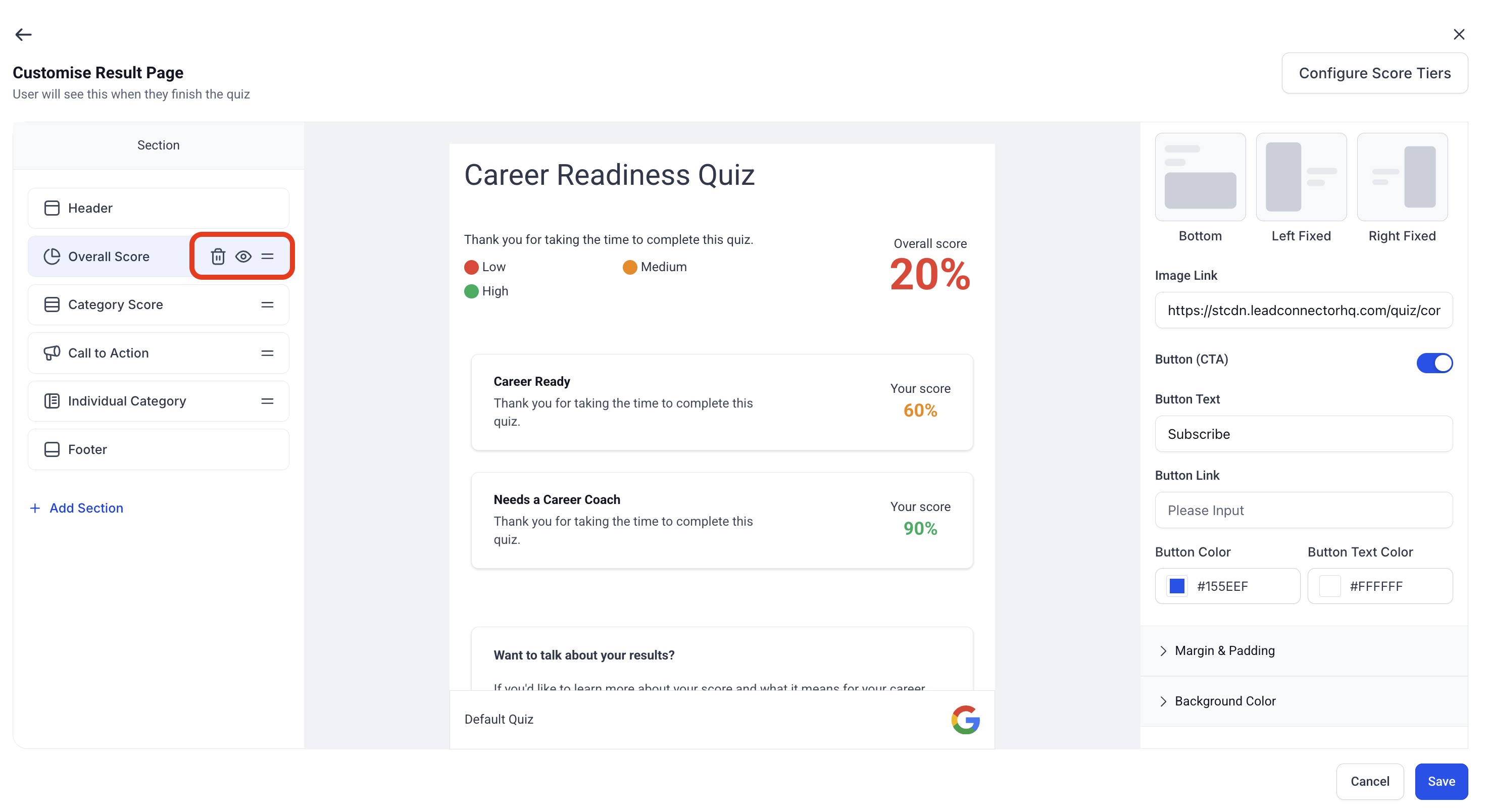
Hiding a section keeps its configuration intact while removing it from what families see. Deleting removes it completely.
- In the Section panel, locate the section you want to modify
- Click the eye icon to toggle visibility on or off
- Click the trash icon to permanently delete it
Hidden sections appear grayed out in the Section panel.
Configure Global Score Tiers
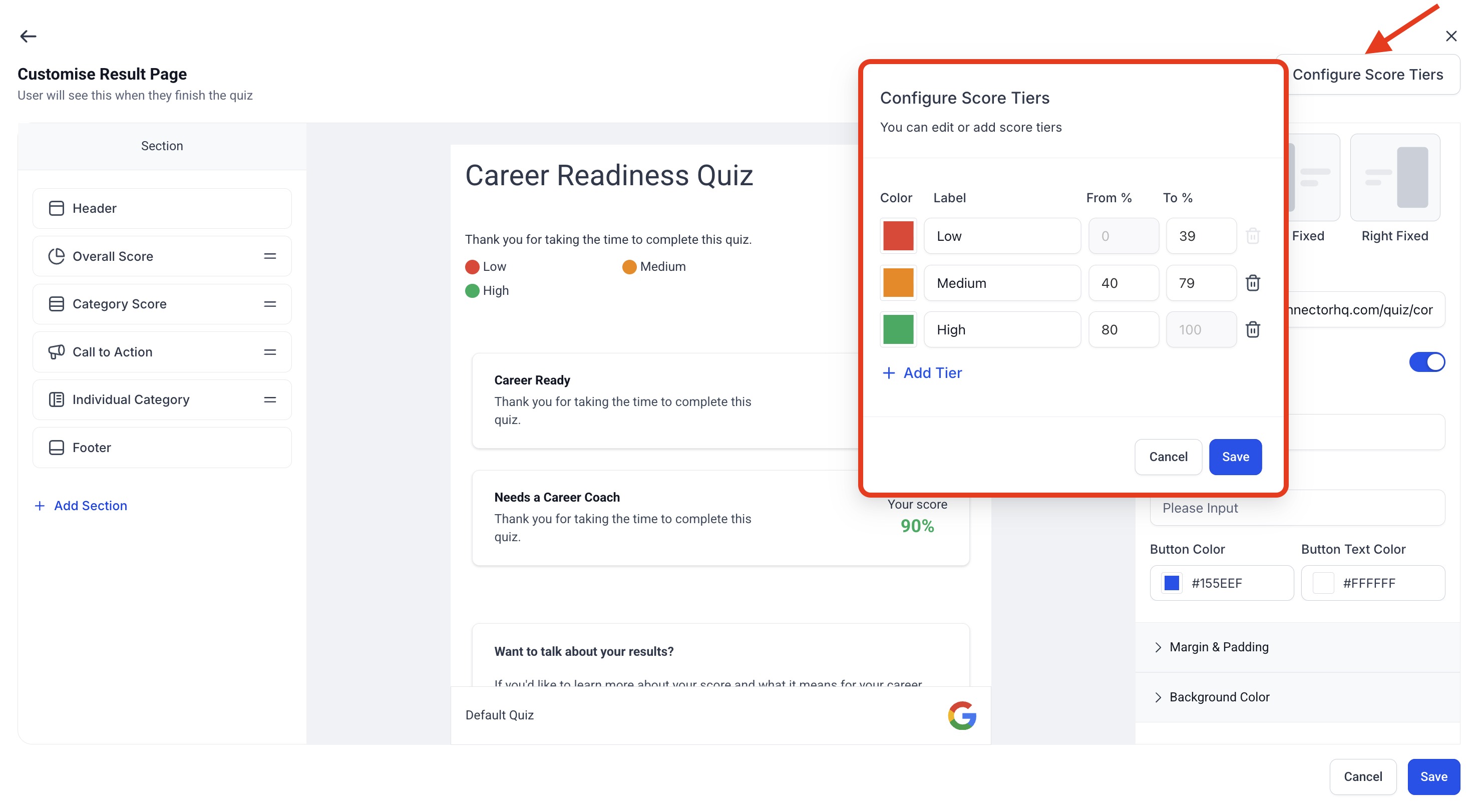
Score Tiers define ranges (Low, Medium, High) based on percentages. This ensures every quiz result is measured consistently and enables you to trigger automations based on scores.
Set Up Score Tiers
- Click Configure Score Tiers in the top-right of the result page editor
- Set your score labels and percentage ranges
- Each range must fall between 0–100
- Click Save to apply globally
Example:
- Low: 0–39%
- Medium: 40–79%
- High: 80–100%
Preview Your Quiz
After configuring your sections and score tiers, click Preview to verify the flow and scoring before publishing.
Using Quiz Scores in Automations
Once your score tiers are configured, you can create automations that respond to specific results.
- Navigate to Automations
- Use the "Quiz Submitted" trigger
- Filter by Overall Score Tier = Low, Medium, or High
- Add your follow-up actions (send text, email, assign to pipeline stage, etc.)
Frequently Asked Questions
Do hidden sections affect quiz scoring?
No. Hidden sections are excluded from both display and scoring.
Can I change score tier labels?
Yes. Labels are editable in the Score Tier configuration, though all values must remain between 0–100.
How are older quizzes handled?
Existing quizzes are automatically updated to use normalized scoring. We recommend reviewing your tier ranges after the update.
Can automations trigger from specific score tiers?
Yes. Use the "Quiz Submitted" trigger and filter by Overall Score Tier (Low, Medium, or High).
What happens to submissions if I delete a section?
Deleting affects future quiz takers only. Historical data remains intact.
Is drag-and-drop available on mobile?
Section reordering currently works on desktop browsers. Mobile support is coming soon.
Can I hide multiple sections at once?
Yes. Hold Shift (or Cmd/Ctrl) to multi-select and toggle visibility for multiple sections.
Related Articles
- Quiz Builder Guide
- Assign Categories & Scoring in Quizzes
- Quiz Template Library
- Setting Up Personality-Style Quizzes
- Build the Result Page from Scratch