
What's New?
We're excited to introduce the Quick Add Fields & Edit Custom Fields feature in Enrollio's form and survey builder. This enhancement streamlines how you add and manage custom fields, making your enrollment process more efficient.
Please Note: When a custom field contains the word "score" in its name, Enrollio automatically interprets it as a numeric scoring element. This happens across forms, surveys, and quizzes, and is built into how the platform identifies scoring elements.
Quick Add Custom Fields
Previously, adding custom fields required multiple steps. Now, you can create custom fields by simply dragging and dropping them into your form.
Draggable Custom Field Types
You can now drag and drop these field types directly into your forms:
- Radio Select (Single and Multi)
- Dropdown
- Checkbox
- File Upload
- Single Line Text
- Multi-line Textbox
- List
- Date Picker
- Number
- Monetary
Customization Options
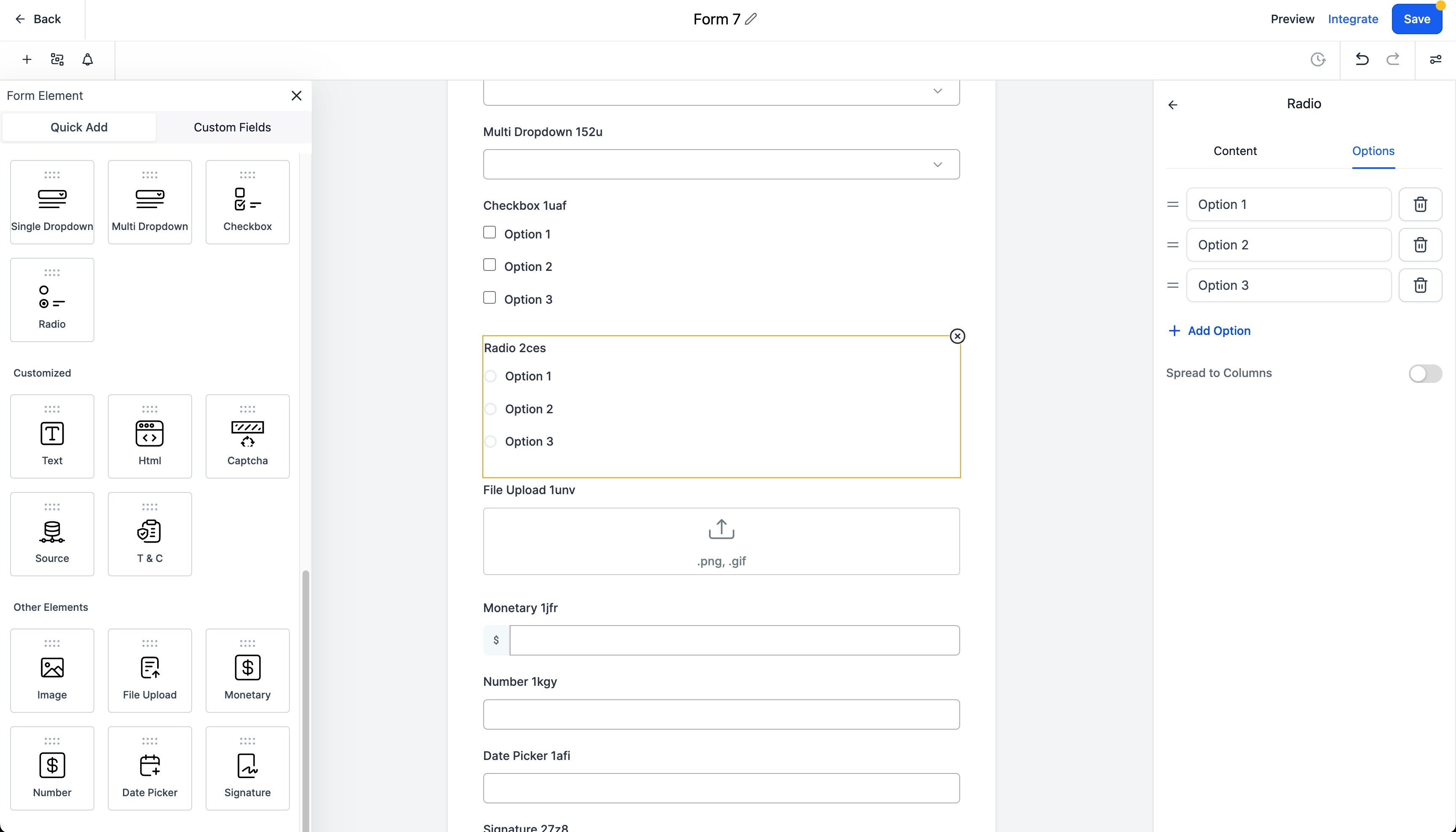
Customize options for dropdowns, radio buttons, checkboxes, and file upload fields. You can set the custom field name and unique key to match your enrollment needs.
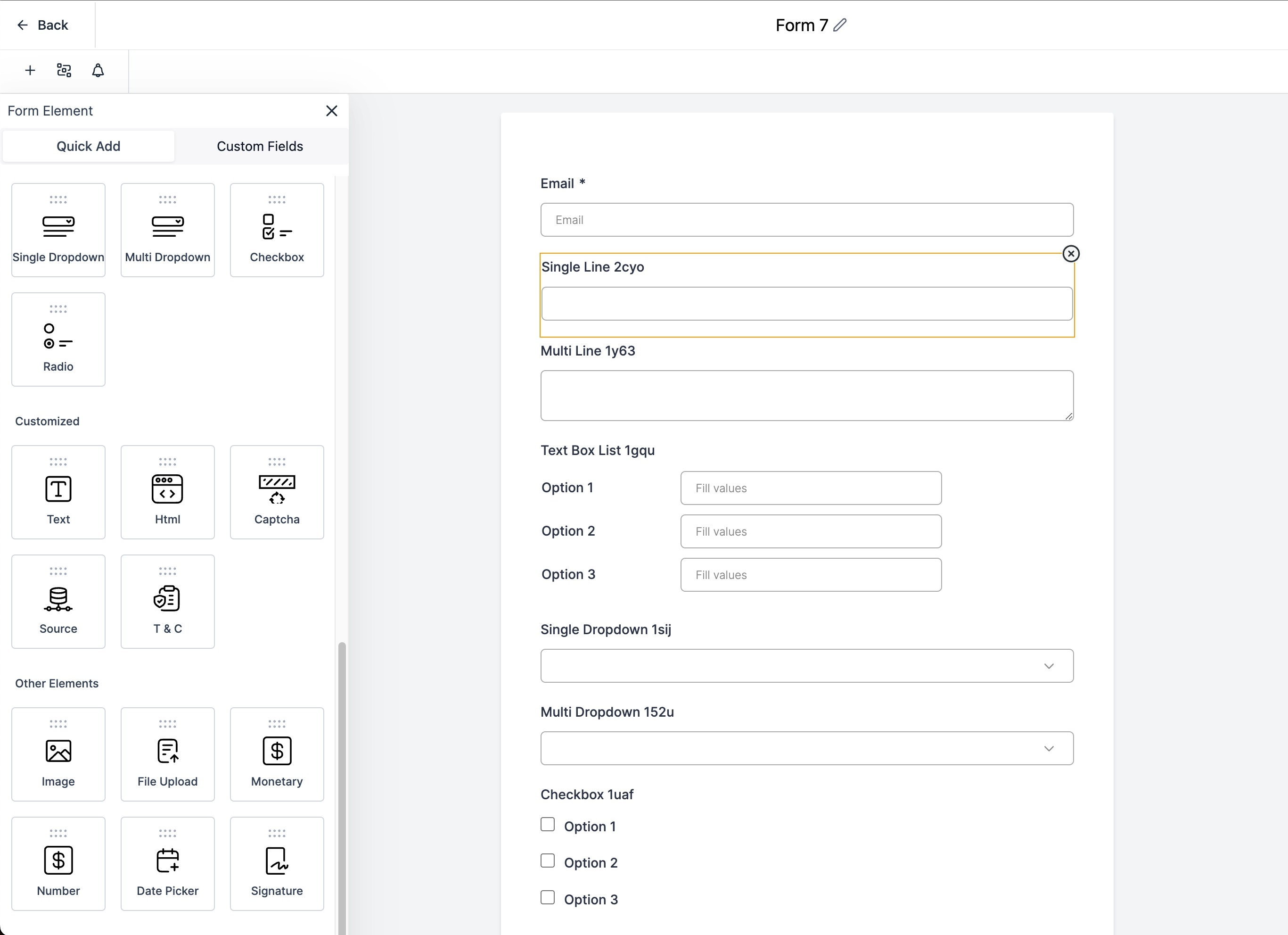
Simplified Workflow
When you save your form or survey, Enrollio automatically saves the custom fields, making them available across your entire platform — in other forms, parent records, and reports.
Easy Editing
Edit properties of newly created or existing custom fields, including customizing options (editing, ordering, and deleting), and file input settings.
Field Locking
After you save your form or survey, the custom field name and unique key are locked to protect data integrity. You can edit these from Settings Custom Fields if needed.
How It Works
Add a Custom Field
- Open your form or survey in the builder
- Drag the desired field type from the left panel into your form
- Customize the field options (for dropdowns, radio buttons, checkboxes, or file uploads)
- Set the custom field name and unique key
- Click Save to make the field available across Enrollio
Edit a Custom Field
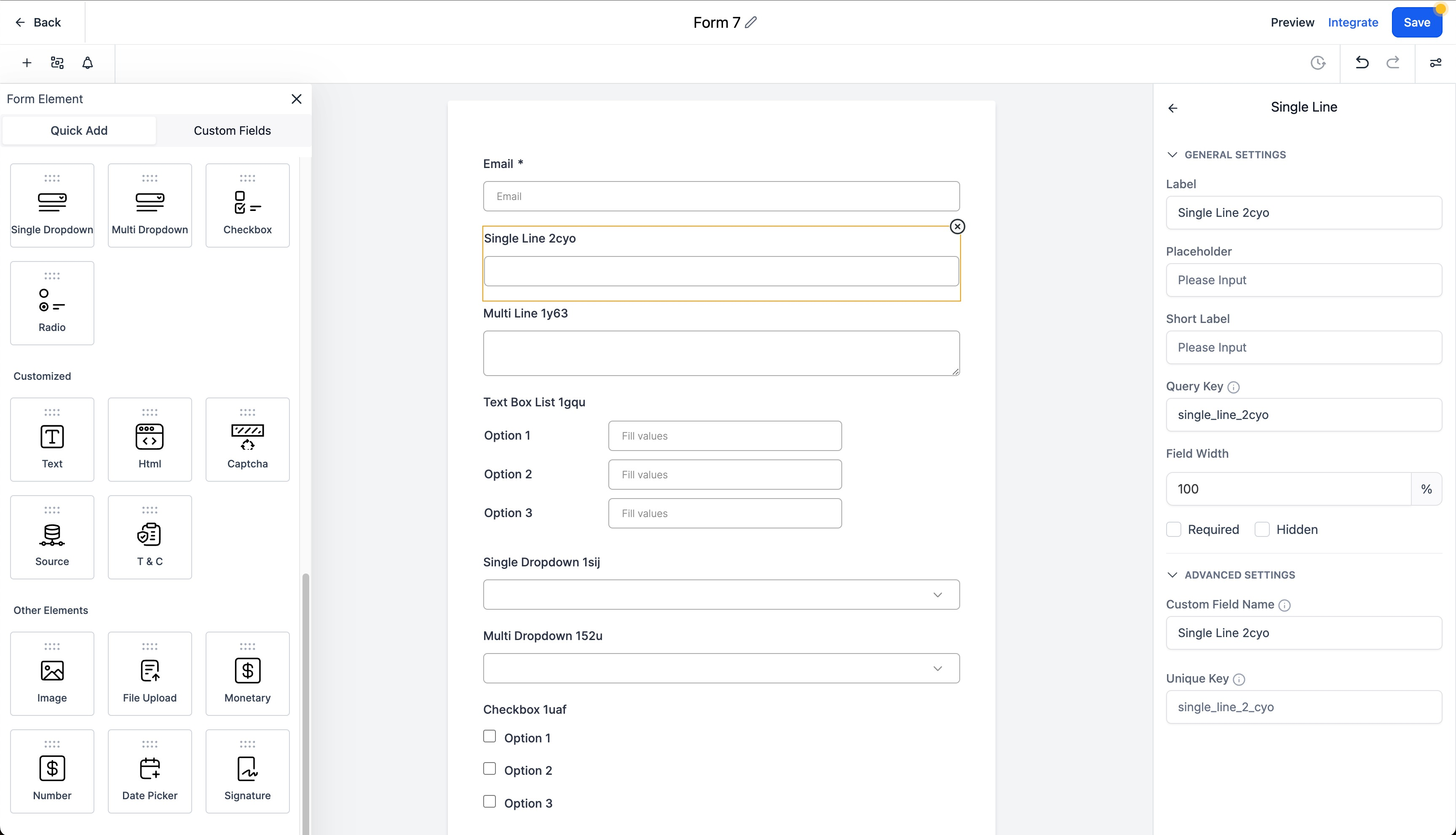
- Click on the custom field within your form or survey builder
- A settings panel appears on the right side
- Use the General Settings and Advanced Settings sections to make your changes
- Click Save to apply your updates
Why This Feature?
The Quick Add Custom Fields feature saves time and reduces complexity when building enrollment forms and parent surveys. By letting you add fields on-the-fly, you can build forms faster and customize your enrollment process without leaving the builder.
Removing Outdated or Irrelevant Custom Fields
If you're seeing outdated custom fields in your form builder — even after removing them from a form — they may still exist in your platform's custom fields list.
To fully remove them:
- Go to Settings Custom Fields
- Find the outdated field in the list
- Click the Trash icon to permanently delete it
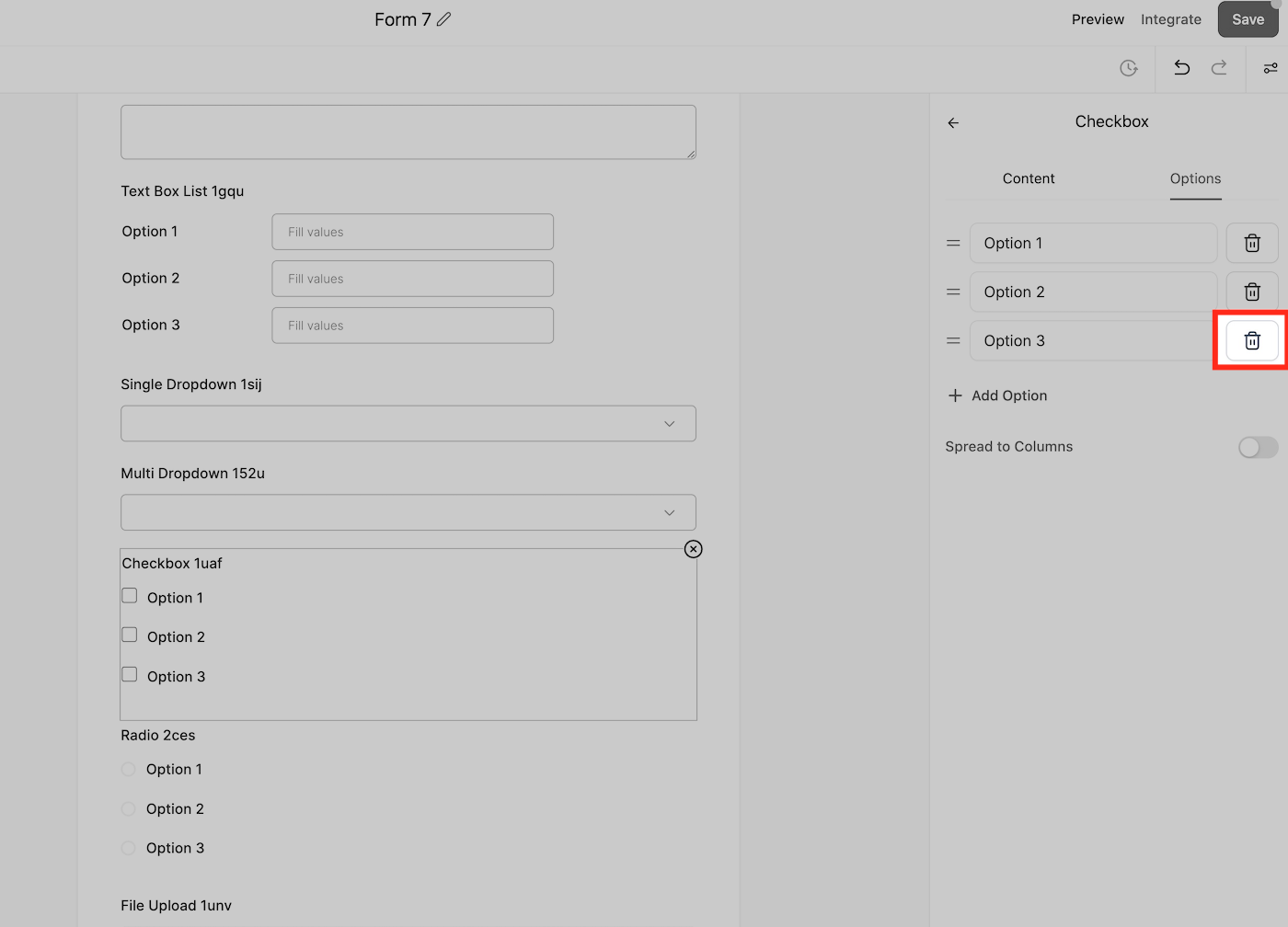
⚠️ Warning: Deleting a custom field from this section removes it from all forms, surveys, and parent records where it was used. This action cannot be undone.