
Conditional Logic in Forms and Surveys
Conditional Logic helps you create smarter, more dynamic enrollment forms and parent surveys. Show or hide questions, redirect families to different pages, display custom messages, or disqualify inquiries — all based on how someone answers.
This guide shows you how to use Conditional Logic, what's new in the latest version, and which form fields work with it.
What Is Conditional Logic?
Conditional Logic automates what happens inside your form or survey based on parent responses. You can set up conditions like:
- If a parent answers "No," show a helpful message
- If their preferred start date is outside your availability, redirect them to your waitlist
- If they select a specific program, show relevant follow-up questions
- In surveys, jump families to different questions based on their answers
This creates a more personalized experience and helps you collect exactly the information you need.
What's New in the Latest Version
We've made Conditional Logic simpler and more powerful:
- Streamlined 3-Step Builder: Select Field → Choose Condition → Enter Value
- "Between" Operator: Works with numbers, dates, scores, and monetary fields
- Survey Branching: Jump families to specific questions based on their answers
- More Field Types: Now supports checkboxes, multi-select dropdowns, terms & conditions, file uploads, and signature fields
- Show/Hide Expanded: Control visibility of payment fields, text blocks, images, and more
- Better Organization: Filter rules by field or question in surveys
- Loop Protection: Prevents circular logic that could confuse families
Available Actions
When you open Conditional Logic, you'll see four types of actions you can create:
| Action | What It Does |
|---|---|
| Redirect to URL | Send families to a specific webpage after they submit |
| Display Custom Message | Show a personalized message based on their answers |
| Disqualify | Automatically stop form submission for families who don't meet your criteria |
| Show/Hide Fields | Control which questions appear or disappear as they fill out the form |
All conditions run from top to bottom. When multiple rules match, later rules override earlier ones for Show/Hide actions.
How to Set Up Conditional Logic
You can add and manage rules directly inside your Form or Survey Builder.
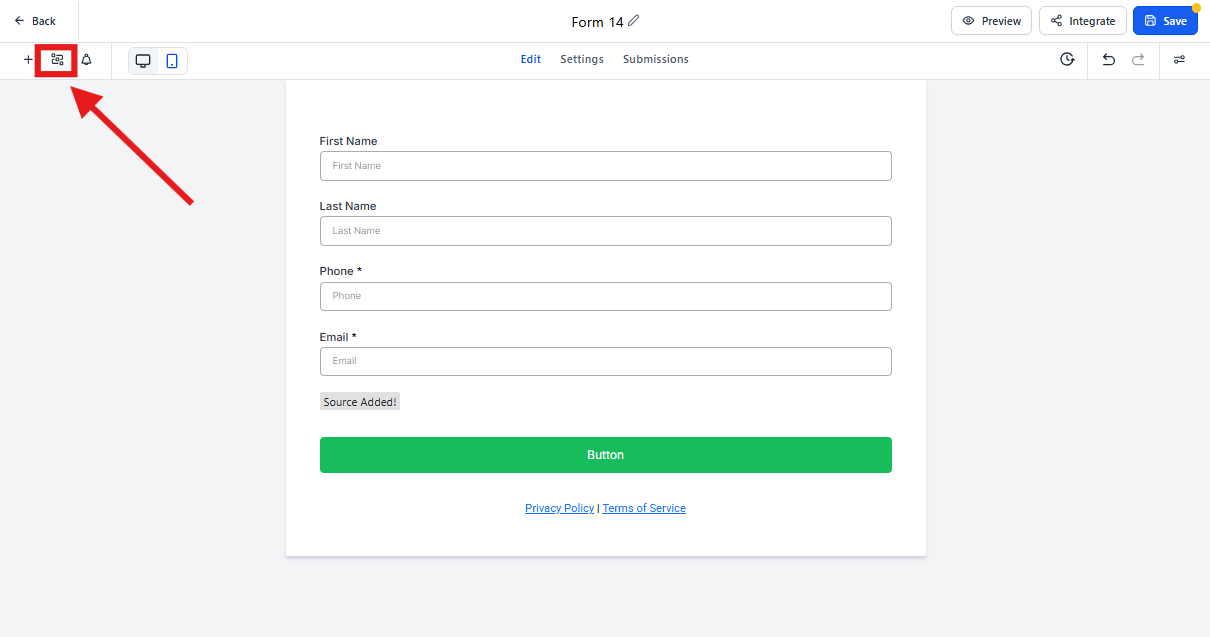
1. Open Conditional Logic
In the builder, click Conditional Logic in the top bar.
For surveys, you can also open it from a question's sidebar.
2. Add a New Condition
Click Add New Condition.
Choose an action: Redirect, Display Message, Disqualify, or Show/Hide.
The logic builder opens for that action.
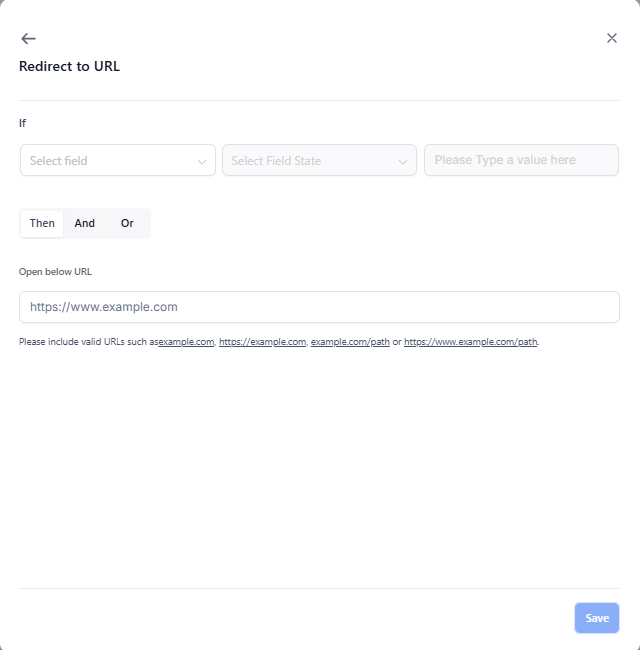
3. Build Your Rule
Follow the guided 3-step flow:
- Select Field – Choose which form field or survey question to base the rule on
- Select Condition – Pick how to evaluate it (equals, contains, is empty, etc.)
- Provide a Value – Enter what to match against (text, number, or date)
You can add multiple conditions using AND or OR connectors.
Pro Tip: Some operators like "is empty" or "is checked" don't need a value — just pick the condition and you're done.
4. Choose What Happens
Depending on your action type:
- Redirect: Add a valid URL (like https://yourdomain.com/waitlist)
- Display Message: Write the message families will see
- Show/Hide Fields: Select which questions appear or disappear
- Disqualify: The form will stop submission when the condition is met
- Jump To (Surveys only): Choose which question to show next
5. Save Your Rule
Click Save when you're done. The button only activates after all required inputs are filled in correctly.
The system automatically checks for missing values and prevents logic loops.
Remember: Rules run from top to bottom, and later matches override earlier ones.
Supported Fields
Conditional Logic works with most form field types:
Personal Information
- First Name
- Last Name
- Phone
Form Fields
- Single Line Text
- Multi Line Text
- Number
- Monetary
- Score
- Date Picker
- Dropdown (Single)
- Dropdown (Multi)
- Radio Select
- Checkbox
- Terms & Conditions
- File Upload
- Signature
Content & Payment Elements
- Text
- HTML
- Image
- Payment
Note: Calendar booking fields are not yet supported.
Supported Conditions by Field Type
| Field Type | Available Conditions |
|---|---|
| Text (single/multi line) | equal to, not equal to, contains, does not contain, starts with, ends with, is empty, is filled |
| Phone / Email | equal to, not equal to, contains, starts with, ends with, is empty, is filled |
| Number / Score / Monetary | equal to, not equal to, greater than, less than, between, is empty, is filled |
| Date | equal to, before, after, between, is empty, is filled |
| Dropdown (single) | is equal to, is not equal to, is empty, is filled |
| Multi Dropdown / Checkbox | is equal to {Option}, is not equal to {Option}, is empty, is filled |
| Terms & Conditions | is checked, is not checked |
| File Upload / Signature | is empty, is filled |
Survey-Specific Features
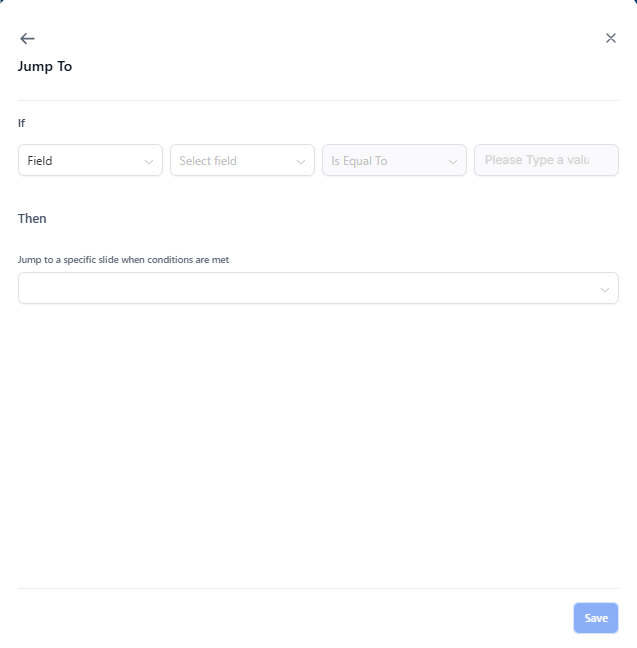
Jump To Logic
In surveys, you can send families to different questions based on their answers:
- IF Basis: Choose a field or question
- THEN Action: Jump to a specific question
- When It Runs: When the parent clicks "Next"
- Multiple Matches: If several Jump To rules match, the first one runs
- Loop Protection: The system prevents circular jumps automatically
Filter Rules
In surveys, you can filter your rules by:
- Field: See all rules related to a specific question
- Question: See all rules that affect or belong to that question
This makes it easier to manage complex surveys with multiple branching paths.
How Rules Work
- Rules execute from top to bottom in the order you create them
- For Redirect, Display Message, and Disqualify actions, only the first matching rule runs
- For Show/Hide actions, later matches override earlier ones
- For multi-select fields, "is equal to {Option}" checks if that specific option is selected
- Text comparisons ignore capitalization and extra spaces
- Dates use your account's timezone
Tips for Better Forms
Use "Between" for ranges: Perfect for asking about enrollment dates, number of children, or budget ranges. The range is inclusive on both ends.
Try date presets: Use shortcuts like "Today" or "This Week" instead of entering specific dates.
Always preview: Test your form or survey after adding logic to make sure it works the way you expect.
Keep it simple: Too many conditional rules can make forms confusing. Start with the most important branches first.
Frequently Asked Questions
Can I mix AND and OR in the same rule?
No. Each rule must use either AND or OR — you can't combine them in a single rule. If you need complex logic, create multiple rules instead.
Can I have multiple rules in the same form?
Yes. You can create as many rules as you need. Each rule works independently.
What happens if more than one condition matches?
For redirect, message, and disqualify actions, the first matching rule wins. For Show/Hide actions, later rules override earlier ones.
Can I create loops in Jump To logic?
No. The builder prevents circular jumps and shows an error message if it detects a loop. This protects families from getting stuck in your survey.
Can I use Conditional Logic with the "Radio Other" option?
Yes, but the "Radio Other" option only appears if you've enabled it for that radio field in the builder.
Related Articles
- Create Forms & Surveys Inside the Site Builder
- Math Calculations in Forms & Surveys
- Where Do Form Responses Show Up?
- Gain Consent With Custom Checkboxes (GDPR Compliance)