
Sometimes you need to keep an enrollment page or landing page private — maybe it's a draft, a special campaign for current families only, or a testing page. Here's how to tell search engines not to index it.
Why Would I Want to Do This?
Blocking search engines makes sense when you're:
- Testing a new enrollment page before launch
- Running a private campaign for existing families
- Creating duplicate pages for A/B testing
- Building a draft that's not ready for public viewing
Block All Search Engines
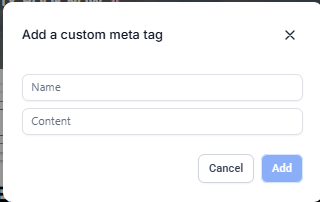
To prevent most search engines from indexing your page, add this custom meta tag:
Name: robots
Content: noindex
The HTML tag looks like this:<meta name="robots" content="noindex">
Block Only Google
If you only want to block Google specifically (while allowing other search engines), use:
Name: googlebot
Content: noindex
The HTML tag looks like this:<meta name="googlebot" content="noindex">
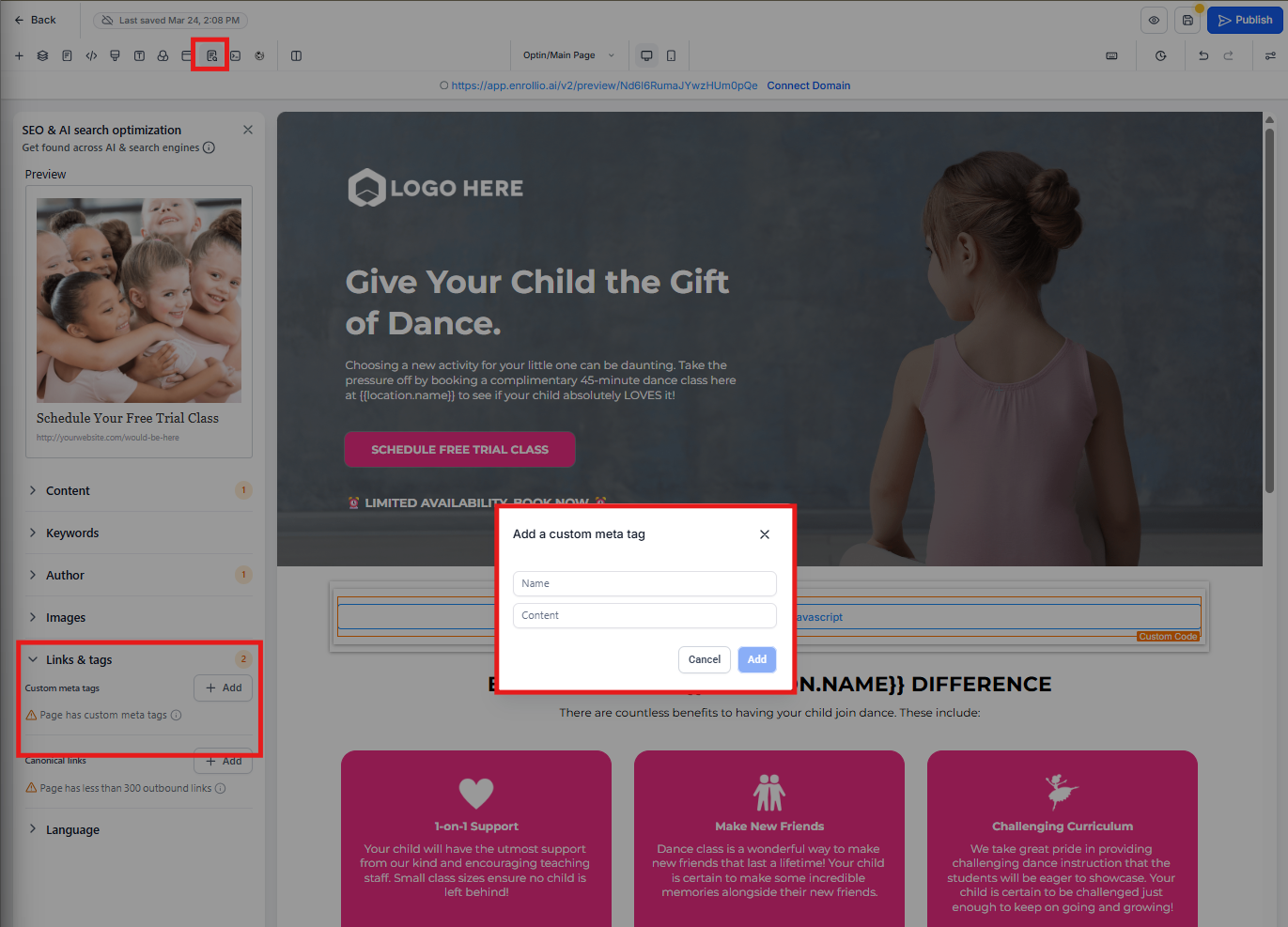
How to Add the Tag in Enrollio
- Open your enrollment page or landing page in the page builder
- Click Settings (gear icon)
- Find the Custom Code or Head Tracking Code section
- Paste the meta tag from above
- Save and publish your page
Pro Tip: Remember to remove this tag when you're ready to make your page public. Otherwise, families won't be able to find it through Google searches.
Important Notes
- Search engines respect this tag, but it's not a security feature — anyone with the direct link can still access your page
- It may take a few days for search engines to process the change and stop showing your page in results
- If you need true password protection, use a private landing page or gated content instead