
When parents are exploring your childcare program online, speed matters. A slow-loading page can mean the difference between a completed tour request and a lost enrollment opportunity.
Here's how to ensure your enrollment pages load quickly and keep families engaged.
Optimize Your Images
Images are usually the biggest culprit behind slow pages. Before uploading photos of your facility, staff, or classrooms:
- Resize images to the exact dimensions you need (don't upload a 4000px wide image if it displays at 800px)
- Compress images using a free tool like TinyPNG or Squoosh
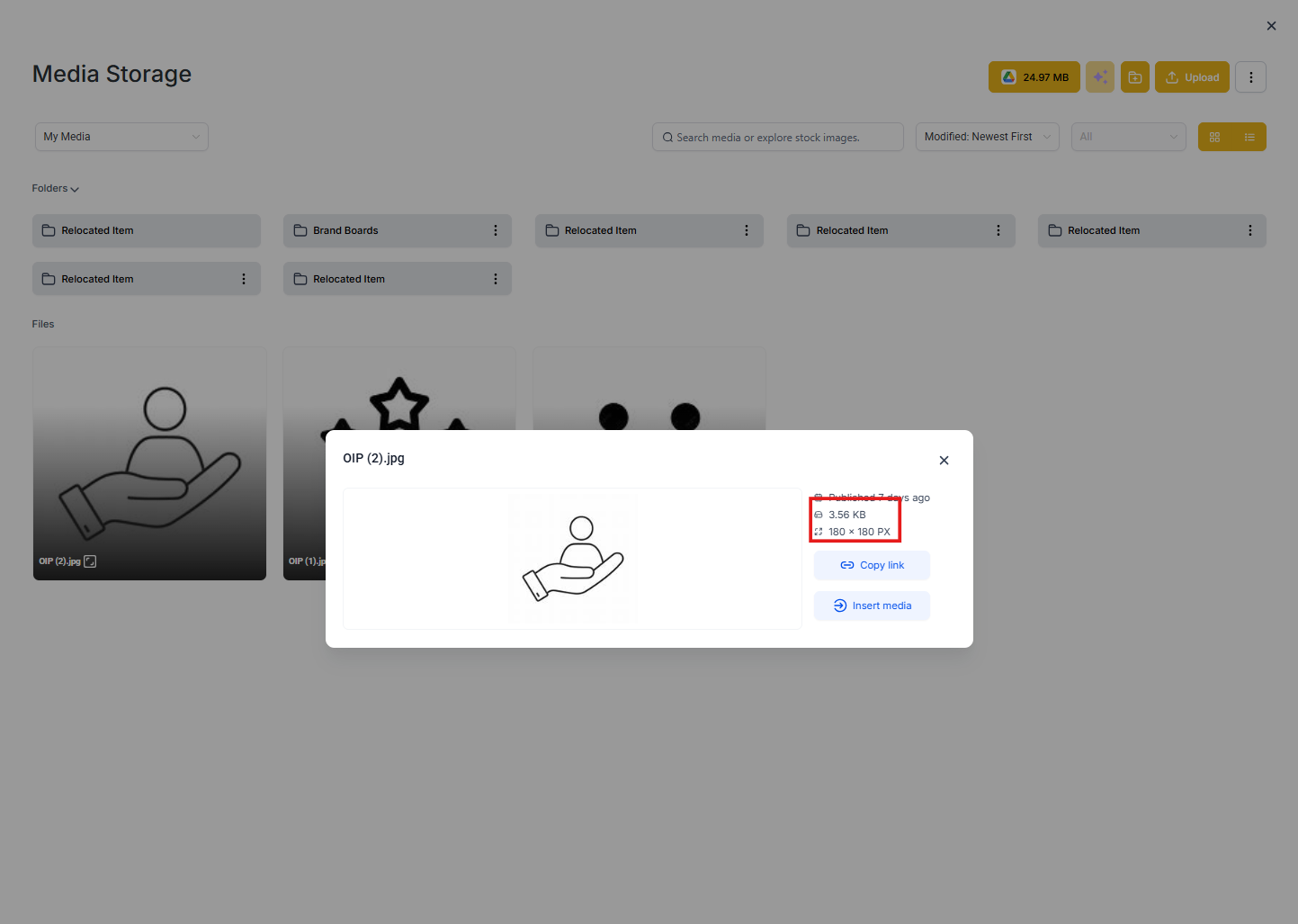
- Aim for images under 200KB each — most photos can be 50-100KB without visible quality loss
- Use JPEG for photos, PNG for graphics with text or logos
Limit Custom Code and Tracking Scripts
Every third-party script (tracking pixels, chat widgets, analytics) adds load time. While some are essential, ask yourself if you really need each one.
If you're adding custom code:
- Place tracking scripts in the footer, not the header, so content loads first
- Avoid multiple Facebook pixels or Google Analytics tags on the same page
- Test your page speed after adding any new script
Keep Your Page Structure Simple
Complex page layouts with dozens of sections slow things down. For enrollment pages, less is often more:
- Stick to 5-8 key sections per page (hero, benefits, testimonials, pricing, form)
- Use built-in Enrollio sections instead of custom HTML blocks when possible
- Avoid embedding large videos directly — link to YouTube or Vimeo instead
Test Your Page Speed
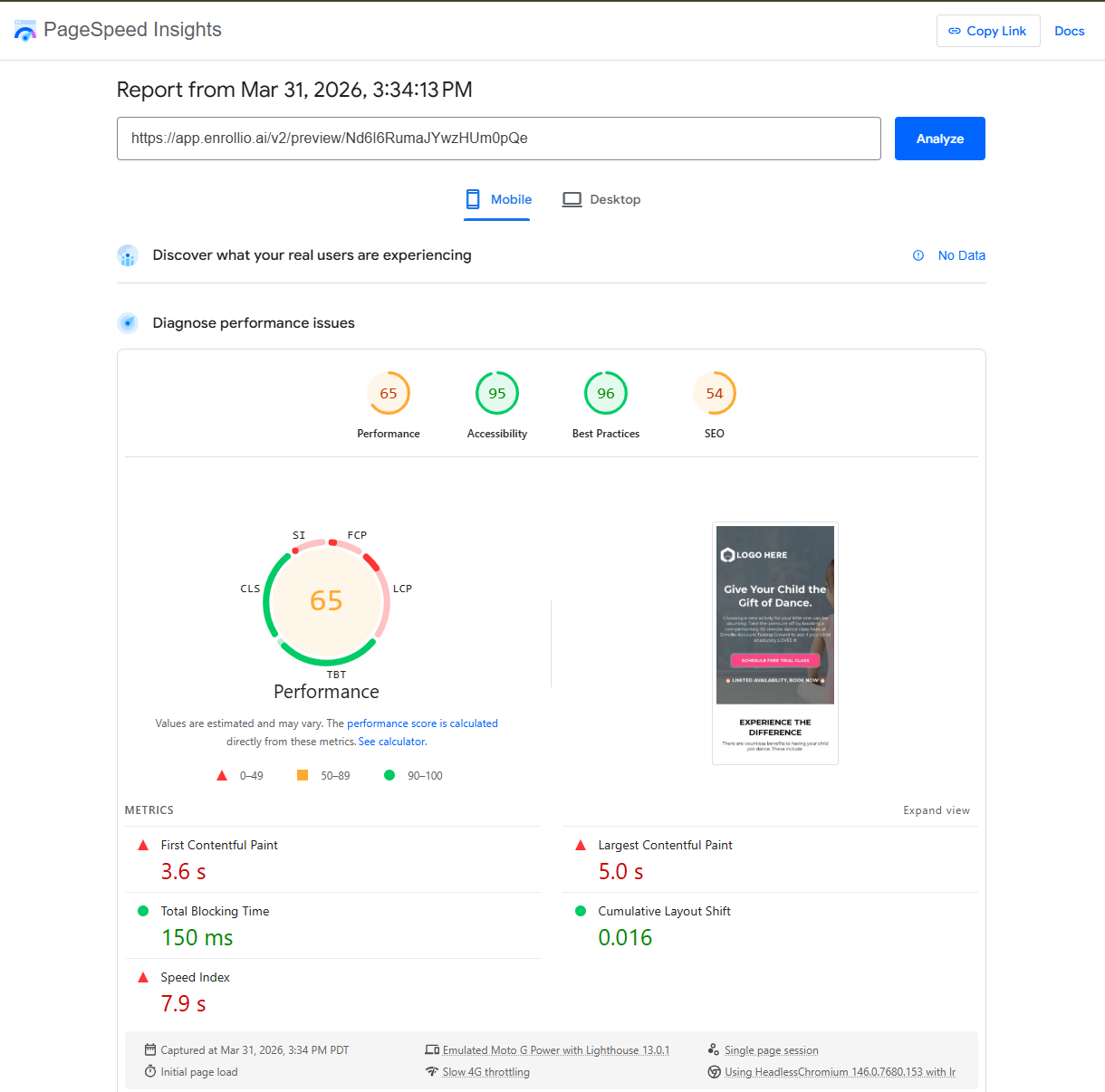
Use Google PageSpeed Insights to see how your enrollment pages perform:
- Go to pagespeed.web.dev
- Enter your enrollment page URL
- Review the mobile score (this is what matters most — parents browse on phones)
- Check the specific recommendations in the report
Aim for a mobile score above 70. Scores in the 80s and 90s are excellent.
Use Enrollio's CDN
All Enrollio pages automatically use a content delivery network (CDN) that loads your page from servers closest to each visitor. You don't need to do anything — this happens behind the scenes.
However, if you're linking to external resources (like images hosted elsewhere), those won't benefit from the CDN. Always upload media directly to Enrollio when possible.
What About Mobile Performance?
Enrollio pages are mobile-responsive by default, but you can improve mobile performance further:
- Preview your page on mobile before publishing (use the mobile view toggle in the page builder)
- Use larger, tappable buttons (at least 48px tall) for calls-to-action
- Keep forms short on mobile — ask for name, email, and phone only, then collect details later
- Test on an actual phone, not just the desktop preview
Common Speed Mistakes to Avoid
- Uploading raw photos from your camera or phone — these are often 5-10MB each and will crush your load time
- Using too many custom fonts — each font family adds load time; stick to 1-2 fonts maximum
- Embedding multiple videos — use video thumbnails that link out instead of embedding players directly
- Adding parallax scrolling effects — these look nice but significantly slow mobile performance
By following these guidelines, you'll create enrollment pages that load in 2-3 seconds or less — keeping parents engaged and more likely to complete your tour request form.